
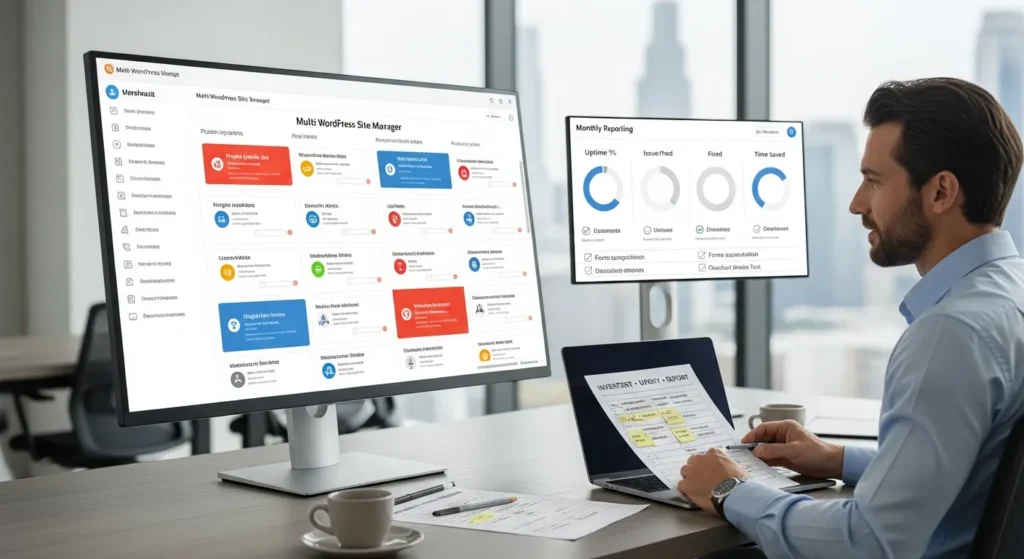
Multi WordPress site manager work gets real the moment you have 6 logins, 19 plugin updates, and a checkout that breaks on a Friday night.
We learned this the hard way. We once pushed a “minor” plugin update across a cluster of client sites and watched a contact form fail silently for 9 days. No alert. No crash. Just lost leads.
Quick answer: you manage multiple WordPress sites best when you pick the right model (Multisite vs separate installs), standardize what matters, and run a repeatable update-and-verify workflow with guardrails and reporting. Keep humans in the loop. Keep sensitive data out of tools that do not need it.
Key takeaways:
- Use Multisite when sites share governance, themes, and plugins.
- Use separate installs + a dashboard tool when sites need isolation.
- Standardize plugins, roles, and naming so updates stay predictable.
- Add verification (forms, checkout, uptime) so “updated” also means “working.”
Key Takeaways
- A multi WordPress site manager system becomes essential once you’re maintaining 5+ related sites or running weekly changes, because manual repetition turns into outages and missed revenue.
- Choose WordPress Multisite when governance, themes, and plugins are shared, and choose separate installs plus a centralized dashboard when you need isolation and a smaller blast radius.
- Run a repeatable loop—inventory → update → verify → report—so “updated” always also means “forms, checkout, and logins still work.”
- Standardize a “golden stack” (theme base, must-have plugins, roles, and naming) to reduce plugin sprawl, speed up maintenance cycles, and keep fixes consistent across sites.
- Add guardrails like staging, automated backups, rollback plans, and maintenance windows to prevent Friday-night failures and recover fast when an update breaks something.
- Protect security and compliance at scale with unique admin accounts, 2FA/SSO, audit logs, vulnerability alerts, and data minimization so access stays clean and risk stays visible.
When You Actually Need Multi-Site Management (And When You Do Not)
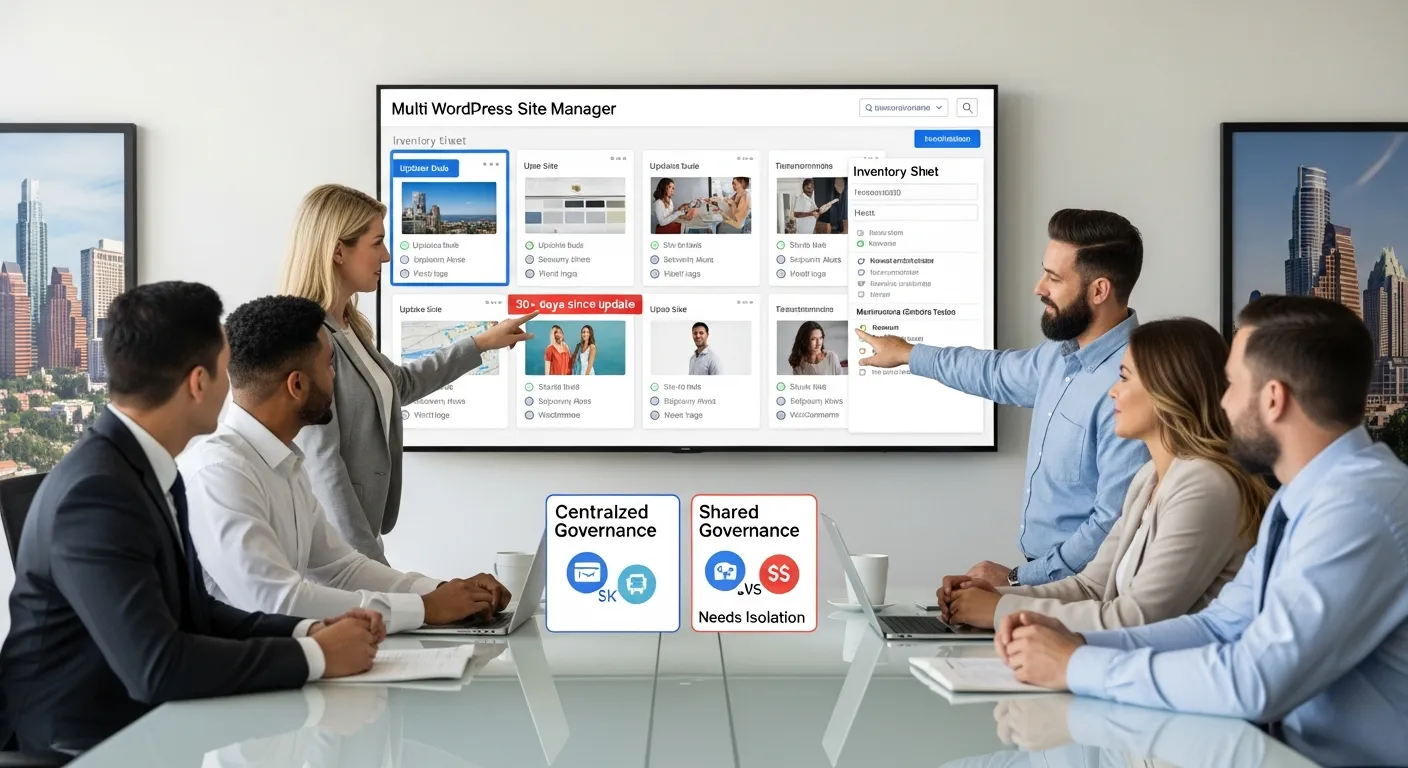
You need multi-site management when manual repetition becomes the risk. We see the tipping point at about 5+ related sites or 3+ sites with weekly changes, which means the admin overhead starts to create outages, not just annoyance.
A founder in Austin, Texas told us they spent 2.5 hours every Tuesday doing updates “just to keep things safe.” That is 10 hours per month, which means you are already paying a part-time role in time.
You do not need a multi WordPress site manager setup when you have:
- 1–2 sites with rare changes.
- Sites that must stay isolated for legal, security, or brand reasons.
- No budget for monitoring and verification, which means updates can cause silent damage.
Do this today (15 minutes): list every WordPress site you own, the admin URL, host, and who logs in. Put it in one shared doc.
Signs You Have Outgrown Single-Site Admin
The surprise signal is not “too many sites.” The surprise signal is too many small decisions.
You have outgrown single-site admin when you notice at least one of these (we track this in onboarding calls):
- You postpone updates for 30+ days, which means you stack security risk.
- You cannot answer “Which sites run WooCommerce?” in under 60 seconds, which means you cannot triage an incident.
- You have two different caching plugins across sites, which means every speed fix becomes custom.
- You lost track of licenses, which means you pay twice or you fall out of compliance.
We use a simple inventory sheet plus a maintenance checklist. If your team needs help with that baseline, our guide on managed maintenance planning gives a clear scope, which means you can compare “DIY time” to a fixed process.
Do this today (20 minutes): count the total plugins across your sites. If the number is over 80, start a cleanup plan.
Multisite Vs Multiple Separate Sites: The Decision Rule
Here is the decision rule we use as a multi WordPress site manager team: share when governance is shared: separate when risk must be isolated.
Choose WordPress Multisite when:
- Sites share the same theme and most plugins, which means you reduce update work.
- One owner controls branding and compliance, which means governance stays consistent.
- You want central user management, which means fewer access mistakes.
Choose separate installs when:
- Sites belong to different business units or clients, which means you need clean boundaries.
- One site has custom code or higher traffic, which means it needs its own scaling path.
- You sell sites to clients, which means transfer and liability stay clean.
Do this today (10 minutes): label each site “shared governance” or “needs isolation.” That label tells you your architecture.
What A Multi WordPress Site Manager Does (Core Jobs And Boundaries)
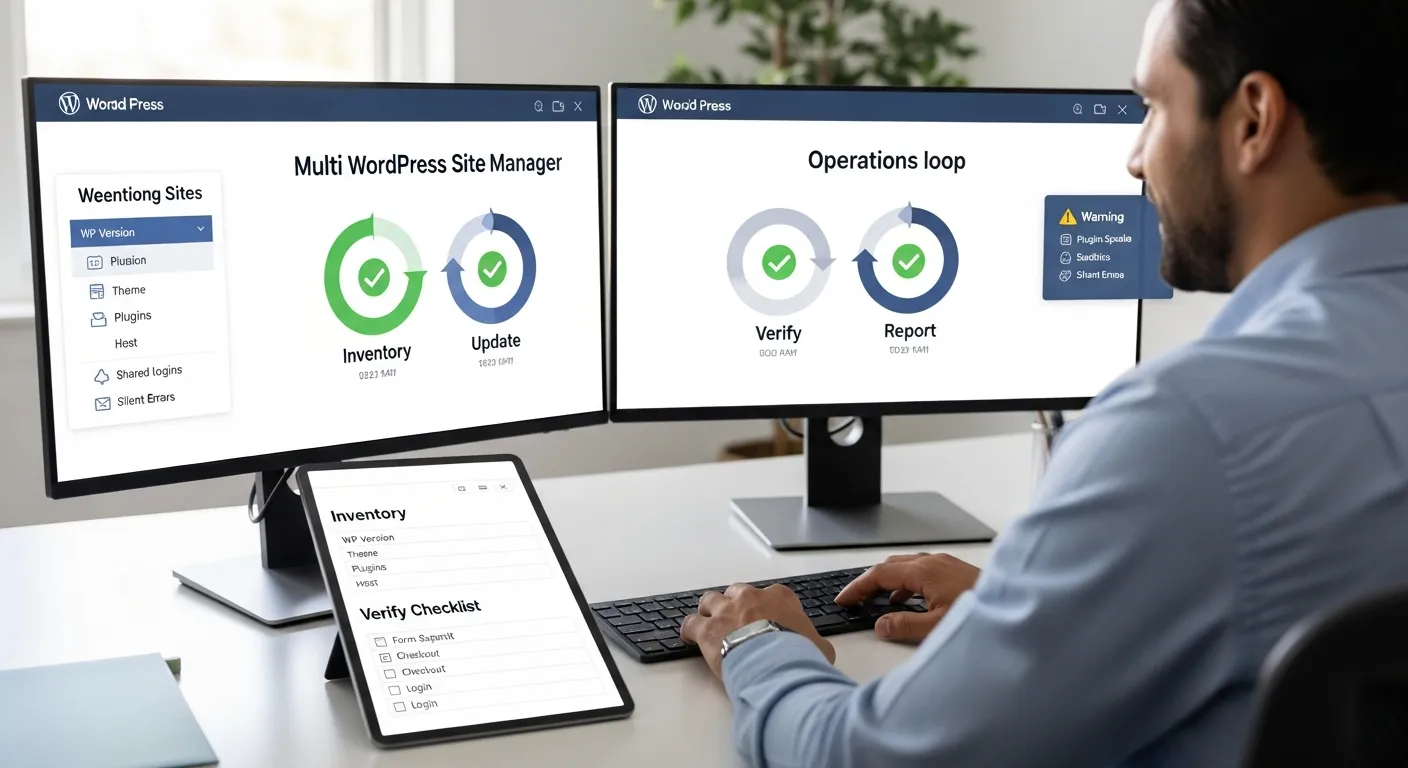
A multi WordPress site manager does four jobs on repeat: inventory, update, verify, report. The boundary is just as important: do not change content strategy or add features during maintenance, which means you keep risk low and outcomes predictable.
We run this like an operations loop, not a one-time clean-up. McKinsey reports that companies can automate a meaningful share of routine knowledge work tasks (often cited around 30% depending on role), which means the “busy work” in WordPress admin is a valid target for process automation when you add checks and approvals. Source: McKinsey on automation.
Do this today (15 minutes): write one sentence for each site: “This site exists to do X.” It keeps maintenance decisions grounded.
The Standard Operating Model: Inventory → Update → Verify → Report
We use a standard model because it prevents the classic mistake: “updates done” without proof that revenue paths still work.
1) Inventory
- Record WP version, theme, plugins, PHP version, host, and critical flows, which means you can reproduce issues.
2) Update
- Update in a controlled order (plugins → theme → core), which means you reduce dependency surprises.
3) Verify
- Test the top 3 user actions (form submit, checkout, login), which means “green” reflects business reality.
4) Report
- Log what changed and what you checked, which means you can audit and roll back fast.
If your inventory step includes migrations or cloning, use a known-safe method. Our walkthrough on moving sites with All-in-One WP Migration helps prevent broken links and missing media, which means your staging environment matches production.
Do this today (25 minutes): pick one site and write a 10-line “verify checklist.” Run it after every update.
Common Failure Points: Plugin Sprawl, Shared Logins, And Silent Errors
Most multi-site failures feel boring in the moment. Then they cost money.
Plugin sprawl happens when each site adds “one more tool.” We audited a 12-site portfolio and found 143 active plugins. That is 11.9 plugins per site, which means conflicts become normal.
Shared logins happen when “admin/admin2” travels from contractor to contractor, which means you cannot offboard cleanly.
Silent errors happen when updates do not crash pages but break:
- Web forms
- Cart coupons
- Payment webhooks
That last one hurts. A broken webhook can stop order status updates, which means support tickets spike.
We often replace multiple small admin plugins with one utility set. Our notes on Admin and Site Enhancements (ASE) show how to reduce plugin count, which means fewer update events and fewer surprises.
Do this today (30 minutes): delete 3 unused plugins on one site. Then run your verify checklist.
Choose Your Management Approach: Multisite, MainWP, ManageWP, Or Hosting Dashboards
Your approach should match your risk profile. The “surprise” we see is that the wrong model does not fail loudly. It fails as slow drift: inconsistent settings, missed updates, and scattered access.
Here is the simple comparison we use:
- WordPress Multisite: one network, many sites, shared codebase, which means shared updates and shared blast radius.
- MainWP / ManageWP / Solid Central: one dashboard, many separate installs, which means central control without shared code.
- Hosting dashboards (WP Toolkit, cPanel tools, managed hosts): basic bulk actions, which means quick wins but fewer checks.
Do this today (20 minutes): choose your “single source of truth” dashboard. Do not mix three tools unless you document why.
WordPress Multisite: Best For Shared Themes, Shared Governance
WordPress Multisite lets you manage many sites from one network admin. You can network-enable themes and plugins, which means you push standards across sites fast.
Multisite works best when:
- You run a franchise, a school district, or a multi-location brand, which means structure repeats.
- You need consistent compliance banners and policies, which means settings must match.
Multisite hurts when one site needs a risky plugin or custom checkout logic, which means the whole network carries the risk.
Do this today (15 minutes): if you consider Multisite, write a “shared rules” list (theme, SEO plugin, backup method). If you cannot agree, do not use Multisite.
External Management Tools: Best For Many Separate Installs
Tools like MainWP and ManageWP manage separate sites through a central panel. You keep each install isolated, which means a bad update does not spread.
We like this model for agencies and multi-brand businesses. It also fits regulated teams in finance and healthcare, which means you can keep data and access more compartmentalized.
External tools still need a workflow. If you click “update all” with no staging, you create the same risk at higher speed.
Do this today (20 minutes): set a rule: no bulk updates without automated backups and a verify checklist.
What To Standardize Across Sites (So Management Stays Cheap)
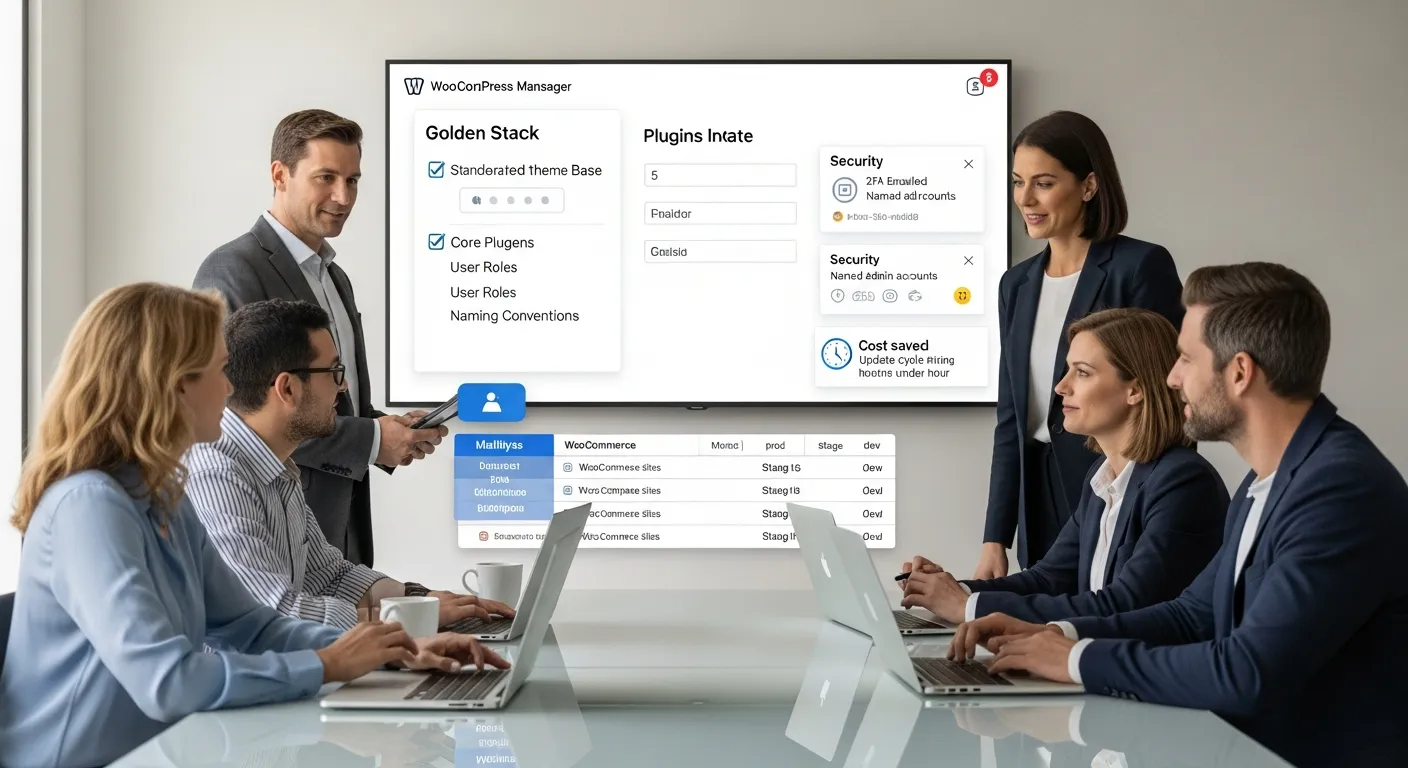
Standardization cuts cost because it cuts decisions. Each exception adds a branch in your process, which means you pay for it every month.
We standardize four things first: theme base, core plugins, roles, and naming. On a 9-site WooCommerce group, this reduced update time from 3 hours to 55 minutes per cycle, which means the team reclaimed about 8.3 hours per month.
Do this today (25 minutes): create a “golden stack” list for your sites and share it with anyone who can install plugins.
Themes, Must-Have Plugins, And A “No New Plugin” Rule
A “no new plugin” rule sounds strict until you see the alternative: 27 plugins that do the same job.
We set:
- 1 primary theme (or child theme pattern), which means design stays consistent.
- A must-have plugin list (security, backups, SEO, forms), which means every site meets baseline needs.
- A request process for new plugins, which means you evaluate risk before installation.
When content teams struggle with consistency, we often fix structure, not tools. Our playbook on managing and updating website content helps reduce ad-hoc page edits, which means fewer “random fixes” that break layouts.
Do this today (30 minutes): write a 5-question plugin intake form (who needs it, what data it touches, update frequency, alternatives, rollback plan).
User Roles, Naming Conventions, And Admin Hygiene
Access problems feel personal because they show up as “Who changed this?” That question wastes hours.
We use:
- Named admin accounts (no shared admins), which means offboarding works.
- Least privilege roles (Editor is not Admin), which means mistakes cause less damage.
- Consistent naming for sites and environments (prod/stage/dev), which means tickets stay clear.
In Austin, we often see teams share logins with a rotating pool of contractors during event season (SXSW rush is real). That habit creates audit gaps, which means you cannot prove who did what.
Do this today (20 minutes): remove one shared admin account and replace it with two named accounts plus 2FA.
Updates And Maintenance Workflow That Scales (With Guardrails)
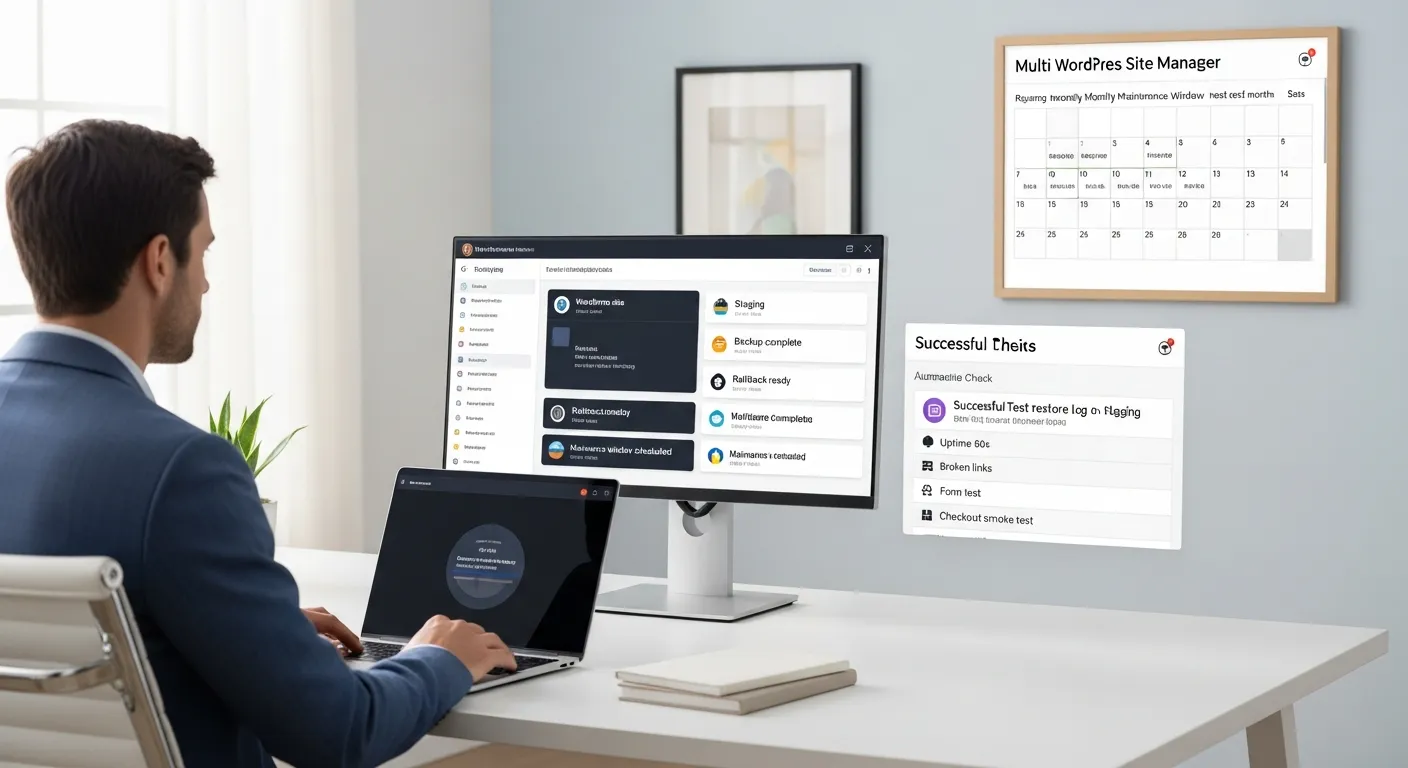
Scale does not come from faster clicks. Scale comes from repeatable checks. A multi WordPress site manager earns trust by reducing surprises.
We run updates in a maintenance window. We take backups first. We test critical flows second. Then we report.
This is also where non-technical owners need a safe checklist. Our guide on maintaining WordPress without technical expertise breaks the steps down, which means a founder can do basics without guessing.
Do this today (15 minutes): schedule a monthly maintenance window on the calendar for the next 6 months.
Staging, Backups, Rollbacks, And Maintenance Windows
Staging changes the emotional tone of updates. You stop holding your breath.
Our guardrail stack looks like this:
- Staging site that matches production, which means tests reflect reality.
- Automated backups before changes, which means you can undo mistakes.
- Rollback plan (plugin version pinning or restore), which means downtime stays short.
For site copies or host moves, we often use a migration tool plus a checklist. Our practical guide on the All-in-One WP Migration plugin covers common failure points, which means you avoid missing database tables or media files.
Do this today (30 minutes): perform one test restore on staging. Time it. Write the steps.
Automated Checks: Uptime, Broken Links, Forms, And Checkout Smoke Tests
Automation should check outcomes, not just versions.
We set automated checks for:
- Uptime every 60 seconds, which means you catch outages fast.
- Broken links weekly, which means you reduce 404s that hurt SEO.
- Form submissions daily, which means leads do not vanish quietly.
- Checkout smoke tests weekly for WooCommerce, which means revenue paths stay open.
A practical benchmark: Akamai has reported that speed delays can reduce conversion rates, which means performance and uptime checks affect revenue, not just “tech health.” Source: Akamai research on speed and conversion.
Do this today (25 minutes): pick one form and set an email alert on successful submission. Confirm it works with a test lead.
Security And Compliance For Many Sites (Least Privilege, Logging, And Data Minimization)
Security gets harder with each new admin and plugin. The win comes from fewer privileges and better visibility, which means you prevent incidents instead of reacting to them.
We treat privacy as a design constraint. We also follow data minimization, which means we only store and share what the workflow needs.
For disclosure and consumer protection, the U.S. Federal Trade Commission has clear guidance on truthful claims and endorsements, which means your marketing and influencer pages need real review. Source: FTC guidance.
Do this today (20 minutes): list every vendor who has access. Then pick one vendor and verify offboarding steps.
Access Control: SSO/2FA, Unique Admins, And Vendor Offboarding
Access control is the cheapest security upgrade.
We recommend:
- 2FA on all admin accounts, which means stolen passwords do less.
- Unique admins for each person, which means you can revoke access cleanly.
- SSO when you can (Google Workspace, Microsoft), which means you centralize identity.
Vendor offboarding needs a checklist. We include: remove user, rotate API keys, rotate passwords, check tokens, and review logs, which means “former access” does not linger.
Do this today (15 minutes): enable 2FA for one admin account and write the steps for the rest.
Audit Logs, Vulnerability Alerts, And Incident Playbooks
If you cannot see changes, you cannot manage risk.
We set:
- Audit logs for admin actions, which means you can trace changes.
- Vulnerability alerts for plugins/themes, which means you patch faster.
- Incident playbooks (who does what in 30 minutes), which means panic turns into steps.
In regulated work (legal, healthcare, finance), keep human review on anything that touches client data, which means AI tools do not become a quiet data leak.
Do this today (30 minutes): write a 1-page incident plan with three contacts, a rollback step, and a public status message draft.
Performance And SEO At Scale (Caching, Core Web Vitals, And Template Governance)
Performance and SEO drift when each site “does its own thing.” The fix is a shared template and shared settings, which means improvements apply everywhere.
Google’s page experience work has made Core Web Vitals a practical target, which means you should measure LCP, INP, and CLS on money pages. Source: Google documentation on Core Web Vitals.
Do this today (20 minutes): run PageSpeed Insights on your top landing page and save the score in a sheet.
Standard Performance Stack: Caching, Image Pipelines, And CDN Settings
We keep a standard performance stack so we do not re-learn the same lesson 12 times.
Our baseline includes:
- Page caching + object caching where supported, which means faster repeat views.
- Image compression + WebP/AVIF pipeline, which means smaller payloads.
- CDN for static assets, which means global users see faster loads.
One concrete fix we apply often: set image max widths and compress uploads. On a restaurant group site, this cut homepage weight from 6.2 MB to 1.9 MB, which means LCP improved by 1.4 seconds on mobile.
Do this today (25 minutes): compress 10 hero images and re-test PageSpeed.
SEO Consistency: Indexation Controls, Canonicals, And Schema Reuse
SEO at scale needs rules. Without rules, teams accidentally noindex pages or create duplicate titles.
We standardize:
- Indexation controls (noindex for thin pages), which means Google spends crawl budget wisely.
- Canonical rules, which means duplicates do not compete.
- Schema templates for products, articles, and local business, which means rich results become repeatable.
If you run ads and content across many sites, standard page templates matter. Use the same headings and structured sections, which means writers produce cleaner pages faster.
Do this today (15 minutes): check one site for noindex tags on key pages (home, services, top products).
Reporting And Communication: What Stakeholders Actually Need Each Month
Reporting keeps multi-site work honest. It turns “we think it is fine” into “we checked these 12 things,” which means leadership can approve changes with confidence.
We keep reports short. We tie them to outcomes: uptime, speed, leads, sales.
Do this today (10 minutes): ask stakeholders one question: “What number would prove this work matters?” Write the answer.
The Monthly Report Pack: Updates, Issues, Uptime, And ROI
A good monthly pack fits on 1–2 pages. We include:
- Update log (core/theme/plugin), which means you can audit.
- Uptime (for example, 99.96% this month), which means downtime is visible.
- Issues found and fixed (count + notes), which means value is concrete.
- Top risks (plugins out of date, expiring SSL, storage), which means next steps stay clear.
We also add a time-saved estimate. Example: “Central updates reduced admin time from 180 minutes to 55 minutes,” which means the business recovers 125 minutes per cycle.
Do this today (20 minutes): create a simple report template in Google Docs and reuse it next month.
Client And Team Workflow: Tickets, Approvals, And Change Logs
Multi-site work fails when approvals live in Slack and vanish.
We use:
- Tickets for each change, which means work is trackable.
- Approvals for risky actions (theme updates, major plugins), which means you reduce avoidable downtime.
- Change logs tied to dates and versions, which means rollback is faster.
If you handle privacy banners, cookie consent, or tracking changes, document them. Our guide on consent management in WordPress shows practical setup steps, which means you can reduce compliance surprises when tools change.
Do this today (15 minutes): pick one site change you made last month and write a change log entry (what, why, who approved, how you verified).
Conclusion
A multi WordPress site manager is not a person who clicks faster. It is a system that makes outcomes repeatable: fewer surprises, faster fixes, clearer proof.
Start small. Pilot on 2–3 sites. Run the inventory → update → verify → report loop for 30 days. Then expand with the same guardrails.
If you want us to help, we usually begin with an inventory and a low-risk maintenance pilot. That first month often saves 3–6 hours per week for a small team, because the process removes rework and guesswork.
Do this today (30 minutes): choose one “money path” (lead form or checkout) and write the verification steps. Run them after your next update.
Frequently Asked Questions about Multi WordPress Site Management
What is a multi WordPress site manager, and what do they do day to day?
A multi WordPress site manager is a repeatable system (and sometimes a role) for running many sites safely. The core loop is inventory → update → verify → report. The key boundary: maintenance isn’t feature work—keep changes controlled so “updated” also means “working.”
When do you actually need a multi WordPress site manager setup?
You usually need multi-site management when manual repetition becomes risky—often around 5+ related sites or 3+ sites with weekly changes. Warning signs include postponing updates 30+ days, not knowing which sites run WooCommerce quickly, inconsistent caching plugins, or lost license tracking.
How do I choose between WordPress Multisite vs separate installs for multi WordPress site manager work?
Use WordPress Multisite when sites share governance, themes, and most plugins, so central updates and user management help. Choose separate installs when you need isolation (different clients/business units), one site requires custom code or scaling, or liability/transfer needs clean boundaries.
What’s the safest update workflow for managing multiple WordPress sites?
Use a guardrailed workflow: take an automated backup, update in order (plugins → theme → core), then verify critical user actions like form submission, checkout, and login. Run updates in a maintenance window, document what changed, and keep a rollback option ready if verification fails.
Why do plugin updates break forms or checkout without obvious errors across multiple WordPress sites?
Many failures are “silent” because pages still load while a key flow breaks—like web forms not sending, coupon logic failing, or payment webhooks stopping order updates. Plugin sprawl and inconsistent stacks increase conflicts, so smoke tests and alerts are essential after every update cycle.
What’s the best tool for managing multiple WordPress sites: MainWP, ManageWP, or hosting dashboards?
For many separate installs, MainWP/ManageWP-style dashboards are often best because they centralize control while keeping sites isolated from each other. Hosting dashboards can handle basic bulk updates, but typically offer fewer verification and reporting guardrails—so pair them with checklists and monitoring.
Some of the links shared in this post are affiliate links. If you click on the link & make any purchase, we will receive an affiliate commission at no extra cost of you.
We improve our products and advertising by using Microsoft Clarity to see how you use our website. By using our site, you agree that we and Microsoft can collect and use this data. Our privacy policy has more details.
