
The first time we used the All In One WordPress Migration plugin, we watched an entire site jump from a slow shared host to a fresh server in less time than it took to finish a coffee. No tangled SQL exports, no mysterious white screen, no panicked emails to hosting support. If you have ever stared at a cPanel window wondering which button might blow up your site, this guide is for you. We will walk through how this plugin works, where it shines, where it falls short, and how to use it safely for real-world moves.
Key Takeaways
- The All In One WordPress Migration plugin bundles your full WordPress site into a single .wpress file, making migrations between hosts, domains, or environments fast and low-stress.
- For small to mid-size sites, the free All In One WordPress Migration plugin works well, but larger or media-heavy or WooCommerce sites often require the paid Unlimited extension to bypass the 512 MB limit.
- Thorough prep—fresh backups, checking PHP limits, disabling caching/security plugins, and updating WordPress and themes—prevents most migration issues before they happen.
- A safe migration workflow includes exporting the .wpress file, importing it on a clean WordPress install, then re-saving permalinks and methodically testing pages, forms, logins, and checkout flows.
- Agencies and power users benefit from pairing the plugin with cloud storage extensions and a documented migration checklist, while small businesses can rely on simple manual exports before major changes.
What All In One WP Migration Does And When You Need It
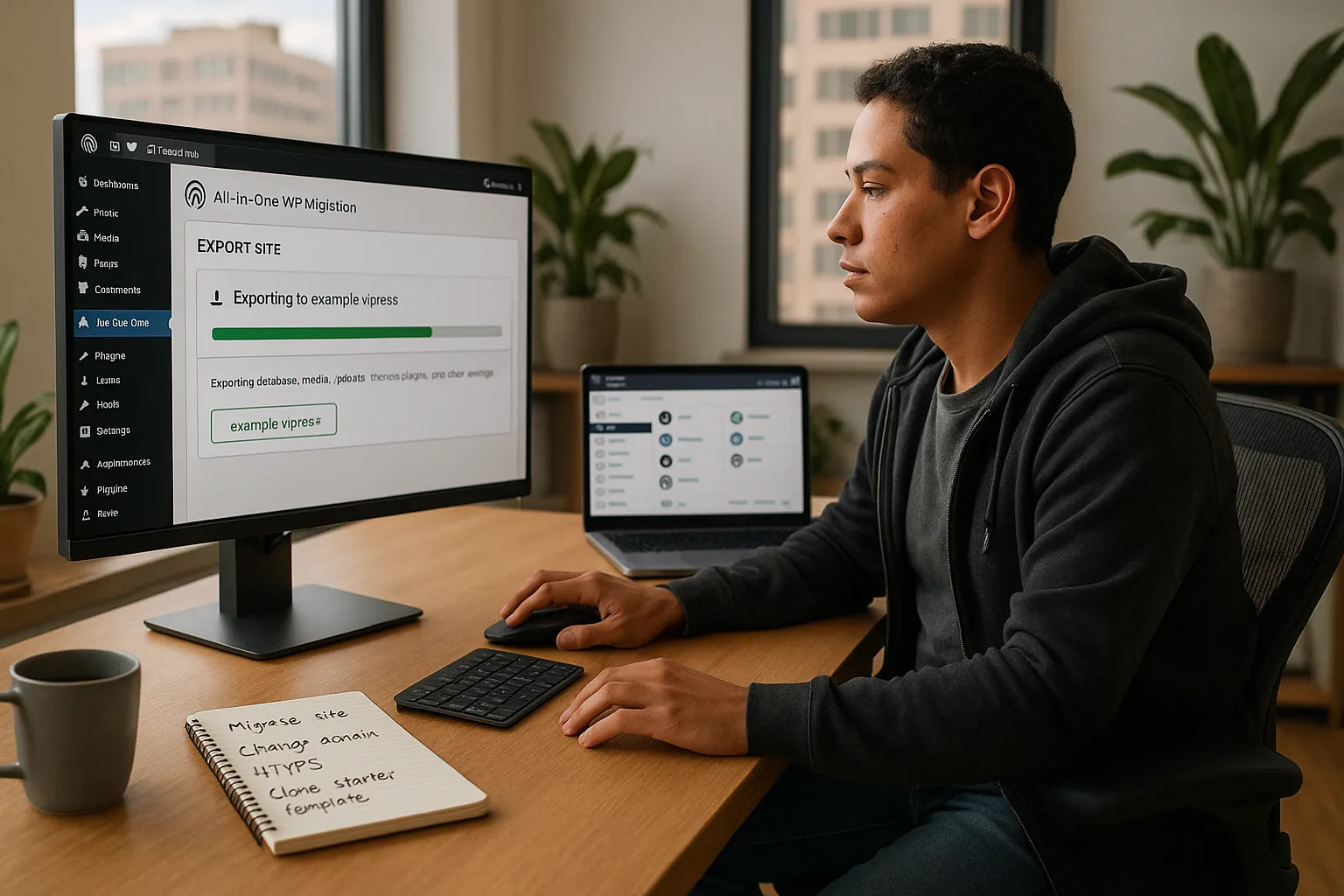
All In One WordPress Migration plugin by ServMask packages your entire WordPress site into one file with a .wpress extension. That file contains your database, uploads, themes, plugins, and settings in one bundle, ready to import on another WordPress install.
We reach for the All In One WordPress Migration plugin when:
- We move a site from local development to a live server.
- We switch hosting providers.
- We change domains or move from
httptohttps. - We clone a site as a starter template for new projects.
The free version works best for small to mid-size sites, usually under 512 MB. ServMask notes that the plugin supports MySQL, MariaDB, and SQLite databases and that more than 60 million sites have used it since 2013.
If you want to avoid manual database exports, manual URL search and replace, and fiddling with wp-config.php, this plugin sits in a sweet spot between simple backups and full-blown server tooling.
Key Features That Simplify WordPress Migration
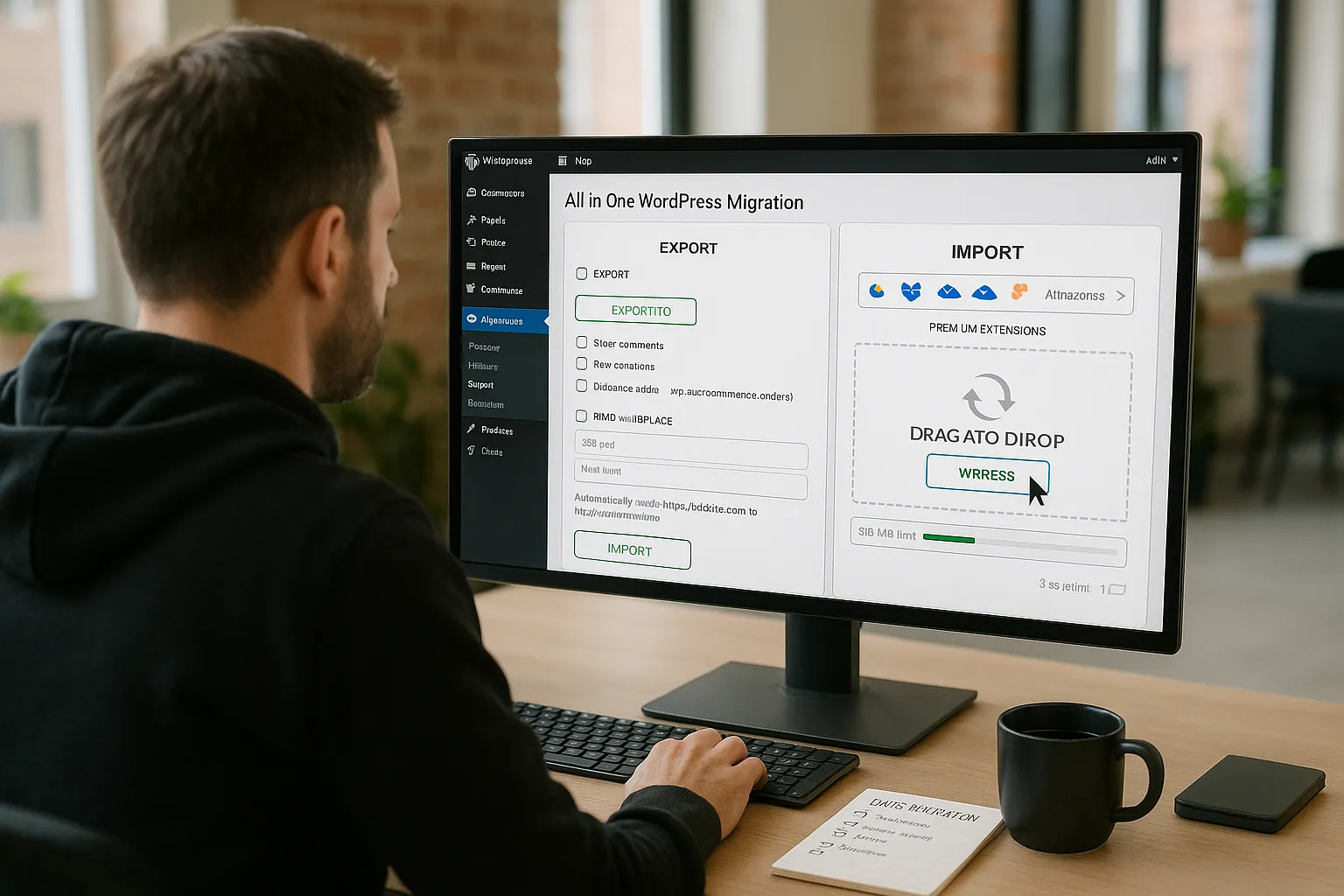
The All In One WordPress Migration plugin focuses on a few simple actions that matter most during a move.
Core Capabilities Of All In One WP Migration
- One click export and import. You choose where to export, the plugin builds the
.wpressarchive, and later you drag and drop that file into the new site. - Automatic URL replacement. The plugin scans your database and rewrites old URLs to the new domain so you do not manually edit SQL.
- Unlimited find and replace. You can adjust text in the database during export, such as changing branded terms or email addresses.
- Selective export filters. You can exclude spam comments, post revisions, or specific database tables.
- Multisite support and cloud storage with paid extensions, including Google Drive, Dropbox, OneDrive, Amazon S3, and others.
Limitations To Be Aware Of
We need to be honest about the edges.
- The free edition caps exports and imports at 512 MB, which many media-heavy sites exceed.
- Large archives on cheap hosting can hit PHP timeouts.
- Free backups are manual, with no schedules.
- The plugin does not do incremental backups, so every export is full size.
If your site is heavy on media or WooCommerce order data, the premium Unlimited extension often becomes necessary.
Preparing Your Site For Migration
We see most migration problems come from weak preparation, not from the All In One WordPress Migration plugin itself.
Backup And Security Essentials Before Moving
Before touching anything, we always:
- Run a fresh backup with the plugin on the source site and store the
.wpressfile in at least two places. - Check server limits. In
php.inior host settings, confirmupload_max_filesize,post_max_size, andmax_execution_timeare high enough for your archive. - Temporarily disable caching and security plugins. This avoids aggressive firewalls or cache layers blocking the import.
- Update WordPress, themes, and plugins, then note current versions so we can match them on the destination.
If you already use a backup tool, you can also keep a standard archive as a safety net. A short prep checklist prevents surprises when you hit import on the new site. If you want a broader safety plan, pairing this tool with a dedicated WordPress backup guide helps a lot.
How To Migrate A WordPress Site Step By Step
Here is the basic move using the All In One WordPress Migration plugin.
- Install on the source site. In the WordPress dashboard, go to Plugins → Add New, search for “All-in-One WP Migration,” install, and activate.
- Export the site. Go to All-in-One WP Migration → Export. Choose “File,“ set any find and replace rules, choose filters if needed, and start export. When it finishes, download the
.wpressfile. - Set up the destination site. Install a clean WordPress copy with the same major version if possible.
- Install the plugin on the destination. Repeat the plugin install on the new site.
- Import the archive. Go to All-in-One WP Migration → Import, drag the
.wpressfile into the window, wait for the upload, then confirm when the plugin says it will overwrite the database and files. - Re-save permalinks. After logging in again, visit Settings → Permalinks and click Save without changing anything.
That is the core workflow. From there, you start testing. We like to keep the old site live on a temporary URL until we finish a full check.
Common Migration Issues And How To Fix Them
Even with the All In One WordPress Migration plugin, a few hiccups show up often.
- Import size limit hit at 512 MB
The free plugin caps imports at 512 MB. If your export is bigger, you have a few options.
- Buy the Unlimited extension from ServMask which raises the limit up to 200 GB.
- Clean up media and delete old backups stored inside
wp-content/uploadsbefore exporting. - Ask your host if they already include a licensed version of the plugin.
- Upload timeouts on cheap hosting
Slow servers can drop large uploads.
- Increase
max_execution_timeandmemory_limitin PHP settings. - Use the All In One WordPress Migration plugin with a cloud storage extension so the server pulls the file from cloud instead of your browser.
- Import from SSH or SFTP using the file import extension if you own it.
- Strange URLs or broken images after migration
If you see mixed content or old links:
- Run a new export and double check the URL fields in the plugin.
- Use a separate search and replace plugin focused on URLs.
- Clear all caches, including any server cache, CDN, or plugin cache.
- Login issues
If you cannot log in after the move, WordPress might still point to the old URL. Try the /wp-login.php path directly and reset the password. We also confirm that the siteurl and home values in wp_options match the new domain.
Best Practices For Different Types Of Professionals
Different roles use the All In One WordPress Migration plugin in different ways. We adjust our approach based on who owns the site day to day.
For Agencies, Freelancers, And Developers
We rely on this plugin to clone starter themes, move staging builds, and archive client work.
- Use the premium Unlimited extension for large or WooCommerce sites.
- Add a cloud storage extension so all client archives save to a central bucket.
- Keep a standard WordPress staging setup so every big change happens on a cloned site first.
- Document a standard migration checklist for your team so no one forgets permalinks, SSL checks, or DNS.
For Content Creators, Marketers, And Small Businesses
If you run a blog, portfolio, or small business site, the free All In One WordPress Migration plugin usually covers your needs.
- Export a
.wpressbackup before any major plugin or theme change. - Download and store backups in cloud storage that you own.
- Run a migration on a weekend or low-traffic period so you can test without pressure.
This approach fits teachers, solo marketers, lawyers, doctors, small eCommerce shops, and creative studios who want control without living in cPanel menus.
Conclusion
The All In One WordPress Migration plugin gives us a straightforward way to move WordPress sites without wrestling with database tools or file managers. When we respect its limits and prepare correctly, it turns a risky process into a repeatable routine.
Verifying Your Site After The Move
After every migration, we run the same checks.
- Load the home page and a few inner pages in an incognito window.
- Test menus, forms, search, login, and any checkout or booking flows.
- Inspect images and download links.
- Check the site on mobile and desktop.
- Verify that SEO plugins, XML sitemaps, and analytics tracking still work.
If something feels off, we do not panic. We compare the migrated site with the original, fix the gap, and run a fresh backup.
Handled with care, the All In One WordPress Migration plugin becomes part of a bigger habit. We plan, backup, migrate, verify, and only then point DNS. That calm, methodical approach is what keeps our sites earning, teaching, and creating while the underlying servers change.
Sources
- “All-in-One WP Migration,” WordPress.org Plugin Directory, last updated December 2024, https://wordpress.org/plugins/all-in-one-wp-migration/
- “All-in-One WP Migration User Guide,” ServMask Documentation, 2024, https://help.servmask.com/
- Tom Zsomborgi, “How To Migrate A WordPress Site With All-in-One WP Migration,” Kinsta Blog, March 15, 2023, https://kinsta.com/blog/all-in-one-wp-migration/
- Editorial Team, “How to Properly Move WordPress to a New Domain Without Losing SEO,” WPBeginner, July 10, 2023, https://www.wpbeginner.com/wp-tutorials/how-to-properly-move-wordpress-to-a-new-domain/
Frequently Asked Questions
What is the All In One WordPress Migration plugin and how does it work?
The All In One WordPress Migration plugin bundles your entire WordPress site—database, media uploads, themes, plugins, and settings—into a single .wpress file. You export this file from the old site and import it into a fresh WordPress install, where the plugin recreates the site and updates URLs automatically.
How do I migrate a WordPress site using All In One WP Migration step by step?
Install the plugin on your source site, then go to All-in-One WP Migration → Export and choose “File.” Download the .wpress archive. On the destination site, install WordPress and the plugin, go to Import, drag in the .wpress file, confirm overwrite, then re-save permalinks under Settings → Permalinks.
How can I fix the 512 MB upload limit in the free All In One WordPress Migration plugin?
The free version caps imports at 512 MB. To handle larger sites, you can buy the Unlimited extension, remove unused media and old backups before exporting, or ask your host if they provide a licensed version. Also ensure PHP limits like upload_max_filesize and max_execution_time are set high enough.
Is using the All In One WordPress Migration plugin safe for my site?
Yes, it’s safe when used with good preparation. Always create and store at least one .wpress backup in two locations, temporarily disable caching and security plugins, and match WordPress and plugin versions between source and destination. After migration, thoroughly test pages, forms, logins, and key transactions before updating DNS.
Will migrating with All In One WP Migration affect my SEO or cause downtime?
If handled properly, SEO impact and downtime should be minimal. Keep the old site live on a temporary or staging URL until you verify the new site. Ensure URLs, redirects, XML sitemaps, and analytics work, and avoid changing permalink structure. Plan the final DNS switch during low-traffic hours to reduce disruption.
