
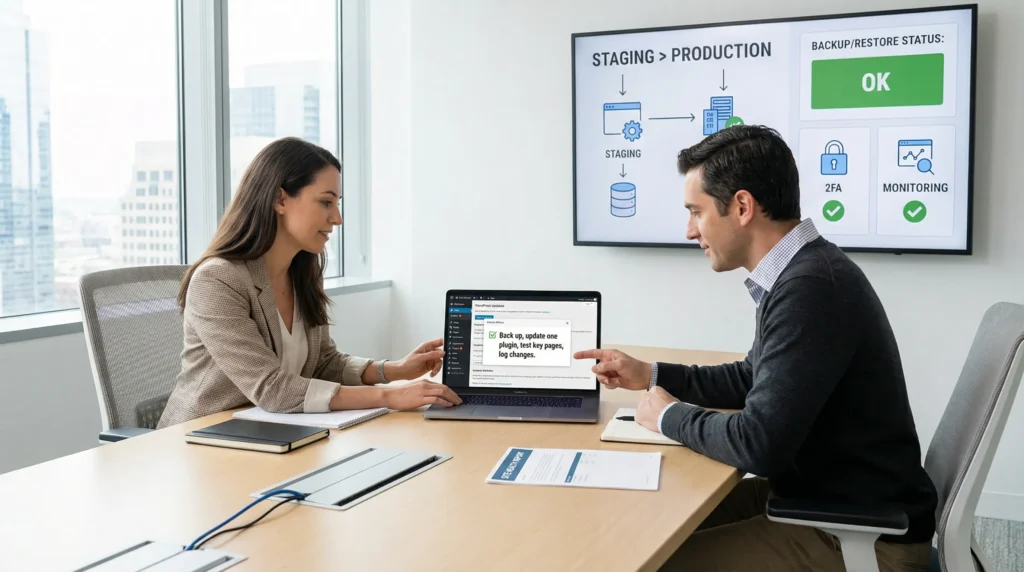
We hear “lack of technical expertise” most often right after a WordPress site scare: the checkout breaks, the homepage turns white, or Google suddenly slows your traffic. Quick answer: you do not need to become a developer to keep a business WordPress site stable, but you do need a simple routine, safe testing, and a short tool stack that you can actually control. Let’s make maintenance feel like a checklist you run, not a mystery you fear.
Key Takeaways
- Lack of technical expertise doesn’t mean you can’t maintain WordPress sites—use a short, written checklist and run it on a schedule so maintenance becomes routine, not reactive.
- Update WordPress core, themes, and plugins one at a time (never “update all”), and test key revenue pages like home, contact, cart, and checkout after each change.
- Treat backups as incomplete until you prove restores work by running a restore test to staging at least quarterly (monthly for stores).
- Reduce security risk with simple habits—enable 2FA, remove unused admins, limit roles, use strong passwords, and monitor logins and file changes.
- Keep performance steady by controlling plugin sprawl and practicing speed basics like caching, image compression, database cleanup, and regular mobile checks.
- Assign clear ownership for updates, backups, and user access, and hand off to an expert fast for white screens, malware, checkout failures, custom code, or server/PHP errors.
What “Maintenance” Actually Means For A Business WordPress Site
Maintenance sounds like “tech stuff,” but it really means one thing: you reduce risk while keeping your site fast and functional.
WordPress -> powers -> your marketing, sales, and support pages. Updates -> change -> code. Code changes -> create -> either stability or surprises. Your job is to control the surprises.
Core Updates: WordPress, Themes, And Plugins
Core updates, theme updates, and plugin updates keep your site compatible and patched. They also cause most accidental breakages.
Here is the safe pattern we use:
- You read the changelog for the plugin or theme.
- You back up the site before you touch anything.
- You update one item at a time.
- You test the money pages (home, contact, cart, checkout, top landing page).
If you want a repeatable routine, keep a short, written list and run it the same way each time. Our weekly and monthly maintenance checklist shows what to check and when, so you do not rely on memory.
Also, keep your server current. New WordPress versions -> expect -> modern PHP. If your host pins you to old PHP, updates -> fail -> more often.
Security Hygiene: Logins, Permissions, And Monitoring
Security maintenance is not “install a plugin and pray.” Security is basic habits, plus monitoring.
Start here:
- You turn on 2FA for admin users.
- You remove unused admin accounts.
- You use strong passwords and a password manager.
- You limit user roles, so editors do not get admin power.
- You monitor logins and file changes.
A security plugin helps with scanning and alerts, but your real win comes from fewer doors and better locks. If you want a tight 30-minute routine, use our WordPress security baseline checklist and run it on a schedule.
One caution we repeat to regulated teams: you should not paste client medical, legal, or financial data into random tools “just to test.” Data handling rules -> protect -> people, and you want that protection to stay boring.
Backups And Recovery: The Difference Between Backup And Restore
A backup is a copy. A restore is proof.
That sentence saves businesses.
A host or plugin can create backups every day, but if nobody tests a restore, you do not know if the backup works. Backups -> reduce -> downtime only when restores succeed.
What we recommend for non-technical owners:
- Daily automated backups for databases and files.
- A manual backup right before major updates.
- A restore test at least quarterly (or monthly for stores).
If your site sells products, you should treat restore testing like you treat payment testing. Your checkout -> funds -> payroll. Your backup -> protects -> checkout.
Performance: Speed, Caching, And Image Discipline
Speed maintenance is not a one-time project. Content teams upload new images, plugins add scripts, and databases collect junk.
Here is what usually moves the needle:
- Caching reduces server work per page load.
- Image compression reduces page weight.
- Database cleanup reduces query bloat.
- Plugin pruning reduces scripts and conflicts.
If you want a simple path, start with the 80/20 steps in our non-technical WordPress speed guide. Speed -> affects -> conversion. Slow mobile pages -> increase -> abandoned carts.
Sources: WordPress explains core updates and site health in the WordPress documentation. Google explains speed and user experience signals in Core Web Vitals guidance.
Why Non-Technical Teams Get Stuck (And Where Things Usually Break)
Most teams do not fail because they are “bad at tech.” Teams fail because WordPress maintenance lacks ownership, staging, and a rollback plan.
Your business -> assigns -> marketing to publish pages. Your business often assigns -> nobody -> to keep plugins, backups, and security under control. That gap -> creates -> stress.
Updates That Clash And White-Screen Failures
The classic story goes like this: you click “Update all,” the screen reloads, and the site goes blank.
A plugin update -> conflicts -> with a theme or another plugin. A PHP version mismatch -> breaks -> a function call. Your site -> returns -> a fatal error.
Non-technical teams get stuck because:
- They do not know which update caused the issue.
- They updated everything at once.
- They do not have a staging site.
- They do not know how to restore.
You can avoid most of this with two habits: update one item at a time and test key pages after each update.
Plugin Sprawl And Unclear Ownership
Plugins feel like quick wins. Need a popup? Add a plugin. Need a slider? Add a plugin. Need “SEO magic”? Add a plugin.
Each plugin -> adds -> code, database tables, and admin settings. More plugins -> increase -> attack surface and performance drag.
Ownership fixes plugin sprawl fast:
- One person “owns” plugin decisions.
- Every plugin has a reason and a review date.
- You remove plugins you do not use.
If you want a broader view of what a good maintenance program includes, our practical maintenance guide for busy owners breaks it into a routine you can delegate without losing control.
Security Blind Spots And Data Handling Risks
Security breaks when nobody watches the basics.
Old plugins -> invite -> known exploits. Weak passwords -> invite -> credential stuffing. Admin accounts -> invite -> privilege abuse.
And for stores and client-service sites, there is another layer: customer data. Forms -> collect -> names, emails, and sometimes sensitive details. Your site -> becomes -> a data system, even if you did not mean it.
The FTC has warned businesses to keep reasonable security and avoid misleading claims about privacy and security practices. See FTC business guidance on safeguarding data for a plain-English starting point.
Next steps: pick one owner for updates, one owner for backups, and one owner for user access. Same person can hold all three hats in a small business. The point is clarity.
A Low-Risk Maintenance Workflow You Can Run Without Being A Developer
We like to treat WordPress maintenance like a workflow, not a hero mission.
Workflow design -> reduces -> panic. Checklists -> reduce -> missed steps. Logging -> reduces -> “what changed?” arguments.
Map The Workflow: Trigger, Inputs, Job, Outputs, Guardrails
Before you touch any tools, map four boxes:
- Trigger: What starts the work? (Example: first Monday of the month.)
- Inputs: What you need before you begin. (Logins, checklist, backup access.)
- Job: The steps you perform. (Backup, update one plugin, test, repeat.)
- Outputs: What “done” looks like. (A short log, screenshots, notes.)
- Guardrails: Rules that stop damage. (Use staging, no bulk updates, no skipping backups.)
This keeps maintenance boring, which is the goal.
Use Staging And Rollback So Production Is Not Your Test Environment
A staging site is a copy of your site where you can test updates.
Staging -> catches -> conflicts before customers see them. Rollback -> restores -> stability when you hit a bad update.
If your host provides one-click staging, use it. If they do not, you can still create a staging environment, but you may want help the first time.
Rule we repeat: production is for selling and publishing, not experimenting.
Run A Monthly Checklist With Logging And Screenshots
A monthly run should take 30 to 60 minutes for many small sites.
Do this each month:
- Confirm backups ran.
- Apply updates one at a time.
- Run a security scan.
- Test forms and checkout.
- Check key pages on mobile.
- Record what you changed.
If you want a tight routine, we use a baseline that fits into a short window. You can borrow it from our 30-minute technical baseline process.
Logging matters more than people think. Logs -> explain -> sudden bugs. Logs -> shorten -> support calls. Even a simple Google Doc works.
Sources: NIST explains core security hygiene concepts in the NIST Cybersecurity Framework.
The Minimum Tool Stack That Keeps Things Simple
Tool overload creates the same problem as plugin overload. We prefer a small stack you can explain to a teammate in five minutes.
Hosting And Backups You Can Trust (And How To Verify)
Good hosting reduces maintenance burden because the host handles server updates, backups, and monitoring.
Here is how you verify backups without getting fancy:
- You locate the latest backup in your host panel.
- You confirm the timestamp matches your schedule.
- You run one restore test to a staging copy.
- You document the steps so someone else can repeat them.
Backups -> protect -> revenue only when restores work. That is the whole test.
A Security Plugin, A Performance Plugin, And A Form/Email Deliverability Plan
Keep it simple:
- One security plugin with alerts and scanning.
- One caching or performance plugin that you actually configure.
- A plan for form delivery.
Forms -> drive -> leads. Bad email delivery -> loses -> leads. So test your contact form monthly. If you send order emails, test those too.
If you need help deciding what “enough” looks like for maintenance coverage, our roundup of maintenance service options for small businesses can help you compare approaches without drowning in jargon.
When Light Dev Helps: Small Fixes Via WordPress Hooks Or A Tiny Utility Plugin
Some fixes land in the “small code, big relief” category.
A WordPress hook like save_post -> triggers -> a cleanup task. A tiny utility plugin -> stores -> safe snippets so you do not paste code into random theme files.
You do not need this for day-one maintenance. You may want it when:
- You repeat the same manual cleanup every month.
- A plugin cannot do one small thing you need.
- Your theme update overwrites custom changes.
Our rule: light dev work should reduce future work. If code adds ongoing risk, skip it.
Sources: WordPress documents hooks in the Plugin API overview.
When To DIY Vs When To Hand Off (And What To Ask A Provider)
DIY maintenance works when the risk stays low and the steps stay repeatable. Hand-off makes sense when the work touches revenue, security, or custom code.
Your time -> limits -> what you can own. A good provider -> reduces -> risk and mental load.
Green-Light Tasks You Can Own Safely
These tasks fit most non-technical teams:
- Run your checklist on a schedule.
- Update a single low-risk plugin after a backup.
- Test key pages and forms.
- Remove unused users.
- Review new admin accounts each month.
If you can follow a recipe, you can do these.
Red-Flag Tasks That Need An Expert
Bring in help when you see any of these:
- White screen or critical errors after updates.
- Malware warnings, strange admin users, or unknown redirects.
- WooCommerce checkout errors or payment failures.
- Custom theme or custom plugin changes.
- Server issues, PHP errors, or database repair needs.
Security incidents -> demand -> speed and correctness. Guessing wastes both.
Vendor Questions That Reveal Real Competence
When you talk to a provider, ask questions that force real details:
- “Do you use staging for updates, or do you update production?”
- “How do you handle rollback if an update breaks checkout?”
- “How often do you test restores, and can you show a log?”
- “What is your response time if the site goes down?”
- “How do you handle access for our team and contractors?”
A serious provider will answer in steps, not slogans.
If you need a partner, our team at Zuleika LLC supports business owners with WordPress builds, maintenance, security, and SEO. We focus on simple workflows and clear ownership, so your site stays boring in the best way.
Sources: Google covers safe account access and 2-Step Verification in Google Account Security.
Conclusion
Lack of technical expertise does not need to block you from running a stable WordPress site. You need a short checklist, staging, backups you can restore, and clear ownership. If you start small and keep humans in the loop for risky changes, WordPress maintenance turns into routine operations work, not late-night panic.
Frequently Asked Questions (WordPress Maintenance for Non-Technical Teams)
How can I maintain a WordPress site if I lack technical expertise?
You don’t need to become a developer to maintain a business WordPress site. Use a simple routine: read changelogs, back up first, update one plugin/theme at a time, and test key “money pages” (home, contact, cart, checkout). A written checklist turns maintenance into repeatable operations.
What is the safest way to do WordPress updates without breaking my site?
For WordPress updates, avoid “Update all.” Back up the site, then update one item at a time (core, theme, or a plugin) and test critical pages after each change. If possible, test in a staging site first so conflicts or PHP mismatches don’t hit customers.
Why is a restore test more important than just having backups for WordPress maintenance?
A backup is only a copy; a restore test proves you can recover. WordPress maintenance reduces downtime only when restores actually work. For most sites, use daily automated backups plus a manual backup before major updates, and test restores at least quarterly (monthly for stores).
What are the most important security basics for non-technical WordPress site owners?
Start with habits, not hope: enable 2FA for admins, remove unused admin accounts, use strong passwords with a password manager, limit user roles, and monitor logins/file changes. A security plugin can help with scanning and alerts, but fewer “doors” and better “locks” matter most.
How do I speed up a slow WordPress site without hiring a developer?
Focus on the 80/20: enable caching, compress and resize images, clean up database bloat, and remove unnecessary plugins that add scripts and conflicts. Speed isn’t a one-time fix—new content and plugins can slow pages over time, especially on mobile and checkout flows.
When should I stop DIY WordPress maintenance and hire an expert?
Hand off when revenue, security, or custom code is involved—especially after white screens/critical errors, malware warnings, unknown redirects, checkout/payment failures, or PHP/database issues. Ask providers about staging, rollback steps, restore testing frequency, response times, and how they control team access.
Some of the links shared in this post are affiliate links. If you click on the link & make any purchase, we will receive an affiliate commission at no extra cost of you.
We improve our products and advertising by using Microsoft Clarity to see how you use our website. By using our site, you agree that we and Microsoft can collect and use this data. Our privacy policy has more details.
