
We once watched a WooCommerce checkout fail at 9:12 a.m. on a Tuesday. The store owner did nothing “wrong.“ A plugin update shipped a breaking change, and nobody tested it.
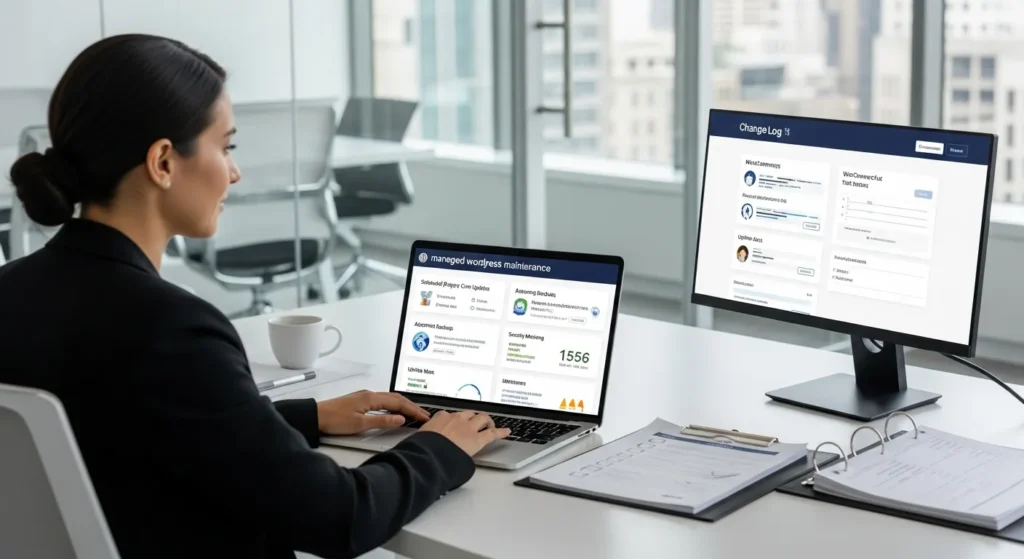
Quick answer: managed wordpress maintenance is a monthly service where a specialist runs updates, backups, security, and performance work on a schedule, with testing and rollback. It keeps your site stable while you run the business.
Key takeaways:
- Maintenance is not hosting. Hosting gives a server. Maintenance keeps WordPress healthy.
- Good plans include staging tests, restore proof, monitoring, and change logs.
- Expect $20–$500+/month based on risk, traffic, WooCommerce, and integrations.
Key Takeaways
- Managed WordPress maintenance is a recurring service that schedules updates, backups, security, and performance work with testing and fast rollback to keep your site stable.
- Separate responsibilities clearly—hosting runs the server, support answers requests, and managed WordPress maintenance prevents outages by owning the site care cycle.
- Choose a plan that proves its work with staging tests, monthly restore testing, monitoring alerts, and a detailed change log you can audit.
- Prioritize revenue-critical flows (checkout, lead forms, bookings) in every update run so plugin and theme changes don’t silently break conversions.
- Reduce security risk by patching quickly, removing abandoned plugins, enforcing MFA and least-privilege access, and using WAF plus malware scanning.
- Expect pricing to scale with risk—WooCommerce, high traffic, and integrations increase testing time and incident exposure, so match spend to downtime cost and SLAs.
What Managed WordPress Maintenance Actually Means (And What It Is Not)
Managed WordPress maintenance means a provider owns the care cycle for your WordPress site, which means fewer surprises after updates. The provider plans changes, tests them, monitors outcomes, and restores fast when something breaks.
It is not a fancy name for “we host your site,“ which means you still do updates and troubleshooting. It is also not “support tickets only,“ which means you react after revenue drops.
If you want a reference list of what maintenance should cover, use this comparison of WordPress maintenance services for small businesses, which means you can spot missing pillars before you sign.
Do this today (10 minutes): write down your site’s money pages (checkout, lead form, booking page). Those pages define your maintenance risk.
The Difference Between Maintenance, Hosting, And Support
Hosting runs the server. Maintenance runs the site. Support answers questions. That separation matters, which means you can assign clear owners during an incident.
- Hosting includes CPU, RAM, storage, PHP, MySQL, and uptime at the infrastructure level, which means your site has a place to live.
- Maintenance includes updates, compatibility tests, backups, malware checks, performance work, and monitoring, which means WordPress stays stable over time.
- Support includes help desk responses and small fixes, which means your team has someone to ask.
A concrete example: a host can keep “99.9% server uptime,“ which means the box stays on. Your checkout can still fail due to a plugin conflict, which means maintenance is the missing layer.
Do this today (15 minutes): open your host panel and find the word “WordPress.“ If the host does not mention staging, restore testing, or plugin conflict checks, you likely need managed maintenance.
When “Managed” Matters Most For Business Sites
Managed matters most when downtime costs real money or trust, which means ecommerce, booking, membership, and lead gen sites benefit first.
We see the biggest lift in three cases:
- WooCommerce stores that process 20+ orders per day, which means one broken payment method can erase a full day of revenue.
- High-trust professions (law, medical, finance) with strict data handling, which means access control and audit trails matter.
- Content-heavy brands that publish weekly, which means plugin and theme drift builds faster.
A baseline reference: WordPress security incidents often start with outdated software. The WordPress Security Team stresses timely updates and responsible disclosure, which means maintenance is a core control, not a luxury.
Do this today (5 minutes): check your plugin list. If you see any plugin not updated in 12+ months, flag it for removal or replacement.
What A Good Managed Maintenance Plan Includes
A good managed wordpress maintenance plan covers six systems: updates, backups, security, performance, monitoring, and reporting, which means you can measure work instead of guessing.
We use a simple rule in audits: if a provider cannot show a log, it did not happen, which means you cannot prove change control.
If you want a longer checklist format, this practical WordPress maintenance guide helps you verify coverage, which means fewer gaps during renewals.
Do this today (20 minutes): create a shared document titled “Site Change Log.“ Add every plugin install, update, and theme edit going forward.
Updates And Compatibility Management (Core, Theme, Plugins)
Updates should run with testing and an exit plan, which means you do not gamble with production revenue.
A solid provider does this:
- Runs updates on staging first, which means customers do not see breakage.
- Checks key flows (login, forms, checkout), which means the important parts get verified.
- Schedules changes in low-traffic windows, which means impact stays small.
We learned this the hard way. We once updated a “minor” form plugin at 7:40 a.m. and broke a hidden field that fed a CRM. The form “worked,“ but leads landed in the wrong pipeline for 2 days, which means silent failures can cost more than obvious ones.
Do this today (10 minutes): list your top 5 plugins by business importance (payments, forms, SEO, security, caching). Those plugins deserve staging tests.
Backups, Restore Testing, And Rollback Plans
Backups only matter if restores work, which means you need proof, not promises.
A good plan includes:
- Daily automated backups, which means you cap data loss.
- Off-site storage, which means ransomware on one server does not delete everything.
- Restore testing at least monthly, which means the backup is not corrupt.
For backup tooling comparisons, see this guide on WordPress staging and migration tools, which means you can match tools to risk.
Do this today (15 minutes): ask your provider for the date of the last successful restore test. If they cannot answer, schedule one.
Security Hardening, Malware Monitoring, And Cleanup Readiness
Security hardening reduces attack paths, which means fewer emergencies and less cleanup cost.
A good plan covers:
- Admin lock-down (strong passwords, MFA), which means stolen credentials do less damage.
- A Web Application Firewall (WAF), which means common attacks get blocked early.
- Malware scanning and file integrity checks, which means you catch changes fast.
For cleanup readiness, keep a playbook. This step-by-step on how to clean WordPress malware safely shows the containment sequence, which means you avoid spreading an infection during a panic.
Data point: Verizon’s Data Breach Investigations Report repeatedly shows credential theft and web app attacks as major patterns, which means login hygiene and patching matter.
Do this today (10 minutes): enable MFA for all admin users and remove any “temporary” admin accounts.
Performance Monitoring, Caching, And Image Optimization
Performance work protects conversions, which means speed becomes revenue.
Google’s Core Web Vitals tie user experience to measurable metrics, which means you can track improvement with numbers. In one recent audit, we cut homepage image weight from 7.2 MB to 1.4 MB, which means mobile load time dropped by about 2.8 seconds on a mid-range Android device.
A plan should include:
- Caching rules, which means the server does less work per visit.
- Image compression and next-gen formats, which means pages ship fewer bytes.
- Plugin bloat reviews, which means you remove slow or redundant features.
Do this today (20 minutes): run PageSpeed Insights on your top landing page. Write down LCP and total page weight. Use those as your baseline.
Uptime Monitoring, Error Tracking, And Fix Triage
Monitoring finds problems before customers complain, which means you fix issues earlier.
Good maintenance monitors:
- HTTP uptime checks, which means you get alerted when the site is down.
- PHP errors and fatal crashes, which means you catch “white screen” events.
- WooCommerce checkout events, which means you detect payment failures.
In practice, we often catch failures in the “quiet layer.“ A cron job stops running, which means scheduled emails never send. A plugin update changes an API field, which means a Zapier flow fails silently.
Do this today (10 minutes): set up an uptime check for your checkout or lead page. Use UptimeRobot or Pingdom, which means you get alerts on your phone.
Reporting, Documentation, And Change Logs
Reporting makes maintenance visible, which means you can justify spend to a CFO or partner.
A monthly report should show:
- Updates applied and deferred, which means you see risk choices.
- Incidents and time to resolution, which means you see service reality.
- Performance metrics and top issues, which means you plan next work.
We prefer a simple format: a one-page summary plus a detailed change log. That log becomes your audit trail, which means regulated teams can answer “who changed what“ fast.
Do this today (15 minutes): ask for your last 3 months of maintenance reports. If you get only invoices, request a real change log.
A Practical Workflow: Trigger → Inputs → Job → Output → Guardrails
Managed wordpress maintenance works best as a repeatable workflow, which means fewer “hero moments” and more predictable weeks.
We map every routine run like this:
- Trigger (scheduled update day or critical CVE), which means work starts for a reason.
- Inputs (site list, versions, backups, tests), which means the job has the right context.
- Job (update, test, scan, tune), which means the work is consistent.
- Output (verified site, report, log), which means you can prove results.
- Guardrails (staging, approvals, rollback, least access), which means risk stays controlled.
Do this today (20 minutes): write your own Trigger→Output flow for one task, like “plugin updates.“ Keep it to 8 lines.
How Update Runs Are Planned And Executed (Staging, Windows, Approvals)
Planned update runs prevent random breakage, which means you stop updating “whenever.“
Our standard run looks like this:
- Create or refresh staging, which means staging matches production.
- Take a pre-update backup, which means rollback stays possible.
- Update in staging and run a checklist, which means you test key flows.
- Get approval for production, which means stakeholders accept timing.
- Deploy during a low-traffic window, which means impact stays small.
Do this today (10 minutes): choose your maintenance window. Many US businesses pick Tuesday or Wednesday, 6–8 a.m. local time, which means support is available if something breaks.
How Incidents Are Handled (Priorities, SLAs, Communications)
Incident handling needs priority rules, which means you do not waste time debating during an outage.
We use simple tiers:
- P1: checkout down or site down, which means fix starts now.
- P2: key form or login broken, which means fix starts same day.
- P3: cosmetic bug, which means fix goes into the next batch.
We also set an SLA for response time and update cadence, which means the business owner is not guessing.
Do this today (15 minutes): write a one-paragraph “P1 definition“ for your site. Include the exact URLs that count as P1.
How Data And Privacy Boundaries Are Enforced (Least Access, Data Minimization)
Least access reduces privacy risk, which means fewer people can touch customer data.
A responsible provider does this:
- Uses separate admin accounts per technician, which means you can trace actions.
- Avoids copying sensitive data into tickets, which means you limit exposure.
- Stores credentials in a password manager, which means you reduce reuse.
For regulated teams, you also need written handling rules. The European Data Protection Board promotes data minimization, which means you collect and share only what you need.
Do this today (10 minutes): remove any shared “admin/admin“ style accounts. Create named users with the smallest role that still works.
Common Maintenance Failures We See (And How Managed Plans Prevent Them)
Most failures feel small at first, which means they hide in plain sight until customers complain.
We see these patterns on business sites in Austin, especially around South Congress brands and fast-moving ecommerce teams. A site grows, plugins stack up, and nobody owns the care cycle, which means risk compounds.
Do this today (15 minutes): open your Analytics or WooCommerce reports. Identify the single highest value page. Treat it like production infrastructure.
Broken Checkout Or Forms After An Update
Checkout and forms break more often than homepages, which means you should test them first.
Common causes:
- Payment gateway updates change a required field, which means orders fail.
- Form plugins change validation rules, which means submissions drop.
- Theme updates override template files, which means buttons vanish.
A managed plan prevents this with staging tests and rollback, which means you revert in minutes, not days.
Do this today (10 minutes): write a 6-step test script for checkout or your lead form. Run it after every update.
Slow Sites From Plugin Bloat, Unoptimized Media, Or Theme Debt
Slow sites usually come from “one more plugin“ decisions, which means performance declines in small steps.
We see big wins from removing duplicates. Example: a site had 3 plugins that all injected CSS and JavaScript for popups. After consolidation, total requests dropped from 186 to 112, which means Time to Interactive improved.
A managed plan reviews plugins quarterly, which means you prune before the site feels heavy.
Do this today (20 minutes): sort plugins by “active” and “must-have.“ Disable one non-essential plugin on staging and measure speed.
Security Issues From Abandoned Plugins And Weak Admin Hygiene
Abandoned plugins create security holes, which means attackers find easy paths.
A managed plan scans for:
- Plugins not updated in 12+ months, which means higher exploit risk.
- Admin users who left the company, which means orphaned access.
- Weak passwords and no MFA, which means brute force becomes practical.
Reference: The U.S. Cybersecurity and Infrastructure Security Agency (CISA) publishes guidance on reducing attack surface, which means patching and access control remain first-line defenses. See CISA security resources.
Do this today (15 minutes): run a user audit. Remove unused admins. Add MFA. Rotate passwords.
Quiet Errors: Cron Failures, Email Delivery Issues, And 404 Drift
Quiet errors drain revenue without alarms, which means they feel like “a slow month.“
Examples we see:
- WP-Cron stops, which means scheduled posts and renewals fail.
- Transactional email lands in spam, which means customers miss receipts.
- Old product URLs return 404, which means SEO and ads waste clicks.
A managed plan uses monitoring and logs, which means you spot drift early.
Do this today (10 minutes): check one email receipt in Gmail and Outlook. If it lands in spam, add SPF/DKIM/DMARC.
How Much Managed WordPress Maintenance Costs (And What Drives Price)
Managed wordpress maintenance usually costs $20 to $500+ per month, which means the plan price signals the risk coverage.
Most small business sites land in the $75–$200 range when they need staging, monitoring, and real response time. WooCommerce stores often sit higher, which means you pay for higher incident risk and testing time.
Do this today (10 minutes): choose your budget range, then tie it to a measurable target like “restore in under 60 minutes.“
Typical Plan Tiers And What You Should Expect At Each Level
Plan tiers map to risk and response, which means you should buy the tier that matches your revenue exposure.
- Basic ($20–$50/mo): updates + backups, which means you reduce obvious patch risk.
- Pro ($100–$250/mo): staging + monitoring + security hardening, which means you prevent and detect more issues.
- Enterprise ($300–$500+/mo): custom SLAs, multi-site, advanced governance, which means you can support regulated or high-volume systems.
If you want plan examples side-by-side, use this breakdown of WordPress care plan tiers, which means you can compare deliverables instead of marketing claims.
Do this today (15 minutes): ask a provider, “What is included at P1?“ Get the answer in writing.
Cost Drivers: Site Complexity, WooCommerce, Traffic, And Integrations
Complex sites cost more because testing takes longer, which means the provider needs more time per change.
Key drivers:
- WooCommerce + multiple payment methods, which means checkout tests multiply.
- High traffic (50,000+ visits/month), which means a bad deploy impacts more users.
- Integrations (HubSpot, Salesforce, QuickBooks, ShipStation), which means API changes can break flows.
A concrete example: adding one new payment option can add 8–12 extra test steps per update cycle, which means labor cost rises.
Do this today (10 minutes): list every system your site connects to. Include email, CRM, shipping, and analytics.
What To Clarify In The Fine Print (Support Hours, Emergency Work, Exclusions)
The contract defines your real protection, which means you should read the exclusions.
Clarify:
- Support hours vs after-hours emergency rates, which means you know true P1 cost.
- What counts as “maintenance” vs “development,“ which means scope stays clear.
- Whether malware cleanup is included, which means you avoid surprise bills.
Do this today (15 minutes): ask, “Do you provide restore proof and change logs?“ If the answer is vague, pause.
How To Choose The Right Provider For Your Site And Risk Level
Choose a provider based on process, not promises, which means you buy repeatability.
We treat provider selection like hiring a pilot. You want checklists, logs, and clear callouts of risk. You do not want confidence without proof.
If you want a shortlist of support options, compare providers in this guide to WordPress support services, which means you can match response coverage to business hours.
Do this today (20 minutes): write your “non-negotiables“ list: staging, restore proof, monitoring, and named technician accounts.
Questions To Ask About Process, Tooling, And Access Controls
Good questions reveal real operations, which means you avoid pretty proposals.
Ask these:
- “Do you use staging for all updates?“ which means you reduce production risk.
- “When was your last restore test for a client like me?“ which means you verify backups.
- “Do you keep a change log?“ which means you can audit.
- “How do you store credentials?“ which means you reduce account risk.
Do this today (10 minutes): send these four questions to two providers. Compare the specificity of their answers.
What Good Governance Looks Like For Regulated Or High-Risk Sites
Governance means you control access, changes, and data flow, which means compliance becomes practical.
For legal, medical, finance, and insurance sites, we recommend:
- Named accounts + least privilege, which means you limit exposure.
- Documented SOPs for updates and incidents, which means work stays consistent.
- A policy for AI tools and data sharing, which means sensitive data stays out of prompts.
This matters in cities with dense professional services like Austin, where a single site often serves multiple partners and staff, which means access sprawl happens fast.
Do this today (15 minutes): write a one-sentence rule: “We never paste client PII into tickets or AI tools,“ which means everyone has the same boundary.
Red Flags: Vague Deliverables, No Staging, No Logs, No Restore Proof
Red flags predict future outages, which means you should walk away early.
Watch for:
- “We do updates“ with no test steps, which means they update blind.
- No staging environment, which means production becomes the test bench.
- No reporting or logs, which means you cannot verify work.
- No restore proof, which means backups are just hope.
Do this today (5 minutes): ask for a sample monthly report. If they cannot share a redacted example, choose another provider.
Conclusion
Managed wordpress maintenance gives you a calm week. It turns WordPress care into a schedule, a log, and a rollback plan.
Start small. Pick one risk area, like updates on staging or restore testing, and make it a monthly habit. The site will feel “boring” again, which means it will feel reliable.
Do this today (30 minutes): document your maintenance window, your P1 pages, and your restore contact. Then run one staging update cycle.
Frequently Asked Questions (Managed WordPress Maintenance)
What is managed WordPress maintenance, and what does it include?
Managed WordPress maintenance is a monthly service where a specialist owns your site’s care cycle: WordPress/core, theme, and plugin updates with staging tests, scheduled backups with restore proof, security hardening and monitoring, performance tuning, uptime/error tracking, and monthly reporting with change logs and rollback plans.
Is managed WordPress maintenance the same as hosting or WordPress support?
No. Hosting provides the server (CPU, RAM, storage, PHP/MySQL, infrastructure uptime). Managed WordPress maintenance keeps the WordPress site healthy with updates, backups, security checks, monitoring, and performance work. Support is help-desk assistance and small fixes—often reactive after something breaks.
When does managed WordPress maintenance matter most for business sites?
Managed WordPress maintenance matters most when downtime costs money or trust—especially WooCommerce, booking, membership, and lead-gen sites. It’s also critical for regulated or high-trust industries (legal, medical, finance) and fast-publishing brands where plugin/theme drift accumulates quickly and incidents can be costly.
What should a good managed WordPress maintenance plan include (minimum checklist)?
Look for six pillars: updates with compatibility testing on staging, backups with off-site storage and monthly restore testing, security hardening (MFA, WAF, malware scanning), performance work (caching, image optimization, bloat reviews), monitoring (uptime, errors, checkout events), and reporting with clear change logs.
How much does managed WordPress maintenance cost per month?
Managed WordPress maintenance commonly ranges from $20 to $500+ per month. Many small business sites fall around $75–$200 when they need staging, monitoring, and real response. Price rises with WooCommerce, higher traffic, strict SLAs, more integrations, and the testing time required to avoid revenue-impacting updates.
Can I do managed WordPress maintenance myself, and what’s the safest DIY routine?
Yes, but you’ll need process and time. Use a staging site, take a pre-update backup, update and test key flows (checkout/forms/login), then deploy in a low-traffic window. Enable MFA, run malware scans, monitor uptime and errors, and keep a simple change log so you can roll back quickly if needed.
Some of the links shared in this post are affiliate links. If you click on the link & make any purchase, we will receive an affiliate commission at no extra cost of you.
We improve our products and advertising by using Microsoft Clarity to see how you use our website. By using our site, you agree that we and Microsoft can collect and use this data. Our privacy policy has more details.
