
How To Clean WordPress Malware Safely – Step-By-Step Guide For Small Business Sites
If you need to clean WordPress malware fast without nuking your entire site, this guide walks you through a safe, small-business-friendly process. Many owners first notice a weird pop‑up, a redirect to a scam site, or a late‑night email from a customer saying, “Is this supposed to happen?“ and feel that drop in their stomach.
We have been there with clients who depend on every lead and order, so this is built as a calm, do‑this‑next playbook, not a panic spiral. You will learn how to contain the damage, clean WordPress malware step‑by‑step, restore trust with customers, and harden your site so it is much harder to break into again.
Key Takeaways
- Act fast to clean WordPress malware by containing the site in maintenance mode, preserving full backups, and gathering all hosting and login credentials before touching files or the database.
- Run layered scans with reputable security plugins, hosting tools, and external scanners to map exactly where the infection and backdoors live before you clean WordPress malware.
- Safely clean WordPress malware by replacing core, theme, and plugin files from clean sources, removing injected code and SEO spam from the database, and deleting rogue admin accounts and backdoor scripts.
- Verify your site is truly clean with fresh scans, cross‑device testing, and blacklist checks, then request reviews from Google Search Console and any other services that flagged your domain.
- Prevent future infections with strong passwords, 2FA, a firewall, regular backups and updates, and consider partnering with a WordPress security or maintenance provider if your site is high‑risk or repeatedly reinfected.
When Your WordPress Site Gets Hacked: What Is Happening And Why It Matters

A Quick Story: “Our Homepage Turned Into A Casino Ad Overnight“
One Monday morning a client sent a screenshot. Their professional services homepage had turned into a blinking casino landing page. Mobile visitors were being redirected to a spammy app download. Traffic dipped, ad campaigns were paused, and they were afraid to even log in.
That is the emotional side of a hack. The technical side: attackers uploaded malicious scripts, modified theme files, and planted backdoors so they could get in again later. The good news: with a structured process, you can clean WordPress malware without burning everything down.
Quick Answer: Contain The Damage, Back Up, Scan, Clean, Then Lock Things Down
At a high level, the safest way to clean WordPress malware is:
- Contain: Put the site in maintenance or read‑only mode.
- Preserve: Take full backups of files and database (even if infected).
- Scan: Use security plugins and host tools to find infected files and database entries.
- Clean/Replace: Replace WordPress core, themes, and plugins from clean sources: remove malicious database content.
- Verify & Delist: Re‑scan, test on multiple devices, request Google blacklist reviews.
- Harden: Improve passwords, 2FA, firewall, updates, and backups.
We will walk through each step in order so you can clean WordPress malware methodically, not blindly.
How Malware Hurts Your Business (Traffic, Sales, And Reputation)
Malware does more than annoy you:
- Traffic: Google may show “This site may be hacked“ or block visitors entirely, killing organic search and paid ads.
- Sales: Redirects, pop‑ups, or broken checkout flows directly reduce conversions and store revenue.
- Reputation: Customers question your professionalism and data handling. In regulated industries, this can trigger formal complaints.
Left alone, infections tend to spread and evolve. Cleaning WordPress malware quickly is not just a technical task: it is a business continuity move.
Warning Signs Your WordPress Site May Be Infected
Obvious Red Flags: Defaced Pages, Pop-Ups, And Strange Redirects
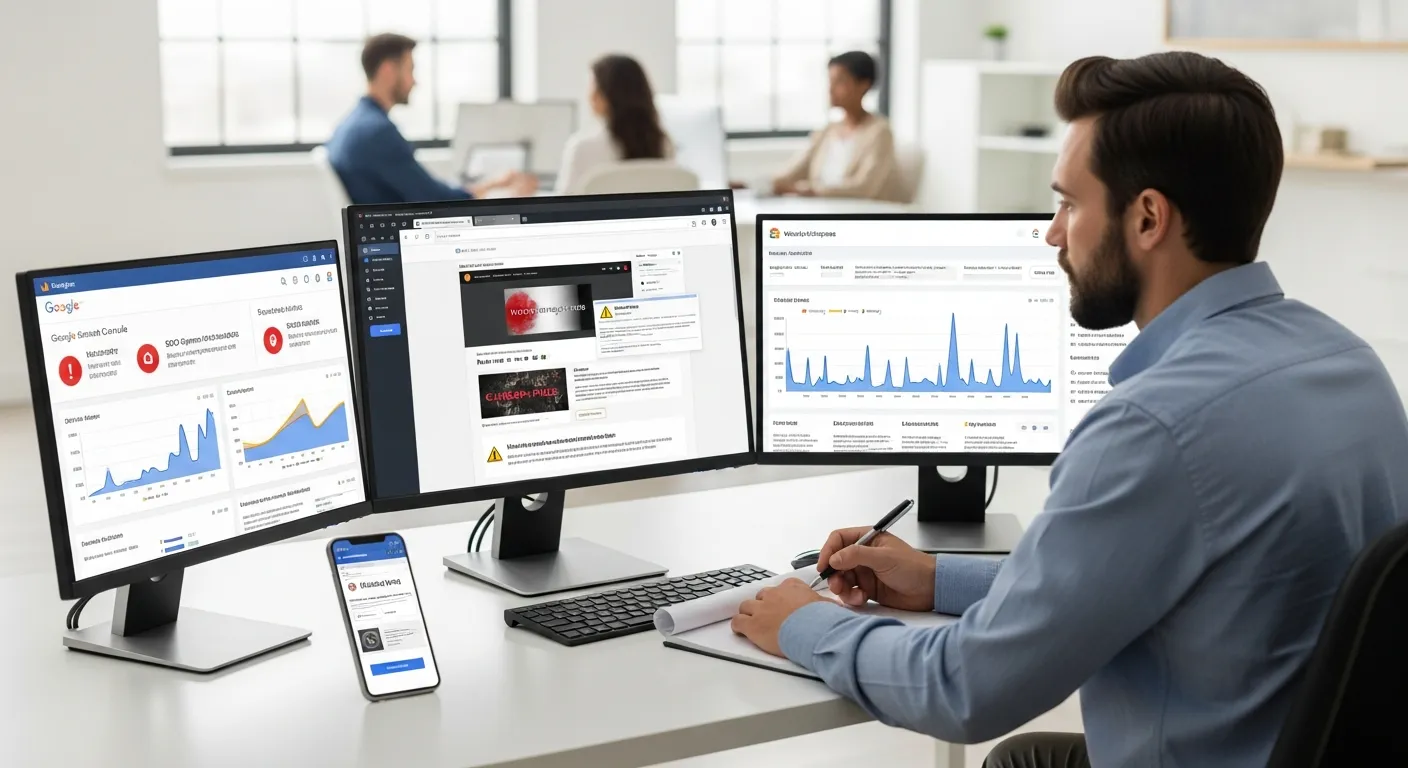
Some hacks practically wave a flag:
- Your home page shows ads, gambling, adult, or pharmaceutical content.
- Visitors get unexpected pop‑ups or forced downloads.
- Certain URLs redirect to random third‑party sites, especially on mobile.
If you see any of these, assume you must clean WordPress malware right away. Do not keep sending ad traffic or email campaigns to an actively infected site.
Less Visible Issues: Slow Site, SEO Spam, And Spike In Server Usage
Other symptoms are subtle:
- The site suddenly becomes very slow or times out.
- You notice strange pages in Google like
/cheap-pillsor Japanese text in search snippets. - Your hosting dashboard shows CPU or bandwidth spikes at odd hours.
These often mean injected scripts or SEO spam in your database. You will need to scan both files and database when you clean WordPress malware, not just what you can see on the front end.
Security Alerts From Google, Your Host, Or Customers
Pay attention to external signals:
- Google Search Console warnings about hacked content or malware.
- Emails from your hosting provider about phishing, spam, or malicious files.
- Customers saying their browser (Chrome, Safari, Firefox) is blocking your site.
These alerts often include sample URLs and timestamps. Save that information: it will guide where you look when you start to clean WordPress malware thoroughly.
Before You Touch Anything: Contain, Preserve, And Prepare
Put The Site In Maintenance Or “Read-Only“ Mode
Before you clean WordPress malware, your first move is to stop additional damage:
- Enable a maintenance mode plugin for visitors.
- Temporarily disable new orders or logins if you run WooCommerce or membership features.
- If things are severe, your host can set the site to read‑only.
This protects visitors and prevents attackers from doing more while you work.
Create A Full Backup (Even If It Is Infected)
It sounds backwards, but always back up before you clean WordPress malware:
- Use your hosting panel (cPanel, Plesk, etc.) to back up files and database.
- Or use a backup plugin if it still works.
- Download backups off‑site (your computer or cloud storage).
If something goes wrong, you can roll back and try again instead of losing everything.
Collect Key Access Details: Hosting, cPanel, SFTP, Database, Admin Logins
You will move faster if you gather access up front:
- Hosting account and control panel (cPanel, Plesk, etc.).
- SFTP/FTP credentials.
- Database name, user, and password (often in
wp-config.php). - WordPress admin logins for any legit admins.
You will use these throughout the clean WordPress malware process.
Decide: DIY Cleanup Or Call A Professional (When To Bring In Zuleika LLC)
Ask yourself:
- Is this a simple brochure site, or do you store orders, bookings, or personal data?
- How comfortable are you editing PHP files and databases?
- What is the cost if you break something for a day or two?
If the stakes are high or the infection looks deep, it may be safer to bring in a partner. At Zuleika LLC, we often step in at this stage, take a forensic backup, clean WordPress malware systematically, document changes, and then harden the site and hosting so this is less likely to repeat.
Step 1: Scan Your WordPress Site For Malware

Use A Reputable Security Plugin To Run A Full Scan
Start with an internal scan to see where the infection lives:
- Install and run a full scan with tools like Wordfence, Sucuri, iThemes Security, or Jetpack Security.
- Enable both file scanning and database scanning if available.
- Pay attention to warnings about modified core files, unfamiliar plugins, or encoded code.
Document all results, screenshots or exports help if you later escalate to a professional to help clean WordPress malware.
Scan Files And Database From Your Hosting Control Panel
Next, use your hosting layer:
- Many hosts offer malware scans in their dashboards.
- Use file managers or SFTP to look for recently changed files in
wp-content,wp-admin, andwp-includes. - Look for odd filenames (random strings,
.phpinuploads, etc.).
If your host offers an antivirus or malware remover, run it, but still plan to manually verify when you clean WordPress malware. One‑click tools often miss backdoors.
Review The Scan Report: Infected Files, Suspicious Code, Blacklist Status
Now interpret the findings:
- List infected files and compare against a fresh WordPress download.
- Note any unknown plugins or themes: these may be the entry point.
- Use external scanners like Sucuri SiteCheck or VirusTotal to check blacklist status.
Your goal is to build a simple map: what is infected, where it lives, and how widespread it is. That map will drive how you clean WordPress malware in the next steps.
Step 2: Clean Or Replace Infected WordPress Core, Theme, And Plugin Files
Update WordPress Core, Themes, And Plugins To The Latest Versions
Outdated software is a common entry point. Before deep surgery:
- From the dashboard (if safe) or via WP‑CLI, update WordPress core.
- Update all trusted themes and plugins from WordPress.org or known vendors.
Sometimes, simply updating will overwrite infected files. But you still need to verify and fully clean WordPress malware elements that may remain.
Delete Unused Or Abandoned Themes And Plugins Completely
Every extra theme or plugin is more surface area for attackers:
- Delete any inactive themes, especially old copies of your main theme.
- Remove plugins you no longer use or that have not been updated in years.
If a free plugin is no longer in the WordPress directory, consider it high risk. Removing this clutter makes it easier to see what remains when you clean WordPress malware.
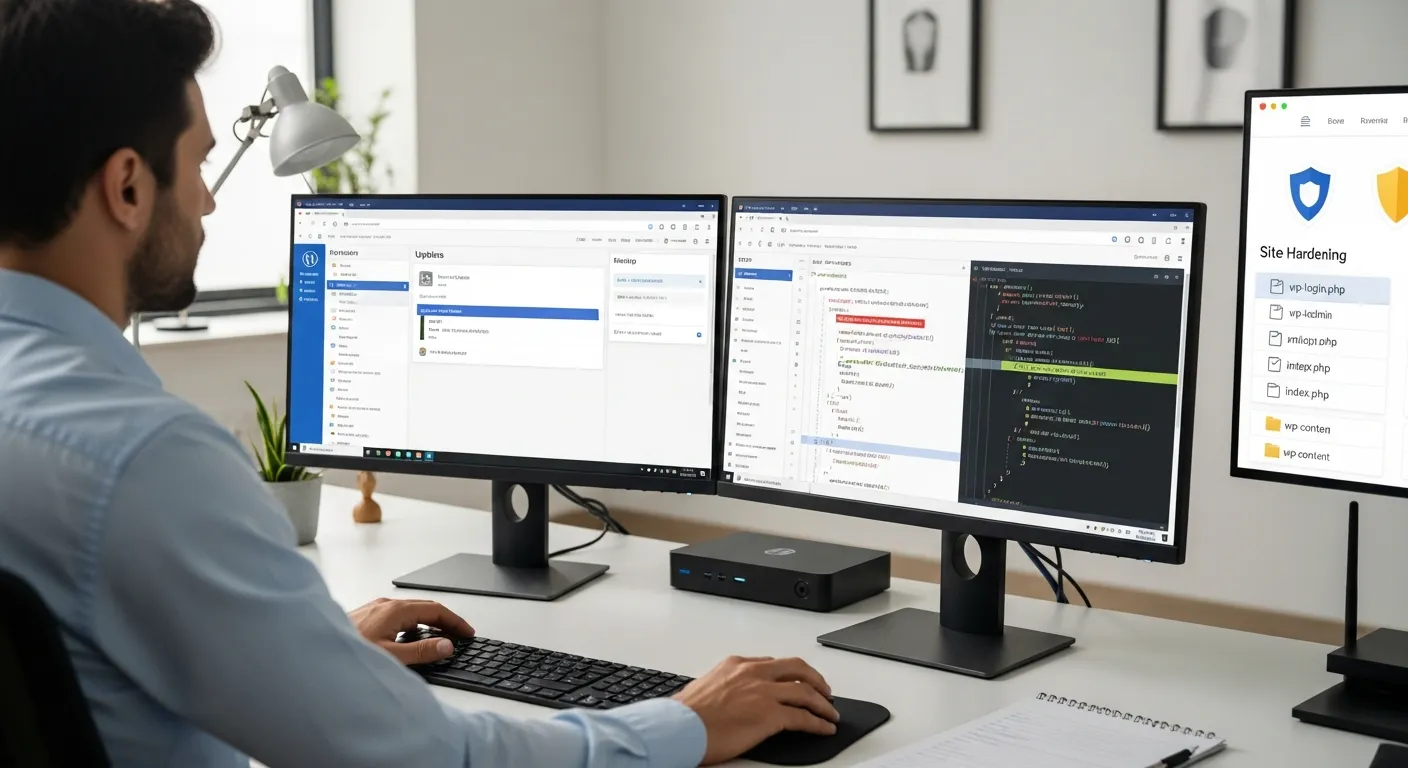
Manually Replace Core Files With A Fresh Download
For a thorough clean:
- Download the latest WordPress from wordpress.org.
- Over SFTP, replace your
wp-adminandwp-includesfolders with the fresh copies. - Replace critical root files like
wp-login.php,xmlrpc.php, andindex.php.
Do not overwrite wp-content or wp-config.php at this stage. This step is one of the fastest ways to safely clean WordPress malware from core files.
Manually Clean Theme And Plugin Files (Or Replace From A Clean Source)
For your active theme and key plugins:
- If you have a known‑good copy, replace their folders entirely.
- If you must edit, look for:
- Obvious injected code at the top or bottom of PHP files.
- Long, encoded strings (
base64_decode,eval, etc.). - References to unknown domains.
Remove only what you are sure is malicious. When in doubt, replace from a clean download instead of hand‑editing. This is where many owners prefer to have a partner like Zuleika LLC clean WordPress malware for them to avoid breaking layouts or functionality.
Step 3: Remove Malware From The Database And Hidden Backdoors
Scan The Database For Malicious Content And SEO Spam
File cleanup is only half the work. Attackers love your database:
- Use your security plugin’s database scan if available.
- From phpMyAdmin or Adminer, search for spammy keywords, strange iframes, or foreign‑language blocks.
- Pay special attention to
wp_posts,wp_options, andwp_usermeta.
You are looking for content that should not be there so you can fully clean WordPress malware, not just its symptoms.
Clean Infected Posts, Options, And User Tables Safely
Work carefully:
- For spam posts or pages, trash or unpublish them.
- For injected content inside real posts, switch to Text/HTML view and remove just the malicious snippets.
- In
wp_options, look for unknown options loading remote scripts.
Always export the table before deleting rows. That way, if something breaks while you clean WordPress malware, you can restore that single table.
Search For And Remove Backdoor Scripts And Rogue Admin Accounts
Backdoors are hidden access points attackers leave behind:
- Search your files for common functions used in backdoors (
eval,assert,base64_decode,gzinflate). - Look for
.phpfiles inside/uploads/or odd folders under/wp-content/. - In Users, remove any admin accounts you do not recognize.
Backdoors are why some sites get reinfected within days. If you skip this, attempts to clean WordPress malware will feel like Groundhog Day.
Reset All Passwords And Re-Issue Security Keys
Once obvious malware is gone:
- Reset passwords for all admins, editors, and users with elevated roles.
- Change hosting, SFTP/FTP, and database passwords.
- Regenerate WordPress security keys and salts (via the official key generator and update
wp-config.php).
This invalidates stolen sessions and makes it much harder for attackers to reuse old access while you continue to clean WordPress malware remnants.
Step 4: Verify Your Site Is Clean And Get Off Blacklists
Test The Site In Incognito, On Mobile, And From Different Networks
Some malware only shows up for specific visitors. To confirm your clean‑up:
- Test in incognito/private mode.
- Check on mobile devices and desktop.
- If possible, test from another network (home vs office, VPN vs non‑VPN).
If everything looks normal, you are closer to fully clean WordPress malware from the user experience side.
Check With Security Plugins And External Scanners Again
Next, confirm with your tools:
- Run a fresh scan with your security plugin.
- Use external scanners like Sucuri SiteCheck and Google’s Safe Browsing tool.
Your goal: no remaining infected files, no suspicious database entries, and no warnings. If you still see issues, loop back to earlier steps to continue to clean WordPress malware thoroughly.
Request A Review From Google Search Console And Other Blacklists
If Google or others flagged your site:
- In Google Search Console, go to Security Issues.
- Confirm issues are resolved and request a review.
- If your host or a third‑party blacklist blocked you, follow their re‑evaluation process.
Reviews can take from a few hours to a few days. While you wait, keep monitoring, do not assume you will stay clean WordPress malware‑free without hardening steps.
Step 5: Harden WordPress So Malware Does Not Come Back
Lock Down Logins: Strong Passwords, 2FA, And Limited Admin Accounts
Now that you clean WordPress malware, you want to reduce your attack surface:
- Use 12+ character unique passwords for all accounts.
- Enable two‑factor authentication (2FA) for admins.
- Reduce the number of administrator accounts to the few who truly need it.
- Change the default
adminusername if it still exists.
Configure A Firewall And Basic Security Rules
A web application firewall (WAF) sits between attackers and your site:
- Use a security plugin with a WAF or a service like Cloudflare.
- Block repeated failed login attempts and rate‑limit abusive IPs.
- Disable file editing in the WordPress dashboard (
DISALLOW_FILE_EDIT).
These measures do not replace the need to clean WordPress malware properly, but they dramatically reduce drive‑by attacks.
Set Up Regular Backups, Updates, And Security Monitoring
Security is a habit, not a one‑time project:
- Schedule automatic off‑site backups (daily for active sites).
- Enable automatic minor updates for WordPress core.
- Review plugins monthly and remove old or unmaintained ones.
- Keep a security plugin running with alerts sent to an email you actually monitor.
If you ever need to clean WordPress malware again, these habits will make it faster and less painful.
Work With Managed Hosting And A Maintenance Partner (Where We Fit In)
Good infrastructure + good process equals fewer emergencies:
- Consider moving to a managed WordPress host with security tools baked in.
- Use a maintenance partner to handle updates, backups, and security checks.
At Zuleika LLC, our ongoing WordPress maintenance services combine uptime monitoring, managed updates, backups, and security hardening so cleaning WordPress malware is the rare exception, not a recurring chore.
Step 6: Communicate With Customers And Protect Your Reputation
Decide What To Disclose And To Whom
Even if you clean WordPress malware quickly, silence can erode trust:
- For brochure sites, a short note on your site or email explaining that you had a technical issue and it is resolved is often enough.
- For ecommerce or login‑based sites, consider a more detailed update.
Stay factual: what happened, what you did to clean WordPress malware, and what you are doing to prevent a repeat.
Notify Users If Passwords Or Personal Data Might Be At Risk
If there is any chance that passwords or personal data were accessed:
- Inform affected users and recommend password changes.
- If you operate in regulated regions (like the EU) or handle sensitive data, talk to legal counsel about breach notification obligations.
Cleaning WordPress malware is technical: handling data risk is legal and reputational. Treat it with care.
Monitor For Recurring Issues Over The Next 30–60 Days
Reinfections often happen soon after the first incident:
- Keep security scanning and logging turned on.
- Watch for strange admin logins, file changes, or new spam pages.
- Revisit your hardening checklist monthly.
If you see the same patterns return, it likely means a missed backdoor and you need to clean WordPress malware again, possibly with professional help this time.
When To Stop DIY And Bring In A WordPress Security Expert
High-Risk Situations: Ecommerce, Sensitive Data, Or Repeat Infections
You should strongly consider expert help if:
- You run WooCommerce or store payment / personal data.
- Your site supports a membership, patient portal, or client dashboard.
- You have been reinfected within weeks of trying to clean WordPress malware yourself.
In these cases, the risk of data exposure and revenue loss is too high for trial‑and‑error.
Signs Your Cleanup Is Not Working (Or Making Things Worse)
Pause DIY and call for backup if:
- Malware keeps reappearing after you “fix” files.
- Legitimate pages or features break during cleanup.
- Google will not clear your warnings even though your efforts to clean WordPress malware.
These are signs of deeper issues: missed backdoors, compromised hosting, or misconfigured security tools.
How Zuleika LLC Handles Malware Cleanup: Safe, Documented, And Managed
When we are asked to clean WordPress malware for a client, we follow a disciplined process:
- Forensic backups of files and database.
- Mapping of infection (files, database, access points).
- Clean and replace core, theme, and plugin files from known‑good sources.
- Database cleanup, backdoor removal, and credential resets.
- Validation and hardening, plus documentation of every change.
If you are ready for hands‑on help, you can start by requesting a free consult through Zuleika LLC’s contact page. Bring any scans, host emails, and a timeline of what you have already tried to clean WordPress malware, this shortens the time to resolution.
Recap, Next Steps, And How To Keep Your WordPress Site Healthy
Turn This Incident Into A Better Security Baseline
A hack is unpleasant, but it can be a turning point. You have now seen how to contain damage, back up safely, scan in layers, clean WordPress malware from files and database, and then harden your site.
The next step is turning this one‑time response into your new baseline.
Checklist: Ongoing Tasks To Keep Malware Away
Use this as a quick reference:
- Keep WordPress core, themes, and plugins up to date.
- Remove unused plugins/themes.
- Use strong passwords and 2FA for admin accounts.
- Run a security plugin with a WAF and alerts.
- Maintain daily or weekly backups stored off‑site.
- Review logs and scans monthly.
Follow this, and the odds you will need to clean WordPress malware again drop significantly.
If You Want Help, What To Bring To A Free Consultation
If you decide you would rather focus on running your business than learning to clean WordPress malware by trial and error, we are happy to help.
For a productive consult, bring:
- Your hosting and WordPress access details.
- Any security plugin or host scan reports.
- Notes on when you first saw issues and what you already tried.
From there we can suggest a plan, ranging from one‑time cleanup to ongoing WordPress maintenance and security, so your site can go back to doing what it should: bringing you traffic, leads, and sales without surprise casino ads.
Frequently Asked Questions
What is the safest way to clean WordPress malware on a small business site?
The safest way to clean WordPress malware is to follow a structured process: contain the site (maintenance mode), take full backups, run file and database scans, clean or replace infected core, theme and plugin files, remove database spam and backdoors, reset all passwords, then harden security and request blacklist reviews.
How can I tell if my WordPress site is infected with malware?
Common signs include defaced pages, unexpected pop‑ups, or redirects to gambling, adult, or scam sites—often worse on mobile. Subtler signs are sudden slowness, strange SEO pages (like /cheap-pills), spikes in server usage, security alerts from Google Search Console, or emails from your host about phishing or malicious files.
How do I clean WordPress malware from the database, not just the files?
To clean WordPress malware from the database, scan with a security plugin, then inspect tables like wp_posts, wp_options and wp_usermeta via phpMyAdmin or Adminer. Remove spam posts, injected iframes or scripts, and unknown options loading remote code. Always export tables as backups before deleting or editing suspicious rows.
Can I clean WordPress malware myself, or should I hire a professional service?
You can often clean WordPress malware yourself for simple brochure sites if you are comfortable with SFTP and basic database edits. For ecommerce, membership sites, sensitive data, repeat infections, or when cleanup keeps breaking features, a professional malware removal service or WordPress security specialist is usually the safer, faster option.
What should I do after I clean WordPress malware to prevent it from coming back?
After you clean WordPress malware, harden the site: use strong unique passwords and 2FA, reduce admin accounts, keep WordPress core, themes and plugins updated, delete unused plugins/themes, enable a web application firewall, schedule automated off‑site backups, and monitor logs and security scans regularly to catch new issues early.
Some of the links shared in this post are affiliate links. If you click on the link & make any purchase, we will receive an affiliate commission at no extra cost of you.
