
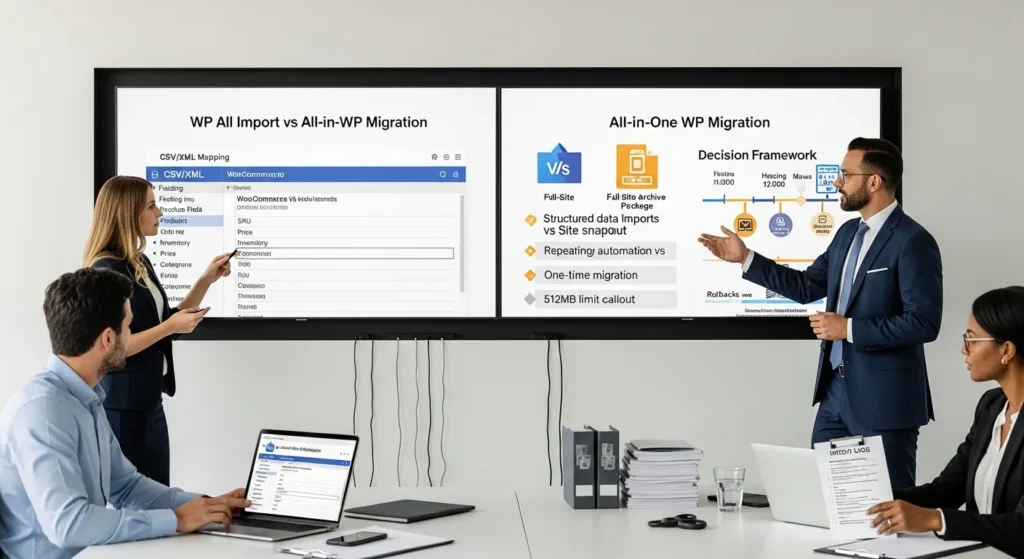
WP All Import vs All-in-One WP Migration comes up the moment a WordPress site stops being “a site” and starts being a business system. We have watched teams panic-click the wrong plugin at 11:48 pm because a supplier feed broke or a host move went sideways.
Quick answer: WP All Import is for structured data you want to map, repeat, and update. All-in-One WP Migration is for moving or restoring an entire WordPress site as a single package.
Key Takeaways
- WP All Import vs All-in-One WP Migration comes down to the job: WP All Import maps and updates structured CSV/XML data, while All-in-One WP Migration moves or restores an entire WordPress site as a single archive.
- Choose WP All Import when you need repeatable, scheduled imports that update existing records via a stable unique key (like SKU) and require field-level control over custom fields, taxonomies, and attributes.
- Use All-in-One WP Migration for one-time host/domain moves, staging clones, or fast rollbacks, because it snapshots the database, plugins, themes, and media and restores them in one action.
- Expect different risk profiles: WP All Import can create duplicates or corrupt content if mapping/identifiers are wrong, while All-in-One WP Migration can overwrite destination changes because a restore replaces nearly everything.
- Plan around limits and performance: large WP All Import runs can hit PHP timeouts, and All-in-One WP Migration’s free version caps imports at 512MB, which media-heavy sites exceed quickly.
- Protect your business with process: run changes on staging first, review logs and outcomes, restrict who can import/restore, and treat exports/archives as sensitive data assets with controlled access.
What Each Plugin Is Actually Built To Do
WP All Import and All-in-One WP Migration both “move stuff into WordPress,” so people assume they overlap. They do not, at least not in the ways that matter on real projects.
WP All Import: Structured Data Imports Into WordPress
WP All Import takes a structured file (CSV or XML) and turns it into WordPress content. A spreadsheet row becomes a WooCommerce product. An XML node becomes a custom post. Your mapping rules tell WordPress where each value goes.
Here is what that means in practice:
- A supplier feed -> updates -> your product price.
- A CSV row -> creates -> a product with images, attributes, and categories.
- A unique identifier (SKU) -> matches -> the existing product you want to update.
We like WP All Import when a business lives inside data feeds. That includes catalogs, directories, course libraries, job boards, and anything where “the file is the source of truth.”
All-in-One WP Migration: Full-Site Backups, Moves, And Restores
All-in-One WP Migration exports a full-site archive. Think “snapshot.” It packages your database plus your themes, plugins, and media into a single file you can import somewhere else.
Here is what that means in practice:
- An export archive -> recreates -> the same site on a new host.
- An import action -> restores -> your site after a bad update.
- A clone -> creates -> a safe staging copy for testing.
If your goal is “move the site” or “roll back the site,” this plugin is the simple hammer. If you want a step-by-step walkthrough, we laid it out in our guide on using All-in-One WP Migration for smoother site moves (no drama, no guesswork).
The Core Differences That Matter In Real Projects
When clients ask us to compare WP All Import vs All-in-One WP Migration, we steer them away from feature lists and toward workflow. Tools shape habits. Habits shape risk.
Data Model Vs Site Snapshot
WP All Import works on a data model. You tell it: “This column -> goes into -> this field.” You can create posts, products, users, and taxonomies with fine-grained control.
All-in-One WP Migration works on a site snapshot. The archive -> contains -> nearly everything. The restore -> overwrites -> nearly everything.
So the question becomes simple: Do you need to change content objects inside WordPress, or do you need to move the entire WordPress install?
Repeatable Automation Vs One-Time Moves
WP All Import shines when you repeat the job:
- A cron schedule -> triggers -> an import.
- The import -> updates -> existing products based on SKU.
- The log -> shows -> what changed and what failed.
All-in-One WP Migration shines when you do a one-time move:
- A migration -> shifts -> a site from Host A to Host B.
- A restore -> returns -> a broken site to yesterday’s state.
You can run multiple migrations, sure. But the tool does not act like a feed runner. It acts like a suitcase.
What You Can Move: Posts, Products, Users, Media, And More
This is where expectations break.
WP All Import can move selective items. You can import:
- WooCommerce products
- Posts and pages
- Users
- Custom post types
- Custom fields (ACF and others)
- Taxonomies and terms
All-in-One WP Migration moves “everything,” which is both helpful and dangerous. One import -> replaces -> your database and files. That can fix problems fast, and it can also wipe out changes if someone edited the destination site.
If you also use staging or cloning tools, our comparison of migration and staging options for WordPress teams can help you choose a safer routine.
When To Use WP All Import (Common Business Scenarios)
We reach for WP All Import when the business asks for control at the field level. It is the difference between “bring over the whole kitchen” and “restock only the pantry shelves that changed.”
WooCommerce Catalog Imports And Supplier Feeds
If you run WooCommerce, supplier feeds can decide your margins. A feed -> changes -> your cost. Your cost -> affects -> your pricing rules.
WP All Import fits when you need:
- SKU-based updates (match existing products)
- Price and inventory refreshes
- Product attribute mapping (size, color, material)
- Category routing (feed value -> assigns -> product category)
One warning from the trenches: you want a stable unique key. SKU -> anchors -> product identity. If SKUs drift, imports create duplicates and your store turns into a yard sale.
Directory, Listings, And Real Estate-Style Data Sets
Directories look simple until they are not.
- A listing -> stores -> address, hours, phone, services, images, and tags.
- A taxonomy -> powers -> filters on the front end.
WP All Import works well here because you can map every field and keep your custom post type structure clean.
Ongoing Updates: Price Changes, Inventory, And Content Refreshes
If you need ongoing updates, WP All Import acts like a repeatable pipeline:
- A scheduled import -> updates -> yesterday’s products with today’s prices.
- A validation rule -> blocks -> bad rows from publishing.
- A human review step -> catches -> weird spikes (like a $19,999 “basic tee”).
This is also where we see performance issues. Large imports -> stress -> PHP time limits and memory. We usually run big jobs on staging first, tune server settings, then roll into production with smaller batches.
When To Use All-in-One WP Migration (Common Business Scenarios)
All-in-One WP Migration is what we use when the site itself is the unit of work. You want the whole thing, as-is, somewhere else.
Site Moves Between Hosts And Domains
Host moves happen for boring reasons: price hikes, slow support, or traffic growth that outgrows cheap hosting.
- An export -> packages -> your WordPress site.
- An import -> recreates -> the site on the new server.
One limit matters right away: the free version caps imports at 512MB. A media-heavy site -> exceeds -> that limit fast. Restaurants with high-res menus and photographers with galleries hit it constantly.
Cloning A Site For Staging, Redesigns, Or Troubleshooting
Cloning reduces risk. A staging clone -> protects -> your live revenue.
We like the pattern:
- Export the live site.
- Import into staging.
- Test the change.
- Promote changes with a controlled plan.
If you want a different approach for moving content between domains, our post on cross-domain copy and paste migrations with Doubly is worth a look, especially when you only need certain pages or layouts.
Disaster Recovery: Restore Points And Fast Rollbacks
This plugin earns its keep when something breaks.
- A bad plugin update -> breaks -> checkout.
- A restore -> returns -> the site to a working state.
Just keep your expectations straight. Restore speed does not replace a real backup policy. You still want off-site backups, access control, and a plan for who can run imports.
Decision Framework: Pick The Right Tool In 5 Questions
We use five questions in client calls because they force clarity. Clear inputs -> produce -> safer work.
Are You Moving A Whole Site Or Ingesting Structured Data?
If you need the whole WordPress install, pick All-in-One WP Migration.
- A site move -> requires -> database plus files.
If you need structured content, pick WP All Import.
- A CSV feed -> updates -> products and custom fields.
Do You Need Repeat Imports On A Schedule?
If you need daily, weekly, or hourly updates, WP All Import fits.
- A schedule -> triggers -> ongoing imports.
If you need a one-time move, All-in-One WP Migration fits.
- An archive -> enables -> a single transfer.
How Much Custom Mapping And Field-Level Control Do You Need?
Mapping matters when your data is messy.
- Field mapping -> controls -> what lands in ACF fields, attributes, and taxonomies.
That points to WP All Import.
All-in-One WP Migration gives you less control during the move, because control is not the goal.
- A restore -> overwrites -> content without field-by-field decisions.
Question four and five, quickly, because they save headaches:
- Will your export exceed 512MB? If yes, budget for extensions or change your approach.
- Do you need selective movement (only products, only users, only listings)? If yes, you want import tooling, not site snapshots.
Safety, Limits, And Governance Notes Before You Run Either
Tools do not fail first. Process fails first.
Data Handling, Privacy, And Regulated Industries
If you work in healthcare, legal, finance, or education, treat imports and migrations like data handling events.
- A file export -> contains -> customer records.
- A careless upload -> exposes -> regulated data.
We keep it simple:
- Do not paste sensitive data into random tools.
- Limit who can run imports and restores.
- Store archives in access-controlled locations.
For privacy and advertising claims, we like to anchor teams to primary guidance such as the FTC’s Guides Concerning the Use of Endorsements and Testimonials in Advertising (it helps when AI-written product copy starts sounding like a late-night infomercial).
Staging First, Logging, And Human Review For High-Risk Changes
Staging reduces blast radius.
- A staging site -> catches -> mapping mistakes before customers see them.
- Import logs -> show -> which records failed.
- A human review step -> prevents -> silent data corruption.
If we sound strict here, it is because we have seen the “small import” that rewrote 8,000 product descriptions with the same paragraph. It happened fast. Fixing it did not.
Common Failure Modes: Timeouts, File Size Limits, And Media Bloat
Expect these failure modes:
- Large XML files -> cause -> PHP timeouts during WP All Import runs.
- Big .wpress archives -> hit -> the 512MB cap in the free All-in-One WP Migration.
- Uncompressed images -> inflate -> backups and slow restores.
A fast site also makes migrations less painful because you fight fewer giant media files. If you are cleaning this up anyway, our breakdown of caching vs image compression tools can help you pick the right lever.
Conclusion
WP All Import vs All-in-One WP Migration is not a “which plugin is better” debate. It is a “what job are you doing” decision. If your business runs on feeds and structured updates, pick WP All Import and build a repeatable import routine with logs and review. If your business needs safe moves and fast restores, pick All-in-One WP Migration and treat archives like production assets.
If you want help mapping the workflow before you touch any tools, we can do that with you. A simple trigger-input-job-output plan saves a lot of late-night clicking.
WP All Import vs All-in-One WP Migration FAQs
WP All Import vs All-in-One WP Migration: what’s the main difference?
WP All Import is built for importing structured data (CSV/XML) into WordPress with field mapping and repeatable updates. All-in-One WP Migration is built for exporting and restoring an entire WordPress site as a single archive (database, themes, plugins, and media) for moves, clones, or rollbacks.
When should I use WP All Import for WooCommerce products?
Use WP All Import when you need SKU-based updates from supplier feeds, like refreshing prices, inventory, attributes, images, and categories. It’s ideal when “the file is the source of truth” and you want precise mapping into product fields. A stable unique key (like SKU) helps prevent duplicates.
Is All-in-One WP Migration good for moving a WordPress site to a new host or domain?
Yes. All-in-One WP Migration is designed for full-site moves and restores: export a snapshot, then import it on the new server to recreate the same site. It’s also useful for quick disaster recovery after a bad update. Be aware imports can overwrite the destination site’s database and files.
What are the biggest limits or failure points with WP All Import vs All-in-One WP Migration?
WP All Import can hit PHP timeouts and memory limits on large XML/CSV jobs, especially with media-heavy imports. All-in-One WP Migration’s free version has a 512MB import cap, so big .wpress archives can fail fast. Uncompressed images often bloat both imports and backups.
Can I schedule repeat imports with WP All Import vs All-in-One WP Migration?
WP All Import is the better choice for automation because it supports repeatable, scheduled imports (often via cron) that update existing items using a unique identifier like SKU. All-in-One WP Migration is primarily for one-time transfers and restores, not for running ongoing feed-style updates.
Can I use both WP All Import and All-in-One WP Migration on the same project?
Often, yes. A common workflow is using All-in-One WP Migration to clone the full site to staging for safe testing, then using WP All Import to configure and validate field mapping and updates from feeds. This combination reduces risk while keeping data updates repeatable and controlled.
Some of the links shared in this post are affiliate links. If you click on the link & make any purchase, we will receive an affiliate commission at no extra cost of you.
We improve our products and advertising by using Microsoft Clarity to see how you use our website. By using our site, you agree that we and Microsoft can collect and use this data. Our privacy policy has more details.
