
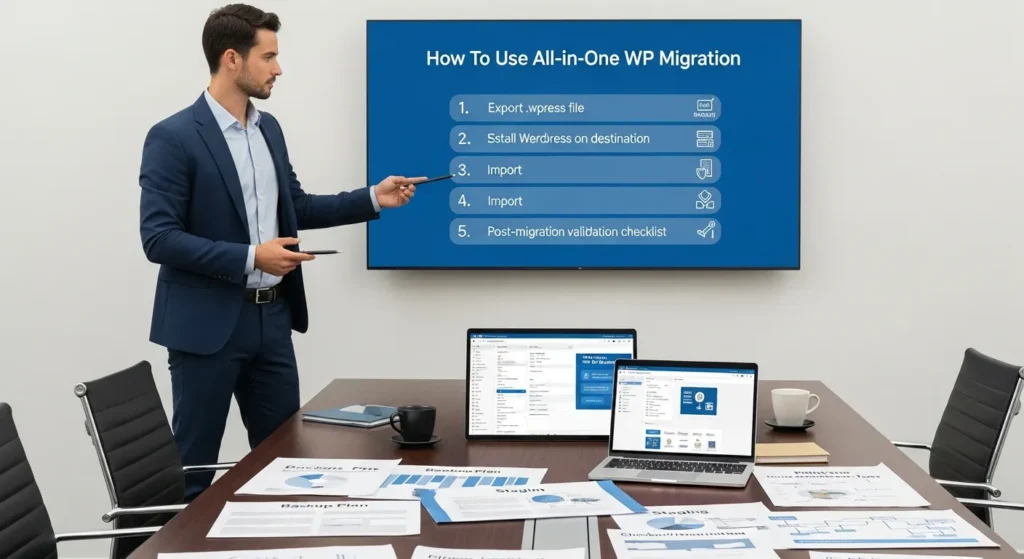
All-in-One WP Migration can feel like magic the first time you use it. One minute you are staring at a messy site full of plugins, orders, and images, and the next you have one clean file you can move.
Quick answer: install the plugin on your current WordPress site, export a .wpress file, install WordPress plus the plugin on the destination, import the file, then run a tight validation checklist so checkout, forms, and logins keep working. The “safe” part comes from staging, backups, and not moving sensitive data like it is a casual Dropbox folder.
Key Takeaways
- Use All-in-One WP Migration by exporting a single .wpress file from the source site, importing it into a fresh WordPress install on the destination, and then validating logins, forms, and checkout.
- Prevent avoidable failures by confirming the destination host meets WordPress requirements (PHP/MySQL versions, upload limits, and enough disk space) before you export anything.
- Reduce risk with a rollback plan, staging-first imports, and dual backups (host snapshot plus a plugin backup) so you can recover quickly if the import fails.
- Handle domain changes carefully by using find-and-replace for URLs during export/import and then checking for mixed content, redirect loops, and broken media links.
- Plan cutover timing around low-traffic windows, DNS propagation (24–48 hours), and email records (MX/SPF/DKIM/DMARC) to avoid lost password resets and order notifications.
- For large sites, address the free import size limit by shrinking media, excluding nonessential folders, or using the Unlimited extension so the All-in-One WP Migration import completes reliably.
Before You Touch Any Tools: The Safe Migration Checklist
A migration succeeds or fails before you click Export. We treat every site move like a small operations project: you map the steps, you set a rollback plan, then you touch tools.
Confirm Your Destination Hosting Meets WordPress Requirements
Your destination host affects your import. If the server runs old PHP or has tight upload limits, the import stalls and you burn hours.
Here is what we check before we move anything:
- PHP and database versions: Aim for PHP 7.4+ and MySQL 5.7+ (or MariaDB equivalent). WordPress publishes its current requirements on its official page, and we use that as the baseline.
- Disk space: A .wpress file can be large, and the import expands it. Free space needs to cover the archive plus the uncompressed site.
- A blank WordPress install: Install WordPress first on the destination. All-in-One WP Migration imports into an existing WordPress install, not into an empty folder.
If you want a deeper “why this tool, not that tool” view, our comparison of migration and staging tools helps teams pick the safest path for their setup: how we compare common WordPress move tools.
Back Up What Matters And Minimize Risk
All-in-One WP Migration is a migration tool. It is not your only backup.
We do two backups when the site matters (which includes most business sites):
- Host-level backup (control panel snapshot or managed host restore point)
- Plugin backup (UpdraftPlus or similar) so you have a second recovery path
This is cause-and-effect you can count on: a second backup path reduces recovery time when an import fails.
Also, protect your data during testing:
- Use staging data when you can.
- Remove old admin accounts you do not recognize.
- Confirm you can log in to the destination WordPress admin before you schedule the cutover.
Plan Your Cutover: Downtime, DNS, And Email Gotchas
Most “migration disasters” are not database problems. They are timing problems.
We plan three things:
- Low-traffic window: Move the site when orders and form leads slow down.
- DNS propagation: After you point DNS to a new host, changes can take 24 to 48 hours to fully spread. During that window, some visitors hit the old server.
- Email services: If your domain email uses the same DNS zone, a change can break mail routing. That affects password resets, order emails, and contact form delivery.
A simple rule helps: DNS changes affect email delivery if you touch MX, SPF, DKIM, or DMARC records. Keep a screenshot or export of the DNS zone before you edit anything.
Install And Configure All-in-One WP Migration On The Source Site
This part is easy. The mistakes tend to come from permissions and from skipping the settings that control URLs.
Where To Find The Plugin And What Permissions It Needs
On your source site:
- Go to Plugins → Add New.
- Search “All-in-One WP Migration”.
- Click Install, then Activate.
You need standard WordPress admin access. If you manage client sites, we also suggest a temporary admin account that you delete after the move.
If you want screenshots and a longer walk-through, we keep a step-by-step guide here: our practical guide to the All-in-One WP Migration plugin.
Export Settings That Matter For Predictable Restores
All-in-One WP Migration does not ask you to configure a big control panel first. You make most choices during export.
Two settings matter most when domains change:
- Find and replace for URLs: A domain change affects links, images, and internal references. When the plugin offers find/replace, use it carefully and test in staging first.
- Export exclusions: If you do not need cache folders, backups, or giant media libraries in your first pass, exclude them.
Cause-and-effect again: URL changes affect media links and login cookies. That is why we test logins and key pages after import, even when the import looks “successful.”
Export Your Site Into A Migration File
This is where All-in-One WP Migration earns its popularity. It packs the database, plugins, themes, and uploads into a single .wpress file.
Choose The Right Export Method (File, URL, Or Storage Integrations)
Inside WordPress, go to All-in-One WP Migration → Export.
You will see export options. These are the common ones:
- File: Most teams use this. You download a .wpress file to your computer.
- URL: Useful when you can pull the export from another endpoint.
- Cloud storage integrations: Handy when your local connection is slow or your file is large.
We usually pick File for small to medium sites because it keeps the workflow simple.
Handle Large Sites: Upload Limits, Extensions, And Practical Workarounds
Here is the big gotcha: the free version has a 512 MB import limit on many installs. That limit drives most support tickets.
Your options:
- Buy the Unlimited extension if the site is larger than the limit and the move matters.
- Reduce media before export if the bulk sits in uploads. Image libraries balloon fast on WooCommerce and portfolio sites.
- Export in a controlled order: Move the site first, then re-add large media or regenerate what you can.
We see a clear pattern: media size affects migration time more than database size for most marketing sites.
If you want a safe way to shrink images before you export, we often prep sites with automated image compression. Our guide on automating image compression before a move explains what to compress, what to keep, and what to test after.
Import The Site On The New Server
Imports feel scary because they overwrite content. That fear is healthy. We use it to force staging and checklists.
Do The Import In Staging First (Shadow Mode For Websites)
We run imports in staging first. Think of staging as shadow mode: it lets you see failures without customers seeing them.
Your staging setup can be:
- A staging feature from your host
- A subdomain like staging.yourdomain.com
- A temporary domain on the new host
This cause-and-effect keeps you safe: staging isolates risk from revenue pages like checkout, booking, and lead forms.
If your team also does partial moves (like copying a few pages or layouts cross-domain), you might like our write-up on cross-domain copy workflows. It is a different approach, but it fits some build pipelines.
Run The Import And Replace Site Details If Prompted
On the destination WordPress install:
- Install and activate All-in-One WP Migration.
- Go to All-in-One WP Migration → Import.
- Upload the .wpress file.
- Click Proceed when the plugin warns that it will overwrite the site.
If the plugin prompts you to replace URLs or site details, pause and confirm:
- Old domain spelling (http vs https matters)
- New domain spelling
- Whether you want to replace inside the database only, or also inside files
Then complete the import and log in again. Sometimes WordPress login cookies reset after the move, so a fresh login is normal.
Post-Migration Validation And Cleanup
A migrated site can look fine and still fail in the spots that pay your bills. We test the money paths first.
Check The Critical Paths: Homepage, Checkout, Forms, And Search
We run this test list in order:
- Homepage: loads fast, no broken hero image, no missing CSS
- Top navigation: menus work, key category pages load
- Checkout or booking flow: add to cart, shipping, tax, payment gateway, confirmation page
- Forms: contact, lead magnet, quote request, and any hidden spam protection
- Search: site search returns results, filters still work
For WooCommerce, test a real payment method in sandbox mode when possible. A migration can change webhook URLs and break payment confirmations.
Permalinks, Media, Plugins, And Theme-Specific Settings
These fixes solve a surprising number of post-move bugs:
- Go to Settings → Permalinks → Save Changes (we click save twice).
- Clear any caching plugins and server caches.
- Deactivate and reactivate key plugins if you see missing features.
- Check theme panels, page builder templates, and custom fields (ACF, Elementor, Divi).
If images look blurry or cropped wrong, regenerate thumbnails. Theme image sizes can change between environments.
Fix Common Issues: 404s, Mixed Content, Redirects, And Login Problems
Here are the problems we see most, plus quick fixes:
- 404 errors on posts or products: resave permalinks, confirm .htaccess rules, check Nginx rules if your host uses Nginx.
- Mixed content warnings (http assets on an https site): run a URL replacement, then force HTTPS and clear caches.
- Redirect loops: check WordPress Address and Site Address, then check any redirect plugins or host-level redirects.
- Cannot log in: confirm cookies, confirm wp-config.php settings, reset admin password, and check security plugins.
Speed can also shift after a move. Hosting stacks differ, and caching settings can reset.
If you are troubleshooting slow pages after migration, our breakdown of caching vs image compression choices helps you pick the right lever to pull first.
Security, Privacy, And Governance For Business Sites
A site move touches personal data. That includes customer emails, order history, appointment notes, and support messages. Treat it like a controlled transfer, not a casual file copy.
Data Minimization And Sensitive Data Handling During Migration
We limit what we move when we can, especially in regulated work.
Rules we follow:
- Do not copy sensitive data into staging if you do not need it.
- Mask or anonymize customer data in test environments.
- Store the .wpress file like it contains secrets, because it does.
Cause-and-effect matters here: a full-site archive contains database tables, and those tables often contain personal data.
If your work touches healthcare, legal, finance, or minors, keep humans in the loop. Also keep legal advice with legal counsel.
Access Control: Temporary Admins, Keys, And Least Privilege
We keep access tight during migration:
- Create a temporary admin for the move.
- Enable 2FA if your stack supports it.
- Rotate passwords after the cutover.
- Remove old API keys, old webhook endpoints, and unused admin accounts.
This is simple math: more admin accounts increase breach risk.
Logging, Rollback, And Ongoing Backup Cadence
We keep a rollback plan even when the move looks perfect:
- Store the .wpress file in a secure location with restricted access.
- Document the cutover time, DNS changes, and plugin versions.
- Keep host snapshots for a few days after launch.
- Set a recurring backup schedule after the dust settles.
If you run a store or a lead gen site, consider ongoing exports only as one layer. Pair them with host backups and offsite storage.
We like repeatable operations here: a backup cadence reduces outage time when a plugin update or bad edit breaks the site later.
Conclusion
All-in-One WP Migration works well when you treat it like a controlled process: staging first, backups always, and validation that focuses on checkout, forms, and logins. If you only remember one thing, remember this: the export button is easy, but the proof lives in the post-move tests.
If you want us to map your Trigger → Input → Job → Output steps and run a low-risk pilot migration, we do that kind of calm, checklist-driven WordPress work every week at Zuleika LLC.
Frequently Asked Questions (FAQ) About Using All-in-One WP Migration
How to use All-in-One WP Migration to move a WordPress site safely?
Install All-in-One WP Migration on the source site, export a single .wpress file, then install WordPress plus the plugin on the destination and import the file. For a safe migration, do it in staging first, keep two backups, and validate checkout, forms, and logins after import.
What hosting requirements should I check before an All-in-One WP Migration import?
Confirm the destination host supports modern WordPress requirements (commonly PHP 7.4+ and MySQL 5.7+ or equivalent), has enough disk space for the .wpress archive plus the expanded site, and has a blank WordPress install ready. Tight upload limits or old PHP often cause imports to stall.
How do I change the domain or fix URLs when using All-in-One WP Migration?
During export or import, use the plugin’s find-and-replace carefully for old vs new URLs (including http vs https). Domain changes can break images, internal links, and login cookies, so test in staging and then re-check key pages. Clear caches and re-save permalinks if issues appear.
Why does All-in-One WP Migration fail on large sites, and how do I handle the 512MB limit?
Many installs hit a common free-version import ceiling around 512MB, especially when media libraries are large. For big sites, use the Unlimited extension, reduce or exclude nonessential uploads, or migrate in a controlled order (move core site first, then add heavy media). Media size often drives time and failures.
What should I test after an All-in-One WP Migration import to confirm everything works?
Prioritize revenue and lead paths: homepage and navigation, WooCommerce checkout or booking flow, contact/lead forms (including spam protection), and on-site search/filters. Then re-save permalinks, clear plugin/server caches, and verify theme/page builder settings. If possible, run a real payment test in sandbox mode.
Is it safe to use All-in-One WP Migration with customer data and WooCommerce orders?
It can be safe if you treat the .wpress file like sensitive data because it often includes customer emails, orders, and notes. Avoid copying sensitive data into staging unless needed, restrict access to the archive, use temporary admin accounts, and rotate passwords and keys after cutover. Maintain host backups and offsite backups for rollback.
Some of the links shared in this post are affiliate links. If you click on the link & make any purchase, we will receive an affiliate commission at no extra cost of you.
We improve our products and advertising by using Microsoft Clarity to see how you use our website. By using our site, you agree that we and Microsoft can collect and use this data. Our privacy policy has more details.
