
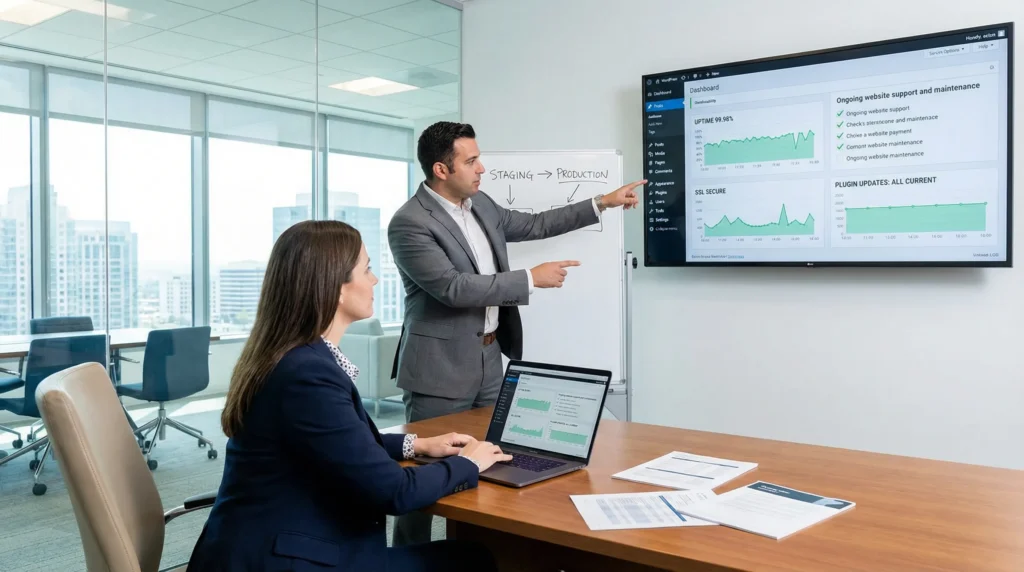
Ongoing website support and maintenance is the part of owning a site that feels boring right up until it becomes urgent. We have watched a “fine yesterday” WordPress site turn into a blank screen after one innocent plugin update, with orders stuck in limbo and a founder texting us at 6:12 a.m.
Quick answer: a website is a living business system, so it needs routine care, testing, and security checks the same way payroll, inventory, and customer support do. Skip the care, and the bill shows up later in lost trust, lost traffic, and ugly cleanups.
Key Takeaways
- Ongoing website support and maintenance keeps your site stable as browsers, payment gateways, plugins, and your business change after launch.
- Treat website maintenance like controlled change management—update WordPress core/themes/plugins in staging, test critical flows (forms, checkout, login), then deploy and log results.
- Security and uptime depend on routine website support and maintenance steps like 2FA, access control, SSL renewal, monitoring, malware scans, and backups you’ve actually tested for restore.
- Performance maintenance protects revenue by improving speed and reliability through caching reviews, image optimization (e.g., WebP), database cleanup, and proactive hosting checks.
- Content and SEO upkeep prevents rankings and lead loss by fixing 404s, adding redirects, refreshing top pages, and keeping titles/metadata current as offers and policies shift.
- Build a sustainable rhythm (weekly/monthly/quarterly) with clear ownership, documentation, and a “who gets paged” plan to avoid costly emergency cleanups and downtime.
Why “Launch” Is Not The Finish Line
A website launch feels like crossing a finish line. Your team breathes out. The home page looks sharp. Forms work. Checkout works. Then real life starts.
Browsers update. Payment gateways change rules. Plugins ship new versions. Bots probe your login page every day. Your business also changes, which means your site content should change too.
Here is why this matters: systems that do not get maintained drift. That drift breaks small things first. A contact form stops sending. A booking calendar loads late. A product filter fails on mobile. And you do not see it until a customer complains.
Websites Age: Software Updates, Browser Changes, And Plugin Drift
WordPress sites run on moving parts: WordPress core, your theme, plugins, your host’s PHP version, and third-party scripts.
One hard data point should settle the “I will update later” habit: plugin vulnerabilities drive a large share of WordPress compromises. Patchstack’s annual WordPress security reporting has repeatedly shown that most known vulnerabilities sit in plugins, not core. When you delay updates, you extend the window where attackers can use publicly known issues.
Plugin drift also hits performance. A plugin that was fine two years ago can turn into a speed anchor after it adds features you never asked for.
Your Site Is A Business System, Not A Brochure
If your site only “looks good,” it still fails the job.
Your site does these things:
- It captures leads.
- It takes payments.
- It answers questions.
- It routes support requests.
- It feeds data into email, CRM, shipping, and analytics tools.
When you treat it like a brochure, you miss the system risk. A broken checkout is not “a web issue.” It is a revenue issue. A hacked contact form is not “an IT issue.” It is a trust issue.
If content updates already feel painful, you are not alone. We see teams hit the same wall over and over: the CMS becomes a fear zone. If that sounds familiar, this post on why content updates get hard fast will feel uncomfortably accurate.
What Website Maintenance Actually Includes
Website maintenance is not one task. It is a set of routines that keep risk low and performance steady.
We like to map it as: Trigger → Input → Job → Output → Guardrails.
- Trigger: a scheduled cycle, an alert, or a business change.
- Input: updates, logs, analytics, support tickets.
- Job: test, patch, clean, improve.
- Output: a working site, documented changes, recoverable backups.
- Guardrails: staging, rollbacks, access control, privacy rules.
If you want a long-form breakdown, our guide on what a managed plan usually covers lays out scope, pricing ranges, and what to ask before you sign.
Core Updates: WordPress, Themes, And Plugins
Core updates do two jobs: they add features and they patch security issues.
We treat updates like a controlled change, not a button mash.
- Update in staging first.
- Test key flows (forms, checkout, search, login).
- Push to production.
- Log what changed.
Removing unused plugins also matters. Less code means fewer conflicts and fewer places to get hit.
Security Hardening, Monitoring, And Backups
Security maintenance is mostly boring. That is good.
A sensible baseline looks like this:
- Enforce strong admin passwords and unique accounts.
- Turn on two-factor authentication for admins.
- Limit login attempts and watch suspicious traffic.
- Keep SSL active and auto-renewed.
- Run malware scans.
- Take backups you can actually restore.
Google’s HTTPS guidance is still the cleanest public explanation of why SSL matters for user trust and for modern browsers.
Backups need real testing. A backup that cannot restore is just a warm feeling in a dashboard.
Performance: Speed, Uptime, And Database Hygiene
Speed affects sales. Google has been blunt about this for years: faster pages reduce abandonment.
One popular benchmark shows the money angle clearly: sites that load in about 1 second convert far better than sites that take 5 seconds. (Portent’s conversion rate research is widely cited in ecommerce circles.)
Performance maintenance often includes:
- Image compression and modern formats like WebP.
- Caching review.
- Database cleanup for post revisions, transients, and spam.
- Uptime monitoring.
- Hosting checks when traffic grows.
Content And SEO Care: Broken Links, Redirects, And On-Page Refreshes
Content maintenance sounds soft until you see what broken pages do to leads.
We run a simple loop:
- Scan for broken links and 404s.
- Add redirects when URLs change.
- Refresh top pages when offers, pricing, or policies shift.
- Check titles, headings, and metadata for clarity.
If you want a checklist you can hand to a team member, our weekly, monthly, and quarterly maintenance checklist turns this into a repeatable routine.
The Real Costs Of Neglect: Risks That Show Up Quietly
Neglect rarely explodes on day one. It leaks value.
Small failures stack up:
- You lose speed, then conversions.
- You lose trust, then leads.
- You lose rankings, then pipeline.
- You lose time, then morale.
The worst part is timing. Problems show up when you are busiest.
Security Incidents And Malware Cleanup
Most owners learn about maintenance after a hack.
A common pattern looks like this:
- A plugin vulnerability becomes public.
- Attackers scan for sites that did not patch.
- The site gets injected with spam links or malicious redirects.
- Google flags the domain or users see warnings.
Then you pay for cleanup, downtime, and reputation repair. Patchstack’s WordPress vulnerability reports give useful context on why plugin updates matter so much.
Revenue Loss From Slow Pages And Checkout Issues
Speed problems feel harmless because the site still “loads.” Users disagree.
A slow cart page affects these things:
- Cart abandonment rises.
- Support tickets rise.
- Ad costs climb because your funnel converts worse.
Entity logic in plain English: slow pages reduce conversions. Conversions affect revenue. Revenue affects your ability to invest in growth. That chain is real, and it starts with boring tech hygiene.
SEO Decay From Errors, Indexing Problems, And Outdated Content
Search traffic decays when signals get messy.
Common causes we see:
- Broken internal links.
- Duplicate pages created by tags, filters, or parameter URLs.
- Old posts that no longer match intent.
- Missing redirects after a redesign.
Google’s Search Essentials is a good baseline: clear purpose and helpful pages beat stale clutter.
Accessibility And Compliance Exposure (Especially For Regulated Teams)
If you work in healthcare, finance, legal, or public services, your site carries extra risk.
Accessibility issues can turn into legal exposure. Privacy missteps can turn into trust loss or regulatory attention.
We keep this practical:
- Audit forms for data minimization. Collect only what you need.
- Avoid sending sensitive info through email.
- Restrict admin access and review user roles.
- Keep cookie and consent tools current.
For EU-facing teams, the EDPB’s guidance on consent and data protection basics is a steady reference point, even if you operate in the US. It sets a higher bar that many orgs choose to meet.
How To Set Up A Sustainable Maintenance Rhythm
A maintenance rhythm beats a once-a-year panic.
We like a simple rule: start small, run it calmly, prove the time saved, then expand.
If your team has no time, you need fewer tasks, not a thicker spreadsheet.
A Practical Cadence: Weekly, Monthly, Quarterly
Here is a cadence that works for most small business WordPress sites:
Weekly (15 to 30 minutes):
- Check uptime and error alerts.
- Review critical forms and checkout.
- Scan for obvious spam or strange admin users.
Monthly (60 to 120 minutes):
- Update plugins, theme, and core in staging.
- Test key flows.
- Review backups and run one restore test.
- Check performance and top pages in analytics.
Quarterly (half day):
- Content refresh on money pages.
- Plugin cleanup.
- SEO technical scan for 404s, redirects, index bloat.
- Security review of accounts and roles.
Our deeper guide on a practical maintenance routine for busy owners breaks this into checklists and “what to do when X fails” steps.
Shadow Mode Changes, Staging, And Rollback Plans
Shadow mode means you test changes without risking the live site.
We set up:
- A staging site that matches production.
- A test script for your key pages.
- A rollback plan that you can run in minutes.
Entity logic again: staging reduces outage risk. Outage risk affects revenue and trust.
Logging, Ownership, And “Who Gets Paged” When Something Breaks
Most maintenance fails for one reason. Nobody owns it.
You need:
- A shared log of changes.
- One named owner for approvals.
- A clear “who gets paged” list.
- A definition of “urgent.”
We keep logs simple. Date. Change. Result. Next step. No heroics.
And yes, we talk about money here because surprise bills cause avoidance. If you feel stuck on cost fear, this piece on why maintenance pricing feels uncertain helps you set expectations without guessing.
What To Look For In Ongoing Support (And What To Avoid)
You are not just buying labor. You are buying reduced risk and faster recovery.
Good support feels calm. Bad support feels like silence, followed by a big invoice.
Clear Scope: What Is Included Vs. Billable Projects
Ask for scope in writing.
A solid plan states:
- What updates and monitoring include.
- What counts as a project (redesigns, new features, migrations).
- What the support team will test after updates.
- What reports you get each month.
If you are comparing vendors, our roundup of maintenance service options for growing sites calls out the pillars we use when we evaluate plans.
Response Times, Communication, And Documentation Standards
You want a real response standard, not “we try.”
Look for:
- Business-hour response times for normal tickets.
- Clear escalation for security issues and outages.
- A plain-English monthly report.
- Documentation that your team can keep.
If a provider cannot explain what they did last month, you cannot govern risk.
Data Handling And Privacy Boundaries For Forms, Orders, And CRM Syncs
This part matters for every business, and it matters a lot for regulated teams.
Ask direct questions:
- Who can access order data?
- Where do form submissions go?
- Do you store passwords in shared docs? (Please do not.)
- Do you have a policy for exporting and deleting user data?
Also ask how they handle “AI helpers” if they use them for support or content drafts. We keep humans in the loop, we avoid pasting sensitive data into third-party tools, and we document what touches customer info.
One more practical tip: if you need to take the site offline during planned work, use a branded maintenance page. It keeps trust intact and reduces panic. Here is our list of WordPress maintenance mode plugin options that do it cleanly.
Conclusion
Ongoing website support and maintenance is not a luxury item. It is the price of running a site that stays fast, safe, and believable.
If you want the safest start, pick one critical flow (checkout, lead form, booking) and protect it with a monthly routine, staging tests, and tested backups. Then build from there. We would rather help you prevent the 6:12 a.m. outage text than respond to it.
Frequently Asked Questions About Ongoing Website Support and Maintenance
Why is ongoing website support and maintenance necessary after a website launch?
Because “launch” isn’t the finish line. Browsers, payment gateways, WordPress core, themes, and plugins keep changing, and attackers probe sites daily. Without ongoing website support and maintenance, small issues (forms, checkout, mobile filters) quietly drift into outages, lost trust, and expensive cleanups.
What does ongoing website support and maintenance actually include for a WordPress site?
It’s a routine set of tasks: controlled updates (core/theme/plugins), staging tests of key flows (login, forms, checkout, search), security monitoring, malware scans, SSL checks, backups you can restore, performance work (caching, images, database cleanup), and content/SEO upkeep like fixing 404s and adding redirects.
How often should you run website maintenance (weekly, monthly, quarterly)?
A practical cadence is weekly checks (uptime alerts, critical forms/checkout, obvious spam), monthly maintenance (update in staging, test key flows, verify backups with a restore test, review analytics/performance), and quarterly work (content refresh on money pages, plugin cleanup, SEO scans, account/role security review).
Do I really need to update WordPress plugins, themes, and core right away?
Yes—especially plugins. WordPress security reporting consistently shows many known vulnerabilities live in plugins, not core. Delaying updates extends the window where attackers can use publicly known issues. The safer approach is updating in staging first, testing key user flows, then pushing live with a change log.
What’s the best way to prevent a plugin update from breaking my site?
Use a staging environment that matches production, run a repeatable test script (checkout, forms, search, login), and keep a rollback plan you can execute in minutes. Also remove unused plugins to reduce conflicts. This “shadow mode” approach lowers outage risk and protects revenue-critical flows.
How do slow pages affect revenue, and what maintenance improves site speed?
Slow pages increase abandonment and reduce conversions, which raises support load and can make ads cost more because your funnel converts worse. Speed-focused maintenance typically includes image compression (often WebP), caching review, uptime monitoring, database hygiene (revisions/transients/spam cleanup), and hosting checks as traffic grows.
Some of the links shared in this post are affiliate links. If you click on the link & make any purchase, we will receive an affiliate commission at no extra cost of you.
We improve our products and advertising by using Microsoft Clarity to see how you use our website. By using our site, you agree that we and Microsoft can collect and use this data. Our privacy policy has more details.
