
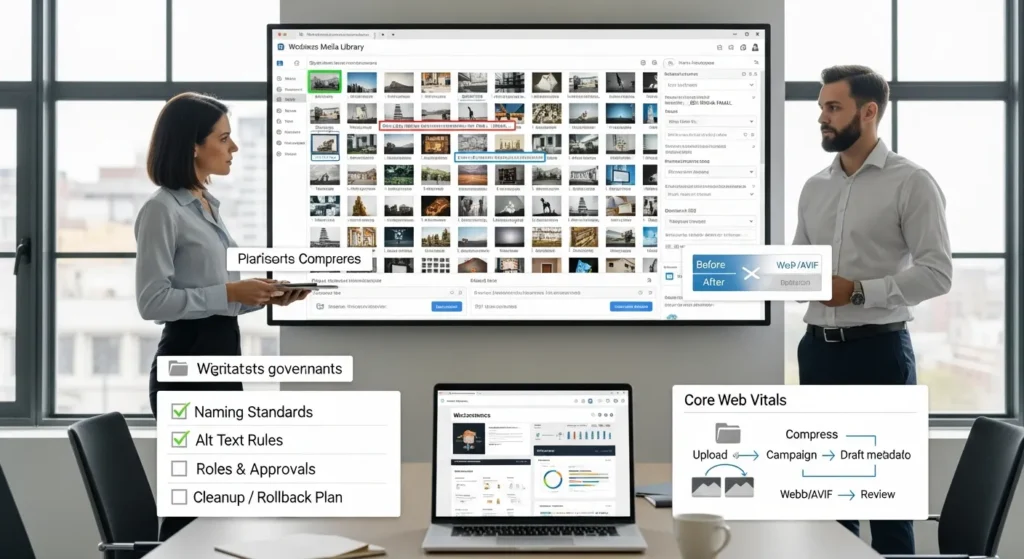
Media manager WordPress problems usually show up at the worst time. We have watched a WooCommerce product launch stall because a hero image lived somewhere in a 14,382‑file Media Library, named “IMG_8841-final-FINAL.jpg.”
Quick answer: the WordPress Media Manager works for basic uploads and reuse, but it needs workflow rules, consistent metadata, and periodic cleanup to stay fast and safe as your site grows.
Key takeaways
- Use standards before tools: naming, alt text rules, and roles reduce chaos fast.
- Optimize images inside your workflow, not as an afterthought.
- Add plugins only after you define folders/taxonomies, bulk actions, and rollback plans.
- Treat automation as a “brain” with guardrails, especially for privacy and copyright.
Key Takeaways
- The default media manager WordPress setup works for basic uploads, but it needs clear rules and routine cleanup to stay fast, searchable, and safe at scale.
- Define standards first—consistent filenames, 6–14 word alt text, and captions for credits—so search improves and teams stop re-uploading duplicates.
- Organize media with a simple taxonomy (categories for purpose, tags for campaigns and usage rights) to filter assets quickly without relying on “folders.”
- Build image optimization into your upload workflow (right formats like WebP/AVIF, sensible widths, and compression) to protect Core Web Vitals and prevent oversized hero images.
- Lock down roles and approvals so contributors can upload but not delete, editors review key visuals, and admins handle bulk changes to reduce accidental site-wide mistakes.
- Add a WordPress media manager plugin only after you document must-have features and a rollback plan, then test on staging with real media volume before going live.
What The WordPress Media Manager Does (And Where It Falls Short)
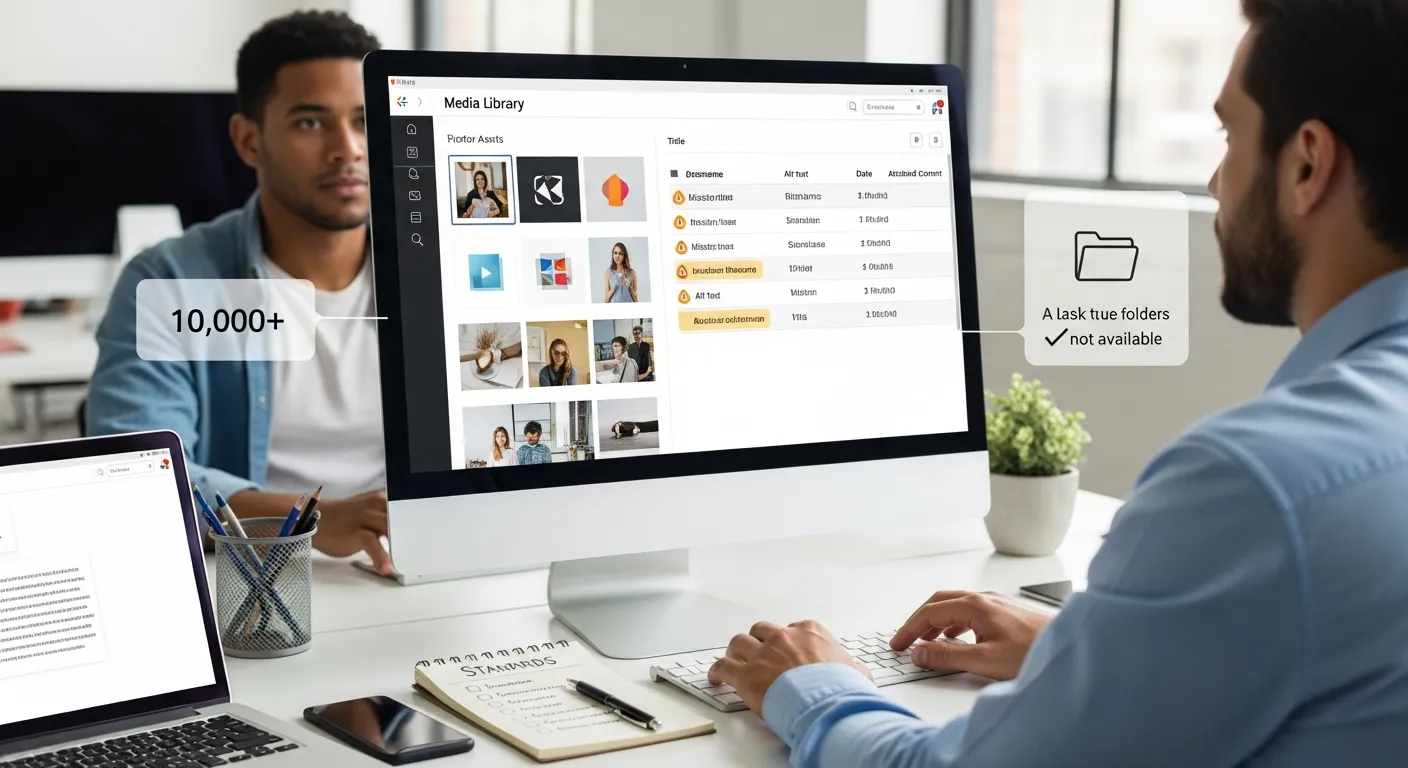
You can think of the WordPress Media Manager as a basic warehouse. It stores files, it lets you pick them in the editor, and it creates common image sizes, which means you can publish without a separate DAM (digital asset manager).
Default Capabilities: Upload, Edit, Attach, And Reuse
WordPress lets you upload images, video, and audio in a grid or list view. It also creates thumbnails and other sizes based on your theme settings, which means your pages can load smaller images instead of full-size originals.
The editor also supports:
- Attachment to posts/pages/products, which means you can reuse assets across content.
- Basic edits like crop/rotate, which means you can fix quick issues without Photoshop.
- URL access to media, which means you can link files in emails, PDFs, or landing pages.
If you want fewer admin plugins overall, tools like Admin and Site Enhancements can reduce backend clutter, which means the Media Library stays easier to operate day-to-day. We often pair that with backend streamlining using ASE on smaller sites.
Do this today (10 minutes): open Media → Library and switch between grid and list. Note what you cannot filter for (client, campaign, product line). Write that list down.
Common Pain Points For Growing Sites
The big issue is simple: WordPress does not ship with true folders. You get dates, search, and a few filters. That works until you hit real scale.
We see friction start around 2,000–5,000 files. Past 10,000 files, teams complain about:
- No folders, which means people create duplicates instead of hunting.
- Weak search, which means “logo” returns 300 items with no context.
- Limited bulk actions, which means cleaning alt text or filenames becomes a weekend project.
WordPress also gives admins a lot of power by default, which means one rushed upload can overwrite standards across the site.
Do this today (15 minutes): pick 20 random images and check filenames, titles, and alt text. If over half are inconsistent, you need standards before plugins.
A Workflow-First Media Library Setup (Before You Add Plugins)
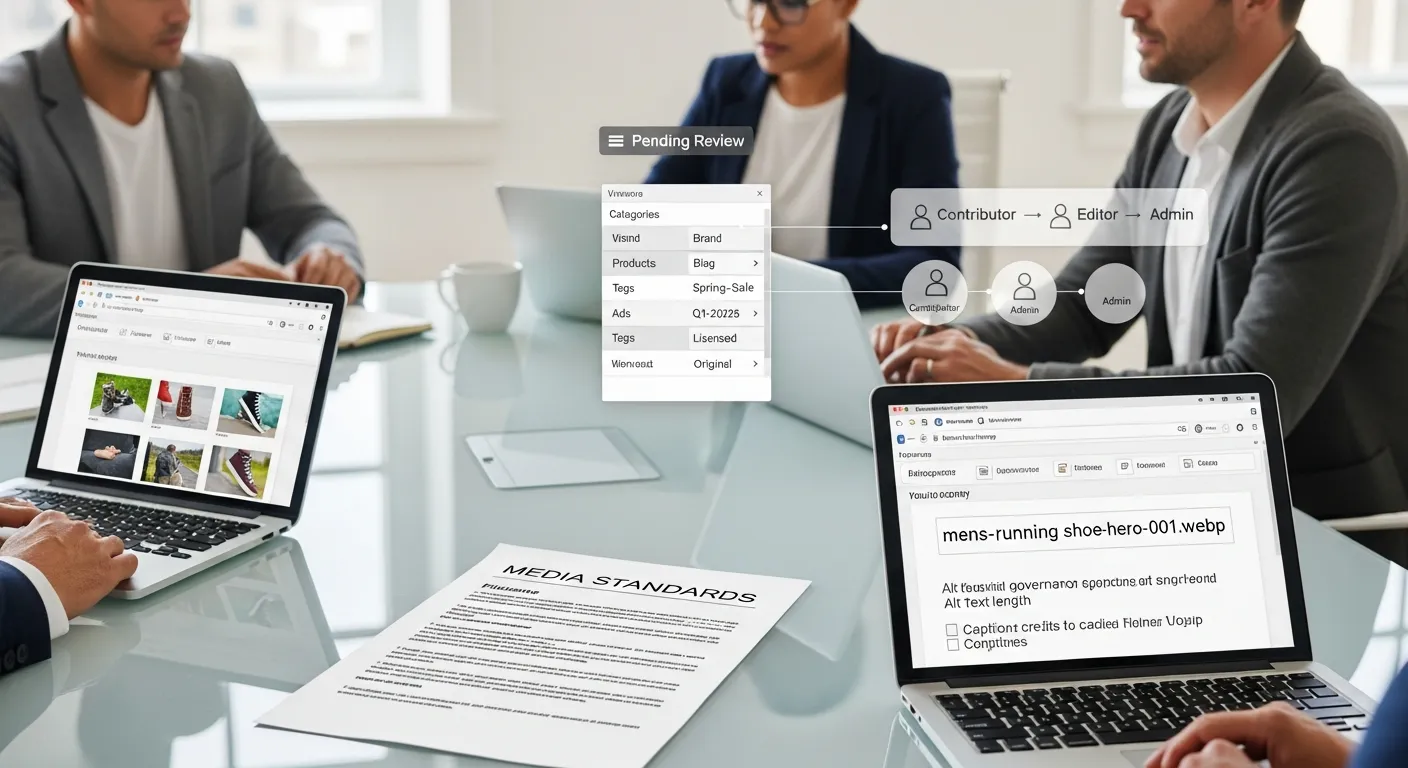
A good media library starts with a boring document. That document prevents expensive mistakes, which means you can scale content without constant cleanup.
We learned this the hard way on a client site in downtown Austin near South Congress. A contractor uploaded 611 images straight from a phone. Page speed dropped, and the team lost two afternoons sorting “IMG_” files.
Folder And Taxonomy Strategy: Categories, Tags, Or “Folders”
WordPress supports taxonomies (categories/tags) for posts. With the right approach (or a light plugin), you can add similar labels to media, which means you can filter assets by campaign or product line.
A simple strategy that works for most businesses:
- Category = business purpose (Brand, Products, Blog, Ads), which means assets align to teams.
- Tag = campaign or quarter (Q1-2026, Spring-Sale), which means you can clean up later.
- Tag = usage rights (Licensed, Original, UGC-approved), which means you reduce copyright risk.
If you run training content, add tags for course names. That same structure helps when you compare platforms and media needs for courses, which means your content stays reusable. See how we evaluate content-heavy sites in our guide to choosing an LMS for WordPress.
Do this today (20 minutes): draft 6 categories and 10 tags on a one-page standard. Keep names short and obvious.
File Naming, Alt Text, And Caption Standards You Can Enforce
A standard beats hope. When teams follow a naming rule, search works, which means you stop re-uploading the same asset.
We use this filename pattern:
- page-or-product-slug + descriptor + number
- Example:
mens-running-shoe-hero-001.webp, which means files sort predictably.
Alt text rules (keep them strict):
- Describe what the user sees in 6–14 words, which means screen readers get value.
- Add key context only when it matters (brand, model, location), which means you avoid spam.
Caption rules:
- Use captions for credit and context, which means you keep copyright notes close to the asset.
Do this today (25 minutes): pick your top 10 traffic pages and rewrite the alt text for their main images to meet the 6–14 word rule.
Roles, Permissions, And Approval: Keeping Humans In The Loop
Media mistakes often come from “helpful” uploads. You need role limits and an approval step, which means your library stays clean even when interns or contractors publish.
A safe baseline:
- Contributors upload but cannot delete, which means they cannot break pages.
- Editors approve featured images, which means brand visuals stay consistent.
- Admins manage bulk cleanup, which means fewer people touch risky settings.
If your site handles privacy controls and tracking scripts, apply the same mindset to media governance, which means you avoid accidental exposure in embeds and third-party pixels. Our consent management guidance shows how we document responsibility and review steps.
Do this today (15 minutes): list every role that uploads media. Remove “delete” permissions from anyone who does not own site QA.
Image Optimization Inside The Media Manager
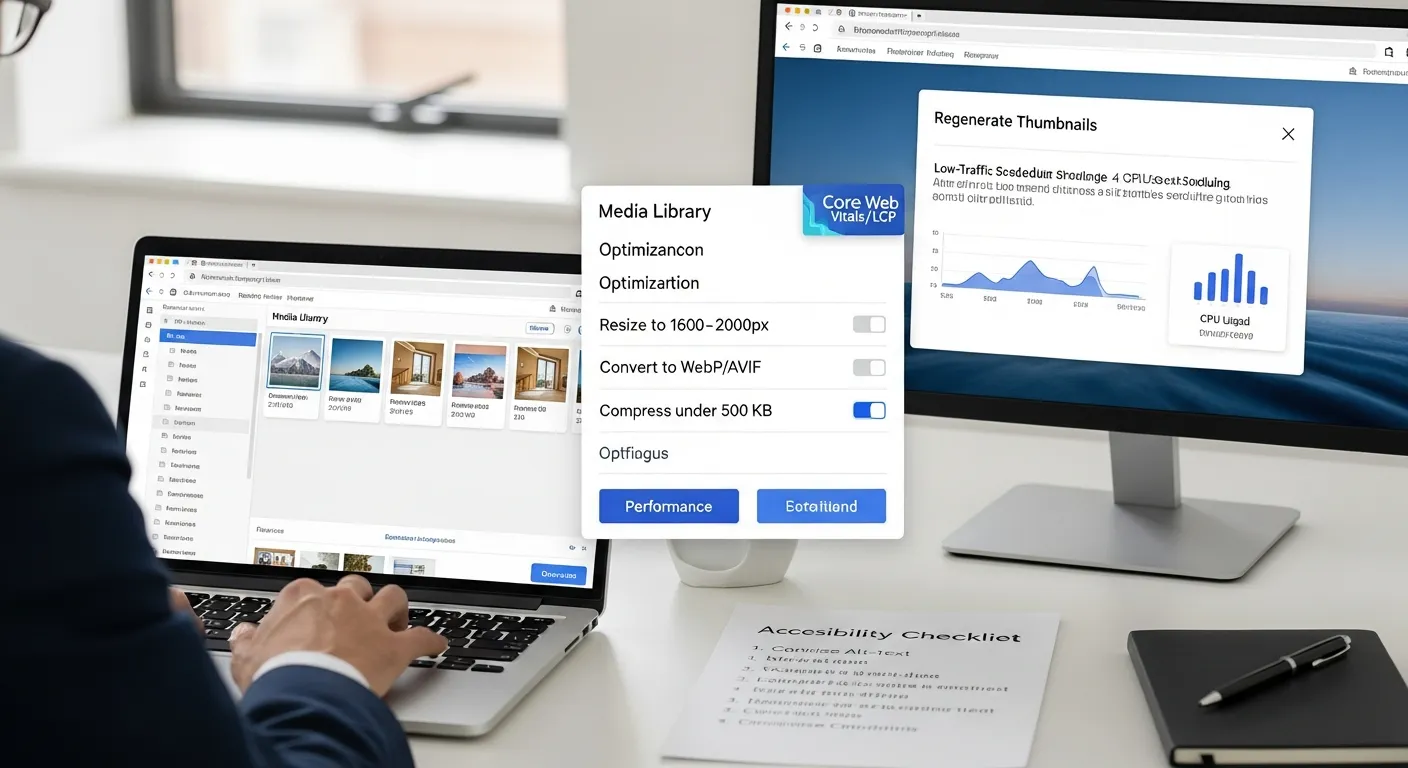
The fastest “performance win” is often an image that never ships at 4,000 pixels wide. When you optimize at upload time, you prevent future rework, which means your site stays fast even as content grows.
According to Google, largest contentful paint (LCP) often depends on the largest above-the-fold image, which means oversized hero images can directly hurt Core Web Vitals and SEO. (Source: Google Web.dev on LCP)
Right Formats And Sizes: JPEG, PNG, WebP, AVIF
Use the simplest format that meets the goal.
Common choices:
- WebP for most photos, which means you get smaller files with good quality.
- AVIF when your stack supports it, which means you can shrink even more.
- JPEG for compatibility, which means older tools still behave.
- PNG for transparency and crisp UI graphics, which means logos do not blur.
Size rules we use on business sites:
- Hero images: 1600–2000px wide, which means you cover large screens without waste.
- Blog images: 1200px wide, which means social previews stay sharp.
Do this today (10 minutes): check your last 10 uploads. If any exceed 500 KB, resize and re-upload a WebP version.
Compression, Resizing, And Regenerating Thumbnails Safely
WordPress generates thumbnails based on registered sizes. When themes change, sizes change, which means old thumbnails can become wrong.
Safe method:
- Back up first, which means you can roll back.
- Regenerate thumbnails during low traffic, which means you avoid server spikes.
- Test 5 pages after regen, which means you catch layout shifts fast.
We have seen thumbnail regeneration spike CPU for 18 minutes on a 30,000-image library. That is normal on shared hosting, which means you should schedule it.
Do this today (20 minutes): document your current image sizes (Settings + theme docs). Save the list in your team wiki.
Accessibility Requirements: Alt Text That Helps Users And SEO
Alt text is not decoration. It is functional text for users and assistive technology, which means it directly supports accessibility.
Use alt text to:
- Describe content that matters (product, chart, instruction), which means users do not miss meaning.
- Skip purely decorative images (empty alt), which means screen readers do not get noise.
If you operate in regulated spaces like healthcare or legal, do not put private client details in alt text, which means you reduce accidental disclosure.
Do this today (15 minutes): create an “Alt Text Allowed / Not Allowed” list for your team. Keep it to 8 bullets.
Cleaning And Maintaining Your WordPress Media Manager Over Time
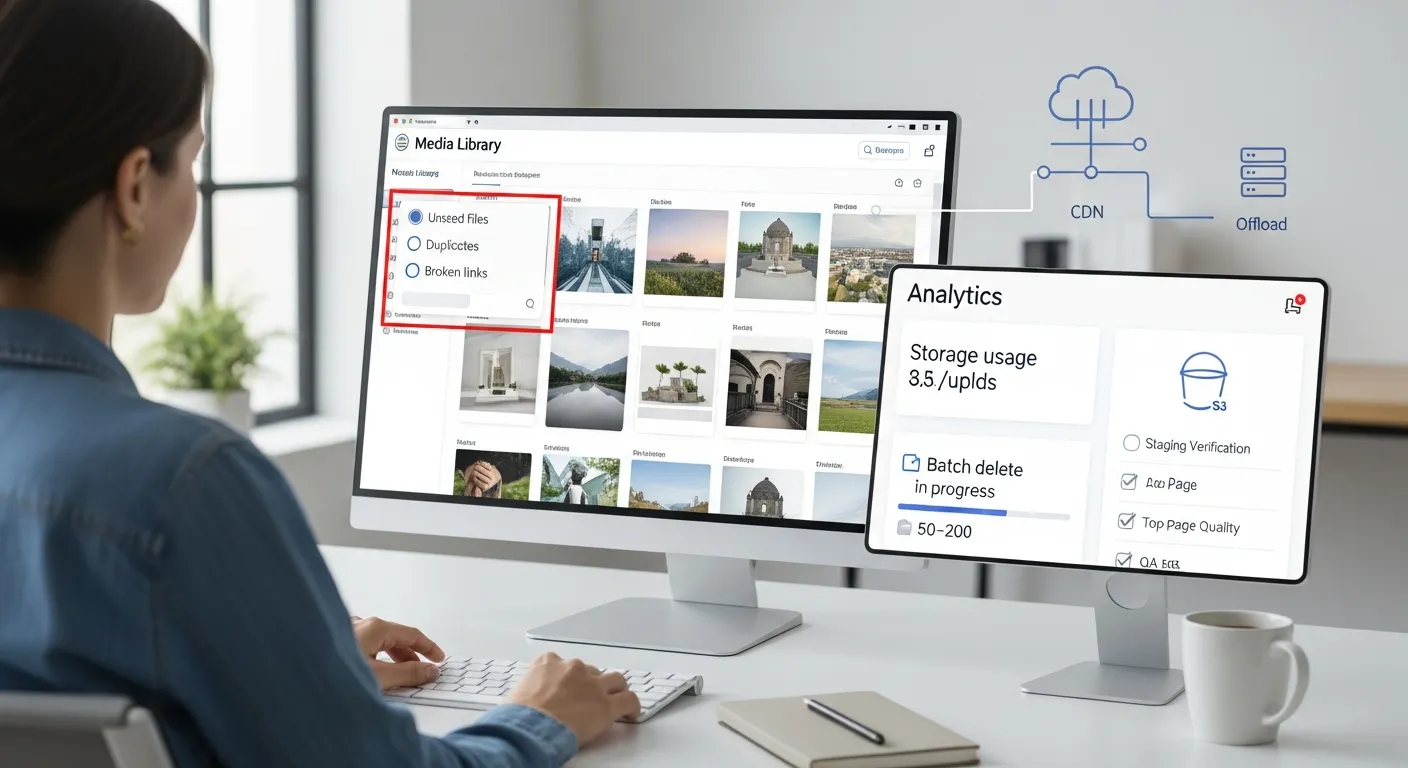
Media libraries rot slowly. Then they fail fast. We once found 1,903 unused images on a site after a catalog refresh, which means backup size and search noise had doubled for no benefit.
Finding And Removing Unused Media Without Breaking Pages
You should treat deletions as production changes. A deleted image can break product pages, which means you can lose revenue.
A safe cleanup flow:
- Scan for unused media with a tool, which means you start with evidence.
- Delete in batches of 50–200, which means you can recover quickly.
- Check top pages and templates after each batch, which means you catch broken visuals.
If you do not have staging, you need it before big deletes, which means you avoid “oops” moments. That is part of what we cover in managed WordPress maintenance planning.
Do this today (30 minutes): export a media list (or run a scan) and mark 25 obvious duplicates or unused files. Do not delete yet.
Duplicate Detection, Broken Links, And Redirect Considerations
Duplicates waste storage and create brand drift. Broken links create ugly gaps, which means trust drops.
What we check:
- Same image uploaded in 4 sizes manually, which means teams bypassed standards.
- Broken image URLs in posts, which means a migration or cleanup went wrong.
- Old PDFs linked in blogs, which means lead magnets disappear.
Redirects rarely apply to media files in the same way they do to pages. If you change filenames, you often change URLs, which means you should avoid renaming on live sites unless you control replacements.
Do this today (20 minutes): run a broken link check on your top 50 pages and fix 10 media-related issues.
Storage Strategy: Local, CDN, Or Offload (And How To Choose)
Storage choice affects speed and cost. Local storage is simple, which means small sites move fast. Offload to Amazon S3 plus a CDN can help at scale, which means global users load images from nearby locations.
Use this rule of thumb:
- Under 5 GB media and under 50,000 visits/month: local is fine, which means you can keep ops simple.
- Over 20 GB or heavy image traffic: consider offload/CDN, which means your server stops serving every byte.
In Austin, we often see restaurant and hospitality sites spike on weekends and events near Zilker Park. A CDN helps during surges, which means your menu and booking pages stay snappy.
Do this today (15 minutes): check your /uploads/ size in hosting. Write the number down and set a 90-day review reminder.
Automation And Governance For Media At Scale
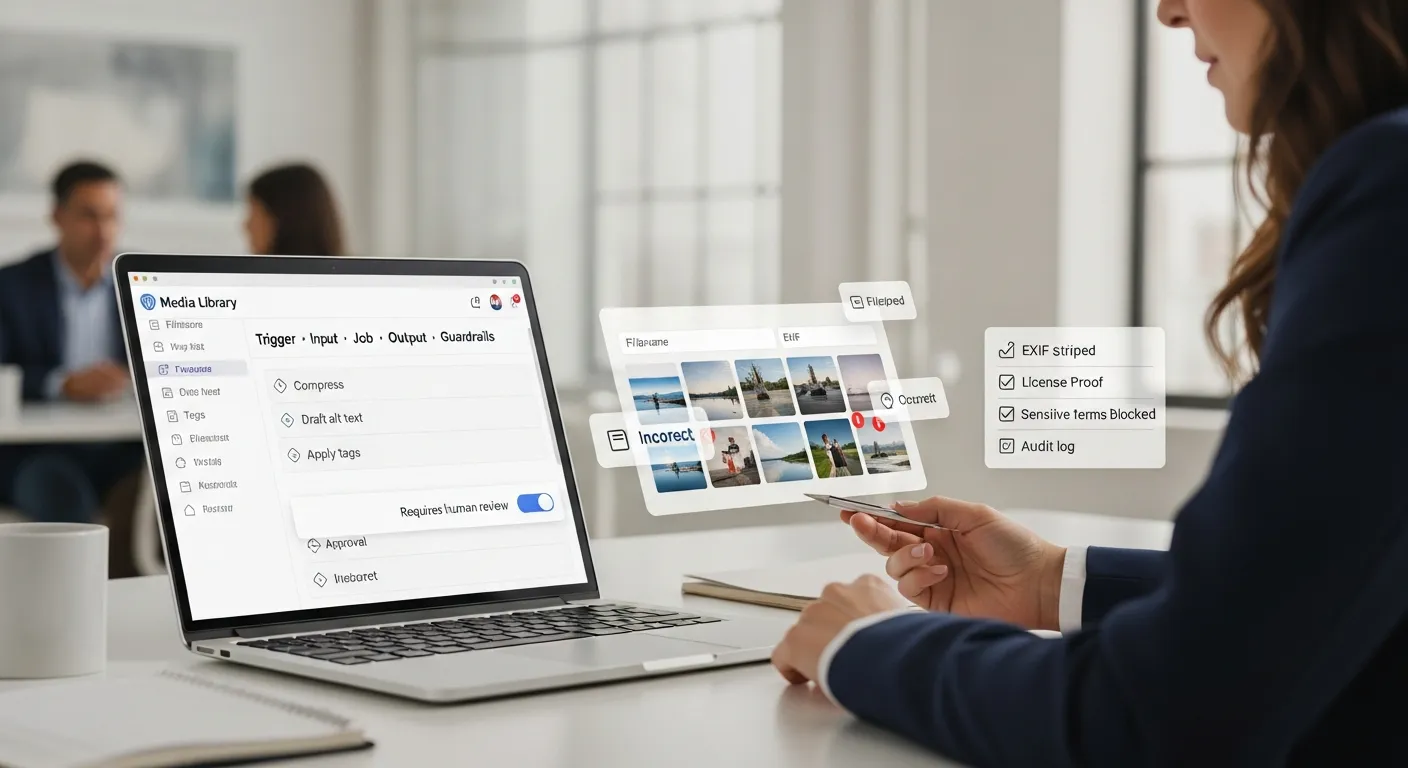
Automation can fix the boring parts. It can also create quiet disasters. We once tested auto-generated alt text on 300 images and found 27 wrong labels for medical devices, which means we had to add approval rules immediately.
Trigger / Input / Job / Output / Guardrails For Media Workflows
We design automation like a simple map:
- Trigger: new upload, which means the workflow starts consistently.
- Input: filename, EXIF, post type, which means the system has context.
- Job: compress + draft alt text + apply tags, which means humans get a head start.
- Output: optimized file + draft metadata, which means editors spend less time.
- Guardrails: block sensitive terms, require review, log changes, which means you stay compliant.
No-code tools like Zapier, Make, or n8n can run parts of this. Light custom WordPress hooks can help too, which means you can keep control without a full engineering team.
Do this today (25 minutes): write one workflow card for “New product image upload.” Include all five fields above.
Metadata Automation: Suggested Filenames, Alt Text Drafts, And Labels
AI can suggest labels. Humans must approve them. That setup reduces manual typing, which means you can keep quality high without slowing publishing.
Good uses:
- Suggest a filename from product title, which means search stays clean.
- Draft alt text from a caption, which means you avoid blank fields.
- Apply tags from a selected campaign, which means reporting becomes possible.
Bad uses:
- Auto-publish alt text with no review, which means errors ship.
We recommend “shadow mode” for 2 weeks. Shadow mode logs suggestions but does not apply them, which means you can measure accuracy before risk.
Do this today (30 minutes): sample 50 images and score AI alt text drafts as pass/fail. Track the pass rate in a sheet.
Privacy, Copyright, And Regulated Content Handling
Media files carry hidden risk. EXIF data can include location. Screenshots can include names. That matters in finance, legal, and healthcare, which means you must define what never enters the Media Library.
Practical rules:
- Strip EXIF on upload, which means you reduce location leaks.
- Store client documents outside public uploads, which means URLs do not expose files.
- Require proof of license for stock photos, which means you can respond to claims.
The U.S. Federal Trade Commission also expects truthful marketing and clear disclosures, which means you should avoid AI-generated “before/after” images that imply results you cannot prove. (Source: FTC advertising guidance)
Do this today (20 minutes): add a “Do Not Upload” list to your SOP. Include client IDs, medical records, invoices, and signed contracts.
Choosing A WordPress Media Manager Plugin (What To Evaluate)
A plugin can add folders and bulk tools fast. It can also add load and conflict risk. The safest approach is to define needs first, then test on staging, which means you keep production stable.
Must-Have Features: Folders, Filters, Bulk Actions, And Editor Integration
Your evaluation criteria should match real pain.
We look for:
- Virtual folders (not real server moves), which means you reduce broken URLs.
- Bulk edit for alt text and titles, which means you can fix 500 items in an hour.
- Strong filters (type, date, author, taxonomy), which means you can find assets under pressure.
- Editor integration for Gutenberg and page builders, which means creators keep working.
Examples people often compare:
- WP Media Folder: cloud options and watermark tools, which means it suits ecommerce and photography.
- Real Media Library: strong gallery workflow, which means editors organize faster.
If your site strategy includes growth work beyond the library, align plugin choices with your broader build plan, which means you avoid rework later. Our main WordPress development services often start with this “requirements first” step.
Do this today (20 minutes): list your top 5 must-have features. If “folders” is #1, define what folders should represent (client, product, campaign).
Performance, Compatibility, And Rollback Planning
Every plugin adds surface area. That affects speed and security, which means you need a rollback plan.
Check:
- PHP and WordPress version support, which means updates do not break features.
- Compatibility with WooCommerce and your page builder, which means editors do not lose workflows.
- Database impact (extra tables, indexing), which means admin screens stay fast.
We always plan for rollback:
- Full backup before install, which means you can restore.
- Staging test with real media volume, which means you see true load.
Do this today (15 minutes): create a one-page “Plugin Change Checklist” with backup, staging, test pages, and rollback steps.
Migration Plan: Staging, Backups, And Post-Launch Checks
Migration is where good intentions break sites. A safe plan reduces risk, which means you can move fast without panic.
Our checklist:
- Clone production to staging, which means tests match reality.
- Run plugin import or organization sync, which means folders/tags populate.
- Verify 25 random assets in editor pickers, which means creators can find files.
- Check Core Web Vitals before/after, which means you catch slowdowns.
If you lack routine backups and monitoring, fix that first, which means media changes become reversible. We outline what “good maintenance” includes in our maintenance plan breakdown.
Do this today (35 minutes): pick 10 pages, 10 posts, and 10 products. Make them your post-launch verification set.
Conclusion
Your media manager WordPress setup does not need more chaos-control plugins first. It needs rules, roles, and repeatable checks so the library stays searchable and safe.
Start small. Pilot one workflow. Keep humans in the loop. If you want a second set of eyes, we can map your media pipeline from trigger to guardrails and keep it boring, in a good way.
Media Manager WordPress FAQs
What is the WordPress Media Manager, and what does it do by default?
The WordPress Media Manager is a basic built-in library for uploading and reusing images, video, and audio. It lets you attach files to posts/pages/products, do simple edits like crop/rotate, and serves multiple image sizes (thumbnails) so pages load smaller versions instead of huge originals.
Why do media manager WordPress problems get worse as a site grows?
As the Media Library hits a few thousand files, organization and retrieval break down. WordPress doesn’t include true folders, search context is limited, and bulk actions are weak, so teams duplicate assets, lose time hunting, and struggle to standardize filenames, titles, and alt text across large libraries.
How should I set up a workflow-first media manager WordPress library before adding plugins?
Start with standards: a simple naming pattern, alt text rules, and a taxonomy plan. Commonly, use Categories for business purpose (Brand, Products, Ads) and Tags for campaigns and usage rights. Add role limits and an approval step so uploads don’t silently degrade quality over time.
What image formats and sizes are best to use in the WordPress Media Manager for speed?
Use WebP for most photos, AVIF if your stack supports it, JPEG for broad compatibility, and PNG for transparency or crisp UI graphics. Practical sizing: hero images around 1600–2000px wide and blog images about 1200px. Optimizing at upload time helps Core Web Vitals like LCP.
Can I safely delete unused media in WordPress without breaking pages?
Yes, but treat deletions like production changes. First scan for unused media with a tool, then delete in small batches (50–200) and verify key pages/templates after each batch. Use staging and backups so you can roll back quickly if a “unused” image was actually referenced somewhere.
Do WordPress Media Manager “folder” plugins move files or change URLs?
Many media manager WordPress folder plugins create virtual folders for organization without physically moving files, which helps avoid broken URLs. Still, test on staging with real media volume, confirm editor integration, and keep a rollback plan. Renaming files on a live site often changes URLs and can break links.
Some of the links shared in this post are affiliate links. If you click on the link & make any purchase, we will receive an affiliate commission at no extra cost of you.
We improve our products and advertising by using Microsoft Clarity to see how you use our website. By using our site, you agree that we and Microsoft can collect and use this data. Our privacy policy has more details.
