
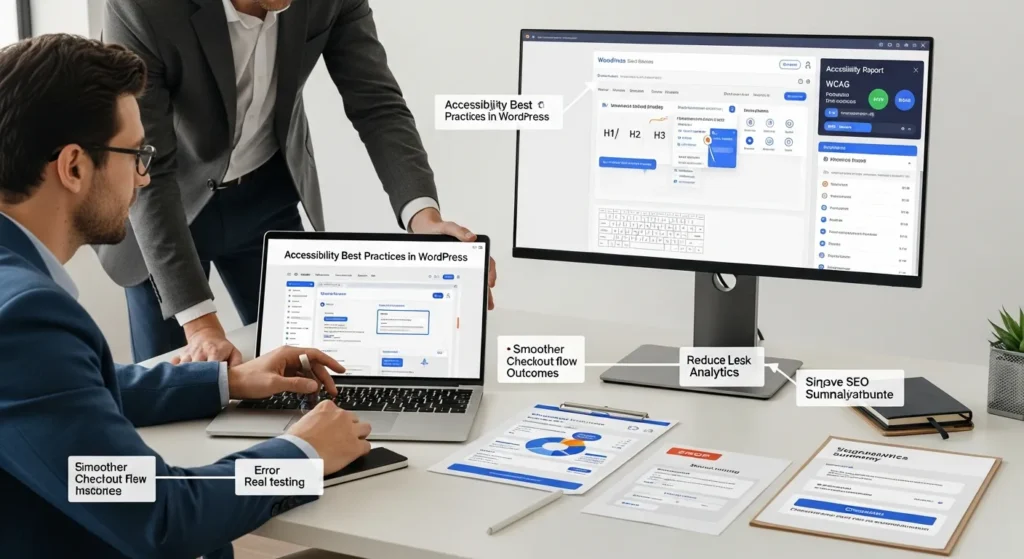
Accessibility best practices in WordPress start with one uncomfortable truth: your site can look “fine” and still block real people from buying, booking, or reading. We have watched a clean, modern checkout fall apart the moment someone tried to use only a keyboard, and the silence that follows is not subtle.
Quick answer: treat accessibility like a business system, not a design preference. If you choose an accessibility-ready theme, write structured block content, and test forms and checkout flows on every update, you will protect revenue, improve SEO signals, and lower legal risk.
Key Takeaways
- Treat accessibility best practices in WordPress as an ongoing business workflow—theme, content, plugins, and updates—not a one-time design tweak.
- Start with an accessibility-ready theme, then verify with real checks like Lighthouse, WAVE, and a full keyboard-only pass through menus and key pages.
- Write scannable, semantic block editor content by using one H1, logical H2/H3 structure, real lists and tables, and descriptive link and button labels.
- Make media understandable to everyone by using purposeful alt text, adding captions and transcripts for video, and meeting WCAG AA color-contrast without relying on color alone for meaning.
- Protect revenue on “money paths” by testing forms and WooCommerce checkout for proper labels, helpful errors, visible focus states, and keyboard-safe modals, cookie banners, and chat widgets.
- Maintain WordPress accessibility with a lightweight routine: quick pre-publish checks, automated scans before releases, and a recurring manual keyboard and screen-reader spot check after updates.
What “Accessible” Means On A WordPress Site (And Why It Matters)
Accessibility means people can use your WordPress site with different tools and different bodies. Screen readers. Keyboards. Switch devices. Voice control. High zoom. Dark mode. And yes, slow connections on a cracked phone.
When we map an accessible site, we look at one chain: content -> reaches -> people. If a theme hides focus states, it blocks keyboard users. If a button name is vague, it confuses screen reader users. Each small choice affects a real task.
WCAG In Plain English: Perceivable, Operable, Understandable, Robust
WCAG gives you four simple buckets. You do not need to memorize the spec to use it well.
- Perceivable means users can sense the content. Text alternatives support images. Captions support video. Contrast supports low vision.
- Operable means users can move through the site. Keyboard access supports people who cannot use a mouse. Clear focus states show where they are.
- Understandable means users can predict what happens. Clear labels reduce form errors. Consistent menus reduce confusion.
- Robust means assistive tech can read your code. Semantic HTML helps browsers and screen readers agree on what each part means.
If you want the original definitions and success criteria, start with the official WCAG overview from the W3C: Web Content Accessibility Guidelines (WCAG) Overview.
Business Outcomes: Better UX, Better SEO, Lower Legal Risk
Accessibility tends to pay you back in boring, reliable ways.
- Better UX: Clear headings and labels reduce friction. Friction -> reduces -> conversions.
- Better SEO: Semantic structure helps Google understand pages. Structure -> improves -> indexing and rich results.
- Lower legal risk: In the US, ADA-related website lawsuits still happen, and most businesses do not want to learn this lesson from a demand letter.
Google has said for years that you should build pages with headings and descriptive links that make sense to users and machines. The same structure that helps screen readers often helps search systems too. You can read Google’s guidance here: Google Search Central starter guide.
If your team already works on search, tie accessibility checks to your SEO workflow so you do not run two separate processes. We cover the overlap in our guide to practical WordPress SEO steps.
Start With An Accessibility Baseline: Theme, Content, And Plugins
Start with the parts that touch every page: your theme, your editor patterns, and your plugin choices. Baseline -> prevents -> repeat bugs.
We like to treat the baseline like a “floor.” If the floor slopes, every new page feels off, even if your content team does everything right.
Pick An Accessibility-Ready Theme And Verify With Real Checks
An accessibility-ready theme gives you a head start because it tends to include:
- semantic HTML (proper headings, landmarks)
- skip links
- keyboard-friendly menus
- visible focus states
But we still verify. Themes change. Child themes change. Page builders add their own markup.
A quick check stack that works for most teams:
- run Lighthouse in Chrome DevTools
- run a WAVE scan for obvious misses
- tab through the header, menus, and footer without touching your mouse
If you want the official WordPress view of what “accessibility-ready” aims to mean, read: WordPress Accessibility Handbook.
Avoid Common Plugin Pitfalls That Break Keyboard And Screen Readers
Plugins can help accessibility, or quietly break it. We see the same issues repeat:
- modal popups that trap keyboard focus
- sliders that hijack arrow keys
- form plugins that render labels visually but not programmatically
- cookie banners with tiny close buttons and no focus order
Plugin count alone does not cause problems. Bad UI patterns do.
If your admin area feels bloated, cleaning it up helps you keep accessibility work consistent, because your team can find settings and patterns faster. We often reduce plugin sprawl with tools like Admin and Site Enhancements. Here is our walkthrough on streamlining WordPress with ASE.
Content Authoring Best Practices In The Block Editor
Your theme sets the floor. Your content sets the furniture. Content structure -> drives -> comprehension.
In the block editor, a few habits do most of the work. We train teams on these because they scale across blogs, service pages, and product pages.
Headings, Landmarks, And Page Structure That Screen Readers Can Navigate
Screen reader users often browse by headings. That means your heading order matters.
Do this:
- use one H1 per page (usually the page title)
- use H2 for major sections
- use H3 under the relevant H2
- keep headings short and specific
Do not do this:
- skip from H2 to H4 because “it looks smaller”
- use headings just to style text
Also watch your layout blocks:
- use lists for lists (not paragraphs with dashes)
- keep tables for data, not layout
- avoid huge sections that run 1,500 words without a heading
Links, Buttons, And Calls To Action With Clear Names
Link text should tell people what happens next.
Bad: “Click here”
Good:
- “View size guide”
- “Download the intake form (PDF)”
- “Book a 15-minute consult”
Button labels matter even more because buttons cause action. Label -> sets -> expectation. If a user hears “Button, button, button,” the page becomes a guessing game.
A quick self-test: read only the links on your page. If the list makes sense out of context, you did it right.
Images, Media, And Color: Make Meaning Available To Everyone
Brands love visuals. We do too. But visuals need backup paths, because meaning -> should reach -> everyone.
Alt Text Rules That Prevent Over-Explaining And Under-Explaining
Alt text has one job: describe the information the image adds.
Use these rules:
- If the image is decorative, set alt to empty (so screen readers skip it).
- If the image shows information, describe the information.
- Keep it concise. Most alt text fits in one sentence.
Examples:
- Product photo: “Red leather crossbody bag with gold buckle.”
- Team photo: “Three staff members at the front desk of Oak Street Dental.”
- Chart: “Bar chart shows Q4 revenue higher than Q1, Q2, and Q3.” Then put the actual numbers in nearby text.
Skip filler like “image of” or “picture of.” Screen readers already announce it.
Captions, Transcripts, And Audio Descriptions For Video-First Brands
If you sell with video, you need text support.
- Captions help Deaf and hard of hearing users, and they help people watching on mute.
- Transcripts help search engines and users who skim.
- Audio descriptions help blind and low vision users when visuals carry meaning that dialogue does not.
The FCC’s captioning rules focus on video programming, not every marketing clip, but the guidance still shows what “good” looks like. See: FCC closed captioning overview.
Color Contrast And “Do Not Use Color Alone” Patterns
Color contrast failures hide text in plain sight. Low contrast -> causes -> abandonment.
Aim for WCAG AA contrast. Use a contrast checker during design.
Also avoid color-only instructions:
- Bad: “Fields in red are required.”
- Better: mark required fields with text, like “Required,” and add an asterisk with a legend.
Same with charts. Add labels, patterns, or direct values. Do not make the green line the only clue.
One more practical tie-in: speed work often pushes teams to compress images, change overlays, and tweak fonts. Those changes can alter contrast. If you are working on performance, keep contrast on the checklist. Our speed guide pairs well with this: improve WordPress load time without breaking design.
Forms, Checkout, And UX Flows: Where Accessibility Usually Breaks
Most sites look accessible on a marketing page. Then a user hits a form, a popup, or a checkout. Flow -> affects -> revenue.
We focus on the “money paths”: contact, quote requests, bookings, cart, checkout, account.
Labels, Errors, And Focus States For Contact And Lead Forms
Forms fail when the page hides meaning.
Checklist that works across form plugins:
- Every input has a real label tied to the field (not just placeholder text).
- Error messages explain the fix. “Invalid” does not help. “Enter a 10-digit phone number” helps.
- The page moves focus to the error summary after submit.
- Focus states stay visible on every field, checkbox, and button.
Keyboard-only test: tab from the first field to submit. If you lose your place, your users will too.
WooCommerce And Payments: Cart, Checkout, And Account Pages
WooCommerce can be accessible, but checkout combines many moving parts.
Watch for:
- coupon fields that appear but do not receive focus
- shipping calculators that update without announcing changes
- payment iframes that do not label inputs
- “Create account” sections that hide required fields until late
Treat checkout changes like code changes. Checkout -> needs -> staging tests. Run a keyboard pass on cart, checkout, and account pages after any theme or plugin update.
Popups, Cookie Banners, And Chat Widgets Without Trapping Users
Popups can block users who rely on a keyboard or screen reader.
Rules we follow:
- When a modal opens, focus moves into it.
- Users can close it with Escape and a visible close button.
- Focus returns to the trigger element after close.
- The modal does not trap users in a loop.
Chat widgets cause similar issues when they steal focus or overlap form fields.
If you use live chat, pick one that respects keyboard focus and lets users minimize it easily. We review options here: WordPress live chat tools that fit small teams.
Test And Maintain: An Ongoing Process, Not A One-Time Fix
Accessibility is not a “set it and forget it” job. Updates -> change -> markup. New plugins -> change -> behavior. New content -> changes -> structure.
The safest plan is a light, repeatable workflow that runs every month and on every release.
A Lightweight Testing Stack: Automated Scans Plus Manual Keyboard Passes
Automated tools catch patterns. Manual testing catches reality.
Automated checks:
- Lighthouse accessibility audit
- WAVE for page-level issues
- a WordPress accessibility scanning plugin if your team needs ongoing reminders
Manual checks (10 minutes per template):
- tab through the header, menu, and footer
- open and close any modal
- submit your main form with a keyboard
- run a screen reader spot check on headings and buttons
If you want a solid reference for keyboard testing expectations, WebAIM’s keyboard accessibility page stays clear and practical: WebAIM Keyboard Accessibility.
A Simple Workflow: Add Checks To Publishing And Plugin Updates
Here is what we use with clients who do not have time for a big compliance program:
- Before publish: headings check, link text check, image alt check.
- Before release: run Lighthouse and WAVE on key templates.
- After updates: keyboard pass on homepage, one content page, and checkout or lead form.
- Log issues: keep a simple doc with date, page, issue, fix.
Maintenance keeps this from slipping. If you already run security and update routines, add accessibility checks to that rhythm. Our maintenance checklist shows how to keep that cadence without burning weekends: a practical WordPress maintenance routine.
If you prefer to hand it off, care plans often include recurring audits and regression checks. This guide helps you compare options: how to choose a WordPress care plan.
Conclusion
Accessibility work feels like details until you watch a real customer get stuck, then it feels like the whole business. If you adopt accessibility best practices in WordPress as a checklist you run on themes, content, forms, and updates, you will build a site that more people can use with less friction.
Keep it simple. Start with your highest-traffic pages and your highest-value flows. Run the keyboard test every time you change the site. Your future self will thank you, and your customers will never need to tell you what you avoided.
Frequently Asked Questions (Accessibility Best Practices in WordPress)
What are accessibility best practices in WordPress, and why do they matter for business?
Accessibility best practices in WordPress ensure people can use your site with screen readers, keyboards, voice control, high zoom, or low-vision settings. They matter because accessible structure and clear UI reduce friction in “money paths,” support stronger SEO signals, and help lower ADA-related legal risk.
How do WCAG principles apply to accessibility best practices in WordPress?
WCAG maps neatly to WordPress work: Perceivable (alt text, captions, contrast), Operable (keyboard access and visible focus states), Understandable (clear labels and predictable navigation), and Robust (semantic HTML that assistive tech can interpret). You don’t need to memorize WCAG to apply these four buckets consistently.
How do I choose an accessibility-ready theme in WordPress and verify it works?
Start with an accessibility-ready theme, but always verify it with real checks. Run Lighthouse and a WAVE scan, then tab through key areas (header, menus, footer) without a mouse. Confirm skip links, semantic headings/landmarks, keyboard-friendly menus, and visible focus indicators still work after theme or builder changes.
What are the most common WordPress plugin issues that break accessibility?
The biggest problems come from UI patterns, not plugin count: modal popups that trap keyboard focus, sliders that hijack arrow keys, form plugins with visual-only labels, and cookie banners with tiny close buttons or no focus order. Test these components with keyboard-only navigation and a quick screen reader spot check.
How should I write headings, links, and alt text in the block editor for accessibility?
Use one H1 per page, then H2 for major sections and H3 under the right H2—don’t skip levels for styling. Write descriptive link and button text (avoid “click here”). For images, alt text should describe the information added; leave decorative images with empty alt so screen readers skip them.
Do I need a full accessibility audit, or can I maintain WordPress accessibility with a lightweight workflow?
Many teams succeed with a lightweight, repeatable workflow instead of a one-time audit. Before publishing, check headings, link text, and alt text. Before releases, run Lighthouse and WAVE on key templates. After updates, do a quick keyboard pass on homepage, a content page, and checkout or lead forms to catch regressions.
Some of the links shared in this post are affiliate links. If you click on the link & make any purchase, we will receive an affiliate commission at no extra cost of you.
We improve our products and advertising by using Microsoft Clarity to see how you use our website. By using our site, you agree that we and Microsoft can collect and use this data. Our privacy policy has more details.
