
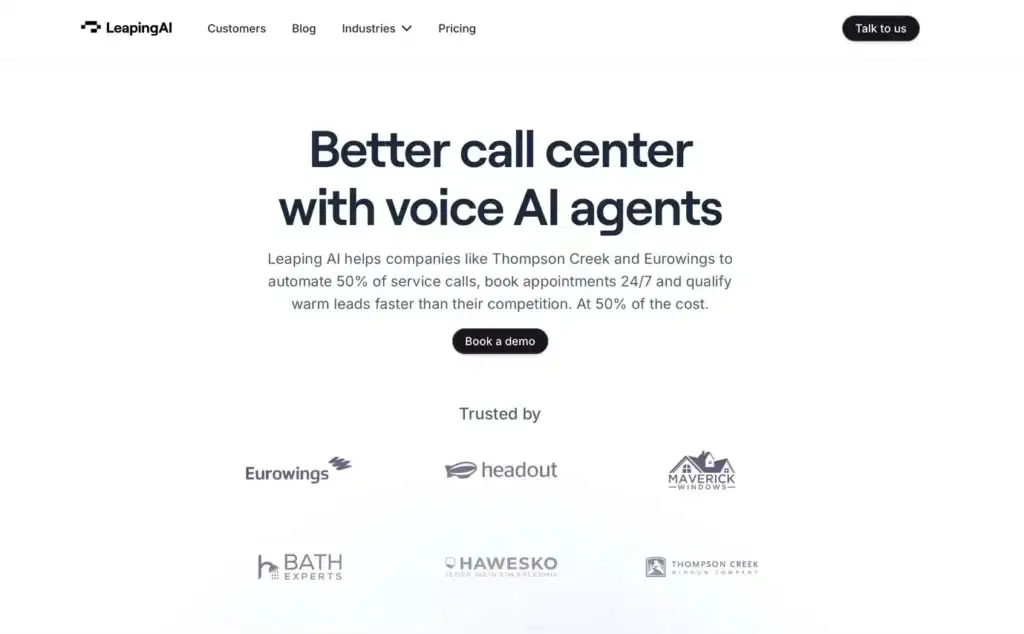
We spent a full afternoon last week watching a client’s operations manager copy-paste customer questions from a help desk into a spreadsheet, then into a draft reply doc, then back into the help desk. Forty minutes per ticket. That is the kind of grunt work Leaping AI was built to crush.
Quick answer: Leaping AI is a workflow automation platform that connects your existing tools, lets AI handle repetitive tasks between them, and keeps a human in the loop where it counts. This guide walks you through what Leaping AI does, how to set it up, how to build your first automated workflow, and how to keep guardrails tight so nothing slips through the cracks.
Key Takeaways
- Leaping AI automates repetitive workflows by connecting your existing tools and letting AI handle tasks like drafting, summarizing, and classifying — while keeping humans in the loop for approval.
- Start by picking your most boring, high-volume task as a pilot project, then follow the Trigger → Input → Job → Output → Guardrails framework to build your first workflow.
- Write specific, detailed prompts that act like mini SOPs — vague instructions produce vague results, so tell the AI exactly what to do, what tone to use, and what to flag.
- Always test new automations in shadow mode for at least one week before going live, comparing AI drafts against human output for accuracy and tone.
- Set strict guardrails by logging every AI output, defining banned phrases, and requiring human approval on high-stakes responses like billing disputes or legal matters.
- Teams that learn how to use Leaping AI with this pilot-first approach can cut tasks like ticket responses from forty minutes down to five-minute reviews.
What Leaping AI Does and Who It Is For
Leaping AI sits in a growing category of AI-powered workflow tools. Think of it as the brain between your triggers and your actions. A form gets submitted, a ticket lands in the queue, an order comes through WooCommerce. Leaping AI catches that event, runs it through an AI model (classification, summarization, draft generation), and pushes the result to the next step. You review. You approve. The task is done.
Who benefits most? Teams that handle high-volume, repetitive information processing. That includes:
- Founders and small ops teams drowning in customer emails, invoices, or content requests.
- Agencies managing multiple client accounts with copy-paste workflows.
- Ecommerce shops that need product descriptions, review responses, or order-status summaries at speed.
- Service professionals (lawyers, consultants, healthcare administrators) who spend hours sorting and summarizing case notes.
If you have ever thought, “I wish I could hand this boring part to a bot but still check the output before it goes live,” Leaping AI fits that gap. It is not a full replacement for human judgment. It is a drafting assistant wired directly into your tool stack.
For a deeper breakdown of the platform’s strengths and limits, check out our full Leaping AI review. And if you are still sorting out where AI fits versus plain automation, our guide on AI intelligence and safe business use lays that foundation clearly.
Setting Up Your Leaping AI Account
Getting started takes about fifteen minutes. Here is the step-by-step.
1. Create Your Account and Pick a Plan
Head to the Leaping AI website and sign up. Most teams start on a free or starter tier to test the waters before committing budget. You will need a work email, a password, and a rough idea of the first workflow you want to automate. (We always tell clients: pick the most boring, most repeated task first. That is your pilot.)
2. Connect Your Tools
Leaping AI works by linking to the apps your team already uses. Common connections include:
- Email providers (Gmail, Outlook)
- Project management tools (Asana, Trello, Notion)
- CRMs (HubSpot, Salesforce)
- Ecommerce platforms (WooCommerce, Shopify)
- Help desks (Zendesk, Freshdesk)
Authorize each integration with OAuth or an API key. If you hit a snag during OAuth flows, Microsoft’s authentication docs often have the clearest troubleshooting steps for enterprise accounts.
3. Set Permissions and Team Roles
Before you build anything, decide who can create workflows, who can edit, and who only reviews outputs. Role-based access control matters. The last thing you want is a junior team member accidentally pushing an unreviewed AI draft to a live customer channel.
Once your tools are connected and permissions are locked, you are ready to build. We recommend learning about how AI agents fit into real workflows before designing your first automation. It helps you scope what the AI should and should not touch.
Building Your First Automated Workflow
Here is where the fun part starts. And honestly, this is where most people overthink it.
We use a five-part framework for every workflow we design: Trigger → Input → Job → Output → Guardrails. Leaping AI maps cleanly to this pattern.
Pick Your Trigger
A trigger is the event that kicks the workflow off. Examples:
- A new support ticket arrives.
- A WooCommerce order status changes to “processing.”
- A form submission hits your CRM.
Inside Leaping AI, you select the connected app and the specific event.
Define the Input
What data does the AI need to do its job? If you are summarizing support tickets, the input is the ticket body and any customer metadata. Keep inputs lean. The less noise you feed the model, the better your output.
Configure the AI Job
This is the core step. You write a prompt (think of it as a mini SOP) that tells the model exactly what to do. For example:
“Summarize this support ticket in two sentences. Flag if the customer mentions billing or a refund. Draft a reply using a friendly, professional tone.”
Be specific. Vague prompts produce vague results. The HubSpot blog has solid examples of structured prompts for customer-facing copy if you need inspiration.
Route the Output
Where does the result go? Back into the help desk as a draft reply? Into a Slack channel for review? Into a Google Sheet for logging? Leaping AI lets you push outputs to any connected tool.
Test in Shadow Mode
This is the safest way to start. Run the workflow, but do not let outputs go live automatically. Instead, route everything to a review queue. Compare the AI draft against what a human would have written. Tweak your prompt. Run it again.
We typically shadow-test for one full week before turning on any live automation. During that week, track accuracy, tone consistency, and time saved per task. If you are applying similar patterns to SEO content, our guide on using AI for SEO tasks walks through the same pilot-first approach.
For teams running open-source models alongside Leaping AI, pairing it with an API-based tool like Replicate can give you more flexibility on model choice.
Governance, Guardrails, and Human Oversight
Automation without guardrails is a liability. Full stop.
We have seen teams rush to automate customer replies, skip review, and end up sending a hallucinated refund policy to 200 customers in a single afternoon. Do not be that team.
Here is what governance looks like when you use Leaping AI:
Keep humans in the loop for anything high-stakes. Legal responses, medical information, financial advice, billing disputes. These stay human-led. Leaping AI can draft, but a person approves.
Log everything. Every AI-generated output should land in a log with a timestamp, the input that triggered it, the prompt used, and the final output. If something goes wrong, you need an audit trail. AWS’s best practices on logging and observability apply here, even for non-cloud-native teams.
Set banned phrases and refusal rules. Inside your prompts, tell the AI what it must never say. “Do not promise a refund.” “Do not provide legal advice.” “Do not reference competitor pricing.” This is not optional. It is your first line of defense.
Review weekly. Block thirty minutes each week to review a sample of AI outputs. Look for drift. Models do not get tired, but prompts can become stale as your business changes.
Mind privacy and data handling. Never paste sensitive customer data (Social Security numbers, health records, payment details) into an AI prompt unless the platform has clear data processing agreements in place. If you work in a regulated field, read our breakdown on AI content visibility and data exposure risks before connecting any tool that touches customer information.
If you are building workflows that touch code or need debugging, the Stack Overflow community remains one of the best places to troubleshoot API integrations and webhook issues. Real answers from real developers. No fluff.
Conclusion
Learning how to use Leaping AI is less about mastering a single tool and more about adopting a repeatable pattern: map the workflow, write a clear prompt, test in shadow mode, add guardrails, and expand only after you trust the output.
Start with one boring, high-volume task. Measure the time you save. If the results hold up after a week of review, expand to the next workflow. That steady, pilot-first rhythm is what separates teams that get real value from AI tools and teams that just add another subscription to the stack.
We have seen small teams turn forty-minute ticket responses into five-minute reviews using this exact approach. The work is still yours. The drudgery is not.
Frequently Asked Questions
What is Leaping AI and how does it work?
Leaping AI is a workflow automation platform that connects your existing tools—like email, CRMs, and help desks—and uses AI to handle repetitive tasks between them. It follows a Trigger → Input → Job → Output → Guardrails pattern, drafting responses or summaries while keeping a human in the loop for final approval.
How do I set up my first workflow in Leaping AI?
Start by creating an account, connecting your apps via OAuth or API key, and setting team permissions. Then pick a trigger event, define the input data, write a specific prompt for the AI job, and route the output to a review queue. Shadow-test for at least one week before going live.
Who benefits most from using Leaping AI?
Teams handling high-volume, repetitive information processing benefit most. That includes small ops teams managing customer emails, agencies juggling multiple client accounts, ecommerce shops generating product descriptions, and service professionals like consultants or healthcare administrators who spend hours sorting case notes.
What guardrails should I set when using Leaping AI for customer-facing tasks?
Always keep humans in the loop for high-stakes responses like billing disputes or legal questions. Set banned phrases in your prompts, log every AI-generated output with timestamps for audit trails, and review a sample of outputs weekly. Never paste sensitive customer data into prompts without proper data processing agreements.
Can Leaping AI replace my team’s manual work entirely?
No. Leaping AI is designed as a drafting assistant, not a full replacement for human judgment. It automates the repetitive parts—like summarizing tickets or generating draft replies—but a person should always review and approve outputs before they reach customers, especially for anything high-stakes.
How long does it take to see results after setting up Leaping AI?
Most teams can build and shadow-test their first workflow within one to two weeks. During that period, you compare AI drafts against human-written outputs and refine prompts. Teams that follow this pilot-first approach have turned forty-minute ticket responses into five-minute reviews once the workflow is validated.
Some of the links shared in this post are affiliate links. If you click on the link & make any purchase, we will receive an affiliate commission at no extra cost of you.
We improve our products and advertising by using Microsoft Clarity to see how you use our website. By using our site, you agree that we and Microsoft can collect and use this data. Our privacy policy has more details.
