
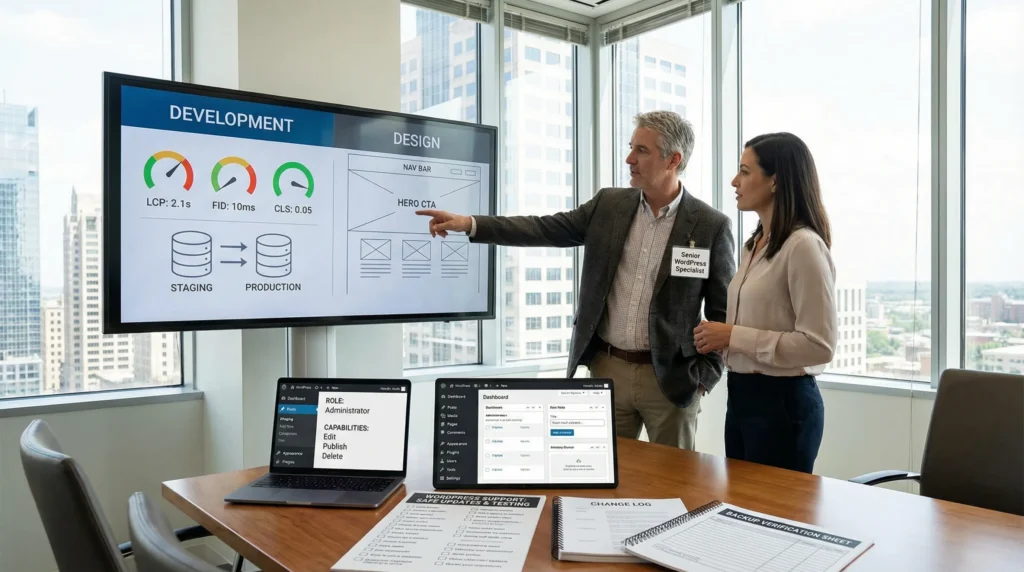
WordPress development and design support can feel like calling a mechanic and a stylist at the same time. One fixes the engine. One makes you look good. And if you hire the wrong “helper,” your site can end up slower, uglier, and somehow both.
Quick answer: development support protects how your WordPress site works, loads, and connects to tools: design support protects how it looks, reads, and converts. The right setup depends on your risk level, your update pace, and how often you need changes.
What you will get here: clear definitions, the questions to ask before access gets shared, the safest way to handle common requests, and how we screen support partners when money and reputation are on the line.
Key Takeaways
- WordPress development and design support solve different problems—development protects functionality, performance, security, and integrations, while design protects layout, brand consistency, UX, and conversion flow.
- Treat WordPress development and design support as a shared workflow by using one staging site, one change log, and one approval step to prevent “small” edits from causing site-wide breakage.
- Define business goals before granting access by documenting primary/secondary conversions, success metrics, and your highest-value pages so every change has a measurable purpose.
- Make staging, verified backups (with test restores), and role-based access non-negotiable to reduce revenue risk from plugin updates, theme changes, and checkout/form failures.
- Handle common requests safely by building in staging, testing mobile-first, running quick SEO checks (titles, H1s, internal links, indexing), and deploying with a rollback point.
- Choose a support model that matches your pace—one-off fixes for isolated issues, retainers for ongoing change, and sprints for major upgrades—backed by clear ticketing, testing, and rollback processes.
What “Development” Vs. “Design” Support Actually Means In WordPress
Development and design overlap on WordPress. Still, the job titles mean different risks and different outcomes.
Development Support: Functionality, Performance, And Integrations
Development support keeps the site behaving. Code changes -> affect -> checkout reliability. Plugin updates -> affect -> site speed. Database health -> affects -> search and admin stability.
We put “development” work in this bucket:
- Plugin and theme changes (child themes, functions, hooks)
- Error fixes (500 errors, white screens, broken forms)
- Speed work (caching, query cleanup, image delivery)
- Integrations (CRMs, email tools, payment gateways, APIs)
- Security hardening (access control, update strategy, monitoring)
If your business runs on forms, bookings, memberships, WooCommerce, or gated content, you feel broken development work fast. Your customers do not care why the form fails. They just leave.
If you want a quick baseline before work starts, we often reference our own 30-minute technical baseline as the “is this site safe to touch?” filter.
Design Support: Layout, Brand Consistency, And UX Patterns
Design support keeps the site legible and persuasive. Typography choices -> affect -> readability. Layout spacing -> affects -> mobile bounce rate. CTA placement -> affects -> lead quality.
Design support usually includes:
- Theme selection and theme styling
- Page layouts (home, service pages, product pages, landing pages)
- Visual systems (colors, type scales, buttons, cards)
- Responsive fixes (mobile-first layout decisions)
- Page builder work (Gutenberg, Elementor, Divi, Bricks)
Design work is not “just making it pretty.” It is the difference between a site that feels calm and trustworthy, and a site that feels like a yard sale.
Where The Line Blurs: Theme Builders, Blocks, And Custom Code
Modern WordPress blurs the line on purpose. Block themes, pattern libraries, and page builders turn design decisions into site-wide settings. One small change in a global style panel -> affects -> every heading on the site.
This is where we see the most expensive mistakes:
- A designer edits a template in a builder and overwrites a reusable layout.
- A developer “quick fixes” spacing with CSS and breaks a mobile grid.
- Someone updates a theme and wipes out customizations that lived in the parent theme.
The safe approach: treat “design” and “development” as one shared workflow, even if two people do the work. You want a single change log, a single staging site, and a single approval step.
What To Ask For Before Anyone Touches Your Site
We have seen sites get damaged by well-meaning helpers who got admin access first and asked questions later. Start with clarity, then access.
Business Goals, Conversion Paths, And Success Metrics
A site change must serve a business goal. A new hero section -> affects -> scroll depth. A shorter checkout -> affects -> completed orders.
Ask these before work starts:
- What is the primary conversion? (book a call, buy, apply, donate)
- What is the secondary conversion? (email sign-up, follow, request a quote)
- What metric defines “done”? (load time under 2.5s, form completion rate, cart conversion)
- What pages matter most? (top landing pages, checkout, pricing, contact)
If you want a fast way to get alignment, start with structure. We often begin projects with simple wireframes because they cut “design debates” down to one question: “Where does the user go next?”
Access, Environments, And Backups (Staging First)
Staging first is not optional. Direct edits on live -> affect -> revenue and trust.
Your minimum setup should include:
- A staging environment that matches production
- Verified backups (and a test restore, not just “we have backups”)
- Role-based access (admin only for people who truly need it)
- A change window for high-risk updates (plugins, PHP version, payment flows)
If you already run a maintenance plan, check whether it includes staging tests, monitoring, and rollback. Here is what we include in a typical plan and what it tends to cost in the market: managed WordPress maintenance details.
Data Handling And Privacy Boundaries For Regulated Teams
If you work in legal, healthcare, finance, insurance, or education, treat your WordPress site like a front door to sensitive workflows.
Set boundaries up front:
- Do not paste client data into tickets, screenshots, or AI tools
- Mask PII in exports and form entries
- Limit access to form plugins, orders, and user lists
- Define what support can view, export, or download
Access control -> affects -> breach risk. Clear rules -> affect -> speed and confidence when problems hit.
Common Support Requests (And The Safest Way To Handle Each)
Most support requests fall into a few repeatable patterns. The safest handling is boring on purpose. Boring means predictable. Predictable means recoverable.
New Pages And Landing Pages Without Breaking Templates
New pages feel harmless. They are not. A rushed landing page -> affects -> global styles if someone edits a template instead of a page.
Our safe flow:
- Build the page in staging.
- Use a known template or a locked pattern.
- Test on mobile first, then desktop.
- Run a quick SEO pass (title, H1, internal links, index status).
- Publish with a rollback point.
Fixing Layout Bugs, Mobile Issues, And Builder Conflicts
Mobile bugs usually come from one of three places: conflicting builder CSS, global style changes, or “one-off” custom CSS that aged badly.
Start here:
- Reproduce the bug on two devices and two browsers
- Identify the scope (one page or all pages)
- Check if the issue came from a recent update or content edit
A single builder setting -> affects -> all columns. So we treat layout fixes like mini releases, not quick clicks.
WooCommerce Tweaks: Checkout, Emails, And Product Templates
WooCommerce changes print money or burn it. Checkout friction -> affects -> conversion. Email clarity -> affects -> chargebacks and support tickets.
Safe WooCommerce support usually means:
- Use child themes or hooks for template changes
- Test payment methods (Stripe, PayPal, Apple Pay) in staging when possible
- Confirm taxes, shipping, and transactional emails after deploy
If you are comparing support options, our roundup of WordPress support services for growing teams can help you sanity-check what “WooCommerce support” really includes.
Third-Party Tool Connections: CRM, Email, Forms, And Webhooks
Connections break quietly. A form-to-CRM mapping error -> affects -> lead follow-up. A webhook retry loop -> affects -> spam entries and API costs.
To keep integrations safe:
- Document each field mapping (name, email, consent, source URL)
- Store API keys in secure settings, not in random notes
- Log failures and retries
- Add a manual fallback (email notification or Slack alert)
And yes, we have watched one missing consent checkbox create an awkward compliance meeting. Nobody wants that.
Support Models That Work For Busy Teams
The model matters as much as the skill. The wrong model -> affects -> response time and stress.
One-Off Fixes Vs. Retainers Vs. Project Sprints
Here is the straight talk:
- One-off fixes work for isolated issues with low blast radius.
- Retainers work for ongoing sites that change weekly or monthly.
- Project sprints work for planned upgrades: redesigns, migrations, major WooCommerce work.
If your site drives leads or revenue, a retainer often costs less than the “panic tax” of emergency work.
If you want to compare what maintenance-style support tends to include across providers, this list of maintenance services for small businesses lays out common pillars to look for.
Response Times, Ticketing, And Change Approvals
You want a simple loop:
- Ticket comes in with screenshots and a URL
- Support triages severity (broken checkout beats “button shade feels off”)
- Support proposes a fix and the risk level
- You approve the change
- Support deploys and logs it
Approvals -> affect -> safety. Ticketing -> affects -> speed, because nobody hunts through email threads at 11:30 pm.
Documentation: Prompts As SOPs, Checklists, And Logs
We treat prompts like SOPs. A clear prompt -> affects -> consistent output. A vague request -> affects -> rework.
Documentation that pays off fast:
- A “how to publish” checklist for your team
- A plugin and theme inventory with owners
- A change log with dates, who approved, and rollback notes
If you want a simple starting point, build your tasks from a repeatable schedule like our weekly, monthly, and quarterly maintenance checklist.
Guardrails That Prevent “Quick Fixes” From Becoming Expensive Later
Most WordPress disasters start as “just a small change.” Guardrails stop small changes from turning into weekend rebuilds.
Plugin And Theme Governance (Fewer, Better, Maintained)
More plugins -> affect -> more update risk. Abandoned plugins -> affect -> security exposure.
Guardrails we like:
- Keep a short plugin list
- Remove duplicates (two caching plugins, three form plugins, five popup tools)
- Track update history and support status
- Ban “nulled” themes and plugins, always
Security Basics: Updates, Least Privilege, And Monitoring
Admin access -> affects -> everything. So we reduce it.
Security basics that hold up:
- Weekly updates with staging tests for high-traffic sites
- Least privilege user roles
- 2FA for admin accounts
- Login protection and uptime monitoring
Performance Basics: Core Web Vitals, Images, And Caching
Speed work is not magic. It is usually images, scripts, and caching.
A few clean wins:
- Compress and size images before upload
- Serve modern formats when possible (WebP)
- Cache pages and assets with sane rules
- Limit heavy page builder elements above the fold
Better performance -> affects -> SEO and conversions. People feel fast sites.
SEO And Content Integrity: Redirects, Schema, And Indexing Controls
SEO damage often comes from innocent edits. A URL change -> affects -> rankings. A template tweak -> affects -> heading structure.
Guardrails:
- Use 301 redirects for URL changes
- Keep schema consistent for key pages (products, articles, organization)
- Control indexing for thin pages, tag archives, and test content
- Track changes so you can undo them
If you are building a new site or rebuilding an old one, we keep these guardrails baked into our WordPress web development work so support does not feel like a patch job later.
How To Evaluate A WordPress Support Partner
You do not need the “best” partner on paper. You need the right partner for your site’s risk and pace.
Portfolio Evidence: Similar Sites, Similar Constraints
A portfolio should match your reality.
If you run:
- WooCommerce with subscriptions, you want WooCommerce proof.
- A clinic site with forms and HIPAA-adjacent workflows, you want privacy discipline.
- A high-content media site, you want publishing and caching experience.
Ask: “Show us a site like ours, and tell us what broke first.” A good partner answers without sweating.
Process Evidence: Workflow Maps, Rollback Plans, And Testing
Process beats heroics. A rollback plan -> affects -> your sleep.
What we look for:
- Staging workflow and deploy steps
- A testing checklist for core flows (forms, checkout, search, email)
- A documented rollback method
- Logging for changes and incidents
If they cannot explain their flow in plain English, they will not run it well under pressure.
Communication Evidence: Plain-English Explanations And Clear Scopes
You should never feel dumb reading a scope.
A good partner:
- Names what they will change
- Names what could go wrong
- Names what “done” means
- Tells you what they need from you (access, copy, brand files, approvals)
And yes, tone matters. When your checkout breaks, you want calm, not panic and not jargon.
Conclusion
WordPress development and design support works best when it runs like a small system, not a random set of favors. You want clear goals, staging first, tight access, and a support model that matches how often your business changes.
If you take one step this week, make it this: write down your primary conversion, list your top five money pages, and require staging plus backups before anyone edits a single pixel. Your future self will feel very smug about it.
Frequently Asked Questions About WordPress Development and Design Support
What is WordPress development and design support, and how are they different?
WordPress development and design support solve different problems. Development support protects functionality, performance, security, and integrations (plugins, errors, speed, APIs). Design support focuses on layout, typography, responsive UX, and conversion elements. The right mix depends on risk, update frequency, and how often you ship changes.
Why does WordPress development and design support need a staging site and backups?
Staging first prevents revenue-killing surprises from live edits. With WordPress development and design support, you should test changes in a production-like staging environment, confirm verified backups, and prove restore works. This makes updates, WooCommerce tweaks, and template edits predictable—and recoverable if something breaks.
What should I ask before giving someone admin access for WordPress support?
Start with goals and guardrails, then access. Ask for your primary/secondary conversion, the metric that defines “done,” and the most important pages (checkout, pricing, contact). Require role-based access, a change window for risky updates, and clear privacy rules—especially for regulated or sensitive data.
How do you safely handle common WordPress support requests like new pages or mobile layout bugs?
Treat changes like mini releases. Build new pages in staging using a known template or locked pattern, test mobile-first, run a quick SEO check (title, H1, internal links, index status), then publish with a rollback point. For mobile bugs, reproduce on multiple devices and confirm whether it’s global styles, builder CSS, or recent updates.
What support model is best: one-off fixes, a retainer, or project sprints?
One-off fixes are best for isolated, low-risk issues. Retainers work when your site changes weekly or monthly and you need consistent response times. Project sprints fit planned work like redesigns, migrations, or major WooCommerce upgrades. For revenue-driving sites, retainers often cost less than emergency “panic tax” work.
How can I evaluate a WordPress development and design support partner before hiring?
Look for proof across three areas: portfolio, process, and communication. Ask for similar sites (WooCommerce, high-content, regulated forms) and what broke first. Confirm their staging workflow, testing checklist, rollback plan, and change logs. They should explain scope, risks, and “done” in plain English.
Some of the links shared in this post are affiliate links. If you click on the link & make any purchase, we will receive an affiliate commission at no extra cost of you.
We improve our products and advertising by using Microsoft Clarity to see how you use our website. By using our site, you agree that we and Microsoft can collect and use this data. Our privacy policy has more details.
