
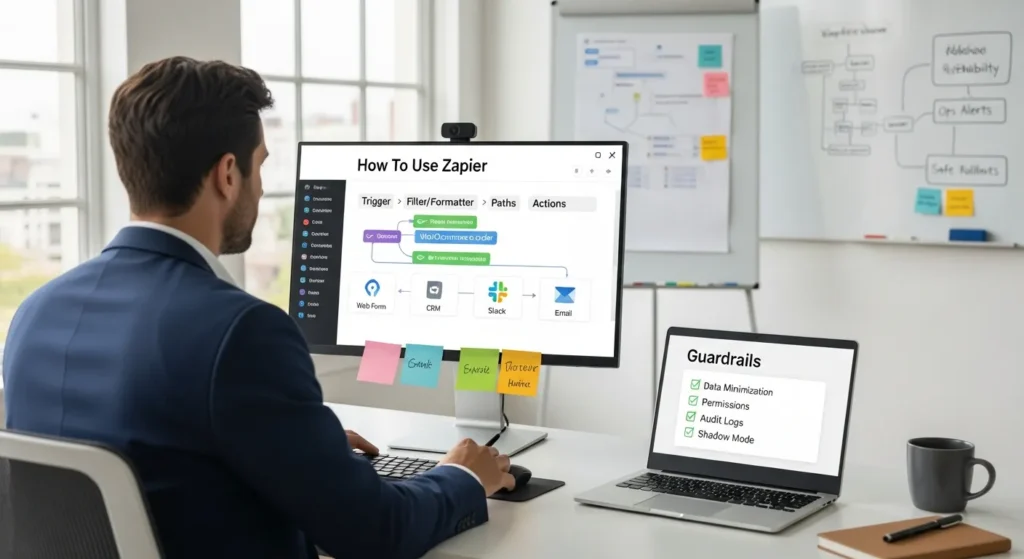
How to use Zapier is usually the question we hear right after a client says, “I cannot keep copying leads from my website into three different tools.” We get it. The work is not hard, it is just constant, and it steals attention from sales, service, and shipping.
Quick answer: Zapier connects your apps so one event (like a form submission or a WooCommerce order) can trigger the next steps (like a CRM update, a Slack ping, and a follow-up email) with clear rules and a paper trail.
Here is the safer way to start: map the workflow first, run it in “shadow mode,” then turn it on with guardrails so automation does not surprise you at 2:00 a.m.
Key Takeaways
- Zapier connects your apps so one trigger (like a form submission or WooCommerce order) automatically runs the next steps with clear rules and a searchable history.
- When learning how to use Zapier, start by mapping the workflow and guardrails first so you prevent “spaghetti Zaps,” accidental spam, and bad data.
- Build your first Zap safely with one trigger and one action, then add Formatter, Filters, and Paths one step at a time so the automation stays easy to debug.
- Protect customers and your team by minimizing the data you pass through Zapier, using least-privilege/service accounts, and reviewing task history regularly.
- Make Zaps reliable by handling duplicates, rate limits, and failures with retries, alerts, and logging—so the system works on a bad day, not just in a demo.
- Launch new automations in shadow mode, roll out gradually, and track time saved plus a change log so your Zapier setup stays maintainable over time.
What Zapier Does (And When It Is The Right Tool)
Zapier is a no-code automation platform that connects 8,000+ apps and moves work between them using workflows called Zaps. Zapier -> reduces -> copy-paste work. Your team -> gets -> faster handoffs between marketing, sales, support, and ops.
Use Zapier when:
- You have a repeatable task that starts in one app and ends in another.
- You want a quick, reversible setup without custom code.
- You can define rules for what should happen, and what should never happen.
Skip Zapier (or at least pause) when:
- You need real-time syncing at high volume and strict latency.
- You need heavy data transforms that belong in a database or custom service.
- You handle highly sensitive data and cannot limit what leaves a system.
Zapier’s free plan allows single-step Zaps and includes 100 tasks per month, which is enough for a small pilot. Paid plans unlock multi-step Zaps, filters, formatters, and paths, which is where most “real business” workflows land. Source: Zapier’s plan and product docs.
Triggers, Actions, And Paths In Plain English
Think of a Zap like a domino run you set up once.
- Trigger = the “WHEN.” A new Typeform entry, a new Gmail email, a new WooCommerce order.
- Action = the “DO.” Create a contact, send a message, add a row, create a ticket.
- Paths = the “IF this, DO that.” A path routes work based on conditions.
A good mental model we use: Trigger -> starts -> workflow. Data fields -> feed -> actions. Rules -> block -> bad outcomes.
Multi-Step Zaps Vs. Single-Step Automations
Single-step Zaps work well for simple moves:
- New form submission -> send an email
Multi-step Zaps handle real-world messiness:
- New lead -> clean phone number -> check source -> route to the right pipeline -> notify the right rep
Multi-step Zaps usually include:
- Filters to stop junk
- Formatter steps to clean data
- Paths to route decisions
If you are learning how to use Zapier, start with a single-step Zap so you can see the full loop. Then add one step at a time. You want a flow that is easy to debug when something goes weird (because it will).
Before You Build: Map The Workflow And Set Guardrails
We design automations like we design WordPress sites: we sketch the structure before we touch tools. Workflow map -> prevents -> “spaghetti Zaps.” Guardrails -> reduce -> accidental spam, bad data, and permission creep.
Grab a note or a whiteboard. Write the workflow in one sentence:
- “When a customer submits our quote form, we create a lead in the CRM, alert sales, and start a follow-up sequence.”
Then write what must be true:
- “Do not create a lead if the email is blank.”
- “Do not notify the whole company for a $19 order.”
If you also plan to add AI later, do the same mapping first. We walk through that approach in our guide on using OpenAI to automate workflows safely, because AI steps need even tighter review and logging.
Trigger / Input / Job / Output / Guardrails Checklist
Use this checklist as your build spec:
- Trigger: Pick the app and event. Connect the account. Test the trigger.
- Input: Confirm the fields you need exist (name, email, order ID). Map them.
- Job: Add actions, plus filters or formatting.
- Output: Confirm the result lands where humans actually work (CRM, help desk, Slack).
- Guardrails: Add conditions, limits, and a failure plan.
A simple example:
- Trigger -> new Gravity Forms entry
- Input -> email, service type, message
- Job -> format phone, filter test submissions, create CRM lead
- Output -> Slack ping to “Sales-Intake”
- Guardrails -> block free email domains (if you want), stop duplicates, log errors
Data Minimization, Permissions, And Audit Logs
Automation can leak data if you let it. Zapier connection -> grants -> access to an app. Over-broad access -> increases -> risk.
What we do on client builds:
- Share the minimum data. If the action only needs email and order ID, do not pass full notes.
- Use separate service accounts when possible, so access stays controlled.
- Review Zap history and task logs after launch, then weekly during the pilot.
If you work in legal, healthcare, finance, or anything regulated, treat this as non-negotiable. Keep sensitive content human-led. Keep records. If you are not sure what counts as sensitive, ask counsel and set a hard rule: “Never paste client secrets into third-party steps.”
Sources for deeper reading: Zapier documentation on Zaps and task history: general privacy guidance from regulators such as the European Data Protection Board (EDPB) on data minimization principles.
Step-By-Step: Build Your First Zap The Safe Way
Let’s build a first Zap that you can trust. This is the exact pattern we use for busy teams: one trigger, one action, realistic test data, then a controlled rollout.
We will use a common example:
- Trigger: New form response
- Action: Post a message in Slack (or create a CRM lead)
If you run a WordPress site, you can swap the trigger for Gravity Forms, WPForms, Formidable, or WooCommerce. The logic stays the same.
Choose The Trigger App And Define The Event
- Create a new Zap in Zapier.
- Name it like a human will search it later: “Lead Intake -> Slack (Website Quote Form).”
- Pick your trigger app.
- Choose the trigger event, like “New Form Submission” or “New Order.”
- Connect your account and pick the exact form or store.
- Test the trigger with a real submission.
Trigger choice -> affects -> data quality. If the trigger does not include the fields you need, the rest of the Zap turns into duct tape.
Clean The Data With Formatter And Filters
Data from the real world looks like it got typed in a moving car. Formatter -> fixes -> inconsistent text. Filter -> blocks -> junk.
Add these steps when needed:
- Formatter: fix capitalization, strip extra spaces, format dates, standardize phone numbers.
- Filter: only continue if email contains “@”, order total is above a threshold, or a checkbox equals “Yes.”
A tiny filter can save you from a big mess:
- If “Message” contains “test” -> stop
This is also the section where teams often ask, “Can we auto-write a reply with AI?” You can, but start with guardrails and human review. Our walkthrough on using Anthropic for workflow automation shows a safe pattern where the model drafts and a human approves.
Add The Action, Then Test With Realistic Samples
Now add the action:
- Choose the action app (Slack, HubSpot, Airtable, Zendesk, Gmail).
- Select the action event (Create Record, Create Contact, Send Channel Message).
- Map fields from the trigger into the action.
- Test the action.
Use realistic sample data. A test like “John, [email protected]” hides field mapping problems. Try:
- a long last name
- an international phone number
- an empty optional field
Test result -> reveals -> edge cases. You want to see the failure now, not after 200 customers go through it.
Make It Reliable: Handling Edge Cases And Errors
A Zap that works once is a demo. A Zap that works on a bad day is a system.
Reliability comes from three habits:
- Block duplicates
- Respect limits
- Add a human checkpoint for high-stakes actions
Deduplication, Rate Limits, And Retries
Duplicates happen when:
- a form submits twice
- a webhook fires again
- a user refreshes during checkout
Filters and lookups -> prevent -> double records. Add steps like:
- Search CRM for email
- Only create a new contact if none exists
Rate limits matter when volume spikes. App limit -> restricts -> request volume. Zapier tasks -> increase -> fast during busy campaigns.
Watch:
- Zapier task usage (so you do not hit plan limits)
- app-side API limits (Google, Slack, CRMs)
Zapier also retries some failed tasks. Still, we plan for failure:
- Send an alert to an “Ops Alerts” channel when a step fails
- Log the payload to a sheet for manual cleanup
Human-In-The-Loop Approvals For Higher-Risk Steps
Automation should not fire off risky messages without a check.
Use human review when the action:
- emails a customer about money, health, legal topics, or account access
- posts publicly
- triggers refunds, cancellations, or shipping changes
A simple pattern:
- Zap drafts the email -> routes it to a “Needs Approval” queue -> a human clicks send
Human review -> reduces -> accidental harm. It also protects your brand voice. No one wants an auto-email that sounds like a confused robot wrote it at 3:00 a.m.
Common Business Zaps For WordPress And eCommerce
Most teams do not need 50 Zaps. They need 5 that remove daily friction.
Here are patterns we build often around WordPress and WooCommerce.
Leads: Forms To CRM With Tagging And Notifications
Goal: route leads fast, with context.
Flow:
- Trigger: new WordPress form submission
- Action: create or update lead in CRM
- Action: tag by service or budget
- Action: notify the right person in Slack or email
Form field -> determines -> routing. If you ask “What do you need help with?” as a dropdown, you can route “Maintenance” to ops and “New site” to sales.
Orders: WooCommerce To Fulfillment, Support, And Accounting
Goal: keep orders, shipping, and books in sync.
Flow examples:
- New WooCommerce order -> create fulfillment task
- Paid order -> create invoice record
- Refund created -> alert support
Order status -> controls -> downstream steps. Use filters so:
- “Pending payment” does not trigger fulfillment
- “Processing” triggers pick/pack
If you sell services (bookings, retainers, digital downloads), adapt the action step:
- add client to onboarding board
- create a welcome ticket
Content Ops: Briefs, Drafts, And Social Scheduling
Goal: reduce the “Where is that doc?” chaos.
Flow:
- New content brief in Google Docs or Notion -> create WordPress draft -> notify editor
- New blog post published -> queue social posts
Draft creation -> speeds -> publishing, but keep a human editor in the loop. Automation can move the pieces. Your team still owns taste, compliance, and final checks.
Launch, Monitor, And Improve Over Time
A safe launch beats a fast launch. We treat new Zaps like we treat new checkout changes: controlled rollout, logging, and a rollback plan.
Run In Shadow Mode, Then Roll Out Gradually
Shadow mode means the Zap runs, but it does not take the final action. It writes to a log, a Slack channel, or a spreadsheet.
Shadow mode -> exposes -> weird inputs.
Try this rollout:
- Run shadow mode for 3 to 7 days.
- Fix field mapping and filters.
- Turn on the real action for a small segment.
- Expand once the logs look clean.
If a Zap can cause customer harm, start even smaller.
Measure Time Saved And Maintain A Change Log
If you do not measure, the Zap becomes “that thing we hope still works.”
Track:
- tasks per week
- time saved per task (even a rough estimate helps)
- error count and root causes
We also keep a simple change log:
- Zap name
- what changed
- who changed it
- why
- date
Change log -> prevents -> silent breakage. It also makes handoffs painless when a team member leaves or a vendor steps in.
Conclusion
If you want to learn how to use Zapier without stress, treat each Zap like a small system: clear trigger, clean inputs, tested actions, and guardrails you trust. Start with one workflow that saves real time this week, not a grand plan that collapses under its own weight.
If you want a second set of eyes, we do this kind of work alongside WordPress builds all the time: map the workflow, wire the tools, set logging, and keep humans in the loop where it matters. The goal is boring reliability, and your future self will thank you.
Frequently Asked Questions About How To Use Zapier
How to use Zapier to connect apps and stop manual copy-paste work?
How to use Zapier starts with picking a trigger (the “when”), then adding one or more actions (the “do”). For example, a website form submission can create a CRM lead, send a Slack alert, and start follow-up—using clear rules so every step is trackable in Zap history.
What’s the difference between triggers, actions, and paths in Zapier?
In Zapier, a trigger is the event that starts the workflow (like a new Typeform entry). An action is what Zapier does next (like creating a contact). Paths add “if/then” routing, so different conditions send data to different steps or teams.
Should I start with single-step or multi-step Zaps when learning how to use Zapier?
When you’re learning how to use Zapier, begin with a single-step Zap to see the full loop clearly and make debugging easy. Then add steps gradually—filters, Formatter cleanup, and paths—so the automation stays understandable and reliable as real-world edge cases appear.
How do I set guardrails so a Zap doesn’t spam people or create bad data?
Map the workflow first, then write “must be true” rules before building. Use filters to stop junk (like messages containing “test”), formatting to standardize fields, and dedup checks (search by email before creating a record). Review task history after launch and weekly during pilots.
When is Zapier not the right tool for automation?
Zapier may be the wrong fit if you need real-time, high-volume syncing with strict latency, or heavy data transformations better handled in a database or custom service. It’s also risky for highly sensitive data if you can’t tightly limit what leaves a system or require strict controls.
How can I troubleshoot a Zapier Zap that fails or creates duplicates?
Start with Zapier’s task history to see which step failed and what data was passed. To reduce duplicates, add a lookup step (search your CRM by email) and only create a new record when none exists. Also watch rate limits and set failure alerts to Slack or logs for cleanup.
Some of the links shared in this post are affiliate links. If you click on the link & make any purchase, we will receive an affiliate commission at no extra cost of you.
We improve our products and advertising by using Microsoft Clarity to see how you use our website. By using our site, you agree that we and Microsoft can collect and use this data. Our privacy policy has more details.
