

The first time we wired Anthropic into a client’s WordPress stack, their support inbox went quiet for a moment. Not because customers stopped writing, but because answers started drafting themselves while the team sipped their coffee. That is the feeling we want for you: work still flows, but a lot of the heavy lifting moves to the background.
In this guide, we will walk through how to use Anthropic to automate your workflow in a way that is safe, measurable, and friendly to teams that do not have full-time engineers. We will keep the focus on real-world examples you can plug into WordPress, marketing, and everyday business tools.
Key Takeaways
- To effectively use Anthropic to automate your workflow, first map each process with a clear trigger, input text, Anthropic job, output format, and guardrails before touching any tools.
- Anthropic works best as the “brain” between triggers and actions, handling tasks like summarizing, labeling, rewriting, data extraction, and drafting replies across email, WordPress, CRM, and support tools.
- You can connect Anthropic without heavy engineering by using no-code platforms like Zapier or Make, WordPress hooks and form plugins, or direct API integrations for higher-volume and sensitive use cases.
- Start small with a pilot workflow—such as WooCommerce product description drafts, support triage, or review responses—run it in shadow mode, then expand the same automation pattern to other channels once it proves valuable.
- Protect your business with strong governance: minimize sensitive data sent to Anthropic, keep humans in the loop for high-risk decisions, and enforce brand tone and compliance rules on every automated output.
Why Anthropic Belongs In Your Daily Workflow Stack

Quick answer: Anthropic is very good at turning messy, unstructured input into clear, consistent output, which is exactly what most of our workflows need.
When we talk about how to use Anthropic to automate your workflow, we are really talking about one skill: turning text in one form into text in another form on demand. That might look like:
- Turning long customer emails into tagged summaries.
- Turning meeting transcripts into task lists.
- Turning product specs into SEO-ready descriptions.
- Turning chat questions into helpful, on-brand replies.
Anthropic’s models, like Claude, are strong at following detailed instructions and staying on script. That makes them well suited for:
- Repetitive content work where tone and structure matter.
- Triage, tagging, and routing across support, sales, and ops.
- First drafts for docs, proposals, and marketing assets.
We treat Anthropic as the “brain” that sits between triggers and actions. Your CRM, WordPress site, or inbox provides the trigger, Anthropic shapes the content, and then another tool stores or sends the result. Once you see it that way, slots for automation start to appear everywhere in your day.
Map Your Workflows Before You Add Automation
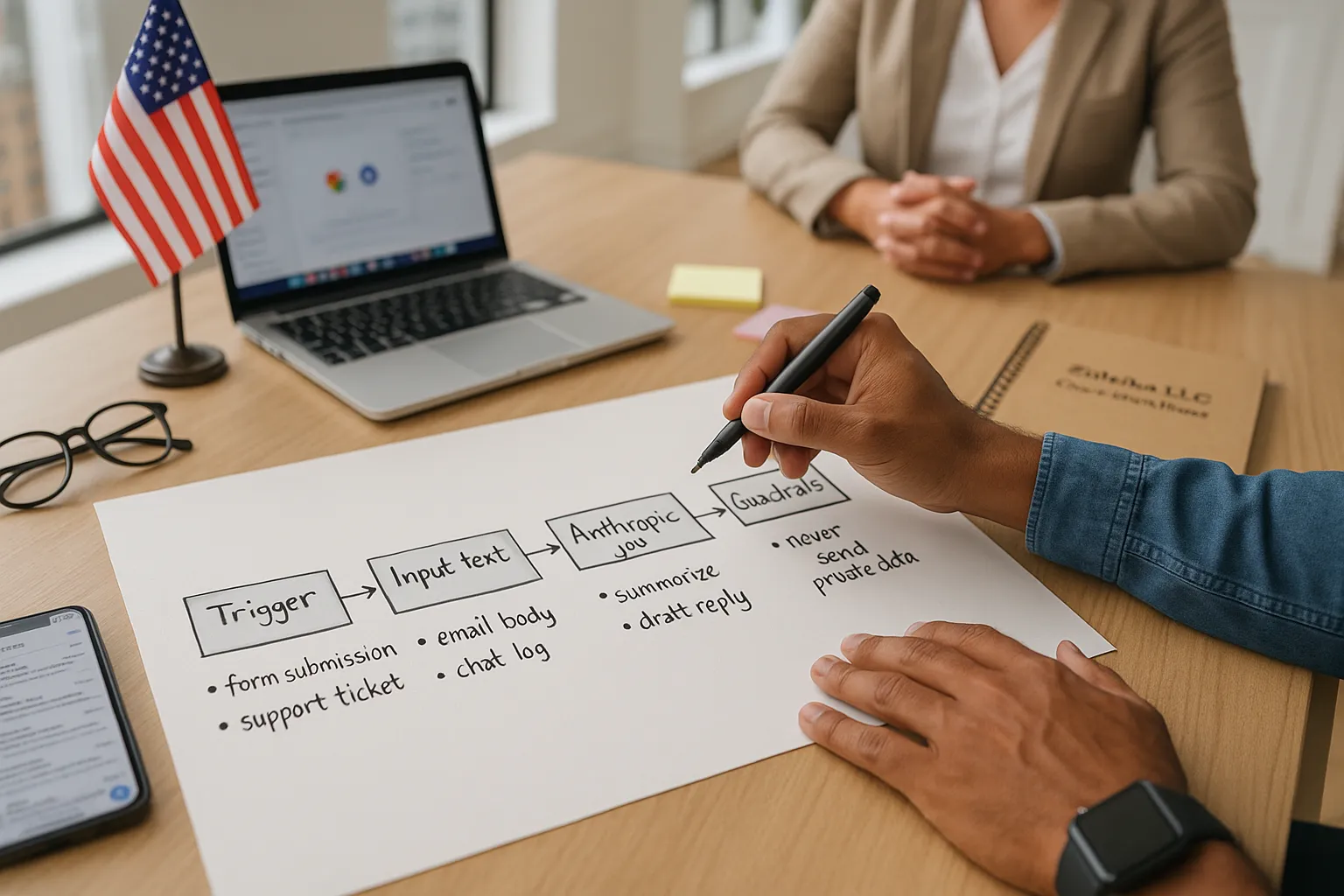
Before we plug Anthropic into anything, we sketch the workflow by hand. It sounds boring. It saves projects.
Here is the simple template we use with clients at Zuleika LLC:
- Trigger
- What starts the flow? A form submission, a support ticket, a new order in WooCommerce, a new row in Google Sheets?
- Input text
- What text will Anthropic see? Email body, form fields, product specs, transcript, chat log.
- Anthropic job
- What do we want from the model? Summarize, classify, rewrite, expand, translate, draft a reply.
- Output format
- Where does it go? CRM fields, WordPress post, Slack, email, JSON for another system.
- Guardrails
- What should never happen? Sending private data out, auto-approving refunds, editing published legal pages.
We write this on paper or in a shared doc before we touch Zapier, Make, or custom code. That step alone often removes 30 percent of the clutter from a project and makes it easier to see which automations are worth shipping first.
If your workflows touch your WordPress site, you can pair this with a quick review of your stack. We walk through that in our WordPress packages at Zuleika LLC.
Core Anthropic Automation Patterns You Can Reuse Everywhere
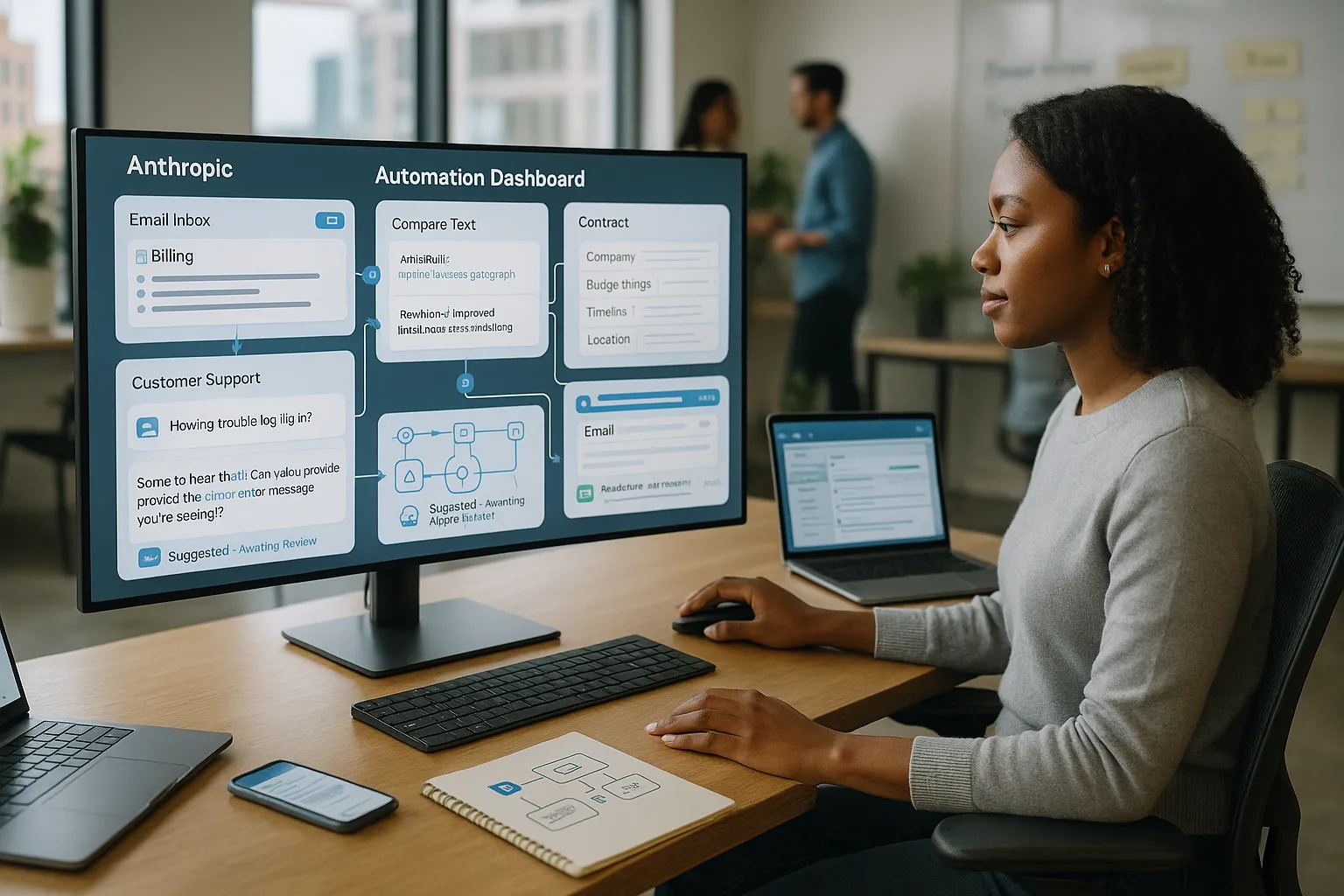
Once you understand how to use Anthropic to automate your workflow, you will notice the same patterns over and over. Here are the patterns we reach for the most.
- Summarize and label
- Trigger: New email, ticket, or call transcript.
- Anthropic job: “Summarize this in 3 bullet points and assign one of these categories.”
- Output: Short summary + category field in your CRM or help desk.
- Rewrite and improve
- Trigger: New draft blog post, product description, or outreach email.
- Anthropic job: “Rewrite for clarity, keep under 160 words, keep this brand voice.”
- Output: Polished copy back into WordPress or your email tool.
- Extract structured data
- Trigger: Intake form or contract text.
- Anthropic job: “Pull out company name, budget range, timeline, and location. Return JSON.”
- Output: Clean fields into your CRM, spreadsheet, or project tracker.
- Draft a reply
- Trigger: New support ticket or sales inquiry.
- Anthropic job: “Draft a friendly reply based on this policy document and knowledge base.”
- Output: Suggested reply sent to an agent for review.
Most automations for busy teams are combinations of these four moves. Start with one pattern in one channel, such as email triage, then copy it into chat, social, and forms once it works.
Connecting Anthropic To Your Tools Without Heavy Engineering
You do not need a full dev team to connect Anthropic to your stack. We usually take a layered approach.
- No-code and low-code tools
Tools like Zapier, Make, and n8n now support Anthropic or generic HTTP steps. The pattern is simple:
- Trigger: App event, such as “New WordPress post” or “New WooCommerce order.”
- Action: HTTP call to Anthropic’s API with your prompt and text.
- Action: Send the result to email, Slack, WordPress, or your CRM.
- WordPress-specific paths
For WordPress sites, we often:
- Call Anthropic from a custom plugin using hooks like
save_post. - Use a forms plugin, such as Gravity Forms or Fluent Forms, then add a webhook step that sends data to a Make or Zapier scenario that calls Anthropic.
- Feed Anthropic outputs directly into ACF fields or custom post types.
- Direct API integration
If you have development support, you can call Anthropic’s API from your own backend for tighter control, logging, and rate handling. That is how we usually handle high-volume flows or anything that touches legal, medical, or finance content.
We cover stack choices for WordPress automations on our services pages.
Practical Workflow Examples For WordPress And Small Business Teams
Let us walk through a few concrete examples. You can copy these ideas into your own account when you plan how to use Anthropic to automate your workflow.
- Auto-drafting product descriptions in WooCommerce
- Trigger: New product added or imported.
- Anthropic job: Take specs and a short bullet list from the merchant and turn them into a clear description, SEO meta description, and 3 benefit bullets.
- Output: Draft text saved as a pending product for review.
- Trigger: New topic added in a “content ideas” custom post type.
- Anthropic job: Generate a brief with target headings, FAQs, and internal link ideas based on your existing WordPress content.
- Output: Brief stored as post meta for your writer. Pair this with a process that sends writers links to your WordPress SEO services checklist.
- Support triage for contact forms
- Trigger: Form submission from your “Contact” or “Support” page.
- Anthropic job: Summarize the request, set urgency (low, medium, high), detect language, and suggest a reply template.
- Output: Structured data in your help desk plus a suggested first draft for the agent.
- Review response assistant for local businesses
- Trigger: New Google review pulled into a sheet via a connector.
- Anthropic job: Draft a short, polite reply that follows your guidelines and never offers gifts that break platform rules.
- Output: Suggested reply pasted back into the review tool for a human to send.
Governance, Guardrails, And When To Keep Humans In The Loop
Anthropic can save hours, but it still needs boundaries. We split those into three buckets: data, decisions, and tone.
- Data boundaries
- Avoid sending full payment details, medical records, or anything protected by law.
- Mask or drop fields that are not needed for the task.
- Keep a log of prompts and responses so you can audit behavior.
The European Data Protection Board reminds controllers to apply data minimization for AI tools to stay inside GDPR rules. Source: “Guidelines on processing personal data through video devices,” EDPB, 2020, https://edpb.europa.eu.
- Decision boundaries
We rarely allow Anthropic to:
- Approve refunds or credits.
- Send emails to customers without a human reading them first.
- Change pricing, legal terms, or compliance copy.
McKinsey reports that AI can raise productivity by 0.1 to 0.6 percentage points per year when used with human review and clear rules. Source: “The economic potential of generative AI,” McKinsey & Company, June 2023, https://www.mckinsey.com.
- Tone and brand
Store your brand guidelines and example messages in a reference doc that Anthropic can read with each request. That keeps answers consistent and lowers the risk of off-brand replies.
A simple rule we use with clients: if the content carries legal risk, emotional weight, or large money decisions, a human reads it before it leaves your system.
Conclusion
If we zoom out, learning how to use Anthropic to automate your workflow is less about prompts and more about habits. Small, repeatable steps win.
Start by mapping one simple workflow, such as email triage or product description drafts. Then plug Anthropic in using a tool you already know, keep humans in the loop, and add logging so you can see what is working.
When that first pilot shows promise, you can roll the same pattern into chat, forms, and content.
Identify One Pilot Workflow And Ship It This Week
Here is a short checklist you can follow today:
- Pick one workflow you touch daily that involves text and repetition.
- Write out trigger, input, Anthropic job, output, and guardrails in a doc.
- Set up a basic Zapier or Make scenario, or ask your dev partner to wire a small WordPress plugin that calls Anthropic.
- Run it in shadow mode for a week: Anthropic drafts, humans send.
- Measure time saved and quality. Keep it if it helps. Drop it if it adds noise.
If you want a partner to design these flows inside your WordPress site and broader stack, we do this work every week at Zuleika LLC. Our goal is simple: help you reclaim hours without turning your site into a science project.
Frequently Asked Questions
What does it mean to use Anthropic as the “brain” of your automated workflow?
When you use Anthropic as the “brain,” your existing tools handle triggers and actions, while Anthropic transforms the text in between. A CRM, form, or inbox supplies raw input, Anthropic summarizes, labels, or rewrites it, and then another app stores or sends the polished output.
How to use Anthropic to automate your workflow if I’m not a developer?
You can use no-code tools like Zapier, Make, or n8n. Set a trigger (e.g., new WordPress post or contact form), send the text to Anthropic via an HTTP step with clear instructions, then route the result to email, Slack, WordPress, or your CRM for review.
What are some practical ways to use Anthropic to automate your workflow in WordPress?
You can auto-draft WooCommerce product descriptions, generate content briefs from “idea” posts, and triage contact form submissions. Anthropic creates summaries, SEO descriptions, briefs, or suggested replies, which are saved as drafts or structured fields in WordPress, ready for a human to edit and approve.
How should I map a workflow before connecting Anthropic?
Start by writing out five elements: trigger, input text, the Anthropic job (summarize, classify, rewrite, etc.), output format, and guardrails. Doing this on paper or in a shared doc clarifies which steps matter, reduces clutter, and shows which automations are worth building first.
Is Anthropic safe for handling customer data in automated workflows?
Anthropic can be used safely if you set clear data boundaries. Avoid sending full payment or medical details, strip unnecessary fields, and log prompts and responses. Apply data minimization principles (e.g., for GDPR) and keep humans in the loop for high-risk, legal, or emotionally sensitive communications.
