
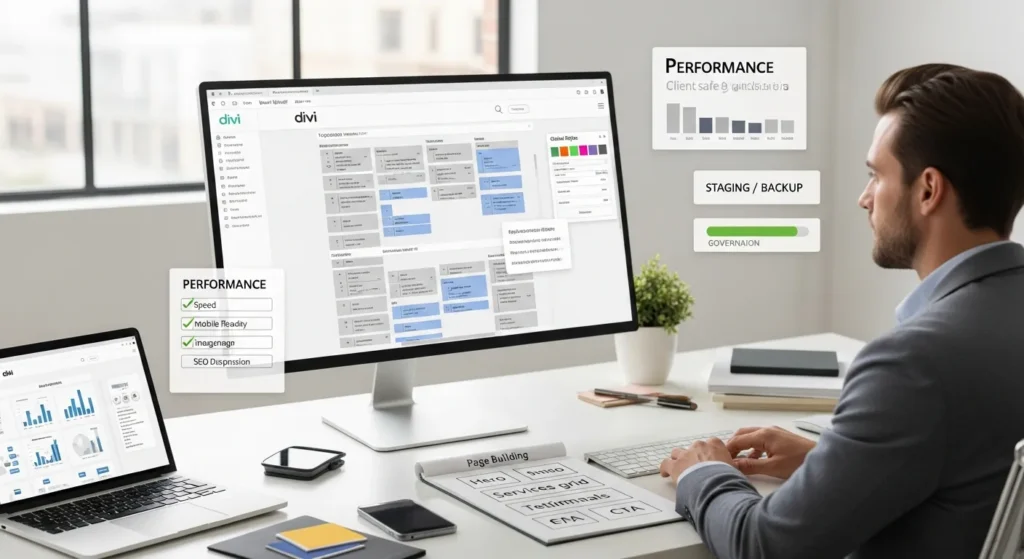
How to use Divi is usually not the hard part. The hard part is opening WordPress at 9:12 p.m., clicking “Enable Visual Builder,” and realizing your “quick page update” just turned into a two-hour design spiral.
Quick answer: treat Divi like a page system, not a paintbrush. Set global styles first, build with repeatable sections, and add guardrails (roles, backups, staging) so your site stays clean, fast, and client-safe.
Key Takeaways
- How to use Divi effectively starts by treating it like a repeatable page system—set global styles first, then build consistent sections and modules to avoid design drift.
- Choose the Divi Theme when you want Divi to control headers, footers, and templates site-wide, and use the Divi Builder plugin when you only need Divi on specific pages within another theme.
- Learn Divi’s core structure (Sections → Rows → Modules) and switch between Visual and Wireframe views to move faster and keep pages stable.
- Build high-converting pages in a clear order—hero, problem, offer, proof, FAQ, CTA—then customize layout packs with your global presets instead of tweaking every element manually.
- Make Divi fast, mobile-friendly, and SEO-ready by enabling performance options, compressing images, using responsive spacing rules, and following on-page SEO basics like one H1, logical H2s, and helpful internal links.
- Protect your site with governance: use Theme Builder templates, global modules, and presets for consistency, and add staging, backups, roles, and a simple change log to keep Divi edits client-safe.
What Divi Is (And When It Is The Right Fit)
Divi is a visual drag-and-drop WordPress theme and page builder from Elegant Themes. You can build pages on the front end, set site-wide styles, and reuse layouts across a site. Divi works for beginners and for developers who want a flexible system without building every template from scratch.
Divi fits best when you need:
- A marketing site with many page types (services, landing pages, case studies, funnels)
- A WooCommerce storefront where layout control matters
- A team that wants speed without living in code
Divi is not always the best pick when you want a very simple blog with minimal layout needs. Divi gives you a lot of knobs. If you do not need knobs, you may not enjoy owning them.
Divi Theme Vs Divi Builder Plugin
Divi comes in two forms, and the choice changes your setup.
- Divi Theme: You use Divi as your WordPress theme. You get the Builder, Theme Customizer settings, the Divi Library, and Theme Builder templates for headers, footers, and page templates.
- Divi Builder Plugin: You keep your current theme and add Divi’s page builder to pages and posts. You do not get the Divi Theme’s full theme-level controls.
Rule of thumb: if you want Divi to control the whole site, pick the Divi Theme. If you only want Divi on a few pages inside a specialized theme, use the plugin.
When To Choose Divi For A Business Site
We recommend Divi for business sites when the site needs repeatable layouts and fast page production.
Here is what that means in practice:
- Your pages need consistent sections. Divi Library assets keep your CTAs and service blocks consistent.
- Your brand needs steady styling. Global presets keep buttons, headings, and spacing from drifting.
- Your team edits pages often. Divi makes edits visual, so marketing teams do not wait on dev time.
One caution: “more freedom” can create “more mess.” If you have multiple editors, start with rules. Divi gives you the tools to enforce rules, but you have to use them.
Install Divi And Set Up The Basics In WordPress
Install Divi through your Elegant Themes account. You download the ZIP, then you upload it in WordPress.
Steps (no drama):
- In WordPress, go to Appearance → Themes → Add New → Upload Theme.
- Upload the Divi ZIP and activate it.
- If you use the Divi Builder plugin on a different theme, install it under Plugins → Add New → Upload Plugin.
Next steps: open a test page and click Enable Visual Builder. Confirm that you can add a text module and save changes.
Where To Configure Global Settings (Typography, Colors, Layout)
Do this before you build five pages. Your future self will thank you.
Set your global styles in the Customizer:
- Fonts for headings and body text
- Link styles
- Button styles
- Background colors
- Header and footer defaults
Divi applies these settings site-wide. That means a global font change affects every page. Global settings -> affects -> brand consistency.
If you want a practical workflow that keeps edits safe across multiple WordPress installs, we also like to standardize how teams copy layouts between sites. This guide on copying pages and WooCommerce items safely between sites pairs well with Divi when you run multiple properties.
Enable Performance Options And Safe Defaults
Divi includes performance settings such as file minification and dynamic CSS. Turn these on, but test like a grown-up.
A simple safe baseline:
- Enable Divi performance options.
- Add a caching plugin or server caching.
- Compress images before upload.
- Test key pages after changes.
One real-world note: speed issues often come from the whole stack, not only Divi. Hosting -> affects -> time to first byte. Heavy images -> affect -> Largest Contentful Paint. Treat performance as a system, not a checkbox.
Learn The Divi Building Blocks: Sections, Rows, And Modules
Divi looks like a canvas, but it behaves like a structure.
- Sections hold major page bands (hero, services, testimonials).
- Rows set the column layout inside a section.
- Modules add the actual content (text, image, button, form, slider).
Section -> controls -> spacing and background. Row -> controls -> columns. Module -> controls -> content and design.
If you learn this hierarchy early, you stop “random clicking” and start building pages that stay stable.
How The Visual Builder Works (Wireframe Vs Visual View)
Divi gives you two ways to work:
- Visual View: You edit on the front end and see changes live.
- Wireframe View: You see the page as a clean outline of sections, rows, and modules.
Use Visual View when you polish. Use Wireframe View when you need to move blocks fast. Wireframe view -> reduces -> mis-click frustration.
A tip we share with clients: when you inherit a messy page, switch to Wireframe View first. It helps you see the structure without getting distracted by fonts and colors.
Common Module Patterns For Business Pages
Most business pages use the same patterns, even when the design looks different.
A few reliable patterns:
- Hero section: Heading + short subheading + button module (and maybe an image)
- Services grid: Blurb modules in a 3-column row
- Proof section: Testimonial modules + logos
- FAQ section: Toggle or Accordion modules
- Final CTA: One clear offer with a button and contact link
Pattern reuse -> reduces -> build time. It also reduces arguments on the team, which is a nice bonus.
Build Your First High-Converting Page With Divi
A Divi page should sell one idea. Not ten.
Start by naming the job of the page. Lead gen page -> affects -> form placement. Product page -> affects -> image priority. Service page -> affects -> proof and process.
Then build the structure in this order:
- Hero with a clear promise
- Problem and stakes
- Your offer and what is included
- Proof (results, reviews, logos)
- FAQ and objection handling
- CTA
Start From A Layout Pack And Customize With Global Styles
Divi includes layout packs for different industries. They help you start fast, but do not treat them like a finished site.
Use layout packs like this:
- Import a page layout.
- Replace copy before you fuss with design.
- Apply your global fonts and button presets.
- Swap images for real photos or brand graphics.
Global styles -> prevent -> “every button looks different” syndrome.
If you manage multiple sites or seasonal campaigns, you can also copy a proven landing page, then adjust the offer and visuals. Our workflow for moving WordPress pages and product layouts between sites helps teams avoid rebuilding the same page over and over.
Add Calls To Action, Forms, And Trust Elements
Divi gives you modules, but you still need restraint.
Use these elements with purpose:
- Button module: one primary CTA per section
- Contact Form module: keep fields minimal (name, email, one message field)
- Testimonials: real names and specific outcomes beat vague praise
- Countdown timers: only if the deadline is real
Trust signals -> affect -> conversion rate. Friction -> affects -> form completion.
One more thing: if you work in legal, medical, or finance, keep human review in the loop. Do not publish claims you cannot support. Do not paste sensitive client data into any third-party tool while writing copy.
Make Divi Fast, Mobile-Friendly, And SEO-Ready
A pretty page that loads slowly is not “branding.” It is lost sales.
Speed -> affects -> conversion. Mobile layout -> affects -> bounce rate. Clear headings -> affect -> search understanding.
So we tune Divi pages with three checks: mobile, weight, and page structure.
Responsive Editing, Spacing Rules, And Accessibility Checks
Divi lets you set different values for desktop, tablet, and phone. Use that feature. Do not fight it.
A simple mobile pass:
- Switch to phone preview.
- Reduce padding on large hero sections.
- Stack columns when text feels cramped.
- Increase line height if text looks dense.
Accessibility checks to keep you out of trouble:
- Maintain good color contrast for text.
- Use readable font sizes.
- Add alt text for important images.
Contrast -> affects -> readability. Readability -> affects -> trust.
On-Page SEO Basics: Headings, Internal Links, And Schema Fit
Divi does not replace SEO work. It just gives you clean control if you use it right.
Here is a tight on-page checklist:
- Use one H1 per page.
- Use H2s for major sections.
- Write page titles that match search intent.
- Add internal links where they help the reader.
For schema, you usually add it with an SEO plugin or custom code, not inside a random text module. Schema markup -> affects -> how Google reads your page context.
If you sell products, check your WooCommerce SEO setup too. Product structured data -> affects -> rich results eligibility.
Governance: Reusable Assets, Roles, Backups, And Change Logs
Divi makes changes feel easy. That is why governance matters.
Easy editing -> increases -> change frequency. Change frequency -> increases -> risk. You can fix that with repeatable assets and safe editing boundaries.
Use Theme Builder Templates, Global Modules, And Presets
Theme Builder templates let you control headers, footers, and post layouts. Use them to stop one-off header edits across 30 pages.
We like this setup:
- Create one header template.
- Create one footer template.
- Build a few global modules (CTA bar, newsletter block, testimonial strip).
- Save button and text presets for brand consistency.
Global modules -> keep -> messaging consistent. Presets -> reduce -> design drift.
Staging, Rollback, And Client-Safe Editing Guardrails
If your site makes money, do not test edits on production.
Use a staging site when:
- You change global fonts or colors
- You change Theme Builder templates
- You add new plugins
Guardrails we set for teams:
- Assign roles based on responsibility.
- Limit who can edit Theme Builder templates.
- Schedule backups.
- Keep a simple change log in your project doc.
Backups -> reduce -> recovery time. Staging -> prevents -> revenue loss from bad pushes.
This is the safest way to start: run a pilot page, document what worked, then expand the pattern across the site.
Conclusion
Divi rewards teams who build with a plan. When you set globals first, stick to sections and modules, and add guardrails, Divi stops feeling like a giant art project and starts feeling like a steady production line.
If you want, we can map your Divi workflow as Trigger → Input → Build steps → Review → Publish, then set roles and staging so edits stay safe. That is where most business sites win: not with flash, but with control.
Frequently Asked Questions About How To Use Divi
How to use Divi without getting stuck tweaking design for hours?
How to use Divi effectively starts with treating it like a system, not a paintbrush. Set global typography, colors, and button presets first, then build repeatable sections and save modules to the Divi Library. Add guardrails like roles, staging, and backups so quick edits don’t create messy, risky site-wide changes.
What’s the difference between the Divi Theme and the Divi Builder plugin?
Divi Theme replaces your WordPress theme and includes full site controls: Theme Customizer settings, the Divi Library, and Theme Builder templates for headers, footers, and page layouts. The Divi Builder plugin adds the visual builder to pages/posts while keeping your existing theme, but you won’t get Divi’s full theme-level controls.
Where should I configure global styles in Divi (fonts, colors, buttons)?
Configure global styles before building multiple pages. Use the WordPress Customizer (with Divi) to set site-wide typography, link styles, button styles, background colors, and header/footer defaults. Because these settings apply across the site, one global change can instantly improve brand consistency—or accidentally break layouts if you change them mid-build.
How do Divi sections, rows, and modules work together?
Divi pages follow a simple hierarchy: Sections are the big page bands (hero, services, testimonials), Rows define the column structure inside a section, and Modules hold the actual content like text, images, buttons, and forms. Learning this structure early prevents “random clicking” and makes pages easier to update without breaking layouts.
How can I make a Divi website faster, mobile-friendly, and SEO-ready?
Enable Divi performance options (like dynamic CSS and minification), use caching, and compress images before uploading. For mobile, use Divi’s responsive controls to adjust padding, stacking, and typography per device. For SEO, keep one H1, use clear H2 sections, add helpful internal links, and add schema via an SEO plugin or custom code.
Can I safely let clients edit Divi pages without breaking the site?
Yes, but only with boundaries. Use reusable assets like Theme Builder templates, global modules, and presets to reduce inconsistency. Limit who can edit global templates, assign WordPress roles based on responsibility, and require a staging site for major changes (global fonts, templates, new plugins). Backups and a simple change log make recovery easier.
Some of the links shared in this post are affiliate links. If you click on the link & make any purchase, we will receive an affiliate commission at no extra cost of you.
We improve our products and advertising by using Microsoft Clarity to see how you use our website. By using our site, you agree that we and Microsoft can collect and use this data. Our privacy policy has more details.
