

The first time we used Doubly, we copied an Elementor section from a staging site, flipped to a client’s live domain, hit paste, and just stared for a second when the whole thing appeared, pixel perfect. No export files, no hunting through JSON, no juggling three different tabs of settings. If you have ever rebuilt the same layout or WooCommerce product on two sites by hand, you know how painful that copying can be.
In this guide, we walk through how to use Doubly plugin for WordPress so you can move pages, designs, and products across sites in minutes, without wrecking your workflow or your governance standards.
Key Takeaways
- The Doubly plugin for WordPress lets you copy and paste pages, Elementor sections, posts, WooCommerce products, and media between domains without exporting files or touching the database.
- Doubly is a strong fit for agencies, freelancers, multi-store WooCommerce owners, and teams using staging sites, while single-site blogs with little duplication usually do not need it.
- To use Doubly plugin for WordPress, install and activate it on both source and target sites, then use the built-in Doubly copy and paste options in the editor, Elementor, or product screens during a short transfer window.
- Doubly Pro extends the free version by supporting posts, custom post types, media, and full WooCommerce products (including images and attributes), which can dramatically speed up catalog and layout reuse.
- Safe use of Doubly depends on governance: restrict who can run copies, test first on staging, log what moves between sites, and ensure required plugins and themes match to avoid broken layouts or missing media.
Quick Answer: What Doubly Does And Why It Matters For Your WordPress Stack

Quick answer: Doubly lets you copy and paste WordPress content between separate domains, so you can reuse pages, Elementor sections, posts, WooCommerce products, and media without manual rebuilding or messy exports.
Here is what that means in practice:
- You design a landing page on a staging site and paste it to the live site.
- You clone a set of Elementor hero sections across five client domains.
- You copy WooCommerce products, including images and attributes, into a new store.
According to the plugin description on WordPress.org, Doubly supports cross-domain copy for pages, Elementor content, and more, using a temporary encoded transfer that expires after a short time window [“Doubly – Copy Paste Content Between Domains,” WordPress.org Plugin Directory, 2022, https://wordpress.org/plugins/doubly-copy-paste-pages-between-domains/]. That helps you keep your stack simple, because Doubly sits on top of your existing tools instead of replacing them.
For us as a WordPress agency, the benefit is very clear: fewer hours spent on copy-paste grunt work and a more reliable way to repeat layouts across multiple sites.
If you want a custom WordPress build that already bakes in staging, content workflows, and tools like Doubly, we walk through that process on our main service page at Zuleika LLC.
When Doubly Is A Good Fit For Your Site Or Client Work

Doubly shines when you manage more than one WordPress site or you ship layouts frequently.
Good fits include:
- Agencies and freelancers who build similar layouts across client projects.
- Store owners running multiple WooCommerce sites or language variants.
- Content teams that draft on staging before pushing to production.
The free version focuses on pages and Elementor layouts. Doubly Pro extends that to posts, custom post types, media, and WooCommerce products, according to the product site [“Doubly PRO,” doubly.pro, 2022, https://doubly.pro].
We usually suggest Doubly when:
- You keep a “pattern library” site with reusable sections.
- You want a safer bridge between staging and live than full database copies.
- You need to move content but do not want to give FTP or full host access to everyone involved.
If you run a single small blog and rarely duplicate content, you probably do not need Doubly. If you manage a handful of WordPress installs, it can save you real time every week.
Install And Configure Doubly On Your WordPress Sites
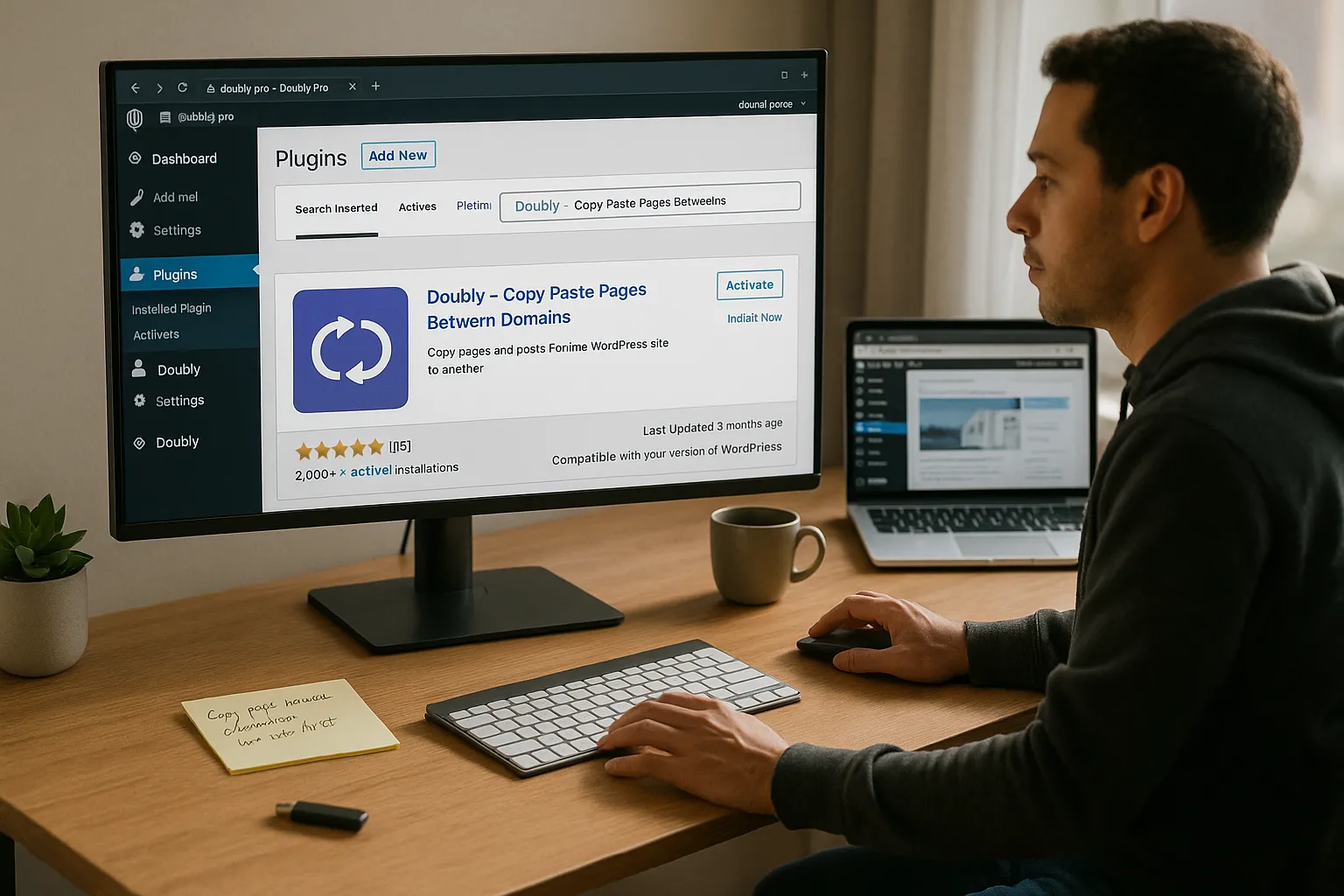
Before you touch any of the advanced workflows, you need Doubly installed on each site that will send or receive content.
Here is the short version:
- Install Doubly
- On a free workflow, go to Plugins → Add New in your WordPress dashboard.
- Search for “Doubly – Copy Paste Pages Between Domains.”
- Click Install Now, then Activate.
- Set up Doubly Pro if you bought it
- Purchase on doubly.pro.
- Upload the ZIP under Plugins → Add New → Upload Plugin.
- Activate and enter your license key under Doubly → Settings.
- Review plugin settings
Inside Doubly → Settings you can usually leave defaults in place. If you use posts, WooCommerce products, or custom post types, make sure those content types are enabled.
Doubly does not require complex configuration. Once active, the plugin adds copy and paste options to the WordPress editor, Elementor, and relevant post list screens. From there, you can start testing how to use Doubly plugin for WordPress in a safe, low-risk way.
If you prefer us to set this up as part of a bigger WordPress build or redesign, our WordPress website development services can wrap Doubly into your standard toolbox.
Connect Two Sites And Map A Simple “Brain Between Triggers And Actions” Flow
Doubly does not use permanent connections like some remote content sync tools. Instead, it uses a short-lived transfer every time you copy.
Think of your workflow like this:
- Trigger: You hit “Copy with Doubly” on Site A.
- Input: Doubly grabs the content, layout, and media.
- Job: Doubly encodes that data as a temporary package on Site A.
- Output: On Site B, you hit “Paste from Doubly” and it pulls that package in.
- Guardrails: The package expires after about 10 minutes, so someone cannot come later and reuse old content without a new copy event.
According to the developer, this is handled through encoded transients that live only for a limited window on the source server [“Doubly – Copy Paste Content Between Domains,” WordPress.org Plugin Directory, 2022, https://wordpress.org/plugins/doubly-copy-paste-pages-between-domains/].
To connect two sites in practice:
- Log in as an administrator on both WordPress sites.
- Confirm Doubly is active on both.
- On the source site, open the content you want to copy and click the Doubly copy option.
- Switch to the target site, open the relevant screen (page editor, Elementor, product editor), and click the Doubly paste option.
No separate API keys between sites are required. Your “connection” is your admin session plus that short transfer window.
Use Doubly For Common Copy–Paste Jobs
Once setup is complete, the real value shows up in everyday copy tasks. We will walk through three typical workflows.
Copy Pages And Posts Between Domains
Pages are the easiest way to learn how to use Doubly plugin for WordPress.
Steps:
- On the source site, go to Pages → All Pages.
- Hover over the page and look for a Doubly copy link or bulk action.
- Click to copy. Wait for the success message.
- On the target site, go to Pages → Add New or open an existing page.
- Use the Doubly paste action.
With Doubly Pro, the same pattern works for posts and custom post types. Custom fields created by tools like Advanced Custom Fields usually come along as long as the relevant plugins and field groups exist on the target site.
Reuse Elementor Sections And Design Blocks
Doubly works smoothly inside Elementor, which is where many designers spend their time.
Try this:
- Open a page in Elementor on the source site.
- Right click a section you want to reuse.
- Choose the Doubly copy option.
- On the target site, open a page in Elementor.
- Right click and choose the Doubly paste option.
The section appears with widgets, styling, and spacing preserved. If you use add-on packs such as Unlimited Elements, you need those plugins active on both sites for widgets to render correctly.
We like to keep a “pattern library” WordPress install that stores tested headers, footers, hero sections, and pricing grids. Then we pull them into client sites with Doubly during builds.
Move WooCommerce Products And Media Assets
WooCommerce stores often share products across brands or regional domains. Copying those by hand can get messy.
According to official WooCommerce documentation, each product includes attributes, terms, images, and pricing data [“Adding and Managing Products,” WooCommerce Docs, Automattic, accessed 2024, https://woocommerce.com/document/managing-products/]. Doubly Pro can move this bundle between sites in one motion.
Basic steps:
- On the source site, go to Products → All Products.
- Use the Doubly copy action on single or multiple products.
- On the target site, go to Products → Add New or open an existing product.
- Use the Doubly paste action.
Media files such as product images transfer as part of that process, so your new store does not start with broken thumbnails. That alone can shave hours off a catalog migration.
If your store is part of a larger WordPress build, our WooCommerce development services can pair Doubly with proper staging and testing so your catalog changes stay safe.
Move Content Safely: Governance, Roles, And Staging First
Doubly is convenient, which means it is easy to get careless. We prefer to treat it like a power tool.
Here is how we keep content moves safe:
- Limit who can copy and paste. Use WordPress roles so only trusted admins or editors can run Doubly operations.
- Run changes on staging first. Spin up a staging copy of the live site, test the Doubly copy there, then repeat the same steps on production once you are happy.
- Log what moved. Keep a short change log: what you copied, from where, to which site, and when.
- Respect privacy. Never move sensitive legal, medical, or financial content through any plugin without clear internal rules and human review.
This matches the way privacy bodies such as the European Data Protection Board talk about data minimization and control [“Guidelines 4/2019 on Article 25 Data Protection by Design and by Default,” EDPB, 2020, https://edpb.europa.eu]. Only move what you need, where you truly need it.
If you want someone to help design these guardrails for your organization, we cover that in our maintenance and support offers at Zuleika LLC.
Troubleshooting And Practical Limitations To Be Aware Of
Doubly is handy, but it is not magic. Here are common issues we see and how we handle them.
1. Content type does not copy
If posts or products refuse to copy:
- Confirm you are using Doubly Pro for those content types.
- Check that the custom post type is enabled in Doubly settings.
2. Layout looks broken on the target site
Often the cause is missing plugins or theme differences. Make sure:
- The same page builder is active on both sites.
- Add-on packs and custom widgets exist on both installs.
- Global typography or theme styles are set up similarly.
3. Media missing after paste
Sometimes the transfer hits host limits. Try copying a smaller batch or check for file permission issues on the target server. Hosting providers often document maximum upload and PHP limits in their support articles.
4. It does not work with external sites
Doubly will not copy content from a site you do not control, because it needs the plugin active and an admin session. That is by design and matches guidance from groups such as the U.S. Federal Trade Commission, which stress respect for content rights and clear consent for data use [Protecting Personal Information: A Guide for Business,” Federal Trade Commission, 2016, https://www.ftc.gov/business-guidance/resources/protecting-personal-information-guide-business].
Finally, check plugin updates. The WordPress.org page lists recent fixes and compatibility notes, so if you run into odd behavior after a major WordPress release, update Doubly and retest.
Conclusion: Start Small, Pilot A Doubly-Powered Workflow, Then Expand
Here is our recommended way to learn how to use Doubly plugin for WordPress without stress:
- Install the free plugin on a staging site and a sandbox site.
- Copy one simple Elementor section back and forth.
- Move a test landing page between two domains, check links and media.
- If that feels solid, try Doubly Pro on a small set of blog posts or WooCommerce products.
- Only after that, turn it loose on live client sites.
Run it in “shadow mode” at first: keep your old process, but let Doubly create drafts in parallel. Measure how many minutes you save per copy job.
If you want a partner to help you design these flows, plug Doubly into a larger automation stack, and keep everything safe and documented, we are happy to help. You can schedule a free consult through Zuleika LLC and we will map your triggers, jobs, and guardrails before any plugin goes near production.
Sources
- “Doubly – Copy Paste Content Between Domains,” WordPress.org Plugin Directory, 2022, https://wordpress.org/plugins/doubly-copy-paste-pages-between-domains/
- “Doubly PRO,” doubly.pro, 2022, https://doubly.pro
- “Adding and Managing Products,” WooCommerce Docs, Automattic, accessed 2024, https://woocommerce.com/document/managing-products/
- “Guidelines 4/2019 on Article 25 Data Protection by Design and by Default,” European Data Protection Board, 2020, https://edpb.europa.eu
- Protecting Personal Information: A Guide for Business,” Federal Trade Commission, 2016, https://www.ftc.gov/business-guidance/resources/protecting-personal-information-guide-business
Frequently Asked Questions
What is Doubly and how does it work to copy content between WordPress domains?
Doubly is a WordPress plugin that lets you copy and paste content between separate domains. When you copy, it encodes the page, post, or layout as a temporary package on the source site. Within about 10 minutes, you can paste that package into another WordPress site where Doubly is active.
How do I install and set up the Doubly plugin for WordPress?
To use Doubly plugin for WordPress, go to Plugins → Add New, search for “Doubly – Copy Paste Pages Between Domains,” then Install and Activate. For Doubly Pro, upload the ZIP from doubly.pro, activate it, and enter your license under Doubly → Settings. Enable needed content types and you’re ready to copy.
How can I use Doubly plugin for WordPress to copy Elementor sections and WooCommerce products?
Open your Elementor page, right-click the section, and choose the Doubly copy option. On the target site, open Elementor and choose the Doubly paste option. For WooCommerce products (Pro only), use Doubly copy from Products → All Products, then paste into a new or existing product on the target store.
Is it safe to use Doubly on client sites and production environments?
Doubly uses short‑lived, encoded transfers that expire quickly, which reduces long‑term exposure of copied content. For client and production sites, you should still limit Doubly access to trusted roles, test all moves on staging first, log what’s copied, and avoid transferring sensitive or regulated data through any plugin without clear policies.
When should I use Doubly instead of a full site migration or staging sync?
Use Doubly when you only need to move specific pages, Elementor sections, posts, or WooCommerce products between WordPress installs, such as reusing layouts across client sites. A full migration or database sync is better when you’re cloning an entire site or moving hosting, not just cherry‑picking content pieces.
