

We remember the first time we turned on the All In One SEO plugin for WooCommerce and watched a sleepy product catalog start to pull real search traffic. Product pages that never ranked suddenly showed ratings, prices, and stock right in Google. If you run a WooCommerce store and feel like search engines ignore half your catalog, this guide walks through how we fix that with All In One SEO, step by step.
Key Takeaways
- The All In One SEO plugin for WooCommerce adds a crucial SEO layer that fixes weak product schema, duplicate content, and poor indexing across large catalogs.
- Using the All In One SEO plugin for WooCommerce, you can create optimized SEO titles, meta descriptions, and rich Product schema so products show ratings, prices, and stock directly in Google.
- Global settings in AIOSEO let you control search appearance for products, categories, and tags, manage sitemaps and breadcrumbs, and prevent thin or duplicate archives from wasting crawl budget.
- Category and taxonomy controls turn product categories into high-performing landing pages while using noindex, canonicals, and redirects to keep low-value tag and filter pages out of search results.
- Built-in analytics, Search Console integration, TruSEO scores, and internal link suggestions help you continuously improve product performance instead of treating WooCommerce SEO as a one-time setup.
Why WooCommerce Stores Need An SEO Plugin
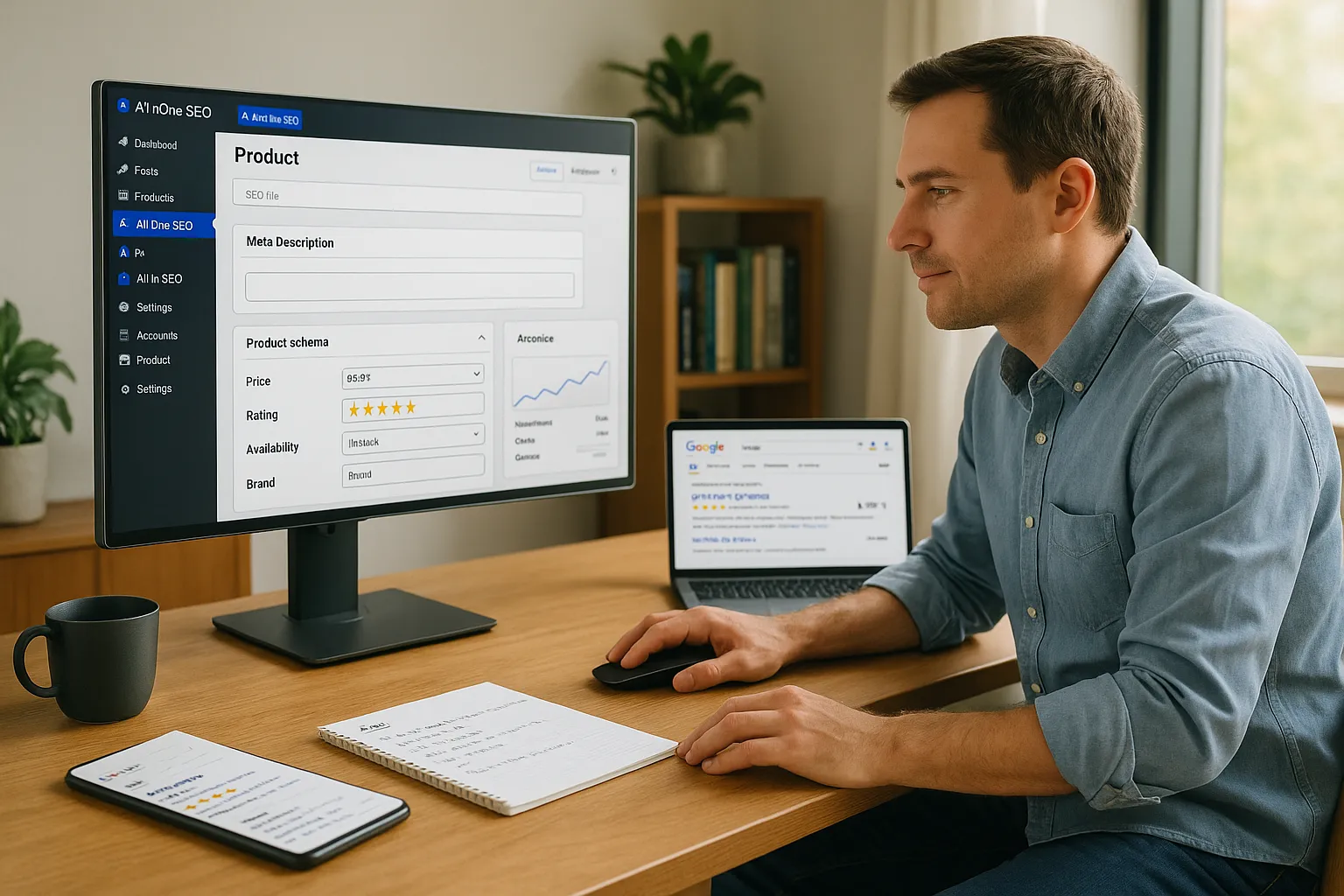
Most WooCommerce stores rely on default WordPress settings, which leaves money on the table.
WooCommerce creates products, categories, tags, filters, and pagination pages. Search engines see a maze of near-duplicate URLs and thin archives. Without a plugin that understands eCommerce, important products stay buried.
Key SEO Challenges For WooCommerce Sites
Here is what we see again and again:
- Weak product schema
WooCommerce alone does not output complete Product schema for rich results. You miss ratings, prices, availability, and brand in search.
- Duplicate and thin content
The same product can appear under several URLs: categories, tags, filters, and search results. That can confuse Google and dilute relevance.
- Uncontrolled titles and descriptions
Auto-generated titles from WooCommerce are often too long or vague. That hurts click-through rates, even if you rank.
- Slow or patchy indexing
Large catalogs need clean sitemaps and clear index rules. Without them, important products get discovered late or not at all.
These problems grow with store size. A boutique with 30 products can wing it. A catalog with hundreds or thousands benefits from the structure that All In One SEO brings.
How All In One SEO Helps Solve These Issues
The All In One SEO plugin for WooCommerce adds the missing SEO layer that WordPress and WooCommerce do not cover on their own.
We use it to:
- Generate rich Product schema for each item so search results show prices, ratings, and stock.
- Control SEO titles and meta descriptions with smart tags and AI help.
- Set canonical URLs to pick the main version of a product or archive.
- Manage noindex rules for thin or duplicate archives.
- Connect Google Search Console so we can see queries, clicks, and errors without leaving WordPress.
When we pair WooCommerce with All In One SEO, the store becomes easier for both users and search engines to understand.
Getting Started: Installing And Configuring All In One SEO For WooCommerce
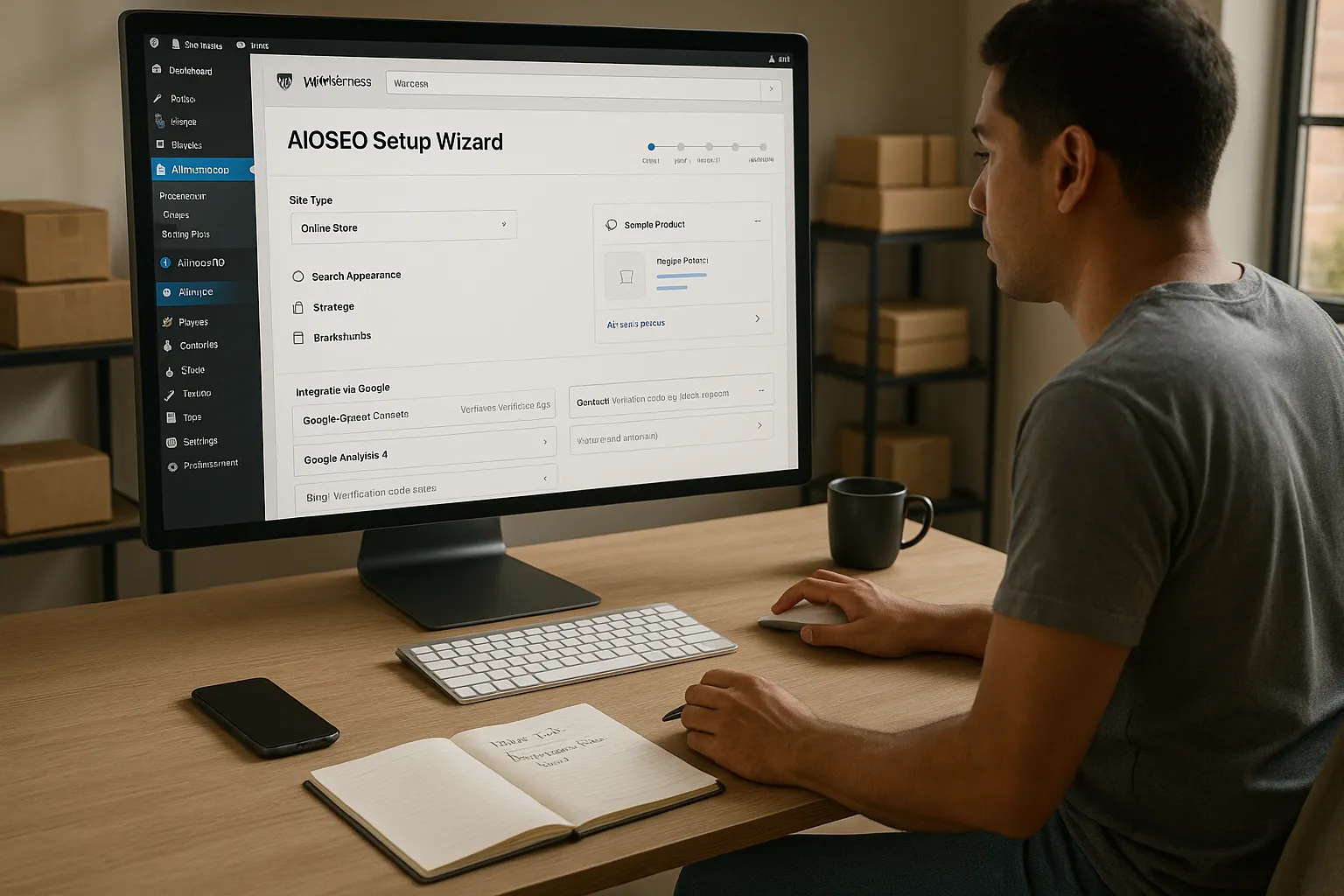
The setup for the All In One SEO plugin for WooCommerce is quick if we follow the built-in wizard.
- In the WordPress dashboard, go to Plugins → Add New.
- Search for All in One SEO and install it.
- Activate the plugin and launch the Setup Wizard.
- Choose the site type as Online Store and walk through the prompts.
If we use AIOSEO Pro, we also enable the WooCommerce module from the AIOSEO settings panel. That unlocks dedicated product settings.
Basic Setup And Global Settings
Before we touch individual products, we set global rules.
In Search Appearance we:
- Define default title formats for products, categories, and tags using smart tags like product name, brand, and site name.
- Set meta description patterns so new products launch with decent copy even before we refine them.
- Turn on sitemaps and include products and product categories.
- Enable breadcrumbs and pick the label and path style that match our theme.
We also use the TruSEO score inside each product editor. It guides us on content length, keyword placement, and readability without forcing gimmicky changes.
If you want a deeper foundation, you can pair this with a general WooCommerce SEO guide so your store structure supports what AIOSEO configures.
Connecting Your Store To Google And Other Tools
We connect All In One SEO to data sources so we can measure what works.
In the Search Statistics or Webmaster Tools section we:
- Verify the site with Google Search Console using an HTML tag.
- Optionally add Bing and Yandex verification codes.
- Paste in the Google Analytics 4 measurement ID if we run GA.
Once connected, AIOSEO can pull Search Console data into WordPress. We see clicks, impressions, and top queries for product URLs without logging into separate dashboards. That matters when we tune titles and descriptions later.
Optimizing WooCommerce Products With All In One SEO
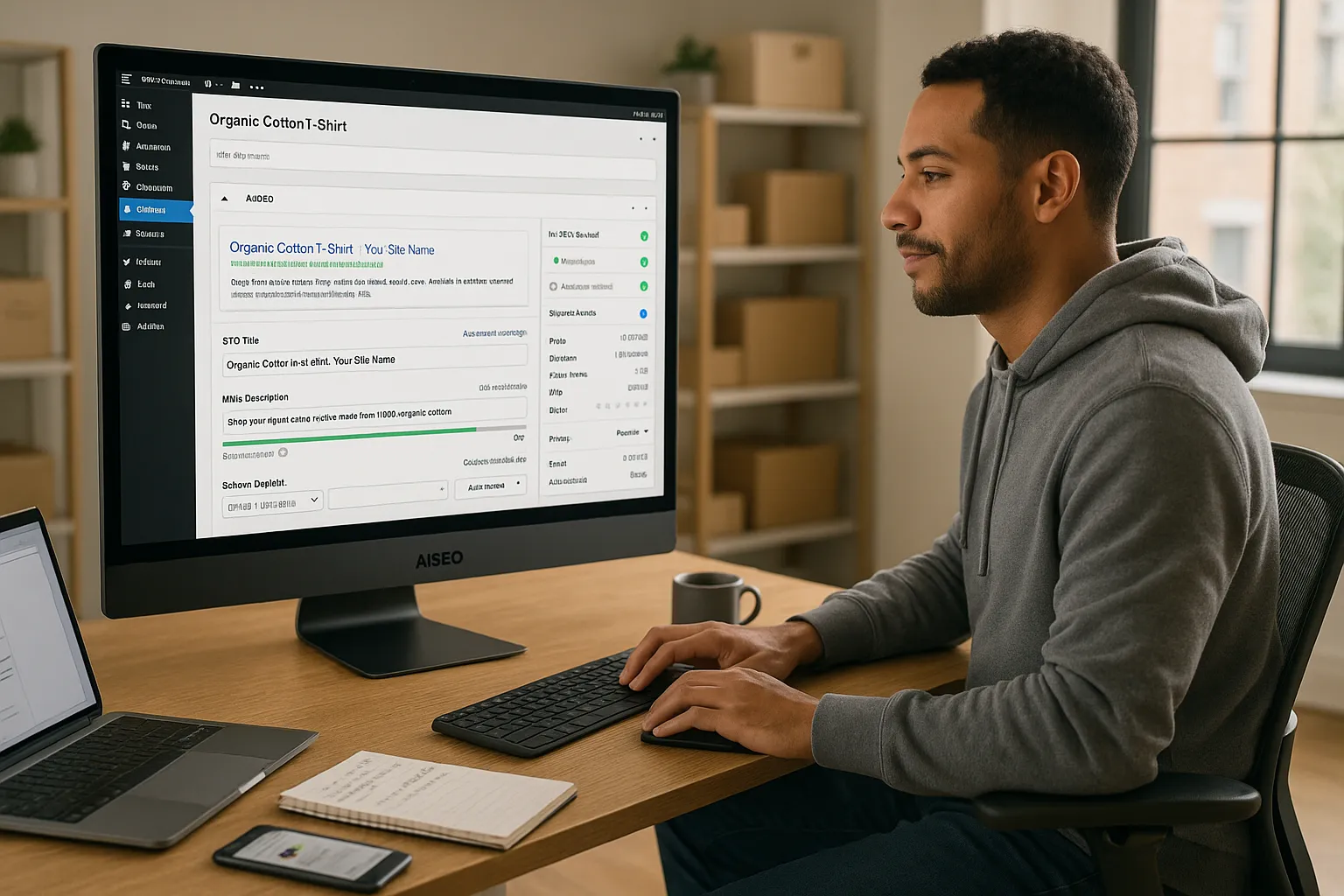
With the base settings complete, we move into the product editor. This is where the All In One SEO plugin for WooCommerce pays off.
Each product gets its own AIOSEO panel under the description. We see:
- A preview of how the product appears in Google.
- Fields for SEO title and meta description.
- A TruSEO checklist.
- Schema settings.
Writing SEO Titles And Descriptions That Convert
We start with the title and description because they control clicks.
Inside the product’s AIOSEO box we:
- Use smart tags like {title} | zuleikallc.com as a base.
- Add the target phrase, such as “organic cotton t-shirt“ or “4K curved gaming monitor”.
- Keep titles under about 60 characters and descriptions around 130–155 characters.
AIOSEO‘s built-in AI assistant can draft options for titles and meta descriptions. We treat those as starting points, then add brand voice and human clarity.
We also run important products through the Headline Analyzer tool in AIOSEO. It gives a score based on length, power words, and clarity. We adjust until the title looks sharp and promises a clear benefit.
The All In One SEO plugin for WooCommerce stores these rules as defaults, so new products inherit a solid starting structure.
Using Product Schema To Stand Out In Search
Rich results matter for eCommerce. According to Google’s own Search Central documentation, Product structured data helps Google display price, availability, and review details in search results. [“Product structured data,“ Google Search Central, last updated 2023, https://developers.google.com/search/docs/appearance/structured-data/product]
In the Schema tab of each product we:
- Confirm the Product type is active.
- Check that price, currency, stock status, SKU, and brand pull from WooCommerce data.
- Add or confirm review and rating information when available.
All In One SEO outputs this as JSON-LD, which Google and other engines read. When schema is complete, our WooCommerce products can qualify for shopping-rich snippets and carousels, and that lifts click-through rates.
Managing Product Categories, Tags, And Archives
Many stores lose ranking potential in their category and tag archives. The All In One SEO plugin for WooCommerce gives us precise control over these template pages.
In Search Appearance → Taxonomies we set rules for:
- Product categories
- Product tags
- Custom taxonomies created by other plugins
We pick which should appear in search and which should stay hidden.
Structuring Categories For Search And Users
We treat categories as mini landing pages.
Good category SEO includes:
- A clear category description that explains who the products are for.
- A short intro paragraph above the product grid that uses the main phrase naturally.
- Logical parent/child relationships so users can drill down from broad to narrow.
Inside AIOSEO we:
- Set custom titles and descriptions for category archives.
- Include important categories in the sitemap, and reduce or remove less useful ones.
- Use breadcrumbs so users can jump back up a level.
If you want ideas on catalog structure, a general site structure guide pairs nicely with this.
Preventing Thin Or Duplicate Content Issues
Tags and filters often create pages that have almost no unique content.
To control this with All In One SEO we:
- Mark low-value taxonomies as noindex and hide them from sitemaps.
- Use canonical URLs so that filtered or sorted views point back to the main product or category URL.
- Use the Redirects module in AIOSEO Pro to send dead or merged product URLs to newer ones.
This keeps crawl budget focused on the pages that can actually rank and convert.
Technical SEO Essentials For WooCommerce With All In One SEO
Even the best product copy struggles if technical SEO is a mess. All In One SEO gives WooCommerce stores practical controls without needing custom code.
XML Sitemaps And Indexing Controls
In the Sitemaps panel we:
- Turn on XML sitemaps and include products, categories, and important pages.
- Use pagination in sitemaps when we have large catalogs.
- Enable image sitemaps so product photos get indexed and can appear in Google Images.
We can also exclude certain posts, products, or taxonomies from sitemaps if they do not need search visibility.
For index control we use:
- Global rules for archives like author or date pages.
- Per-product or per-category toggles to switch index or noindex as needed.
Breadcrumbs, Canonicals, And URL Settings
AIOSEO‘s breadcrumb settings let us create a consistent path such as:
Home / Category / Subcategory / Product
We output breadcrumbs via:
- A block in the editor.
- A shortcode.
- A PHP template tag for custom themes.
Canonicals are set automatically to the main URL for each product. When WooCommerce generates extra URLs for filters, sorting, or pagination, the canonical tag points search engines back to the preferred page.
In the Advanced or Search Appearance settings we also:
- Clean up query parameters where safe.
- Control whether category bases appear in URLs.
- Keep slugs short and descriptive.
Performance, Analytics, And Ongoing Optimization
SEO for a WooCommerce store is not a one-time checklist. The All In One SEO plugin for WooCommerce helps us repeat what works and fix what does not.
Tracking What Works And Prioritizing Changes
Inside AIOSEO‘s analytics views we can:
- See top pages and queries from Google Search Console right in the dashboard.
- Track how title or description changes affect clicks and impressions.
- Identify products that get impressions but few clicks, which are perfect candidates for better copy.
The Link Assistant feature scans content and suggests internal links. We use this to:
- Strengthen category pages by linking from related blog posts.
- Support high-margin products with more internal references.
Technical audits highlight missing schema, title issues, and similar problems that we can address in batches.
Practical Tips For Different Types Of Professionals
Different roles get different gains from the All In One SEO plugin for WooCommerce.
- Store owners and managers
Focus on the Setup Wizard, product titles, descriptions, and schema. Use TruSEO scores as a weekly checklist.
- Marketers
Experiment with titles, meta descriptions, and internal linking. Track query data in Search Console reports to spot gaps.
- Developers
Hook into AIOSEO filters and actions to adjust schema output, conditionally change canonicals, or integrate custom product data.
- Agencies and consultants
Create a standard AIOSEO template across client stores, then refine per niche. Document processes in an internal playbook so teams stay consistent.
For stores with local pickup or physical locations, we also pair AIOSEO with a local SEO setup so the WooCommerce catalog supports local intent.
Conclusion
When we install the All In One SEO plugin for WooCommerce and actually use its product, taxonomy, and technical settings, search traffic stops feeling random. Products have clear titles, rich schema, and clean URLs. Categories act like real landing pages.
If you run a WooCommerce store and want a focused next step, start with the Setup Wizard, turn on WooCommerce support, and fix SEO titles and schema for your top 10 products. The gains from that first round usually convince people to roll AIOSEO changes across the rest of the catalog.
References
- “Product structured data,“ Google Search Central, last updated 2023, https://developers.google.com/search/docs/appearance/structured-data/product
- “WooCommerce Market Share – January 2024,“ BuiltWith, 2024, https://trends.builtwith.com/shop/WooCommerce
Frequently Asked Questions
What is the All In One SEO plugin for WooCommerce and why should I use it?
The All In One SEO plugin for WooCommerce adds an eCommerce-focused SEO layer on top of WordPress. It improves product schema, controls titles and meta descriptions, manages sitemaps and canonicals, and handles noindex rules so your products, categories, and images are easier for search engines to crawl, understand, and rank.
How do I set up the All In One SEO plugin for WooCommerce on my store?
Install All In One SEO from Plugins → Add New, activate it, then run the Setup Wizard and choose “Online Store” as the site type. If you’re using AIOSEO Pro, enable the WooCommerce module in the settings to unlock product-level options, schema controls, and advanced WooCommerce SEO features.
How does All In One SEO help WooCommerce products get rich results in Google?
In each product’s AIOSEO panel, you can configure Product schema so price, currency, availability, SKU, brand, and reviews are correctly output as JSON-LD. This structured data lets Google qualify your WooCommerce products for shopping-rich snippets and carousels, often increasing click-through rates from search results.
What’s the best way to optimize WooCommerce product titles and descriptions with All In One SEO?
Use the AIOSEO box in the product editor to set custom SEO titles and meta descriptions. Start with smart tags like {title} | zuleikallc.com, then add your target keyword, keep titles under ~60 characters and descriptions around 130–155 characters, and refine using TruSEO recommendations and the Headline Analyzer.
Can I use All In One SEO for WooCommerce alongside another SEO plugin like Yoast or Rank Math?
You should not run multiple full SEO plugins at the same time. They can create conflicting meta tags, canonicals, and schema. Choose one primary SEO plugin—such as All In One SEO plugin for WooCommerce—and fully configure it, then disable overlapping SEO features in any other tools or themes you use.
Will the All In One SEO plugin for WooCommerce slow down my website?
Properly configured, All In One SEO has a minimal performance impact. Most features—like schema, sitemaps, and meta tags—are lightweight. Performance issues usually stem from hosting, themes, or heavy page builders. Keep WooCommerce and AIOSEO updated, use caching, and test with tools like PageSpeed Insights to ensure good load times.
Some of the links shared in this post are affiliate links. If you click on the link & make any purchase, we will receive an affiliate commission at no extra cost of you.
