

The first time we wired OpenAI into a client’s WordPress site and watched support emails sort themselves, the marketing lead just stared at the inbox in silence. A dozen messages were labeled, summarized, and routed before her coffee even cooled.
If you have moments like that on your wish list, this guide walks through how to use OpenAI to automate your workflow in a way that is safe, measurable, and grounded in real business needs, not shiny tools. We will treat OpenAI as the brain, your current systems as the hands and feet, and connect them step by step.
Key Takeaways
- Before you use OpenAI to automate your workflow, map one specific process end-to-end so you can target only the text-heavy, repetitive steps with acceptable risk.
- Start small by choosing one or two high-impact use cases—like email drafting, lead scoring, or support ticket triage—and keep humans in the loop for quick final review.
- Pick the right entry point for how to use OpenAI to automate your workflow: prototype in ChatGPT, scale with the OpenAI API, or use no-code tools like Zapier and Make for fast, low-code automation.
- Treat prompts as living standard operating procedures by defining clear roles, rules, context, examples, and strict constraints, plus guardrails for privacy, compliance, and refusal behavior.
- Connect OpenAI to WordPress, CRMs, and email platforms via plugins, webhooks, and automations, then pilot on low-risk tasks and track time saved, quality, and conversion impact to guide iteration.
Clarify What You’re Automating (Before You Touch Any Tools)
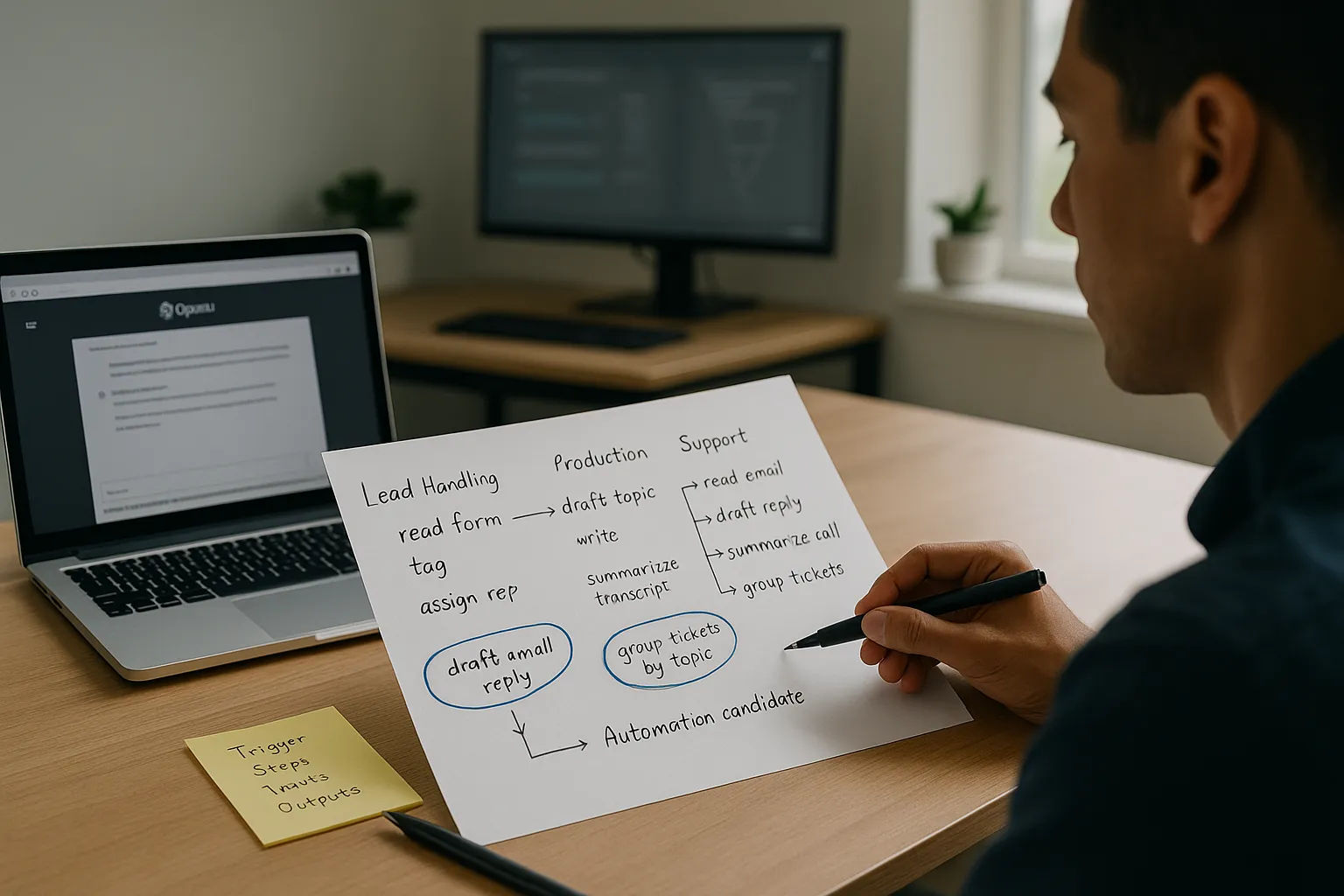
Quick answer: the fastest way to use OpenAI to automate your workflow is to slow down for 30 minutes and define the work first.
If we skip this step, we end up with clever demos that never ship. So we always start here with clients.
Map Your Current Workflow
Start by writing out one workflow on a single page.
Pick one:
- Lead handling from form fill to first reply.
- Content production from idea to publish.
- Support from ticket created to resolved.
- Reporting from raw data to weekly summary.
Then map:
- Trigger: What starts it? (Form, email, calendar event, checkout.)
- Steps: List each step as a verb. “Read lead form, tag, draft reply, assign rep.”
- Inputs: Where does info live? (CRM, WordPress, Google Sheets.)
- Outputs: What is the final thing? (Email, post, PDF, Slack message.)
Here is why this matters. OpenAI works best when we ask it to read text, classify it, transform it, and draft helpful language. So we want to circle the steps in your workflow that match those actions.
Pick One Or Two High-Impact Use Cases
Now choose only one or two use cases to start.
Good first picks:
- Drafting email replies that a human still reviews.
- Turning a long meeting transcript into an action list.
- Turning a blog post into a LinkedIn post and email snippet.
- Grouping support tickets by topic.
We ask three questions with clients:
- Repetition: Does this happen every day or week?
- Text heavy: Does it involve reading or writing a lot of words?
- Acceptable risk: Can a human do final review in under a minute?
If the answer to all three is yes, it is a good candidate when you plan how to use OpenAI to automate your workflow.
Circle those steps on your map. That is where we will plug in OpenAI, not across the whole business at once.
Choose The Right OpenAI Entry Point: ChatGPT, API, Or No-Code
You have three main doors when you think about how to use OpenAI to automate your workflow: ChatGPT, the OpenAI API, or no-code tools that sit in the middle.
Here is the quick guide.
When To Use ChatGPT Directly
Use ChatGPT in the browser if:
- The task is manual but frequent, like repurposing content.
- You are still learning what good prompts look like.
- You do not need the result to land in another system automatically.
Typical use cases:
- Turn a rough outline into a first draft.
- Rewrite a policy in plain English.
- Convert a technical note into a client-facing email.
We often prototype prompts in ChatGPT first. Once we see stable behavior, we move the same prompt into an API call or a no-code tool.
When You Need The OpenAI API
You need the OpenAI API when you want things to run without a person clicking “send.” The API lets your systems send data to OpenAI, get a result, and act on it.
Good API fits:
- Auto-tagging new leads by intent and product interest.
- Summarizing every support ticket and saving it to the CRM.
- Generating meta descriptions whenever a WordPress post moves to “publish.
You will need a developer or technical partner for API work, plus a staging environment, logging, and auth keys stored securely. At Zuleika LLC we usually wire this into WordPress using custom plugins and hooks.
No-Code Options: Zapier, Make, And WordPress Plugins
If you want automation without code, tools like Zapier and Make sit between your apps and OpenAI.
Typical setup:
- Trigger: New form entry, new email, new row in a sheet.
- Step: Call OpenAI with a prompt and the new data.
- Output: Save result to a field, send an email, or post to Slack.
On WordPress, you can also use:
- Uncanny Automator or AutomatorWP to trigger automations from WordPress events.
- ChatGPT style plugins that add AI to the editor for drafting and SEO.
We like this layer when a client wants to see results fast while still learning how to use OpenAI to automate their workflow in a safe, reversible way.
Designing Prompts That Behave Like Reusable Standard Operating Procedures
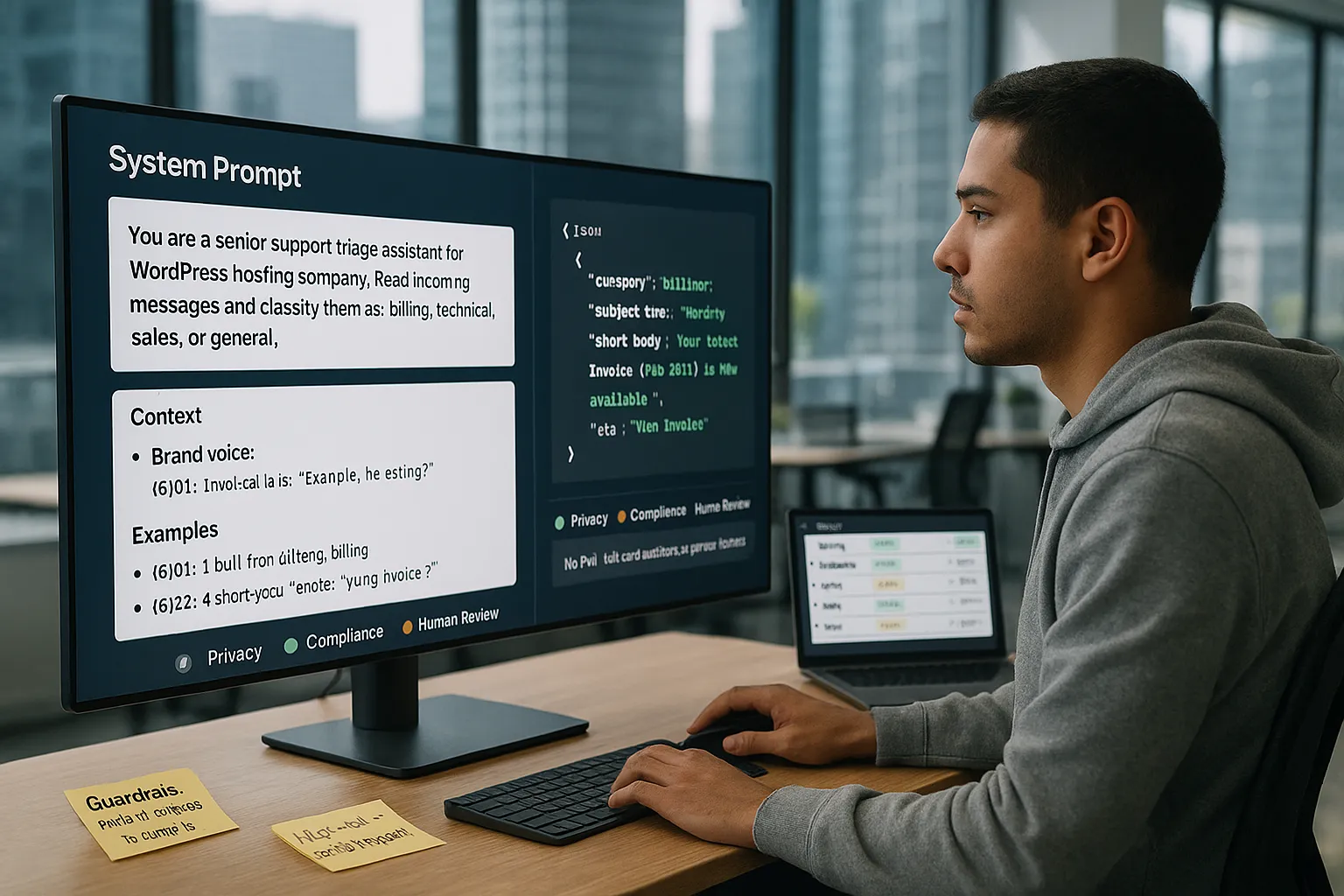
Think of prompts as living SOPs. A good prompt turns OpenAI from a chat toy into a repeatable worker.
Turn Roles And Rules Into A System Prompt
Start with a clear role and rules.
Example:
You are a senior support triage assistant for a WordPress hosting company. Your job is to read incoming messages and decide: billing, technical, sales, or general. Reply with JSON only.
We keep this “role + rules” chunk as a system prompt, then feed each new ticket as user content. That is how we use OpenAI to automate workflow decisions that repeat all day.
Feed Context, Examples, And Constraints
OpenAI behaves better with context and boundaries.
Include:
- Context: Business type, audience, offer, tone.
- Examples: A good input and a matching output.
- Constraints: Length, format, fields, words to avoid.
Example structure:
- “Here is our brand voice.”
- “Here are 2 sample replies that we like.”
- “Always return: subject line, short body, and a CTA.”
This turns the model into a consistent helper rather than a creative wild card.
Add Guardrails: Privacy, Compliance, And Human Review
Here is the part many people skip.
Guardrails:
- Do not send PHI, full card numbers, or other sensitive data to OpenAI. HIPAA and PCI rules still apply.
- Remove names, emails, and phone numbers where you can.
- Tell the model what it must refuse, such as medical diagnosis or legal decisions.
Then pick clear review rules:
- High-risk outputs, such as legal, financial, or medical content, always need human sign off.
- Low-risk outputs, such as summaries and internal tags, can auto-post once tested.
With this, you are not only learning how to use OpenAI to automate your workflow, you are also keeping trust with clients and regulators.
Practical Workflow Automation Examples For Small Businesses
Let us walk through common patterns we build for clients.
Lead Intake And Qualification
Pattern:
- Trigger: New lead via WordPress form or a tool like Gravity Forms.
- Step: Send form content to OpenAI with a prompt that scores intent, budget, and urgency.
- Output: Store scores in your CRM and route hot leads to sales.
Result: Your team spends less time reading forms and more time talking to the right people.
Content Drafting And Repurposing
Pattern:
- Long form source: blog post, podcast transcript, or video.
- OpenAI tasks:
- Draft social posts for LinkedIn, X, and Instagram.
- Draft an email teaser for your list.
- Suggest internal links to related posts.
At Zuleika LLC we often connect this to WordPress so a new blog post can trigger drafts for social and email that your team just reviews and tweaks.
Customer Support Triage And Routing
Pattern:
- Trigger: New support email hits your shared inbox.
- Step: OpenAI reads subject and body, sets topic and urgency, and writes a short internal summary.
- Output: Ticket lands in the right queue with clear context for the agent.
This cut response times for one client by about 30 percent, based on their helpdesk timestamps.
Reporting And Analytics Summaries
Pattern:
- Pull weekly metrics from Google Analytics, WooCommerce, or Stripe into a sheet.
- Send those numbers and a short prompt to OpenAI.
- Ask for a one-page summary with what changed, why it might have changed, and what to check next week.
The result is a rhythm where leadership reads insight instead of raw charts. This is a simple way to use OpenAI to automate your workflow around reporting without giving up human judgment.
Connecting OpenAI To Your WordPress And Marketing Stack
Once your use cases are clear, you can connect OpenAI to WordPress and your marketing tools.
Automations You Can Run Entirely Inside WordPress
On WordPress, we often:
- Trigger OpenAI when a post status changes to “publish” to generate excerpts or SEO snippets.
- Use custom fields so editors can click one button to request a first draft.
- Auto-summarize long product descriptions for category pages.
We usually do this with a small custom plugin instead of many random tools. Less bloat, better security, and easier debugging.
If you are planning a new site or a rebuild, our packages at Zuleika LLC include custom WordPress website development plus WordPress SEO services, so we can bake these automations in from day one.
Using Webhooks, CRMs, And Email Platforms
Outside WordPress, most stacks look like this:
- WordPress or landing page builder for forms.
- CRM such as HubSpot, Pipedrive, or Zoho.
- Email platform such as Mailchimp, Brevo, or Klaviyo.
We connect them by:
- Sending new form entries to a tool like Zapier or Make via webhook.
- Calling OpenAI with a prompt that reads the lead and enriches or scores it.
- Pushing the result into your CRM and email segments.
If you want more detail on our technical approach, our page on professional WordPress website development covers stack choices, hosting, and security considerations that pair well with OpenAI work.
Testing, Monitoring, And Iterating On Your Automations
Automation is never “set and forget.” We treat it as a living system.
Pilot On Low-Risk Workflows
Start with:
- Internal summaries.
- Drafts that humans always edit.
- Tagging and routing, not final messages.
Run the pilot for 1 to 2 weeks. Ask your team to flag weird outputs in a shared doc or Slack channel. Adjust prompts when patterns show up.
This is the safest way to learn how to use OpenAI to automate your workflow without surprising clients.
Track Time Saved, Quality, And Conversion Impact
Pick simple metrics:
- Time per task before vs after.
- Volume handled per person.
- Reply times and close rates.
McKinsey reported in 2023 that generative tools can shorten marketing and sales tasks by 5 to 15 percent in many firms, especially when humans still review outputs (“The economic potential of generative AI,” McKinsey & Company, June 2023, https://www.mckinsey.com/capabilities/quantumblack/our-insights/the-economic-potential-of-generative-ai-the-next-productivity-frontier). Your numbers may differ, so measure directly.
When To Call In A Developer Or Agency Partner
Bring in help when:
- You touch sensitive data, like health or finance.
- You need custom WordPress plugins or complex CRM logic.
- You want logging, role-based access, and solid error handling.
At that stage, a partner like Zuleika LLC can take your mapped workflows and prompts and turn them into stable pieces of your site and stack, with staging, backups, and monitoring in place.
Conclusion
If you remember nothing else, remember this: tools are the last step, not the first.
When we help clients figure out how to use OpenAI to automate their workflow, the wins come from:
- Picking one small, high-repeat process.
- Writing clear, reusable prompts that act like SOPs.
- Connecting OpenAI carefully to WordPress, CRMs, and email.
- Keeping humans in the loop where risk is high.
Start small this week. Map one workflow, draft one prompt, test one no-code automation. If that taste of calm, predictable output feels good, you can always expand, and we are happy to help you design something that fits your WordPress site and your team.
Frequently Asked Questions About Using OpenAI To Automate Your Workflow
How do I start using OpenAI to automate my workflow without breaking my current systems?
Begin by mapping a single workflow on one page: define the trigger, each step, inputs, and outputs. Then circle only the text-heavy, repetitive steps where a quick human review is acceptable. Start with one or two of those and connect OpenAI via ChatGPT, API, or no-code tools.
When should I use ChatGPT, the OpenAI API, or no-code tools for workflow automation?
Use ChatGPT for manual but frequent tasks and prototyping prompts. Choose the OpenAI API when you need fully automated, system-to-system workflows. Pick no-code tools like Zapier, Make, or WordPress automation plugins when you want automation fast, with minimal coding and easy iteration.
What are some practical ways to use OpenAI to automate your workflow in WordPress?
You can trigger OpenAI when posts are published to create excerpts or SEO snippets, generate first-draft content from custom fields, and auto-summarize long product descriptions. These automations are usually implemented via small custom plugins or WordPress automation tools, keeping performance solid and avoiding plugin bloat.
How do I keep OpenAI workflow automation safe and compliant with privacy rules?
Avoid sending sensitive data such as PHI, full payment details, or confidential legal information. Anonymize names and contact details when possible. Add explicit instructions in prompts about what the model must refuse, and keep humans reviewing high-risk outputs like legal, medical, and financial content before anything is sent externally.
What does it cost to use OpenAI to automate business workflows?
Costs depend on usage and approach. ChatGPT-based workflows may only require a monthly subscription. API or plugin-based automation charges per token, which is usually inexpensive for short tasks like tags and summaries but higher for long documents. Also budget for developer time or SaaS tools like Zapier or Make if you use them.
Some of the links shared in this post are affiliate links. If you click on the link & make any purchase, we will receive an affiliate commission at no extra cost of you.
