
WordPress web work looks easy right up until you click “Publish,” your phone view breaks, and a checkout email never arrives. We have watched that exact chain reaction happen, usually five minutes before a big promo.
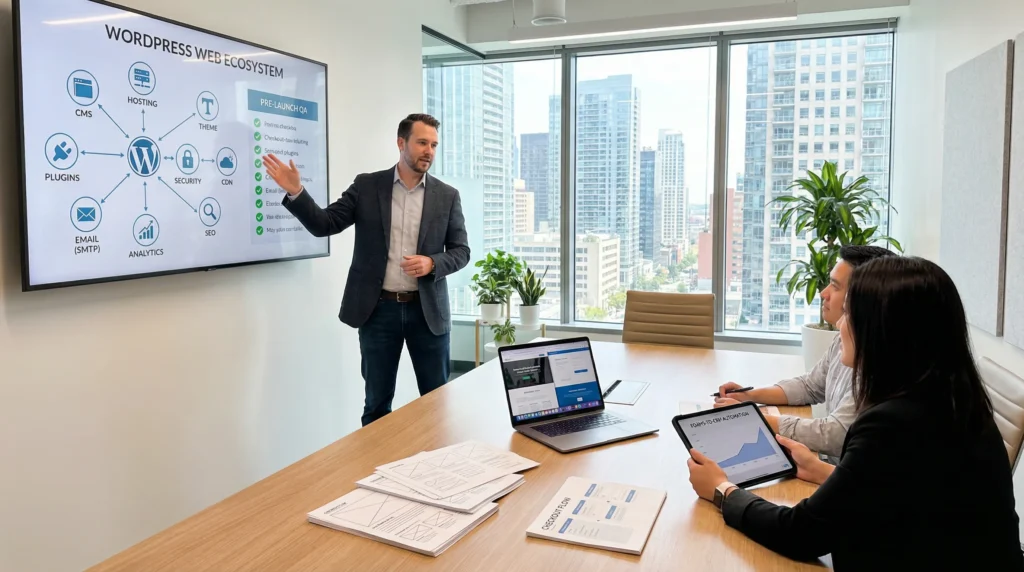
Quick answer: “WordPress web” is the full system around a WordPress site, meaning the CMS plus hosting, theme, plugins, security, and the workflows that turn visits into leads or sales. When you treat it like a system (not a pile of pages), you launch faster, rank cleaner, and avoid the scary stuff.
Key Takeaways
- “WordPress web” is a complete system—CMS, hosting, theme, plugins, security, and workflows—so treating it like an operating stack helps you launch faster and avoid costly failures.
- Choose WordPress.org vs. WordPress.com based on how much control you need, and favor WordPress.org for serious business sites where performance, SEO, and security directly impact revenue.
- Keep your WordPress web build maintainable by using a lightweight theme, a lean plugin set, and Gutenberg blocks to reduce lock-in and lower the risk of update or launch-day breakage.
- Match site structure to one clear goal (lead gen, WooCommerce eCommerce, or creator/publisher) so pages, proof, and calls-to-action support conversions instead of just looking “pretty.”
- Map the workflow before design—trigger, input, job, output, guardrails—and test forms, CRM/email integrations, and transactional SMTP in “shadow mode” to catch silent failures.
- Use a repeatable launch and maintenance checklist (QA forms/payments/tracking, DNS/SSL/redirects order, ongoing updates/backups/scans) to protect rankings, uptime, and customer trust.
What “WordPress Web” Means (And Why It Matters For Business Sites)
“WordPress web” means more than “a site made with WordPress.” It means the full operating setup that keeps your pages fast, your forms reliable, and your business data protected.
WordPress powers a big chunk of the internet. W3Techs reports that WordPress runs about 43% of all websites. That scale matters because it drives themes, plugins, hosting support, and hiring options.
WordPress.org Vs. WordPress.com: The Practical Difference
You pick your control level first.
- WordPress.org (self-hosted) gives you the software and full control. You choose hosting, install any theme or plugin, and set your own rules.
- WordPress.com (hosted) bundles hosting and some features. It feels simpler early on. Customization can stay limited until you move up plans.
We usually guide serious business sites toward WordPress.org because you control performance, SEO, and security choices. That control matters when revenue sits on the other end of a form or cart.
If you want the plain-English breakdown, we keep a deeper explainer on what a WordPress website really includes.
Themes, Plugins, And Blocks: The Building Pieces You Actually Manage
Your day-to-day WordPress web work lives in three parts:
- Theme controls layout and styling. Your theme affects speed, mobile behavior, and how easy edits feel.
- Plugins add functions. WooCommerce handles stores. MemberPress handles memberships. Security plugins harden logins and scan files.
- Blocks (Gutenberg editor) let you build pages with reusable sections. Blocks reduce page-builder lock-in if you use them well.
Entity choice -> affects -> long-term upkeep. A heavy theme or plugin pile increases updates and can raise failure risk during launches.
The WordPress Web Stack: Hosting, Domain, CDN, Email, And Analytics
WordPress web also includes the things around WordPress:
- Domain + DNS: Your address and the “phonebook” that points it to hosting.
- Hosting: Where WordPress runs. Hosting quality affects speed, uptime, and backups.
- CDN: A content network that serves images and files closer to visitors.
- Email: Transactional mail for receipts and form notices often needs proper SMTP.
- Analytics: GA4, Search Console, and server logs help you see what works.
We treat this like plumbing. When one joint leaks, you lose signal, sales, or trust.
Choose The Right WordPress Site Type For Your Goal
A WordPress web build goes smoother when you pick the site type based on one clear goal. Entity goal -> affects -> page structure.
Service And Local Business Sites (Lead Gen And Trust)
Service sites win when they answer three questions fast: What do you do, who do you help, and how do I contact you.
We usually anchor these builds around:
- A strong services page set (one page per service)
- Proof blocks (reviews, logos, case notes)
- One primary call to action (call, book, request quote)
- Location signals (service area, map embed, schema)
Design still matters, but conversion layout matters more. If you want examples of what “good” looks like, our guide on WordPress web design shows the patterns we keep reusing.
eCommerce With WooCommerce (Products, Payments, Shipping, Taxes)
WooCommerce works when you treat it like an operations system, not just a product grid.
A solid WooCommerce WordPress web setup covers:
- Product data that stays consistent (titles, variants, SKUs)
- Checkout that feels calm on mobile
- Payment method testing in sandbox and live modes
- Shipping logic and tax rules that match where you sell
Entity checkout friction -> reduces -> conversion rate. Even one extra field can cost you sales.
Creator And Publisher Sites (Blogs, Portfolios, Memberships)
Creators need speed, structure, and publishing rhythm.
We build creator-focused WordPress web stacks around:
- A clean category system (not 40 tags nobody clicks)
- A portfolio or “start here” hub
- A newsletter path (lead magnet, welcome email, segmentation)
- Optional paid access (memberships, gated downloads, courses)
If your business is content-led, internal links and clear content hubs make Google’s job easier and your reader’s job faster.
Map The Workflow Before You Build: Pages, Conversions, And Automations
We see the same mistake in WordPress web projects: teams start with colors and fonts, then bolt on the business process later. That order creates rework.
Start with workflow.
Core Pages That Drive Revenue (Not Just “Pretty” Navigation)
Most business sites need a small set of pages that do actual work:
- Home (positioning + primary CTA)
- Services or products (decision support)
- About (trust, team, credibility)
- Proof (reviews, case notes, certifications)
- Contact or booking (conversion)
- Policies (privacy, terms, refunds)
Entity page clarity -> increases -> lead quality. Visitors self-select when you show who you serve and what the next step is.
We often sketch this first using wireframes. It keeps scope under control and keeps stakeholders calm. Our walkthrough on planning with wireframes shows the exact approach.
Trigger → Input → Job → Output → Guardrails (A Simple Automation Map)
Here is the simplest automation map we use:
- Trigger: A form submit, purchase, or booking.
- Input: Name, email, order ID, selected service.
- Job: Create a CRM lead, tag a contact, send an internal Slack alert.
- Output: A task in your pipeline plus a receipt or confirmation.
- Guardrails: Spam filtering, rate limits, human review, logging.
Entity guardrails -> reduce -> workflow breakage. A log entry beats a mystery.
Forms, CRM, And Email: Where WordPress Usually Connects
Most WordPress web automation lives in three connections:
- Forms to CRM: HubSpot, Salesforce, Zoho, Pipedrive.
- Forms to email: Mailchimp, Klaviyo, ConvertKit.
- Store to email and support: WooCommerce to help desk and post-purchase flows.
We like “shadow mode” testing. You send data to the CRM but you do not change operations yet. You check logs and field mapping for a week. Then you switch the workflow on.
Design And Performance Basics That Move Rankings And Conversions
Good WordPress web design does not mean fancy effects. It means visitors understand your offer on mobile, and pages load fast enough that they do not bounce.
Mobile-First Layout, Accessibility, And Brand Consistency
Mobile-first means you design for the smallest screen first.
We check:
- Tap targets that fit thumbs
- Headings that scan in two seconds
- Color contrast that stays readable
- Forms that feel short and friendly
Entity accessibility -> expands -> reachable audience. It also reduces legal risk in some industries.
If you are weighing outside help, we break down what to look for in a WordPress web design company so you can spot real process vs. pretty mockups.
Speed Fundamentals: Images, Caching, Core Web Vitals, And Hosting Fit
Speed work pays rent. Google measures real-user experience with Core Web Vitals through Chrome User Experience Report data, and those signals connect to page experience.
In plain terms:
- Compress and resize images before upload.
- Use caching and a CDN.
- Keep plugins lean.
- Match hosting resources to traffic.
Entity large images -> slow -> mobile load time.
Our practical guide on caching, image cleanup, and database housekeeping covers the fixes that usually move the needle without drama.
On-Page SEO Foundations: IA, URLs, Schema, And Internal Links
SEO starts with information architecture.
We set:
- Clean URLs that match intent
- One main topic per page
- Schema where it fits (Organization, LocalBusiness, Product)
- Internal links that point to money pages and content hubs
Entity internal links -> help -> crawling and topical understanding.
WordPress makes these steps practical because you can control permalinks, titles, and structured data through proven plugins and careful templates.
Security, Privacy, And Governance For Real-World Teams
WordPress web security stays boring when you treat it like routine, not a scramble.
Update Discipline, Backups, And Least-Privilege Access
Security starts with habits:
- Update WordPress core, themes, and plugins on a schedule.
- Take offsite backups you can restore.
- Give each user the lowest role they need.
- Use MFA for admin accounts.
Entity stale plugins -> increase -> breach risk. Most incidents start with old code.
Data Minimization: Forms, Logs, And What Never To Paste Into AI Tools
Collect less data. You protect people and you reduce liability.
We recommend:
- Ask only for what you need to fulfill the request.
- Avoid sensitive fields in forms unless you have a strong reason.
- Limit form retention and access.
And a hard rule for teams using AI tools: do not paste medical details, legal case facts, payment data, or private client info into a public chatbot. Entity copy-paste habits -> expose -> confidential data.
Compliance Touchpoints For Regulated Fields (Legal, Medical, Finance)
Regulated teams can use WordPress web setups, but humans must keep control over advice and decisions.
Common touchpoints:
- Privacy policy and consent language
- Cookie handling based on your region
- Secure storage for any uploaded documents
- Audit trails for admin actions where possible
We stay conservative here. If a workflow touches protected health info, card data, or client-confidential matters, you need tighter controls and often legal review.
Sources we trust for this area include FTC guidance on advertising and endorsements, and regulator guidance for privacy duties where they apply to your org.
A Launch Checklist You Can Reuse (And Roll Back If Needed)
Launch day should feel like a controlled switch flip, not a cliff jump.
Pre-Launch QA: Content, Tracking, Forms, And Payments
Before you move DNS, test the stuff that breaks quietly:
- Every form sends and stores leads correctly
- Payment test orders work end-to-end
- 404 checks on key pages
- Title tags and meta descriptions exist
- GA4 and Search Console connect
Entity test orders -> catch -> checkout failures.
Go-Live Steps: DNS, SSL, Redirects, And Monitoring
Go-live steps look simple, but order matters:
- Point DNS to the right host
- Confirm SSL works on every page
- Add redirects from old URLs
- Turn on monitoring for uptime and errors
Entity bad redirects -> create -> traffic loss. A launch can “work” and still bleed rankings if redirects go missing.
Post-Launch Maintenance: Uptime, Security Scans, And Iteration Cadence
After launch, you want steady checks:
- Weekly plugin and core updates (or at least monthly)
- Daily backups for stores and busy sites
- Security scans and login monitoring
- A monthly review of pages that convert vs. pages that leak users
Entity maintenance cadence -> extends -> site lifespan.
If you need a budget reality check before you begin, we break down what affects WordPress website design cost so you can plan without surprises.
Conclusion
WordPress web work rewards adults in the room. You win when you choose the right site type, map the workflow before design, and treat security and speed as daily operations.
If you want a calm, professional build path, start small: one goal, one conversion path, one measured launch. Then expand once the system behaves. When you are ready for help, we build and support WordPress sites at Zuleika LLC with the same approach we use on our own projects: clear scope, logged changes, and humans in the loop.
Frequently Asked Questions About WordPress Web
What does “WordPress web” mean for a business website?
“WordPress web” means the full system around a WordPress site: the CMS plus hosting, theme, plugins, security, and the workflows that turn visitors into leads or sales. Treating it as a system improves speed, reliability, SEO, and reduces launch-day failures.
What’s the practical difference between WordPress.org and WordPress.com for WordPress web projects?
WordPress.org is self-hosted and gives full control over hosting, themes, plugins, performance, SEO, and security settings. WordPress.com bundles hosting and feels simpler at first, but customization can be limited unless you upgrade plans—often a constraint for serious business sites.
What’s included in a WordPress web stack besides WordPress itself?
A WordPress web stack typically includes your domain and DNS, hosting, a CDN for faster asset delivery, email/SMTP for transactional messages (receipts and form notices), and analytics like GA4 and Search Console. If any part is misconfigured, you can lose sales, data, or trust.
How do you plan a WordPress web site so it converts instead of just looking nice?
Start with workflow, not colors. Define your goal, core revenue pages (home, services/products, proof, contact/booking, policies), and an automation map (trigger → input → job → output → guardrails). This reduces rework and makes forms, CRM, and email integrations behave predictably.
Why are WordPress web emails (receipts or contact forms) not sending, and how do I fix it?
Many WordPress web sites fail to send emails because the server isn’t set up for reliable outbound mail, messages get flagged as spam, or SMTP isn’t configured. Use an SMTP provider/plugin, confirm SPF/DKIM/DMARC, test form submissions, and log deliveries to catch silent failures.
How much does a WordPress web build typically cost, and what drives the price?
Costs vary widely based on scope: custom design vs. templates, eCommerce (WooCommerce), memberships, migrations, copy/SEO, analytics, accessibility, and the complexity of integrations (CRM, email, automations). Ongoing expenses—hosting, backups, updates, and security—also impact total cost.
Some of the links shared in this post are affiliate links. If you click on the link & make any purchase, we will receive an affiliate commission at no extra cost of you.
We improve our products and advertising by using Microsoft Clarity to see how you use our website. By using our site, you agree that we and Microsoft can collect and use this data. Our privacy policy has more details.
