
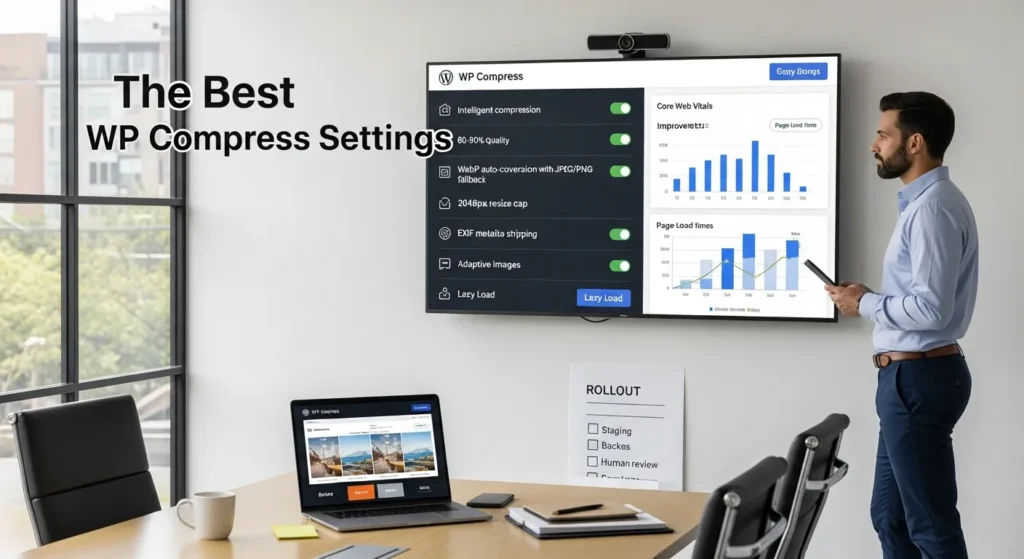
The best WP Compress settings can feel like a trap: you want faster pages, but you do not want your product photos to look like they went through a fax machine. We have watched a “quick image optimization” push drop a site’s load time… and quietly wreck the hero images on three key landing pages. Quick answer: start with Intelligent compression, cap images at 2048px, turn on WebP auto-conversion, and use Adaptive Images + Lazy Load + CDN with a safe rollout and human review.
Key Takeaways
- The best WP Compress settings for most business sites start with Intelligent compression at an 80–90% quality target to reduce image weight without visible damage.
- Enable WebP auto-conversion with JPEG/PNG fallback to improve load speed and preserve compatibility across browsers.
- Cap uploads with a 2048px max width/height to stop oversized images from bloating pages while still supporting retina displays.
- Turn on Adaptive Images, Lazy Load, and (when available) the WP Compress CDN so each device receives the right-sized images and pages load faster on mobile.
- Roll out WP Compress changes safely by piloting 10–30 key images, measuring before/after performance, and doing human visual reviews before bulk optimization or Autopilot.
- Fix common issues fast by rolling back Ultra compression if images look soft, adding image dimensions to prevent CLS, and purging plugin/CDN/host caches when old versions keep showing.
Choose Your Compression Goals First (Speed Vs. Quality Vs. SEO)
Your goal decides your settings. Compression changes pixels. Pixels change file size. File size changes load time. Load time affects conversions and SEO.
Here is why: “Best” is not one setting. “Best” is the setting mix that hits your business outcome without surprises.
What “Best” Means For Most Business Sites
For most service businesses, local brands, and B2B sites, “best” means this: pages load fast on mobile, images look clean, and you do not spend your Friday re-uploading photos.
We usually pick a balanced baseline because it stays stable across pages:
- Goal: reduce image weight without visible damage
- Default stance: speed matters, but trust matters more
- Win condition: Core Web Vitals improve and brand visuals stay crisp
Entity logic shows up fast here: Image file size affects page speed. Page speed affects bounce rate. Bounce rate affects leads and sales.
When To Prioritize Visual Fidelity (Portfolios, Fashion, Food, Print)
If your site sells taste, detail, or texture, you need to protect the image first.
Think:
- photographers and artists
- fashion and beauty brands
- restaurants and food creators
- print shops and any business that gets judged on sharp edges and color
In these cases, compression artifacts cost money. A smudged fabric pattern makes a product look cheaper. A blurred plate of food kills appetite. So we bias toward Lossless or a very conservative “smart” setting.
When To Prioritize Speed (eCommerce, Landing Pages, Mobile)
If you sell online, speed hits revenue fast.
- Mobile shoppers bounce when pages drag.
- Checkout flows punish extra seconds.
- Ad traffic costs you money every click, so you want the page to load before the visitor loses patience.
For WooCommerce stores and landing pages, we often accept stronger compression (even Ultra on many product shots) because the trade pays back.
One caution: speed can fix one problem and create another. If your images get too soft, shoppers lose confidence. That is why we still run human review, even on “speed-first” sites.
The Best WP Compress Settings (Recommended Defaults)
If you want a clean starting point, these are the best WP Compress settings we use on most business sites.
Compression Level And Image Quality Targets
Start with:
- Compression mode: Intelligent
- Quality target: 80–90%
This combo usually cuts weight without obvious artifacts. Intelligent mode also reduces the risk of “plastic-looking” faces or crunchy edges.
Next steps: if you still need more speed, test Ultra on a small batch. If your images look worse, roll back.
If you want a deeper walkthrough of where these toggles live, we wrote a practical guide on setting up WP Compress the right way.
Auto-Convert To WebP (And When To Keep JPEG/PNG)
Turn on:
- Auto-convert to WebP
- Serve WebP with fallback (so older browsers still get JPEG/PNG)
WebP usually shrinks files without wrecking visuals. Smaller files download faster. Faster downloads lift user experience and SEO signals.
Keep JPEG/PNG as the source when:
- you need broad compatibility for a weird embedded viewer
- you do heavy image editing workflows that rely on originals
- you use PNG for transparency (WebP can still work, but test)
Resize Rules: Max Width/Height For Uploads
Set your resize cap to:
- Max width/height: 2048px
This prevents giant uploads from sneaking in and bloating pages. It also protects your media library from becoming a storage bill you did not plan for.
Rule of thumb we use: if your theme never displays an image larger than 1200–1600px wide, a 2048px cap gives you room for retina displays without keeping 5000px originals.
Strip Metadata (EXIF) And Preserve What Matters
Enable:
- Strip EXIF metadata (remove it)
EXIF often includes camera details and sometimes location data. Stripping it reduces file size and can reduce privacy risk.
Keep metadata only if you have a real reason, like a photography site that needs licensing fields, or an internal workflow that reads EXIF.
CDN And Caching Toggles That Affect Images
Turn on:
- CDN (if WP Compress provides it on your plan)
- Adaptive Images
- Lazy Load
- Autopilot (once you trust your baseline)
Adaptive Images matters because screen size affects payload. Smaller screens need smaller images. When the server sends the right size, mobile loads faster and visitors scroll sooner.
Also, remember this pairing: image delivery affects caching, and caching affects what your visitors see. If you want to decide between caching and image tooling, our comparison of WP Rocket vs. WP Compress for real speed gains breaks down who does what.
Settings By Use Case (Copy/Paste Presets)
Use these as starting presets. Then adjust with real pages, real devices, and real eyeballs.
WooCommerce Product Images And Category Thumbnails
Preset:
- Compression: Intelligent (try Ultra on product grids)
- Quality target: 80–85%
- WebP: on + fallback
- Resize: 2048px
- Adaptive Images: on
- Lazy Load: on (test on sliders)
Product grids load a lot of thumbnails at once. Smaller thumbnails reduce total requests and total bytes. That changes Time to First Interaction, which changes add-to-cart behavior.
Watch-outs:
- If you use zoom features, keep originals accessible.
- Test your main product image on desktop and mobile. Skin tones and subtle gradients show artifacts first.
Blog And Content Marketing Images
Preset:
- Compression: Intelligent
- Quality target: 85–90%
- WebP: on
- Resize: 2048px (or smaller if your content column is narrow)
- Lazy Load: on
Blogs win when readers stick around. Fast posts keep scroll momentum. Slow posts feel like work.
Logos, UI Graphics, And Screenshots
Preset:
- Compression: Lossless
- Resize: off unless uploads come in huge
- WebP: on, but test crisp edges
Logos and UI shots punish heavy compression. Hard lines show halos fast. If you see fuzz around text, step back.
Also, do not forget the format choice. Many logos should stay SVG when possible. WP Compress can help images, but it cannot fix a raster logo that started life at 300px.
Artist/Photographer Portfolios And Galleries
Preset:
- Compression: Lossless or Intelligent
- Quality target: 90%+
- WebP: on, but test gallery zoom and fullscreen
- Resize: 2048px (sometimes higher if full-width matters)
- Lazy Load: on, but test gallery scripts
Portfolio visitors judge you in one second. A clean, sharp first image builds trust. A mushy first image feels like you cut corners, even if your work is excellent.
How To Roll Out Safely (Staging, Backups, And Human Review)
We treat image compression like a production change, not a “set it and forget it” toggle. You change thousands of files at once. You need a rollback plan.
Run A Small Pilot And Measure Before/After
Do this before you bulk process anything:
- Pick 10 to 30 images across your site (hero, product, blog, logo).
- Turn on your baseline settings.
- Measure key pages before and after.
What we check:
- homepage and top landing page load time
- a product category page with many thumbnails
- mobile results on real devices
- visual checks at 100% zoom
This keeps the change small. Small changes reduce risk.
If you need a safe staging tool before you test, our breakdown of staging and migration plugins we trust can help you pick the right workflow.
Bulk Optimize Without Quality Surprises
Once the pilot passes, scale carefully:
- Turn on Autopilot for new uploads.
- Bulk optimize the library in batches.
- Keep original backups in cloud storage when your plan supports it.
Human review matters. A tool can shrink files. A human can spot brand damage.
We also log changes. When a stakeholder says, “The homepage looks different,” you want proof of what changed and when.
Common Problems And Fixes (Blurry Images, CLS, Missing WebP)
Most WP Compress issues come from two sources: settings that go too far, or caches that hide your changes.
Blurry Or Over-Compressed Images
Cause: Ultra compression on images that need detail.
Fix steps:
- Switch that image set back to Intelligent or Lossless.
- Recompress at a higher quality target.
- Re-upload a better source if the original upload already looked soft.
If the blur shows on faces or text, do not argue with it. Your visitors will not.
Layout Shift (CLS) From Missing Dimensions
Cause: the browser does not know image size, so it moves content as images load.
Fix steps:
- Add width and height attributes (many modern themes do this).
- Keep Adaptive Images on so the browser receives predictable sizes.
- Test lazy load on sliders and galleries. Some scripts need extra handling.
CLS hurts reading flow. It also hurts trust. Nobody enjoys clicking a button that jumps away at the last second.
WebP Not Serving Or Breaking Older Browsers
Cause: server rules or plugin conflicts stop WebP delivery.
Fix steps:
- Confirm WP Compress serves fallback JPEG/PNG.
- Check for conflicts with other image plugins that rewrite URLs.
- Test in Safari and older devices if your audience includes them.
WebP issues often look scary but fix quickly once you isolate who controls image delivery.
CDN/Cache Serving Old Versions
Cause: your CDN or page cache still serves the old file.
Fix steps:
- Purge WP cache.
- Purge CDN cache.
- Clear any host-level cache.
If you do not purge, you will chase ghosts. You will “fix” an image that already looks fine, then wonder why it flips back later.
Conclusion
The best WP Compress settings are the ones you can trust at scale: Intelligent compression, 80–90% quality, WebP with fallback, a 2048px resize cap, stripped metadata, and adaptive delivery with lazy loading. Start small, measure the pages that make you money, and keep a human review step before you flip Autopilot on across the whole library. If you want us to map your image workflow end to end, we do that work every week for business sites that cannot afford surprises.
Frequently Asked Questions (WP Compress Settings)
What are the best WP Compress settings for most business websites?
For most sites, the best WP Compress settings start with Intelligent compression at an 80–90% quality target, WebP auto-conversion with JPEG/PNG fallback, a 2048px max resize cap, and EXIF stripping. Add Adaptive Images, Lazy Load, and CDN (if available) to improve mobile speed without hurting visual trust.
Should I use Intelligent, Ultra, or Lossless compression in WP Compress?
Intelligent is the safest default because it typically reduces file size without obvious artifacts. Use Lossless for logos, UI graphics, portfolios, and anything judged on sharp edges and color accuracy. Try Ultra only after testing a small batch—great for eCommerce grids, but it can soften faces, text, and gradients.
Why set a 2048px max width/height resize cap in WP Compress settings?
A 2048px cap prevents oversized uploads (like 4000–6000px originals) from bloating page weight and storage. It’s usually enough for retina displays while staying practical for themes that display images around 1200–1600px wide. This simple rule keeps your media library lean and performance stable.
How do I safely roll out WP Compress settings without ruining hero images?
Treat optimization like a production change: run a pilot on 10–30 images (hero, products, blog, logos), measure key pages before/after, and do human review at 100% zoom. Once it looks clean, bulk optimize in batches, keep backups of originals, and enable Autopilot for new uploads only after trust is earned.
Why is WebP not serving after I enable it in WP Compress, and how do I fix it?
WebP failures usually come from server rules, URL-rewriting conflicts with other image plugins, or cached old files. Ensure “serve WebP with fallback” is enabled, then purge page cache, CDN cache, and host-level cache. Finally, test across Safari and older devices to confirm fallbacks behave correctly.
Do WP Compress settings replace a caching plugin like WP Rocket for speed?
Not completely. WP Compress primarily optimizes and delivers images (compression, WebP, resizing, adaptive delivery, image CDN). A caching plugin focuses on HTML/page caching, CSS/JS optimization, and broader performance tuning. Many sites use both: WP Compress for image payload reduction and caching for faster page delivery.
Some of the links shared in this post are affiliate links. If you click on the link & make any purchase, we will receive an affiliate commission at no extra cost of you.
We improve our products and advertising by using Microsoft Clarity to see how you use our website. By using our site, you agree that we and Microsoft can collect and use this data. Our privacy policy has more details.
