
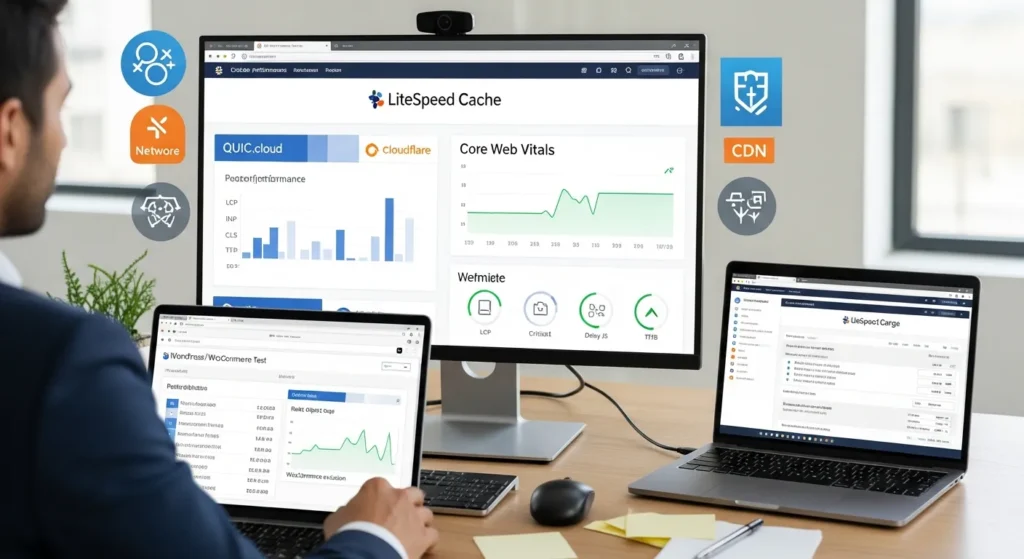
LiteSpeed Cache settings can feel like a slot machine the first time you chase Core Web Vitals: you flip one toggle, your LCP drops, and then your checkout page coughs up a 403. We have been there, staring at a “faster” site that suddenly cannot add a product to cart.
Quick answer: start with a clean baseline, pick one delivery layer (QUIC.cloud or Cloudflare), turn on page cache + safe WooCommerce exclusions, then tune CSS/JS and media for LCP/INP/CLS. Add Redis object cache last, and roll changes out in small, reversible steps.
Key Takeaways
- Start LiteSpeed Cache settings with a clean baseline, choose one “HTML caching authority” (QUIC.cloud or Cloudflare), and optimize in small, reversible steps to protect checkout and revenue.
- Use QUIC.cloud when you want LiteSpeed-first performance features like ESI, Critical CSS, and image optimization to improve Core Web Vitals on WooCommerce or membership sites.
- Use Cloudflare for DNS, WAF, and static caching, but avoid overlapping HTML edge caching with LiteSpeed Cache features (especially Guest Mode) to prevent conflicts.
- Turn on page cache with safe WooCommerce exclusions (cart, checkout, account) and use ESI for dynamic fragments so you keep speed without caching per-user content.
- Improve LCP, INP, and CLS by enabling Critical CSS (when available), minifying CSS/JS, delaying JavaScript with careful exclusions for payment/cart scripts, and locking layout with image dimensions and reserved embed space.
- Add Redis object cache last to reduce database load and TTFB, set sensible TTLs (often ~3600 seconds), and flush on major updates to avoid stale or broken WooCommerce sessions.
Choose Your Delivery Layer: QUIC.cloud CDN Vs Cloudflare (And When To Use Both)
Your delivery layer decides what gets cached where, and that affects TTFB, cache hit rate, and how often WordPress has to “wake up” to build pages.
If your host runs LiteSpeed or OpenLiteSpeed, we usually start with QUIC.cloud because it talks to LiteSpeed Cache like it was built in the same room. If you need a security-first edge network, advanced WAF controls, or you already run your DNS on Cloudflare, then Cloudflare can be the better front door.
QUIC.cloud: ESI, Image Optimization, And Critical CSS In One Stack
QUIC.cloud -> reduces -> WordPress origin work. It does that by pairing with LiteSpeed Cache features that matter for Core Web Vitals:
- Full-page caching that respects WordPress rules (and purges cleanly when you update content).
- ESI (Edge Side Includes) -> isolates -> “dynamic fragments” like cart widgets or logged-in headers, while still caching the rest of the page.
- Critical CSS generation -> improves -> LCP by letting above-the-fold styles render fast while the rest loads later.
- Image optimization pipeline -> shrinks -> transfer size without you juggling three plugins.
This stack tends to shine on WooCommerce and membership sites where you need speed but cannot fake the logged-in experience.
Cloudflare: Caching, APO-Like Behavior, And Edge Rules Without Breaking WordPress
Cloudflare -> blocks -> bad traffic. It also caches static assets well, and it has features like rules, page rules, and optional WordPress edge behavior (APO) that can help.
The catch: do not let Cloudflare and LiteSpeed Cache fight over the same job.
Practical rule we follow:
- If you use Cloudflare APO or aggressive HTML edge caching, then you often disable overlapping LiteSpeed features that change HTML per visitor. Guest Mode is the common troublemaker.
- If you use Cloudflare mainly for DNS + WAF + static caching, you can still keep LiteSpeed Cache’s page cache and its CWV-focused optimizations.
When do we use both? Cloudflare -> speeds up -> global DNS and security posture, while QUIC.cloud -> accelerates -> LiteSpeed-first HTML caching and Critical CSS. You test both with the same pages and the same device throttling, then you keep the setup that gives you stable checkout and stable scores.
Baseline Setup Before You Touch Any Settings
Most speed problems come from “stack confusion,” not from one wrong checkbox.
Here is the safe baseline we set before we tune anything.
Confirm LiteSpeed Server And Plugin Compatibility
LiteSpeed Cache -> requires -> a LiteSpeed or compatible stack for full benefits.
Checklist:
- Your host runs LiteSpeed Enterprise or OpenLiteSpeed.
- You use the LiteSpeed Cache plugin (LSCWP) and keep it updated.
- You request and set a QUIC.cloud Domain Key if you plan to use QUIC.cloud services.
- You pick one caching authority for HTML (LiteSpeed or an edge service), not two.
If you also do image compression through a separate tool, keep it consistent. We often pair media work with automation so teams do not forget it. If you want a clean workflow for that, our guide on automating image compression with WP Compress shows how we keep images small without turning every upload into a manual chore.
Measure CWV The Right Way: Field Data, Lab Data, And Test Conditions
CrUX field data -> reflects -> real-user experience. Lab tests -> simulate -> controlled conditions.
We use both, because they answer different questions:
- Field (CrUX / Search Console CWV report): tells you what real visitors feel over 28 days.
- Lab (PageSpeed Insights / Lighthouse): tells you what changed right after you ship a tweak.
Control your test conditions or you will chase ghosts:
- Test the same URL each time (home, a product page, a collection page).
- Test mobile and desktop separately.
- Use an incognito session so your browser cache does not “help.”
Next steps: write down current LCP, INP, CLS, and TTFB. Then change one thing.
LiteSpeed Cache: Page Cache Settings That Usually Win On CWV
Page caching -> lowers -> TTFB. Lower TTFB -> supports -> better LCP.
These are the LiteSpeed Cache settings we see win most often, especially on business sites and stores.
Cache Logged-In Users, WooCommerce, And Membership Pages Safely
WooCommerce -> creates -> personalized states (cart, checkout, account). Personalized state -> conflicts -> naive caching.
Our practical defaults:
- Page Cache: ON
- Guest Mode: ON (unless Cloudflare APO or HTML edge caching handles first-visit HTML)
- Guest Optimization: ON (same rule as above)
Then add safety rails:
- Exclude cart, checkout, and my account URLs from cache.
- Exclude pages with nonces or truly per-user content.
- Use ESI for small dynamic blocks if you run QUIC.cloud and your theme supports it.
If you run memberships, treat “logged-in pages” like checkout: cache carefully, and test with two users in two browsers.
Browser Cache, TTLs, And Purge Rules That Prevent Stale Content
Long TTL -> improves -> repeat-visit speed. Bad purge rules -> cause -> stale pricing or outdated banners.
We usually keep LiteSpeed defaults unless the site has special needs:
- Keep standard TTL values for public pages.
- Purge when content changes. LiteSpeed Cache -> purges -> related pages when posts update, and that keeps editors sane.
- Set purge rules for WooCommerce events (product update, stock change) so visitors do not see old inventory.
If your business changes pricing often, do not chase huge TTL numbers. You want speed, but you also want trust.
LiteSpeed Cache: Optimization Settings For LCP, INP, And CLS
Minification and delaying scripts -> reduce -> render blocking. Bad script delay -> breaks -> add-to-cart.
So we treat this section like wiring: label everything, test each switch, and keep a rollback plan.
CSS/JS Minify, Combine, Defer, And Delay: Practical Defaults And Red Flags
These settings usually help, with the least drama:
- CSS Minify: ON
- JS Minify: ON
Combine is more situational:
- CSS Combine can help on older HTTP/1 setups, but HTTP/2 and HTTP/3 reduce the benefit. Combine -> can cause -> order bugs.
- JS Combine often causes more issues than it saves.
Delay and defer are the big levers for CWV:
- Delay JS: ON, then exclude known fragile scripts.
- Keep exclusions for:
- Checkout and payment scripts
- Cart fragments
- Cookie consent logic
- Any script that must run before user interaction
INP -> reflects -> interaction speed. Too much delayed JS -> increases -> “first click feels dead.” You want delay, not paralysis.
Critical CSS, Font Delivery, And Above-The-Fold Stability
Critical CSS -> speeds up -> first render. Fonts -> affect -> CLS when swapping late.
If you use QUIC.cloud, enable Critical CSS generation and test key templates (home, product, blog post).
We also like these stability moves:
- Preload the main font files you truly use.
- Host fonts locally when licensing allows.
- Set fallback font stacks that match metrics closely.
CLS -> rises -> when the layout shifts. Fonts and late-loading banners cause that. Lock down sizes, reserve space, and your score stops bouncing.
Images, Iframes, And Media: The Fastest Safe Gains
Large images -> increase -> LCP. Un-sized embeds -> cause -> CLS.
Media fixes feel “too simple,” and that is why they work.
Lazy Load Rules, LQIP, And Responsive Images
Our usual LiteSpeed Cache media defaults:
- Lazy Load Images: ON
- Lazy Load Iframes: ON
- Add Missing Image Dimensions: ON (this is a quiet CLS killer)
- LQIP (Low Quality Image Placeholder): ON when you use QUIC.cloud image optimization
Rules we follow:
- Do not lazy load the hero image if it is your LCP element. Lazy load -> delays -> LCP.
- Keep responsive images (srcset) working. Responsive images -> reduce -> bytes on mobile.
If you have a large catalog, you will feel this in your hosting bill and your bounce rate.
WebP/AVIF, CDN Rewrites, And Video Embeds Without Layout Shift
WebP and AVIF -> reduce -> image bytes. Fewer bytes -> improve -> load time.
Enable:
- WebP replacement in LiteSpeed Cache.
- AVIF if your stack supports it and you confirm it works across templates.
For video:
- Use a click-to-play preview when you can.
- Reserve space for embeds with a fixed aspect ratio.
If you want a repeatable way to keep uploads lean, we cover a practical workflow in our post on how we automate image compression with WP Compress. Teams forget manual steps. Systems do not.
Object Cache: Redis/Memcached Settings That Reduce TTFB Without Risk
Object cache -> reduces -> repeated database queries. Fewer queries -> lowers -> TTFB under load.
We like Redis for most WordPress installs, and Memcached can work fine too. The settings matter less than the guardrails.
What To Cache (And What Not To): wp_options, Transients, And WooCommerce Sessions
WordPress -> stores -> repeated lookups in wp_options and transients. Caching -> speeds up -> those reads.
Safe targets:
- wp_options autoloaded values (common hot path)
- Transients (especially from SEO plugins, themes, and WooCommerce)
Use caution:
- WooCommerce customer sessions: do not cache session state the wrong way. Wrong caching -> breaks -> carts and pricing rules.
- Anything truly per-user should stay dynamic, unless you know the code path.
If you run a store, we test carts with:
- Logged-out user
- Logged-in user
- Two browsers
- A private window
Boring test matrix, yes. It saves real money.
Object Cache TTL, Persistence, And When To Flush
TTL -> controls -> staleness. Persistence -> keeps -> cache warm across restarts.
Defaults we see work well:
- Set a TTL around 3600 seconds for general object cache entries, then adjust based on your app behavior.
- Enable persistent object cache if your host supports it.
- Flush object cache on deployments or big plugin changes.
If you see weird behavior after updates, flush first, panic later.
A Simple Rollout Plan: Shadow Mode, One Change At A Time, And Rollback
A rollout plan -> prevents -> “speed wins” that break revenue.
We run performance work like this:
- Clone to staging (or at least back up).
- Shadow mode: turn on a feature that does not affect all users yet, when the tool supports it.
- One change at a time: page cache first, then delivery layer, then CSS/JS, then images, then object cache.
- Test the money paths after each change:
- Add to cart
- Apply coupon
- Checkout
- Contact forms
- Member login
- Measure again in the same conditions.
- Rollback fast if a core path breaks.
This approach keeps teams calm. It also keeps your analytics clean, because you know which change moved which metric.
Conclusion
Fast WordPress sites do not come from a magic preset. They come from clear ownership: one delivery layer, one caching strategy, and a disciplined sequence of tests.
If you want us to pressure-test your LiteSpeed Cache settings for WooCommerce, confirm whether QUIC.cloud or Cloudflare fits your risk profile, and set up object cache without breaking sessions, we do this work every week for small businesses at Zuleika LLC. Keep it boring, keep it measurable, and your Core Web Vitals usually follow.
Frequently Asked Questions
What are the best LiteSpeed Cache settings with QUIC.cloud for Core Web Vitals optimization?
Start with a clean baseline: enable Page Cache, add WooCommerce exclusions (cart, checkout, my account), and use ESI for small dynamic fragments. With QUIC.cloud, enable Critical CSS generation and image optimization/LQIP, then tune CSS/JS minify and careful Delay JS to improve LCP, INP, and CLS.
Should I use QUIC.cloud or Cloudflare with LiteSpeed Cache settings—and can I use both?
QUIC.cloud usually pairs best with LiteSpeed Cache for HTML caching, ESI, Critical CSS, and image optimization. Cloudflare is often best for DNS, WAF, and static asset caching. You can use both, but avoid overlapping HTML caching rules—test the same URLs and keep the setup that preserves stable checkout and scores.
Which LiteSpeed Cache settings are safest for WooCommerce without breaking cart or checkout?
Turn Page Cache ON, then exclude cart, checkout, and account URLs from cache. Use Guest Mode and Guest Optimization cautiously—disable them if Cloudflare APO or aggressive HTML edge caching is in play. Avoid delaying critical checkout/payment scripts, and consider ESI to keep cart widgets dynamic while caching the rest.
How do I optimize LCP, INP, and CLS in LiteSpeed Cache without breaking JavaScript?
Use low-drama defaults first: CSS Minify ON and JS Minify ON. Be cautious with CSS/JS Combine because it can introduce ordering bugs. Enable Delay JS, then exclude fragile scripts like cart fragments, cookie consent, and payment flows. For CLS, preload real fonts and reserve space for banners and embeds.
When should I add Redis object cache, and what object cache TTL should I use?
Add Redis object cache after page caching and front-end optimizations are stable, since object caching mainly reduces repeated database queries and TTFB under load. A common starting TTL is around 3600 seconds, then adjust to your site’s behavior. Flush object cache after big plugin changes or deployments.
Why does “stack confusion” happen with LiteSpeed Cache settings and CDNs, and how do I avoid it?
Stack confusion happens when multiple layers try to cache or rewrite the same thing (especially HTML), causing stale content or broken personalized states. Assign one “caching authority” for HTML—LiteSpeed Cache or an edge method like Cloudflare APO—then let the other layer handle DNS/WAF/static assets. Change one setting at a time and retest key flows.
Some of the links shared in this post are affiliate links. If you click on the link & make any purchase, we will receive an affiliate commission at no extra cost of you.
We improve our products and advertising by using Microsoft Clarity to see how you use our website. By using our site, you agree that we and Microsoft can collect and use this data. Our privacy policy has more details.
