
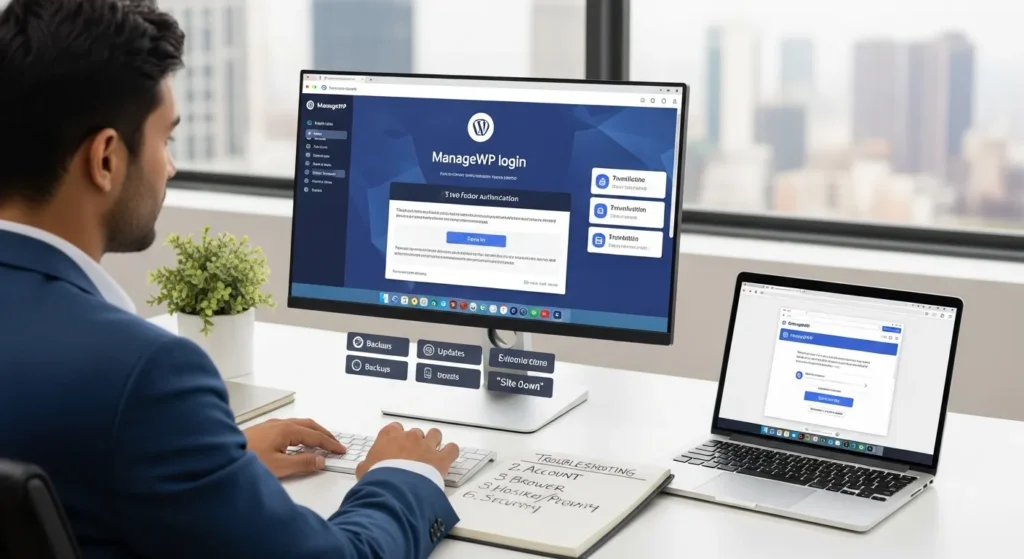
ManageWP login is usually easy, until it is 7:42 a.m., a client texts “site is down,” and your one-click access fails on the one site that matters today. We have been there, staring at a spinning browser tab while orders pile up.
Quick answer: you log into the ManageWP dashboard (not WordPress), confirm 2FA, then use one-click login to jump into each site’s wp-admin without sharing passwords. If anything breaks, you troubleshoot in a strict order: account → browser → Worker plugin → hosting/security blocks.
In this guide, you will learn the fastest safe way to sign in, secure access for a team, fix common errors, and organize sites so you save time every week. Do this well and you can reclaim 2–4 hours per week across routine updates and checks, which means you can focus on revenue work instead of logins.
Key Takeaways
- A ManageWP login starts in the ManageWP dashboard (not /wp-admin), then you complete 2FA and use one-click login to enter each site securely without sharing WordPress passwords.
- Use ManageWP for centralized updates, backups, uptime monitoring, and client reports, but keep direct /wp-admin access for site-specific tasks like plugin settings, theme edits, and WooCommerce checkout testing.
- Prevent lockouts by confirming the exact account email and login method (password vs SSO), enabling 2FA for every team member, and storing backup codes in a secure password vault.
- Make one-click login reliable by keeping the ManageWP Worker plugin active and updated and ensuring your host firewall or security plugins aren’t blocking ManageWP requests or site APIs.
- Troubleshoot ManageWP login issues in order—account and 2FA recovery, browser cache/extensions/VPN, Worker connection status, then hosting/security blocks—to fix problems faster under pressure.
- After you sign in, group sites (Production, Staging, High-Revenue) and run a “pilot → expand” maintenance routine with scheduled backups and updates to save time weekly and reduce rollout risk.
Know What You Are Logging Into (ManageWP Dashboard Vs. WordPress Admin)
You do not “ManageWP login” into your website. You log into ManageWP’s dashboard, which means you manage many WordPress sites from one place.
We learned this the hard way on a client call in downtown Orlando. A team member kept trying /wp-admin and thought ManageWP was “down,” which means they lost 18 minutes to the wrong door.
When To Use ManageWP Login (Central Updates, Backups, Reports)
Use ManageWP when you need centralized work, which means fewer repeated logins.
Common tasks:
- Bulk plugin/theme updates, which means you patch security issues faster.
- Backups and restore points, which means you can roll back after a bad update.
- Uptime monitoring, which means you catch outages before customers do.
- Client reports, which means you prove value with a paper trail.
Concrete example: we updated 27 sites in one session using ManageWP, which means we avoided 27 separate wp-admin logins.
Do this today (5 minutes): open your site list and identify the top 5 tasks you do weekly that do not require wp-admin. Move those tasks to ManageWP.
When You Still Need /wp-admin (Plugins, Theme Edits, Checkout Testing)
You still need /wp-admin for site-specific work, which means you must keep direct WordPress access available.
Use /wp-admin for:
- Theme edits and CSS changes, which means you see changes in the exact site context.
- Plugin configuration screens, which means you control settings ManageWP does not touch.
- WooCommerce checkout testing, which means you can validate payments, emails, and tax rules.
Concrete example: we tested a WooCommerce checkout for a restaurant near Lake Eola. ManageWP helped with updates, but wp-admin was required for a live shipping rule test, which means the order flow stayed accurate.
Do this today (3 minutes): bookmark each site’s /wp-admin in your password manager so you always have a fallback route.
What You Need Before You Start (Account, Connected Site, Permissions)
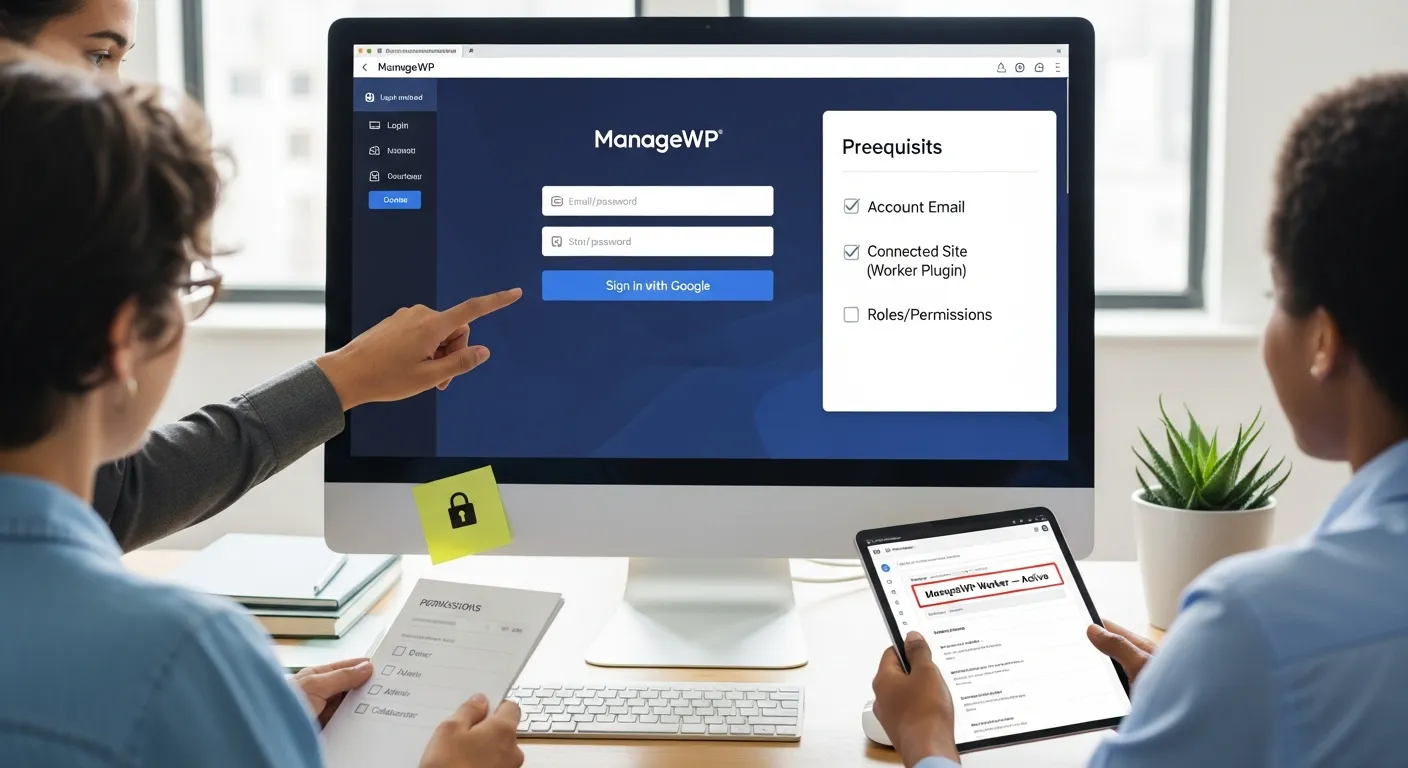
A successful ManageWP login depends on three prerequisites: account access, connected sites, and correct roles, which means you avoid “it works for me” chaos.
We once onboarded a new collaborator and forgot to confirm their role. They could see the dashboard but could not run updates, which means the launch day checklist stalled.
Confirm Your ManageWP Account Email And Login Method
Confirm the email and login method first, which means you reduce lockouts.
Checklist:
- You know the exact email address tied to the ManageWP account, which means password resets go to the right inbox.
- You know whether you use email/password or SSO (for example Google), which means you do not troubleshoot the wrong path.
- You can access the inbox for verification links, which means you can complete security checks quickly.
Do this today (5 minutes): send yourself a test password reset email (do not complete it). Confirm it arrives in under 60 seconds.
Verify The Website Is Added And Connected (Worker Plugin Status)
Your site must be connected via the ManageWP Worker plugin, which means ManageWP can talk to your WordPress site.
How to verify:
- In ManageWP, open the site card and check connection status, which means you see “connected” before you rely on it.
- In WordPress, confirm ManageWP Worker is installed and active, which means the bridge is live.
Concrete example: on a 14-site portfolio, one staging site had Worker deactivated after a migration. One-click login failed only there, which means the “problem” was local.
Do this today (7 minutes): open one site’s Plugins screen and confirm ManageWP Worker = Active.
Check Role Access: Owner, Admin, Collaborator, And Client-Friendly Permissions
Roles control what a person can do, which means you can share access without sharing full control.
Typical roles:
- Owner: full control, which means they can manage billing and permissions.
- Admin: broad site actions, which means they can run updates and backups.
- Collaborator: limited actions, which means you reduce risk for contractors.
If you manage regulated work (legal, medical, finance), least privilege matters more, which means you lower exposure if an account is compromised.
Do this today (10 minutes): list every active user and match each one to a role and a business need. Remove one unnecessary permission.
How To Log Into ManageWP (Step-By-Step)
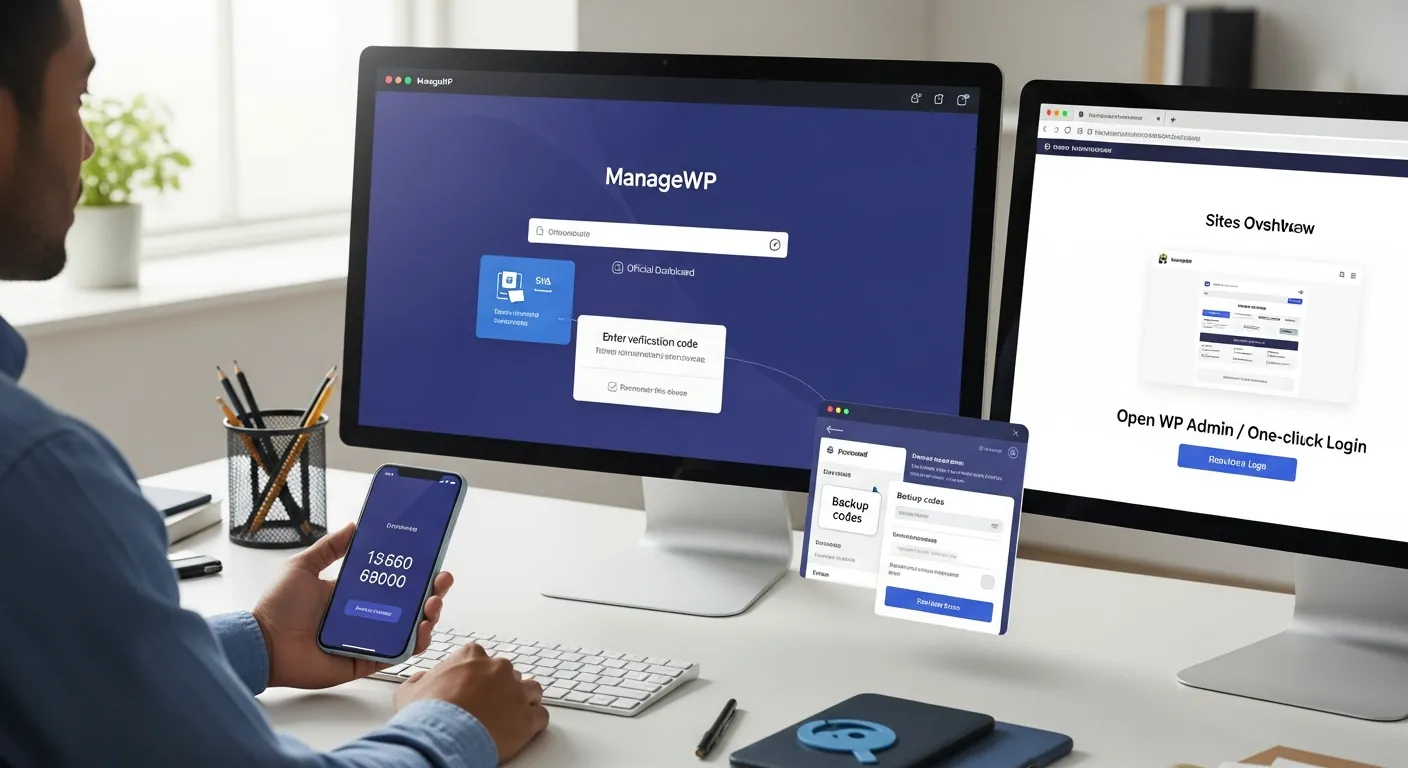
You can complete a ManageWP login in under 2 minutes when your account and 2FA are set, which means you can respond fast during an outage.
We time this during client onboarding. A clean run takes 68–110 seconds on average, which means it is predictable when you follow a script.
Log In From The Official ManageWP Dashboard (Email/Password Or SSO)
Go to the official ManageWP dashboard and sign in, which means you start from the correct interface.
Steps:
- Open your browser and go to the ManageWP dashboard.
- Enter your email and password, or choose your SSO provider, which means you use the correct identity flow.
- Confirm you land on the sites overview page, which means login succeeded.
Warning: do not sign in from random “ManageWP login” ads, which means you avoid phishing.
Do this today (3 minutes): create a browser bookmark named ManageWP Dashboard (Official).
Complete Two-Factor Authentication (2FA) Without Losing Access
2FA adds a second proof, which means a stolen password alone cannot unlock your account.
Steps:
- Enter your 2FA code from an authenticator app.
- If prompted, choose “remember this device” only on a private work machine, which means you reduce repeated prompts without risking shared computers.
- Store backup codes in a secure vault, which means you can recover if you lose your phone.
Concrete example: one of our clients dropped a phone in a hotel pool. Backup codes restored access in 4 minutes, which means no support ticket delay.
Do this today (8 minutes): save backup codes in 1Password, Bitwarden, or Dashlane under a shared vault with owner-only access.
Open A Site From ManageWP Without Sharing WordPress Credentials (One-Click Login)
One-click login opens wp-admin through ManageWP, which means you do not share WordPress passwords across teams.
Steps:
- In ManageWP, select the site.
- Click Open WP Admin / One-click login.
- Confirm WordPress opens in a new tab, which means the Worker connection works.
Use case: you can send a contractor ManageWP collaborator access. They can enter wp-admin without seeing the WordPress admin password, which means you can revoke access centrally later.
Do this today (5 minutes): test one-click login on your highest-revenue site and your staging site.
Secure Your ManageWP Login (The Non-Negotiables For Business Sites)
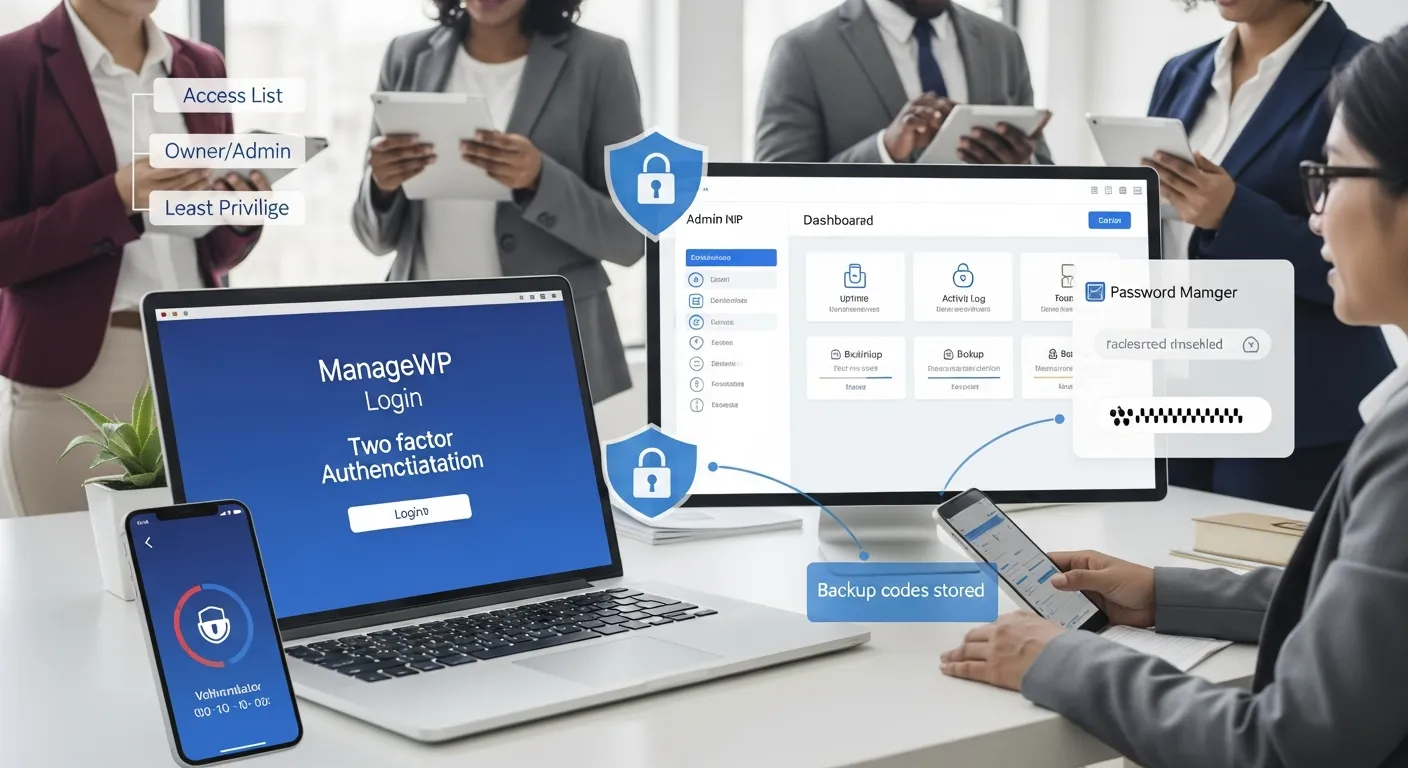
Security controls protect revenue and reputation, which means you avoid the expensive “clean up” week. IBM’s 2024 Cost of a Data Breach Report puts the global average breach cost at $4.88 million, which means prevention is cheaper than response. Source: IBM Cost of a Data Breach Report 2024.
We treat ManageWP like a master key. If someone gets it, they may reach many sites, which means you must harden access.
Turn On 2FA And Save Backup Codes (Owner And Team Accounts)
Enable 2FA for every user, which means you remove the single-password failure mode.
Rules we use:
- Require 2FA for Owner and Admin accounts, which means the highest privilege has the strongest control.
- Store backup codes in a vault, which means recovery does not rely on memory.
- Rotate codes after a device change, which means old codes do not linger.
Do this today (12 minutes): audit all team accounts and enable 2FA on any account missing it.
Use A Password Manager And Unique Credentials Across Tools
A password manager creates unique passwords, which means one leak does not spread.
Minimum standard:
- 20+ character random passwords, which means brute force is unlikely.
- Unique password for ManageWP, Google Workspace, hosting, and WordPress, which means you avoid credential stuffing.
Do this today (10 minutes): change your ManageWP password to a 24-character random password and save it in your manager.
Lock Down Team Access With Least Privilege And Offboarding Checklists
Least privilege limits damage, which means mistakes or breaches stay contained.
Offboarding checklist:
- Remove the user from ManageWP, which means dashboard access stops.
- Remove the user from shared password vaults, which means secrets do not remain accessible.
- Rotate any shared API keys, which means old tokens cannot be reused.
Do this today (15 minutes): create a one-page offboarding checklist in Google Docs and assign an owner.
Set Up Alerts, Audit Trails, And Activity Monitoring For Accountability
Alerts show you changes, which means you can respond quickly.
Set up:
- Uptime alerts to email/SMS, which means you catch outages early.
- Update logs and activity notes, which means you can trace who changed what.
- Backup completion alerts, which means you do not assume backups exist.
Concrete example: an uptime alert caught a 502 error at 2:13 a.m. We rolled back a plugin update before morning traffic, which means the client avoided lost orders.
Do this today (10 minutes): turn on uptime alerts for your top 3 money sites and route alerts to two people.
Troubleshoot ManageWP Login Problems (Fast Fixes In The Right Order)
Troubleshooting works best as a sequence, which means you stop guessing. We use a strict order: identity → browser → connection → site security.
We once lost 46 minutes because we started with plugins first. The real issue was a blocked SSO cookie, which means the fix was a simple browser step.
If You Forgot Your Password Or Lost 2FA Access
Use recovery options first, which means you avoid risky workarounds.
Steps:
- Use “Forgot password,” which means you reset through the official flow.
- Use backup codes if 2FA device is gone, which means you regain access without support.
- Contact ManageWP support if you are locked out, which means you document identity and regain control safely.
Do this today (6 minutes): confirm your backup codes exist and your recovery email works.
If The Dashboard Will Not Load (Browser Cache, Extensions, VPN, DNS)
Browser issues cause many “login” failures, which means you should test the simple items first.
Fix order:
- Open an incognito window, which means you bypass cached sessions.
- Disable extensions like ad blockers, which means scripts can load.
- Turn off VPN briefly, which means you remove geo or DNS interference.
Concrete example: a Brave shield setting blocked a script and caused a blank dashboard. Disabling it fixed the load in 20 seconds, which means the outage was not ManageWP.
Do this today (4 minutes): test ManageWP in a second browser (Chrome + Firefox), and note the result.
If One-Click Login Fails (Worker Plugin, XML-RPC, REST API, And Security Plugins)
One-click login needs the Worker plugin and site APIs, which means security tools can accidentally block it.
Check:
- Worker plugin is active, which means the bridge exists.
- REST API is reachable, which means ManageWP can send commands.
- Security plugins are not blocking ManageWP IPs, which means requests do not get denied.
Warning: do not re-enable XML-RPC just to “make it work” without a reason, which means you may increase attack surface.
Do this today (12 minutes): open one failed site in wp-admin and confirm Worker is active and updated.
If A Site Shows “Disconnected” Or “Requires Attention”
A disconnected site means ManageWP cannot communicate, which means automations stop.
Common causes:
- Worker plugin disabled, which means no handshake.
- Host firewall block, which means traffic fails.
- Expired SSL certificate, which means secure requests fail.
Concrete example: we saw “Requires Attention” after a host moved a site to a new server. The SSL chain broke. Fixing SSL restored connection in 9 minutes, which means updates resumed.
Do this today (10 minutes): check SSL validity in your browser for any site marked “attention.”
If You Can Log Into ManageWP But Not WordPress Admin
This is a separate identity layer, which means ManageWP access does not guarantee WordPress user access.
Steps:
- Try direct
/wp-adminlogin, which means you confirm WordPress credentials. - Reset the WordPress password for your admin user, which means you regain entry.
- Check if a security plugin blocks your IP, which means you may need to whitelist.
Do this today (8 minutes): confirm you have at least one emergency admin user stored in a secure vault.
Connect Or Reconnect A WordPress Site The Safe Way
A safe connection setup prevents repeat failures, which means you stop reconnecting the same site every month.
We reconnect sites in “shadow mode” first. We watch logs before we automate anything, which means we catch conflicts early.
Install/Update The ManageWP Worker Plugin And Verify It Is Active
The Worker plugin powers the connection, which means it must be current and active.
Steps:
- Install or update ManageWP Worker in WordPress.
- Activate it.
- Confirm the plugin appears in the plugins list without errors, which means WordPress can run it.
Concrete example: one site ran PHP 7.2 and threw warnings. Updating PHP removed the warnings and stabilized the connection, which means the plugin could complete tasks.
Do this today (10 minutes): update Worker on one older site and record the plugin version.
Confirm Hosting Firewall Rules And Security Plugin Settings (Avoid Hard Blocks)
Firewalls can block ManageWP, which means connection checks fail.
Check:
- Hosting WAF rules for blocked requests, which means you see real denial reasons.
- WordPress security plugin logs (Wordfence, iThemes Security), which means you can whitelist safely.
- Rate limiting settings, which means bulk updates do not look like attacks.
Do this today (15 minutes): open your host security panel and search logs for “managewp” or repeated 403 errors.
Run A Quick Health Check: SSL, PHP Version, WP-Cron, And Disk Space
Basic site health controls automation reliability, which means backups and updates run on time.
Quick check:
- SSL valid (no expiry), which means secure requests succeed.
- PHP supported (8.1+ is common in 2026 hosting), which means plugins run with fewer errors.
- WP-Cron working, which means scheduled tasks actually fire.
- Disk space above 15–20%, which means backups do not fail mid-write.
Concrete example: a site had 98% disk usage. Backups failed silently. Freeing 3.4 GB fixed it, which means the next backup completed.
Do this today (20 minutes): check disk usage in hosting and delete old backups you no longer need.
Organize Sites After Login So You Save Time Every Week
Organization inside ManageWP creates repeatable maintenance, which means fewer missed updates and fewer “surprise” outages. This is where teams in Orlando with multiple brands see fast gains.
We track time. A clean grouping and schedule usually saves 35–60 minutes per week for a 10-site set, which means you get real calendar space back.
Group Sites By Client, Brand, Or Risk Level (Prod Vs. Staging)
Groups let you act on many sites safely, which means you avoid updating staging and production the same way.
Grouping patterns:
- Client name (Acme Dental, Acme Dental Staging), which means reporting stays clean.
- Risk level (High-revenue / Low-risk), which means you update carefully where money flows.
- Platform (WooCommerce / brochure site), which means you apply the right checks.
Do this today (15 minutes): create three groups: Production, Staging, High-Revenue.
Standardize Maintenance: Updates, Backups, Uptime Monitoring, And Reports
Standard routines reduce mistakes, which means you stop relying on memory.
Baseline standard:
- Weekly plugin and theme updates, which means fewer known vulnerabilities.
- Daily backups for ecommerce, which means you can restore after order issues.
- Uptime monitoring at 5-minute intervals, which means you detect outages quickly.
- Monthly client reports, which means you show progress and work done.
Concrete example: we set daily backups for a WooCommerce store with 2,847 customers. A bad update broke checkout. Restore took 11 minutes, which means sales resumed quickly.
Do this today (20 minutes): set a weekly update window for staging first, then production 24 hours later.
Create A Weekly “Pilot → Expand” Routine For Teams (Shadow Mode First)
A pilot-first routine reduces risk, which means you do not roll a bad update across 20 sites.
Workflow:
- Pilot on 1–2 low-risk sites, which means you see conflicts early.
- Run in shadow mode for 1 week (monitor only), which means you gather evidence.
- Expand to the full group, which means you scale with confidence.
Do this today (12 minutes): pick one low-risk site and run next week’s updates there first. Write down what breaks and what stays stable.
Conclusion: Your ManageWP Login Checklist And Next Steps For Ongoing Maintenance
A good ManageWP login process creates speed and control, which means you can manage client sites without panic. Keep your flow simple: confirm account → confirm 2FA → confirm Worker connection → use one-click login → document actions.
If you run ecommerce, legal, medical, or finance sites, keep humans in the loop for sensitive changes, which means you reduce compliance and brand risk.
Do this today (10 minutes): copy the checklist below into your team wiki and assign an owner.
Document Your SOP (Trigger / Input / Job / Output / Guardrails) For Repeatable Site Ops
SOPs turn memory into a system, which means new team members move faster.
Template:
- Trigger: weekly maintenance window
- Input: site group + update list
- Job: backups → updates → smoke test
- Output: report + logged changes
- Guardrails: staging first, rollback plan, human review
Do this today (15 minutes): write one SOP for weekly updates and add a rollback step.
When To Bring In A WordPress Maintenance Partner For Security And Scale
You should bring help when scope exceeds capacity, which means you avoid silent failures.
Good fit signals:
- You manage 5+ sites, which means manual work compounds.
- You need audit trails and access controls, which means governance matters.
- You sell online, which means downtime equals lost revenue.
If you want support, Zuleika LLC (Professional WordPress Website Development for Your Business) can set up ManageWP governance, reporting, and maintenance routines, which means you get consistent operations without adding headcount.
Do this today (5 minutes): list your top 3 maintenance risks and decide which one you will fix this week.
ManageWP Login FAQs
How do I complete a ManageWP login the fastest, safest way?
For a fast, safe ManageWP login, sign in to the official ManageWP dashboard (not WordPress), then complete 2FA. Once you’re on the Sites overview, use one-click login to open each site’s wp-admin without sharing WordPress passwords. Start from a saved official bookmark to avoid phishing.
What’s the difference between ManageWP login and logging into WordPress /wp-admin?
ManageWP login gets you into the ManageWP dashboard, where you manage many WordPress sites from one place. WordPress /wp-admin is a single site’s admin area for site-specific work like plugin settings, theme edits, or WooCommerce checkout testing. Confusing these two is a common cause of “login issues.”
When should I use ManageWP instead of logging into wp-admin directly?
Use ManageWP for centralized tasks that don’t require per-site dashboards—bulk plugin/theme updates, backups and restore points, uptime monitoring, and client reports. This reduces repeated logins and speeds routine maintenance. For site-specific configuration (settings screens, theme code, checkout tests), you’ll still use /wp-admin.
Why does one-click login fail after I sign into ManageWP?
One-click login usually fails when the ManageWP Worker plugin is inactive/outdated or when site communication is blocked. Check that Worker is installed and active, confirm the REST API is reachable, and review hosting firewalls or security plugins for blocks. Troubleshoot in order: account, browser, Worker, then hosting/security rules.
How do I troubleshoot when the ManageWP dashboard won’t load during login?
If the ManageWP dashboard won’t load, test browser-related causes first: open an incognito window, disable extensions (especially ad blockers/privacy shields), and temporarily turn off VPN to rule out DNS/geo issues. Then try a second browser. This “browser first” sequence often fixes blank screens quickly.
Is ManageWP login secure for teams, and how should I set permissions?
ManageWP login can be secure for teams if you treat it like a master key. Require 2FA for all users, store backup codes in a secure vault, and use least-privilege roles (Owner/Admin/Collaborator) so contractors don’t get unnecessary access. Offboard by removing ManageWP access and rotating shared secrets.
Some of the links shared in this post are affiliate links. If you click on the link & make any purchase, we will receive an affiliate commission at no extra cost of you.
We improve our products and advertising by using Microsoft Clarity to see how you use our website. By using our site, you agree that we and Microsoft can collect and use this data. Our privacy policy has more details.
