
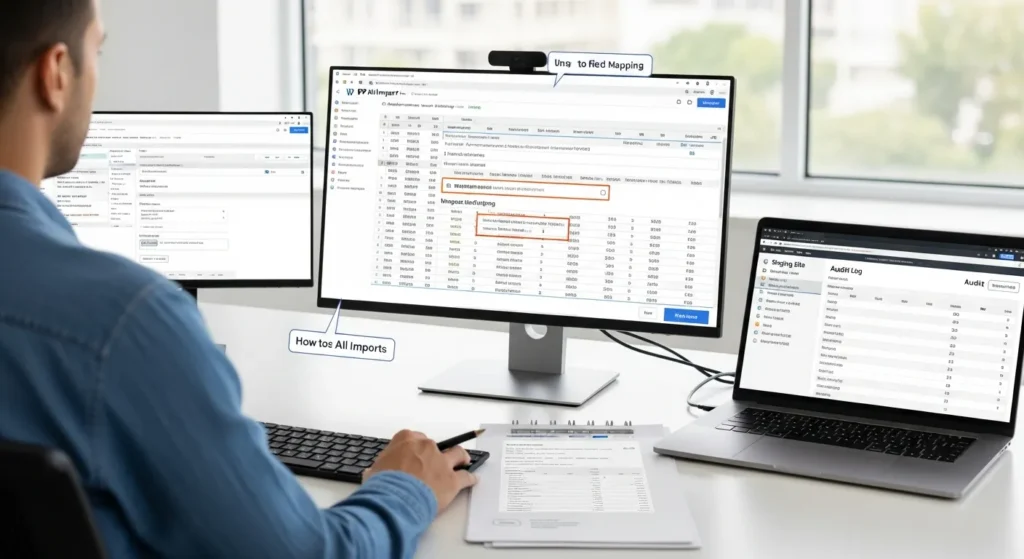
How to use WP All Import without breaking your site starts with a boring truth: imports fail more from weak planning than from bad tools. We learned that the hard way after watching 300 “perfectly fine” WooCommerce products turn into duplicates with missing images and chaotic categories.
Quick answer: treat WP All Import like a controlled pipeline. Define what you are importing, set a unique identifier, test on staging with a small sample, then schedule repeat runs with logs so you can prove what changed and when.
What this post covers: a practical workflow we use with clients so imports stay predictable, reversible, and safe for WordPress and WooCommerce.
Key Takeaways
- To use WP All Import safely, plan each import as a controlled pipeline with one object type per import (posts, products, users, or taxonomies) to keep outcomes predictable and reversible.
- Set a stable unique identifier (like SKU for WooCommerce or an external ID for posts) so WP All Import updates the right records and prevents duplicate content and missing images.
- Prepare clean, UTF-8 source files (CSV/XML/Sheets export) with required fields, consistent slugs, and a saved “known good” version to make troubleshooting and reruns reliable.
- Test every import on staging with a 10–50 row sample, import new content as Draft first, and validate slugs, categories, prices, variations, images, and SEO fields before touching production.
- Map fields in layers—core fields first, then taxonomies, then custom/SEO fields—and keep early mappings simple so your WP All Import setup stays maintainable as rules evolve.
- Use cautious update rules, scheduling, and logging (cron + audit-friendly logs) to automate ongoing syncs while protecting human-edited fields and proving what changed and when.
Decide What You Are Importing And Where It Should Land
Before you touch any tools, pick one destination. A single import that tries to “also fix categories and also update users” causes messy outcomes.
A clean plan makes cause-and-effect obvious. Your source file affects your content type. Your identifier affects duplicates. Your field mapping affects SEO fields, prices, and stock.
Common Import Targets: Posts, Pages, Products, Users, And Taxonomies
WP All Import can push data into most WordPress objects, but each target has different risks:
- Posts and Pages: Great for migrating a blog, rebuilding landing pages, or bulk-creating location pages. Your content file affects permalink structure, so watch slugs.
- WooCommerce Products: Most powerful, and most fragile. Your file affects price formatting, stock status, variations, and attributes.
- Users: Useful for memberships or staff directories. Your import affects account emails and roles, so keep admin review in the loop.
- Taxonomies (categories, tags, custom taxonomies): Your taxonomy import affects navigation and filters. Bad term names cause duplicate terms like “Shoes” and “shoes”.
We usually split these into separate imports. One import per object type keeps rollback simple.
How To Plan Fields Up Front (Trigger / Input / Job / Output / Guardrails)
We plan imports like a workflow, not like a one-off click-fest:
- Trigger: You run it manually, or a schedule runs it.
- Input: CSV, XML, or a Google Sheets export.
- Job: Parse rows, match existing records, then write fields.
- Output: Draft products, published posts, updated prices, assigned categories.
- Guardrails: Hard rules that prevent damage.
Guardrails we like:
- Import into Draft first when content is new.
- Require a unique identifier that never changes.
- Block changes to sensitive fields during early tests (author, slug, product SKU, stock status).
- Keep “delete missing records” off until you trust the feed.
This is the safe way to start because your process affects your risk level more than any plugin setting.
Prepare Your File The Right Way (CSV, XML, Or Google Sheets Export)
Your file format affects everything. A clean file makes WP All Import feel like drag-and-drop magic. A messy file makes it feel cursed.
WP All Import supports CSV and XML, and many teams export from Google Sheets. We still treat the export as a production artifact. We version it, and we keep a “known good” copy.
Required Columns, IDs, And Slugs That Prevent Duplicates
Duplicates happen when WordPress cannot match a row to an existing item.
Here is what prevents that:
- A stable unique ID in the file. For products, this is often SKU. For posts, it can be an external ID from your old platform.
- A consistent slug strategy if you generate slugs. Your title affects your slug, so title edits can create new URLs.
- Required fields for your content type. Products usually need name, price fields, and a stock signal. Posts need title at minimum.
In WP All Import, you set the unique identifier during import setup. That identifier affects update matching on every future run.
Also: use UTF-8 encoding. Encoding affects special characters, and broken characters affect URLs and search snippets.
Images, Downloads, And Remote URLs: What Usually Breaks
Media imports break for boring reasons:
- Your image URL redirects, expires, or blocks hotlinking.
- Your server times out while fetching large files.
- Your file path does not match the real location.
- Your filenames include spaces or odd characters.
If you import hundreds of product images, image weight affects import time and server load. We often compress first, then import.
If your store relies on lots of images, read our walkthrough on automating image compression with WP Compress and set a size policy before you run big imports. Smaller images affect Core Web Vitals. Better Core Web Vitals affects conversion rates.
One more practical rule: keep a column that stores the original image URL you imported. That column affects troubleshooting later because you can trace failures back to the source.
Run A Test Import In A Safe Environment First
We have seen one import wipe out carefully edited product descriptions. It happened because “update all fields” stayed checked during a second run.
So we test first. Always.
Staging, Backups, And Rollback Options
A staging site changes the emotional tone of an import. You stop sweating.
Options we use with clients:
- A host-provided staging feature
- A plugin-based staging copy
- A full backup you can restore fast
If you need a quick way to pick a staging or migration method, our comparison of WordPress staging and migration tools lays out when each option fits.
We also set guardrails outside WordPress:
- Limit who can run imports
- Store the import file in a controlled folder
- Keep change logs
Your backup affects your rollback speed. Your rollback speed affects how bold you can be with automation.
Start With A Small Sample And Validate Results
Start with 10 to 50 rows. Then validate like a skeptic.
Checklist:
- Titles and slugs look right
- Categories and tags assign correctly
- Product prices match the source file
- Variations show the right attributes
- Images appear in the media library and on the front end
- SEO fields map if you use an SEO plugin
Run the first import into Draft when you can. Draft status affects visibility. Visibility affects reputation. Nobody wants a half-imported catalog showing up in Google.
If you work in legal, healthcare, finance, or education: do not import sensitive personal data unless you have a clear policy and a legitimate need. Data handling affects compliance obligations. Keep humans in the loop.
Build The Import In WP All Import Step By Step
Once the plan and file look solid, the build goes fast.
Upload File, Choose Content Type, And Set Unique Identifier
In WordPress:
- Go to All Import → New Import.
- Upload your CSV or XML, or paste a URL if you fetch it.
- Choose the target: Posts, Pages, WooCommerce Products, Users, or Taxonomies.
- Let WP All Import preview the data.
- Set the Unique Identifier. Use Auto-detect only if you understand what it picks.
That identifier affects whether a row updates an existing item or creates a new one.
Map Fields With Drag-And-Drop And Custom Functions
The mapping screen is where the plugin earns its keep.
We map in layers:
- Basic fields first: title, content, excerpt
- Taxonomies next: categories, tags, custom terms
- Custom fields last: ACF fields, meta, SEO fields
WP All Import lets you drag a column into a field. When the source needs cleanup, you can use functions and templates inside the mapping.
Examples we use:
- Build a product title from brand + model
- Trim extra spaces in SKUs
- Combine multiple columns into one long description
Simple mapping affects speed. Complex mapping affects maintainability. We keep the first working version simple, then add logic.
Handle WooCommerce Products: Prices, Stock, Variations, And Attributes
WooCommerce imports succeed when your data structure matches WooCommerce’s structure.
What to map carefully:
- Regular price and sale price: Your decimal format affects price accuracy.
- Stock status and stock quantity: Your stock rules affect overselling.
- SKU: SKU affects matching and reporting.
- Product type: Simple vs variable. Product type affects which fields apply.
- Attributes: Attributes affect variation creation and filters.
- Variations: Variations need consistent attribute names and values.
A practical tip: import variable products in a controlled way. First import parent products, then import variations, then confirm that attributes match exactly. A single mismatch in “Blue” vs “blue” affects variation linking.
Also: keep a human review step before publishing a large catalog update. Pricing mistakes affect customer trust fast.
Control Updates, Scheduling, And Ongoing Syncs
Most teams do not need a one-time import. They need a repeatable sync.
A repeatable sync changes how you run a store. Your vendor feed affects product availability. Your import schedule affects how fast your catalog reflects reality.
Update Rules: Create New, Update Existing, Or Remove Missing Records
WP All Import gives you update rules. These rules control what changes on each run.
Common patterns:
- Create new and update existing: Good for steady feeds.
- Update only specific fields: Good when your team edits descriptions in WordPress but your supplier controls price and stock.
- Remove missing records: Dangerous early on. Safe only when you trust the feed and you understand what “missing” means.
We often lock fields that humans touch:
- Long description
- SEO title and meta description
- Featured image choice
Your update rules affect content ownership. Content ownership affects workflow sanity.
Automate Imports With Cron And Logging For Audits
Scheduling matters when your data changes daily.
Set up:
- A cron schedule that matches your business rhythm (nightly, hourly, weekly)
- Logging that records import time, row counts, and errors
Logs are not just for developers. Logs protect you during disputes.
- A price mismatch affects refunds.
- A log entry shows when a value changed.
If you operate in regulated spaces, keep a record of who ran imports and what file they used. Audit trails affect risk exposure.
Troubleshoot The Most Common Failures
When an import fails, the plugin rarely “breaks.” The environment breaks. Or the data breaks.
Encoding, Timeouts, Memory Limits, And Large Files
Common failure modes:
- Wrong encoding: Characters render as question marks. Fix by exporting UTF-8.
- PHP timeouts: Large imports exceed max execution time.
- Memory limits: Parsing large XML files can hit memory ceilings.
- File size: Upload limits block large CSVs.
What we do:
- Split large files into batches.
- Increase server limits when justified.
- Run imports during low-traffic hours.
- Use staging to measure how long a run takes.
Your hosting plan affects import reliability. Import reliability affects how much you trust automation.
Taxonomies, Variations, And Image Imports That Do Not Match
These three cause most “it imported, but it is wrong” problems.
Taxonomies:
- Term spelling affects duplicates.
- Parent-child structure affects breadcrumbs.
Variations:
- Attribute names must match exactly.
- Attribute order affects variation pairing.
Images:
- URL access affects download success.
- Filenames affect matching and re-use.
A quick diagnostic move: open one broken product and compare it to the original row in your file. Row data affects field output. Field output affects what the shopper sees.
If you see recurring issues, stop repeating manual fixes. Add a column or a rule to the import so the fix becomes automatic.
Conclusion
WP All Import works best when you treat it like a controlled system: clear identifiers, staged testing, cautious update rules, and logs you can trust. That approach keeps your WordPress site calm, even when your catalog or content library grows fast.
If you want, we can review your file structure and import plan before you run it on production. A 15-minute pre-check often saves hours of cleanup later.
Frequently Asked Questions (WP All Import)
How to use WP All Import without creating duplicate posts or products?
To use WP All Import safely, set a stable unique identifier so each row matches an existing record on future runs (for WooCommerce, SKU is common). Keep a consistent slug strategy, test with 10–50 rows on staging, and avoid “delete missing records” until you fully trust the feed.
What is the best workflow for WP All Import when importing WooCommerce products?
The best WP All Import workflow is to plan the destination first (Products only), map basics (title/content) before taxonomies and custom fields, and treat pricing/stock/SKU as high-risk fields. For variable products, import parents first, then variations, and ensure attribute names/values match exactly.
Why do images fail to import in WP All Import, and how do I fix it?
Images usually fail because remote URLs redirect, expire, block hotlinking, or time out on large files. Fix by using stable direct URLs, removing odd characters in filenames, compressing images before big runs, and importing during low-traffic hours. Keep a column with the original image URL for troubleshooting.
How do I test WP All Import on staging and roll back if something goes wrong?
Create a staging copy (host staging, plugin copy, or a full backup restore point), then run a small sample import first. Import new content as Draft, validate slugs, categories, prices, variations, images, and SEO fields, and only then scale up. Fast backups make rollbacks predictable.
Can WP All Import sync data automatically on a schedule, and what should I log?
Yes. WP All Import can run scheduled imports via cron, which is ideal for vendor feeds or recurring catalog updates. Log import time, file used, row counts, and errors so you can audit changes later. In regulated industries, also record who ran the import and when.
What server settings are recommended for large WP All Import files (CSV/XML)?
Large imports often hit PHP max execution time, memory limits, and upload limits—especially with big XML or heavy images. Recommended approach: split files into batches, increase time/memory when justified, run imports off-peak, and measure runtimes on staging first to avoid production slowdowns.
Some of the links shared in this post are affiliate links. If you click on the link & make any purchase, we will receive an affiliate commission at no extra cost of you.
We improve our products and advertising by using Microsoft Clarity to see how you use our website. By using our site, you agree that we and Microsoft can collect and use this data. Our privacy policy has more details.
