
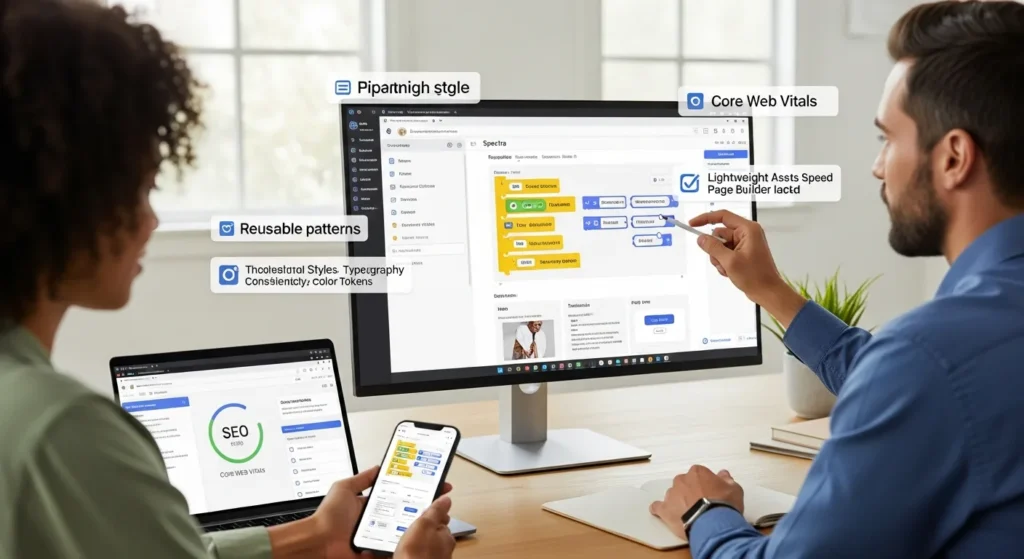
How to use Spectra comes up right after a familiar moment: you publish a new WordPress page, check it on your phone, and the layout looks… off. We have been there, reloading the page like it will apologize and fix itself.
Quick answer: Spectra adds lightweight, Gutenberg-native blocks and layout tools so you can build modern pages fast, keep your site lean, and avoid the “page builder lock-in” trap that makes future edits painful.
Key Takeaways
- How to use Spectra effectively starts by staying inside Gutenberg so your content remains portable and avoids page builder lock-in.
- Install Spectra on a staging site first, back up everything, and update core/theme/plugins to prevent layout surprises on production pages.
- Build faster with Spectra Containers, responsive spacing, and simple column stacking rules to keep mobile layouts clean and consistent.
- Speed up publishing by saving reusable patterns (hero, testimonials, FAQ, CTA) and enforcing brand consistency with WordPress Global Styles.
- Keep your site lean by disabling unused Spectra blocks, clearing caches after changes, and optimizing images/fonts to protect Core Web Vitals.
- Use advanced Spectra features like forms, popups, and dynamic content (ACF + post grids) with clear governance to improve conversions without increasing risk.
What Spectra Is And When It Is The Right Fit
Spectra is a Gutenberg-enhanced block plugin for WordPress. It adds 30+ advanced blocks like Containers, Forms, Sliders, Popups, and Post Grids, while still keeping you inside the native Block Editor. That matters because WordPress core keeps improving the editor every year, so staying “native” usually keeps your site easier to maintain.
Spectra fits when you want:
- Fast pages without heavy builder baggage
- Block-based editing your team can learn quickly
- Design control without custom code for every section
- A cleaner path if you switch themes later
It may not fit when you need a full design suite with a separate visual canvas and a theme builder that controls every pixel. If your whole team already lives in Elementor templates and you depend on that ecosystem, a switch can feel like a diet on day one.
Spectra Vs. Classic Page Builders (What Changes In Your Workflow)
Classic builders often store layouts in builder-specific markup. That can create lock-in. Spectra works with Gutenberg blocks, so WordPress stores your content in a format that stays usable even if you change tools.
Here is what changes in your workflow:
- You design with Containers and blocks, not “sections” in a separate builder UI.
- You think in reusable patterns. A good hero section becomes a saved pattern, not a one-off layout.
- You lean on Global Styles. WordPress Site Editor settings plus Spectra’s controls handle most brand consistency.
Spectra also supports just-in-time asset loading, which means Spectra loads only what the page uses. Less unused CSS and JS usually means faster pages. Spectra also avoids jQuery dependencies that can slow older stacks down.
Who Benefits Most: Small Business Sites, WooCommerce, And Content Teams
We see Spectra shine in three situations:
- Small business marketing sites. You can ship a clean homepage, services pages, and lead pages quickly without dragging in a heavy builder.
- WooCommerce stores. Product grids, callouts, and promo sections become blocks you can repeat across campaigns.
- Content teams. Editors can build landing pages and update layouts with blocks and patterns instead of waiting for a developer.
Entity logic matters here. Spectra blocks -> reduce custom code -> speed up publishing. Faster publishing -> improves campaign velocity -> helps revenue teams test more offers.
Install Spectra And Set Up A Clean, Safe Starting Point
Install Spectra like any plugin: WordPress Admin -> Plugins -> Add New -> search “Spectra” -> Install -> Activate. The free version covers most use cases. Spectra Pro adds features like advanced popups, animations, and extra marketing blocks.
If you build client sites like we do at Zuleika LLC, you should treat “install” as a controlled change, not a click-and-pray moment.
Pre-Flight Checklist: Theme Compatibility, Staging, Backups, And Updates
Do this before you touch production:
- Create a staging site. Your host may offer one-click staging. If not, use a staging plugin or a separate subdomain.
- Back up the site. Keep an off-site copy.
- Update WordPress core, theme, and plugins. Old versions cause weird editor behavior.
- Check theme fit. Spectra pairs well with Astra, but it works with most modern block themes and hybrid themes.
This risk posture pays off. Plugin change -> affects CSS and layout -> can break conversion pages. Staging -> catches layout issues -> protects revenue.
Enable Only What You Need: Performance Settings And Asset Loading
Spectra lets you control what loads. Keep it lean:
- Disable blocks you will not use. Fewer options reduces editor clutter and cuts asset weight.
- Use local fonts when possible. Hosting Google Fonts locally can reduce external requests and improve privacy posture.
- Keep caching in mind. After you change block settings, clear your site cache and your CDN cache.
If you want a deeper performance checklist, our readers usually pair this with a Core Web Vitals pass and image compression. (On our site, you can also browse our WordPress SEO services and performance work to see how we structure these audits.)
Build Your First Page With Spectra Blocks
How to use Spectra gets easier when you start with one page and one goal. Pick a page that has business impact, like a lead-gen service page or a product category landing page.
A Simple Page Blueprint: Hero, Social Proof, Offer, FAQ, And CTA
We use a repeatable blueprint because it keeps teams fast and consistent:
- Hero section (Spectra Container)
- Headline, subhead, one primary CTA button
- Image or short visual block
- Social proof (Testimonials block or a simple Columns layout)
- 3 short testimonials beats 1 long essay
- Offer (Pricing table or feature list)
- Bullet points, clear scope, clear next step
- FAQ (FAQ block)
- Answer objections in plain language
- CTA (Button + short form or link)
- One action. No clutter.
This structure works because clarity -> reduces friction -> increases form completions.
Use Containers, Columns, And Spacing Controls Without Breaking Mobile
Spectra’s Container block is the big unlock here (yes, we said it, but not “unlock the secrets,” relax). It helps you control width, padding, background, and layout without nesting ten random blocks.
A safe mobile-first approach:
- Set padding in responsive views. Adjust tablet and mobile padding separately.
- Use gap controls, not manual spacer blocks everywhere. Spacers create uneven pages.
- Keep columns simple. Two columns for desktop often becomes one column on mobile.
- Preview on real devices. The WordPress preview helps, but phones tell the truth.
If you want a practical guardrail: when a page looks “tight” on mobile, reduce padding first. When a page looks “broken,” check column stacking rules next.
Create Reusable Patterns And On-Brand Sections
The fastest teams do not “design” every page. They reuse parts. Spectra supports this pattern-based approach, and WordPress itself gives you the storage and controls.
Global Styles, Typography, And Color Tokens For Consistency
Set your brand rules once, then stop arguing about font sizes in Slack.
Do this:
- Set Global Styles in Appearance -> Editor (block themes) or the Customizer (hybrid themes).
- Define your type scale (H1, H2, body) and stick to it.
- Define your color palette with names your team understands, like “Brand Blue” and “Accent Gold.”
Entity logic: Global Styles -> enforce consistency -> reduces design drift -> improves trust signals.
Reusable Blocks, Patterns, And Template Parts For Scale
Use the right tool for the job:
- Reusable block: One block reused across pages. Update once, changes everywhere.
- Pattern: A saved layout section like a hero or FAQ band.
- Template part: Site-level sections like headers, footers, and announcement bars.
We often build a “starter library” for clients:
- 2 hero patterns (service and product)
- 1 testimonial band
- 1 FAQ band
- 2 CTA bands
That library -> speeds publishing -> keeps pages consistent -> makes onboarding new team members easier.
If you want a related read, our site has guides on WordPress website maintenance services and how we keep pattern libraries stable over time.
Advanced Spectra Features That Save Time
Spectra can do more than layout. These features save real hours, but you need guardrails so marketing speed does not create risk.
Forms, Popups, And Marketing Sections (With Governance In Mind)
Spectra Pro includes forms and popups. These can help when you need:
- a newsletter sign-up
- an exit-intent offer
- a simple lead form on a landing page
Keep governance in mind:
- Data minimization wins. Ask only for what you need.
- Do not paste sensitive data into form tools or AI helpers. Legal, medical, and financial info should stay human-led.
- Add consent language when you collect emails. Your lawyer will thank you.
Popups -> increase email captures -> increase remarketing audience size. Popups also -> annoy visitors -> increase bounce rate when abused. Use them like hot sauce.
Dynamic Content With Custom Fields (ACF) And Post Loops
If you publish repeatable content like case studies, locations, staff bios, or products, dynamic content helps.
A common build:
- Create fields in Advanced Custom Fields (ACF) for things like “Service area,” “Price range,” or “Certification.”
- Use Spectra’s post loops or grids to display that content across pages.
Dynamic fields -> reduce manual edits -> reduce copy errors -> keep pages current.
This is also where we see teams win big with WordPress SEO. Structured content -> improves internal linking -> helps search engines understand your site. (If you want help, our WordPress SEO services page covers how we scope that work for small teams.)
Performance, Accessibility, And SEO Guardrails
How to use Spectra well means you treat performance, accessibility, and SEO like requirements, not afterthoughts.
Core Web Vitals Basics: Images, Fonts, And Layout Shift
Start with the basics that move the needle:
- Compress images and use modern formats like WebP when possible.
- Set image dimensions so the browser can reserve space.
- Avoid layout shift by keeping consistent container padding and not injecting late-loading elements above the fold.
- Host fonts smartly. Too many font weights slow pages down.
Google’s Core Web Vitals report in Search Console gives you real field data. Field data -> reflects user devices -> guides what you fix first.
Accessibility Checks: Headings, Contrast, Focus, And Keyboard Navigation
Accessibility helps users and it reduces legal exposure.
Run quick checks:
- Use one H1 per page.
- Keep heading order logical (H2 then H3).
- Check color contrast for buttons and text.
- Test keyboard navigation. You should reach menus, buttons, and form fields with Tab.
- Ensure focus states show clearly.
If you work in regulated spaces like healthcare, legal, finance, or public services, keep a human review step. Human review -> catches real user barriers -> reduces risk.
Common Issues And Safe Fixes
Most Spectra problems look scary and fix fast if you stay calm and work in order.
Block Styling Conflicts, Editor Vs. Front-End Mismatches, And Caching
Common causes:
- Theme CSS overrides block styling. Fix by adjusting Global Styles first.
- Cache shows old CSS. Clear plugin cache, server cache, and CDN cache.
- Minify plugins combine assets oddly. Test with minify off.
A quick debug flow we use:
- Check the page in an incognito window.
- Clear caches.
- Disable one plugin at a time on staging.
- Switch to a default theme briefly on staging to isolate theme conflicts.
Rollback Plan: Revisions, Pattern Swaps, And Plugin Conflicts
Always keep a rollback plan:
- Use WordPress revisions to restore a page version.
- Swap in a known-good pattern if a new layout breaks.
- If a plugin conflicts, disable it on staging first, then patch or replace.
Rollback -> reduces fear -> makes teams publish faster.
We also keep a simple change log for client sites. A log -> tracks what changed -> shortens fix time when something goes sideways.
Conclusion
If you want the short version of how to use Spectra: stay inside Gutenberg, build with Containers, save patterns early, and treat performance and accessibility like part of the build.
We would start with a low-risk pilot page this week. Pick one landing page, rebuild it with Spectra blocks, and measure load time and conversions. Then expand.
If you want a second set of eyes, Zuleika LLC helps teams ship fast WordPress sites that stay easy to edit and safe to run. We keep the process simple: map the page goal, build a pattern library, add guardrails, and hand your team a site they do not dread updating.
Frequently Asked Questions About How To Use Spectra
How to use Spectra in WordPress without switching away from Gutenberg?
To learn how to use Spectra, install and activate the plugin, then build pages inside the native Block Editor. Spectra adds 30+ Gutenberg-native blocks (like Container, Forms, Post Grid, and FAQ), so you design with blocks and patterns instead of a separate page builder interface.
Why does Spectra load faster than classic page builders?
Spectra is designed to stay lightweight with Gutenberg and supports just-in-time asset loading, meaning it loads only the CSS/JS a page actually uses. It also avoids jQuery dependencies that can slow older setups. Disabling unused blocks and clearing caches after changes helps performance stay consistent.
What’s the best way to use Spectra Container, columns, and spacing without breaking mobile layouts?
A safe way to use Spectra for responsive pages is to adjust padding per device (desktop/tablet/mobile), use gap controls instead of lots of spacer blocks, and keep columns simple so they stack cleanly on mobile. Always preview on real phones—mobile issues usually come from padding or stacking rules.
How do reusable patterns and Global Styles help when learning how to use Spectra?
How to use Spectra effectively often means reusing sections instead of redesigning every page. Save hero, testimonial, FAQ, and CTA sections as patterns, and set typography and color tokens in WordPress Global Styles to prevent design drift. This speeds publishing and keeps pages consistent across teams.
Can I use Spectra with any WordPress theme, or do I need Astra?
Spectra works with most modern block themes and many hybrid themes, and it’s often paired with Astra. The practical approach is to test on staging first, update WordPress/theme/plugins, and watch for CSS conflicts. If styling looks off, adjust Global Styles before adding custom CSS.
Will Spectra cause page builder lock-in if I stop using it later?
Compared with classic builders, Spectra reduces lock-in because it stores content as Gutenberg blocks rather than builder-specific markup. If you change tools later, your content generally remains more usable inside WordPress. Some advanced styling may need cleanup, but the core structure is typically easier to maintain.
Some of the links shared in this post are affiliate links. If you click on the link & make any purchase, we will receive an affiliate commission at no extra cost of you.
We improve our products and advertising by using Microsoft Clarity to see how you use our website. By using our site, you agree that we and Microsoft can collect and use this data. Our privacy policy has more details.
