
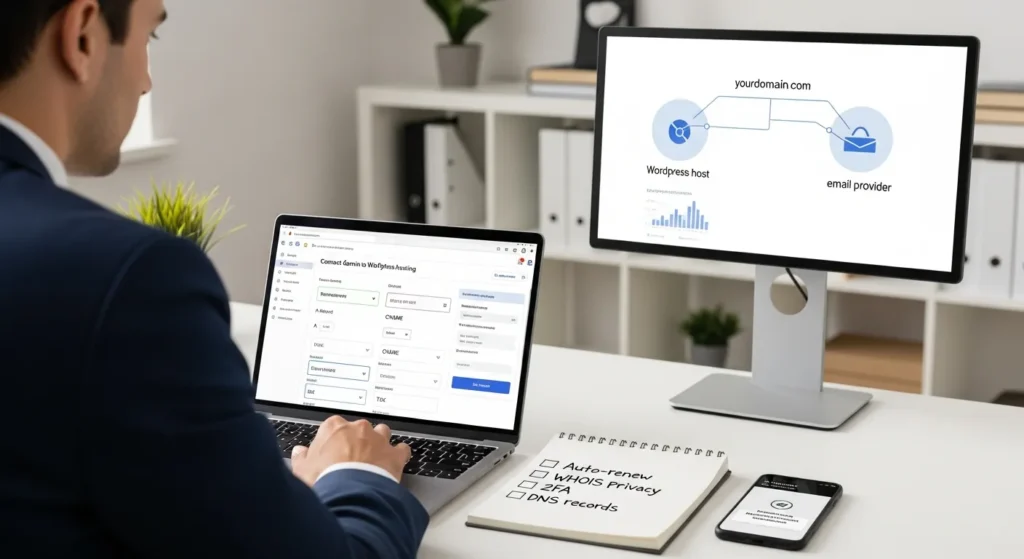
How to use Porkbun is not hard, but the first time you touch DNS it can feel like you are defusing a tiny bomb with a login screen. We have watched smart business owners buy a perfect domain, then lose an afternoon because “www” would not load. Quick answer: Porkbun is great for buying domains and managing DNS, and you either point nameservers to your WordPress host or keep DNS at Porkbun and add a few records (A, CNAME, maybe MX and TXT).
Key Takeaways
- How to use Porkbun starts with a clear split: Porkbun manages your domain and DNS, while your WordPress host serves your website files and database.
- Choose one connection path to get online faster: set nameservers to your host for simplicity, or keep DNS at Porkbun and add A/AAAA/CNAME records for tighter control.
- For a clean WordPress setup in Porkbun DNS, point the root (@) with an A record to your host IP and set a CNAME for www to @ so both versions of the site load.
- Keep email reliable by matching your provider’s MX and TXT records exactly (SPF, DKIM, and DMARC) to improve deliverability and avoid failed verifications.
- Prevent costly downtime by enabling auto-renew, keeping WHOIS privacy on, turning on 2FA, and sharing access via a team password vault with a simple DNS change checklist.
- When troubleshooting, confirm nameservers and key records first, expect DNS propagation delays, and avoid common issues like conflicting records, wrong IPs, and SSL issuance timing after changes.
What Porkbun Is (And When It Is A Good Fit)
Porkbun is an ICANN-accredited domain registrar. You use it to buy and renew domain names, control WHOIS privacy, and manage DNS records. It also includes extras that many registrars charge for, like WHOIS privacy, SSL offerings, Cloudflare DNS options, email forwarding, and URL forwarding.
We like Porkbun when you want three things:
- Low total cost without a pile of add-on fees
- Simple DNS control for WordPress, WooCommerce, and landing pages
- Basic forwarding (email or URL) for small teams and brand protection
It is also a good fit when you own multiple domains and you need bulk tools to grab variations for brand defense. And if you are building a portfolio site as a creator or artist, those included features remove a lot of friction.
Porkbun vs. Your Web Host: Who Does What
Here is the clean mental model we use with clients:
- Porkbun manages your domain and DNS. Porkbun controls where
yourdomain.compoints. - Your WordPress host runs your site. The host stores your files, database, and server settings.
So, Porkbun -> controls -> DNS routing, and your host -> serves -> website content. Mixing those roles up causes most “my site is down” panic.
If you work with us at Zuleika LLC, we usually set up domains at Porkbun, then connect them to managed WordPress hosting. That split keeps domain ownership clean, keeps billing clear, and makes migrations safer.
Account Setup And Buying Your First Domain
Start at Porkbun and create an account. Then use the search bar to check your domain idea. Porkbun supports bulk search, which helps when you want five variations fast.
Once you see an available name, add it to cart and check out. Porkbun supports standard payment methods and also crypto payments.
We suggest you buy the domain in the same legal entity that owns the business. That sounds boring. It saves arguments later.
Choosing A Domain Name For A Business Brand
Pick a name that people can say out loud without spelling it twice.
A simple filter we use:
- Say it: can a customer repeat it after hearing it once?
- Type it: do people commonly misspell it?
- Scale it: does it still fit when you add services, locations, or a product line?
If the .com is gone, Porkbun will show alternatives. Sometimes a clean industry TLD works well, like .guide for education or .studio for creators. If you run paid ads, clarity matters more than cleverness. Your domain -> affects -> ad click trust.
Checkout Settings: Auto-Renew, Privacy, And Multi-Year Terms
At checkout, make three choices on purpose:
- Auto-renew: Turn it on. Domain expiration is one of the most expensive “small mistakes” on the internet.
- WHOIS privacy: Porkbun includes it and it is usually on by default. Keep it on unless you have a legal reason to publish contact details.
- Multi-year term: If your business name is stable, buying multiple years can reduce admin work.
Also: store your login in a team password manager. Your domain registrar login is not a casual account. It is closer to the keys to your building.
Pointing Your Domain To WordPress Hosting
This is the part where most people get stuck because there are two valid paths. Both work. Pick the one that matches how much control you want.
Nameservers vs. DNS Records: The Practical Difference
Nameservers answer one question: “Who is in charge of DNS for this domain?”
- If you change nameservers, you hand DNS control to your host (or another DNS provider).
- If you keep nameservers at Porkbun, you manage DNS records in Porkbun.
In cause-and-effect terms: Nameserver choice -> affects -> where you edit DNS.
We usually pick nameservers when a host provides strong DNS tooling and you want the simplest setup. We keep DNS at Porkbun when you want tighter control, cleaner change tracking, or you use separate tools for email and hosting.
Fastest Path: Set Nameservers To Your Host
This is the “get it live quickly” path.
Steps:
- In Porkbun, open your domain.
- Go to the NS (nameservers) section.
- Replace Porkbun nameservers with the nameservers your WordPress host gives you.
- Save.
After that, you manage DNS at the host. Your host becomes the DNS authority.
If you are moving fast, this path reduces decision fatigue. Your host docs usually tell you exactly what to paste.
Advanced Path: Keep DNS At Porkbun And Add A/AAAA/CNAME Records
This path keeps Porkbun as the DNS authority. You point records to your host.
Typical setup:
- A record for
@(root domain) to your host’s IPv4 address - AAAA record for
@to your host’s IPv6 address (only if your host provides one) - CNAME for
wwwto@(or to the host target)
So A record -> routes -> yourdomain.com, and CNAME -> routes -> www.yourdomain.com.
This path shines when you use separate services:
- WordPress hosting on one provider
- Email on Google Workspace or Microsoft 365
- A help desk on another domain or subdomain
It takes a few more minutes, but it keeps the moving parts organized.
Managing DNS Inside Porkbun (The Records You Actually Use)
Open your domain in Porkbun and click the DNS tab. You will see records in a table. Most businesses only touch a small set of record types.
Here is what that means in plain English:
- A points a name to an IPv4 address.
- AAAA points a name to an IPv6 address.
- CNAME points a name to another name.
- MX tells the internet where your email lives.
- TXT stores text instructions for verification and email security.
If you remember one rule, remember this: One name -> should map -> one intent. If you create two A records for @ pointing to different places, you invite weird behavior.
A Record, CNAME, And AAAA: Common Website Setups
A clean WordPress setup often looks like this:
@has an A record to your host IPwwwhas a CNAME to@- Optional:
@has an AAAA record if your host supports IPv6
After you set records, give it time. DNS changes do not always apply instantly.
If you run WooCommerce, treat DNS changes like a production change. A small record edit can break checkout pages fast. DNS edit -> affects -> revenue flow.
MX, SPF, DKIM, And DMARC: Email Deliverability Basics
Email “works” when messages leave your system. Email works well when messages land in the inbox.
These records help:
- MX: routes inbound email to your provider.
- SPF (TXT): lists allowed sending servers.
- DKIM (TXT): signs messages so receivers can verify they were not altered.
- DMARC (TXT): tells receivers what to do if SPF or DKIM checks fail.
If you use email forwarding inside Porkbun for a small team, keep it simple. If you use Google Workspace or Microsoft 365, follow their record list exactly. One wrong character can break verification.
For regulated industries, keep humans in the loop. Never paste patient data, legal case details, or financial account info into random tools while you debug email. Keep private data out of tickets when you can.
Transfers, Renewals, And Operational Guardrails
Domains are business assets. Treat them like bank accounts.
How To Transfer A Domain In Or Out Without Downtime
Transfers do not need downtime if you stage the DNS first.
Steps we use:
- Confirm DNS works where it lives today.
- If you will change DNS providers, copy records to the destination first.
- In Porkbun, unlock the domain.
- Request the authorization code.
- Start the transfer at the new registrar.
A clean staging step matters because transfer timing -> affects -> DNS continuity. If you copy records first, your site and email keep working during the handoff.
Renewal Hygiene, 2FA, And Access Control For Teams
Do these three things and you avoid most registrar disasters:
- Turn on auto-renew and keep a valid payment method.
- Enable two-factor authentication (2FA).
- Control access through a shared vault, not a sticky note or a former contractor’s inbox.
If multiple people touch DNS, write a tiny SOP. Even a simple checklist helps:
- What changed
- Who changed it
- Why it changed
- How to roll it back
We treat prompts and checklists like safety rails. It keeps your marketing team fast without letting one rushed change take down email.
Troubleshooting: When The Site Or Email Is Not Working
This is the moment where someone says, “It worked an hour ago,” and everyone stares at the screen. We have been there.
Start with reality checks. Guessing burns time.
DNS Propagation Reality Checks And What To Verify First
DNS can take time to spread. A common window is minutes to 48 hours, depending on caching and TTL values.
Verify in this order:
- Nameservers: Do they match what you intended?
- A and CNAME records: Do they point to the right host values?
- MX and TXT records: Do they match your email provider’s setup guide?
- External lookup: Use a tool like WhatsMyDNS to confirm what the public sees.
If your WordPress site still fails after DNS looks right, check hosting next. Host outage -> affects -> page load, even when DNS is perfect.
Common Mistakes: Conflicting Records, Wrong Host IP, And SSL Delays
These three issues cause most “Porkbun broke my site” messages:
- Conflicting records: two A records for
@, or a CNAME that clashes with another record. - Wrong IP: copied from an old host, staging environment, or wrong server.
- SSL timing: your host may need DNS to settle before it issues or renews an SSL certificate.
Also watch the www setup. People often point @ correctly and forget www, then half the internet gets an error.
If you want a safer path, run changes in “shadow mode.” Make the edits, validate with external DNS tools, then switch traffic when you know it is correct. That habit saves you from public mistakes.
Conclusion
Porkbun works best when you treat it as the control panel for your domain and DNS, not as your website host. Pick one connection path, keep your records clean, and protect access with 2FA and a short checklist.
If you want us to sanity-check your Porkbun setup before you launch a WordPress or WooCommerce site, we can help. We do the boring parts on purpose: mapping triggers, inputs, records, and rollback steps so your launch day feels quiet. Start with our main service page at Professional WordPress Website Development for Your Business, then skim our WordPress SEO services and website maintenance services options if you want ongoing guardrails.
Frequently Asked Questions (Porkbun DNS & Domain Setup)
How to use Porkbun to connect a domain to WordPress hosting?
To use Porkbun with WordPress, choose one of two paths: (1) change nameservers to your WordPress host so the host manages DNS, or (2) keep DNS at Porkbun and add records like an A record for @ and a CNAME for www. Then wait for DNS propagation.
What’s the difference between nameservers and DNS records in Porkbun?
Nameservers decide who controls DNS for your domain. If you point nameservers to your host, you’ll edit DNS at the host. If you keep Porkbun nameservers, you edit DNS records inside Porkbun (A, CNAME, MX, TXT). Nameserver choice determines where changes happen.
Which DNS records do I actually need in Porkbun for a typical website?
Most sites only need a few record types. For a standard WordPress setup, use an A record for @ pointing to your host’s IPv4 address, an optional AAAA record if your host provides IPv6, and a CNAME for www pointing to @ (or the host target). Keep records non-conflicting.
How to use Porkbun DNS for email (MX, SPF, DKIM, and DMARC)?
If you’re using Google Workspace or Microsoft 365, keep DNS at Porkbun and add exactly the MX and TXT records they provide. MX routes incoming mail, while SPF/DKIM/DMARC (TXT records) improve deliverability and trust. One wrong character can break verification or inbox placement.
Why isn’t my site working after I updated DNS in Porkbun?
The most common causes are DNS propagation delays (minutes up to 48 hours), wrong host IPs, or conflicting records (like multiple A records for @). Also, SSL certificates can lag until DNS settles. Confirm nameservers first, then verify A/CNAME and check results with a public lookup tool.
Can I transfer a domain to or from Porkbun without downtime?
Yes. To avoid downtime, confirm current DNS works, then copy all DNS records to the destination provider before switching control. In Porkbun, unlock the domain, request the authorization code, and start the transfer at the new registrar. Staging DNS first preserves website and email continuity.
Some of the links shared in this post are affiliate links. If you click on the link & make any purchase, we will receive an affiliate commission at no extra cost of you.
We improve our products and advertising by using Microsoft Clarity to see how you use our website. By using our site, you agree that we and Microsoft can collect and use this data. Our privacy policy has more details.
