
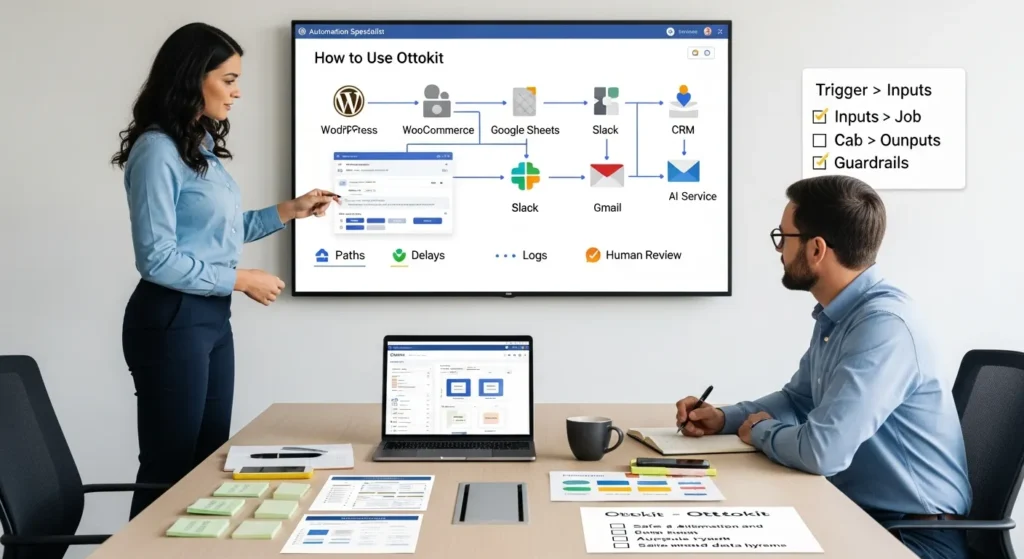
How to use Ottokit gets a lot easier once you stop thinking “tools” and start thinking “workflow.” We have watched teams install a plugin in five minutes, then lose two afternoons because nobody agreed on what the automation should do when the data shows up messy (and it always does).
Quick answer: Ottokit is a no-code automation layer built for WordPress that connects your site to 1,000+ apps, then runs repeatable trigger → action workflows with guardrails like Paths, Delays, and logs. Start with one low-risk pilot, map the flow on paper, keep humans in the loop for anything sensitive, and only then wire up connections.
Key Takeaways
- How to use Ottokit effectively starts with mapping your workflow first (Trigger → Inputs → Job → Outputs → Guardrails) before you connect any apps.
- Ottokit works best as a WordPress-first no-code automation layer that moves data between WordPress and tools like WooCommerce, CRMs, Google Sheets, email, and AI services.
- Choose a low-risk pilot and run it in shadow mode so you can validate logs and behavior for a week before enabling irreversible steps like sending emails or publishing content.
- Build safety into every automation with Paths, Delays, fallbacks, alerts, retries, and a clear rollback plan to prevent bad input from causing costly output.
- Protect privacy and reduce risk by minimizing fields, using least-privilege app access, and keeping human review in the loop for sensitive or AI-generated content.
- Govern and improve automations over time by monitoring logs daily at launch, adding a “kill switch,” and versioning prompts with lightweight change control and approvals.
What Ottokit Is Best For (And When Not To Use It)
Ottokit shines when WordPress sits at the center of your business. WordPress -> triggers -> automations. That simple cause-and-effect is why teams pick it.
You get the most value when you need to move data between WordPress and the tools you already use: WooCommerce, CRMs, Google Sheets, email platforms, help desks, and AI services like OpenAI. A new event happens on your site, and Ottokit pushes the right data to the right place without copy-paste.
Ottokit is a weaker fit when you need:
- Heavy custom code logic (complex calculations, unusual data models, or advanced branching that belongs in an app).
- Non-WordPress-first operations, where WordPress is not the system that creates the events.
- Hard compliance features out of the box (you still can run compliant processes, but you must design the boundaries and review steps yourself).
Common Use Cases For WordPress, Ecommerce, And Content Teams
Here are patterns we see work well because the trigger is clear and the output is measurable.
- WooCommerce order ops: New order -> writes -> Google Sheets row. Your finance team -> trusts -> one source of truth. Then you can add: New high-value order -> alerts -> Slack.
- Review requests: Order marked completed -> waits -> 7 days -> sends -> review email.
- CRM sync: New customer -> creates/updates -> contact in HubSpot, Salesforce, or your CRM of choice.
- LearnDash enrollment: New membership purchase -> enrolls -> user in LearnDash course.
- Content production assist: New topic row in Google Sheets -> generates -> draft outline or meta description -> saves -> WordPress draft for editing.
A small note from the trenches: AI should draft, humans should publish. AI output -> reduces -> blank-page time. Human review -> prevents -> brand damage.
Privacy, Compliance, And Human Review Boundaries
If you work in legal, healthcare, finance, or anything regulated, treat automation like a power tool. It saves time, and it can also take a finger off.
Set boundaries that match your risk:
- Data minimization: Your form submission -> contains -> sensitive data. Your automation -> should pass -> only the fields needed.
- Least-privilege access: An app connection -> grants -> permissions. You -> should grant -> the minimum scope that still works.
- Human review for sensitive content: AI output -> can hallucinate -> facts. Put approvals between draft and publish.
- No secret-sharing: Do not paste medical details, client-confidential facts, or credentials into prompts unless you have written approval and a documented policy.
For disclosure and truth-in-advertising, we point clients to the FTC’s guidance on endorsements and advertising. Marketing copy -> influences -> buyer decisions, so keep claims verifiable. See: FTC guidance on endorsements.
Your First Build: Map The Workflow Before You Touch Any Tools
We know the urge: install Ottokit, connect OpenAI, and start shipping automations by lunch.
Do the opposite.
A mapped workflow -> prevents -> surprise behavior. It also makes testing faster because you know what “correct” looks like.
Here is what we write at the top of a Google Doc before we build anything:
- What event starts this?
- What data do we need?
- What should happen when data is missing?
- Who approves the output?
- What is the rollback plan?
Trigger, Inputs, Job, Outputs, Guardrails
Use this five-part frame. It keeps everything readable for both technical and non-technical teams.
- Trigger: The event that starts the run. Example: New WooCommerce order, new form submission, new WordPress post published.
- Inputs: The data you pull in. Example: email, product name, order total, UTM source.
- Job: The work Ottokit performs. Example: enrich lead with AI, create CRM record, send Slack message.
- Outputs: Where results go. Example: Google Sheets row, CRM contact, WordPress draft.
- Guardrails: The safety rails. Example: Paths (if/else), Delays, retries, a “stop and notify” branch, human approvals.
Cause and effect stays clear: Bad input -> creates -> bad output. Guardrails -> reduce -> blast radius.
Choose A Low-Risk Pilot And Run In Shadow Mode
Start small. Start boring.
A good pilot is one where a mistake costs minutes, not money.
Shadow mode means this: the automation -> logs -> what it would do, but it does not take the irreversible action yet.
Pilot ideas we like:
- New order -> logs -> row in Sheets (no customer-facing messages).
- New contact form -> drafts -> an email in Gmail (but does not send).
- New blog idea -> creates -> a WordPress draft (not published).
Once your logs look clean for a week, you can flip the last step from “draft” to “send.”
Ottokit Setup: Account, Connections, And Data Hygiene
Setup is quick, but connection choices last a long time. A rushed connection -> leaks -> access you did not mean to grant.
At a high level:
- Create your Ottokit account.
- Install the Ottokit WordPress plugin.
- Connect the apps you need (WooCommerce, Google Sheets, OpenAI, CRM).
- Clean up your inputs so mapping stays predictable.
If your business runs on WordPress, this step pairs well with getting the site foundation right. On our side, we usually fix permalinks, forms, and tracking first so your automations do not chase broken data. If you are rebuilding, our WordPress website development work often becomes the “stable floor” your workflows sit on.
Connect Your Apps With Least-Privilege Access
Every connection -> grants -> power.
Do this instead of clicking “Allow everything”:
- Create a dedicated service user where possible.
- Use limited scopes for Google, CRMs, and email tools.
- Store keys in a secure place. Rotate them when staff changes.
If you connect OpenAI or another model provider, define what you will send. Your prompt -> controls -> data exposure.
Data Minimization And Safe Field Mapping
Field mapping is where good automations live or die.
Rules we use:
- Map only what the next step needs.
- Keep names consistent. “Phone” -> becomes -> “phone_number” everywhere.
- Normalize messy inputs early. A form field -> should not accept -> five date formats.
If you run WooCommerce, map order fields carefully:
- Order total -> drives -> routing (high-value orders get faster handling).
- SKU -> drives -> inventory actions.
- Customer email -> drives -> CRM matching.
And yes, we still keep a human review step for anything that could send the wrong message to the wrong person. One bad merge tag -> sends -> one very awkward apology.
Build A Simple Automation End-To-End
Pick one workflow and take it from trigger to output in a single sitting. A complete small flow -> builds -> confidence faster than five half-finished flows.
Example: New Form Submission → Enrich → Draft Response → Notify
This is a practical starter because it saves time and stays reversible.
Goal: When someone submits a lead form on WordPress, Ottokit enriches the lead, drafts a reply, and pings your team.
- Trigger: New form submission (your WordPress form tool).
- Input mapping: name, email, company, message, page URL.
- Action 1 (AI enrichment): Send a short prompt to OpenAI:
- Ask for a 1-sentence lead summary.
- Ask for intent classification (sales, support, partnership).
- Ask for 3 clarifying questions.
- Action 2 (Draft response): Create a draft email in Gmail or your help desk.
- Action 3 (Notify): Send a Slack message to a channel with the summary and a link to the draft.
Form submission -> triggers -> enrichment. Enrichment -> improves -> routing. Routing -> reduces -> time-to-first-response.
If you want this to tie into site growth, add one more step: lead -> writes -> row in Sheets, then you can measure response time and close rate over time. We usually pair this with baseline tracking on WordPress. Our WordPress SEO services focus on that measurement layer so your automations support real search demand, not vibes.
Add Filters, Routing, And Fallback Behavior
Once the simple flow runs, add your guardrails.
Use Paths for routing:
- If intent = “support” -> create -> help desk ticket.
- If company contains “.gov” or “hospital” -> route -> senior review.
- If message includes “urgent” and order exists -> alert -> on-call channel.
Use Delays for timing:
- Delay -> avoids -> spamming a customer at 2:00 AM.
Add fallbacks:
- If AI step fails -> send -> a neutral Slack alert with the raw submission.
- If email draft fails -> log -> the event in Sheets.
A fallback -> prevents -> silent failure. Silent failure -> creates -> distrust, and teams stop using the automation.
Test, Monitor, And Govern Your Automations
An automation that you do not monitor becomes a ghost employee. It keeps working until it does not, then nobody knows why.
Logging, Error Handling, Retries, And Rollback
Treat this like basic operations work.
- Logging: Each run -> creates -> a record. Review logs daily during the first week.
- Error handling: A failed step -> should trigger -> an alert. Alerts -> shorten -> repair time.
- Retries: Temporary outages happen. Retries -> reduce -> manual rework.
- Rollback plan: Know how to undo damage. A wrong tag -> triggers -> wrong campaign. Your rollback -> removes -> the tag and stops sends.
We also keep a “kill switch” mindset: one toggle -> stops -> the workflow. If your site uses ongoing support, bundle this into your maintenance routine. Our website maintenance services often include uptime checks, plugin updates, and automation spot-checks, because WordPress changes and workflows feel it.
Change Control: Versioning Prompts And Approval Steps
Prompts act like SOPs. A prompt change -> changes -> output tone, legal claims, and even privacy risk.
Change control does not need a committee. It needs a habit:
- Store prompts in a shared doc with dates.
- Keep a simple version label: v1, v1.1, v2.
- Add an approval Path for high-risk content (ads, medical, legal, financial).
- Run new prompts in shadow mode for a few days.
If your team rotates staff, this saves you. New hire -> edits -> prompt. Version history -> shows -> what changed and why.
Conclusion
Ottokit works best when you treat it like a workflow engine, not a magic button. Your WordPress site -> generates -> events. Ottokit -> moves -> the right data to the right place. Guardrails -> keep -> the process safe.
If you want a clean starting point, pick one pilot this week: a form-to-draft flow or an order-to-log flow. Map Trigger → Inputs → Job → Outputs → Guardrails, run it in shadow mode, then turn on the final action once the logs look boring. Boring is good. Boring means predictable.
When you are ready to connect Ottokit to a faster WordPress foundation, we can help you build the site and the workflows as one system, with human review where it matters and automation where it saves your time.
Frequently Asked Questions About How To Use Ottokit
How to use Ottokit for a first automation in WordPress?
To learn how to use Ottokit, start with one low-risk pilot and map it first: Trigger → Inputs → Job → Outputs → Guardrails. Install the plugin, connect only the apps you need, then build one end-to-end flow (like form submission → draft reply → Slack notify) before adding complexity.
What is Ottokit best for, and when should I not use it?
Ottokit is best when WordPress is the event source and you need repeatable trigger→action workflows across WooCommerce, CRMs, Google Sheets, email tools, and AI. It’s a weaker fit for heavy custom-code logic, non-WordPress-first operations, or situations needing built-in compliance features without your own approvals and boundaries.
How do I map a workflow before I touch Ottokit?
Write the workflow in plain language before building: what event starts it, what data you need, what happens when data is missing, who approves outputs, and the rollback plan. Use the five-part frame—Trigger, Inputs, Job, Outputs, Guardrails—so testing is faster and “correct” is clearly defined.
What guardrails should I add when I use Ottokit with AI (like OpenAI)?
Use Paths, Delays, logs, and fallbacks to reduce risk. Keep humans in the loop for sensitive content because AI can hallucinate. Minimize data sent in prompts, avoid confidential details, and add a “stop and notify” branch if AI or email drafting fails so issues aren’t silent.
How to use Ottokit in “shadow mode” before turning on live actions?
Shadow mode means the automation runs and logs what it would do, but doesn’t take irreversible actions (like sending emails or updating records). For example, draft an email but don’t send it, or log orders to Sheets only. After a week of clean logs, enable the final action.
Do I need coding skills to use Ottokit, and how complex can workflows get?
Ottokit is no-code, so you can build automations without programming, especially for common WordPress-to-app workflows. Complexity is best handled with clear routing (if/else Paths), retries, and approvals. If you need advanced calculations or unusual data models, custom code or a dedicated app may fit better.
Some of the links shared in this post are affiliate links. If you click on the link & make any purchase, we will receive an affiliate commission at no extra cost of you.
We improve our products and advertising by using Microsoft Clarity to see how you use our website. By using our site, you agree that we and Microsoft can collect and use this data. Our privacy policy has more details.
