
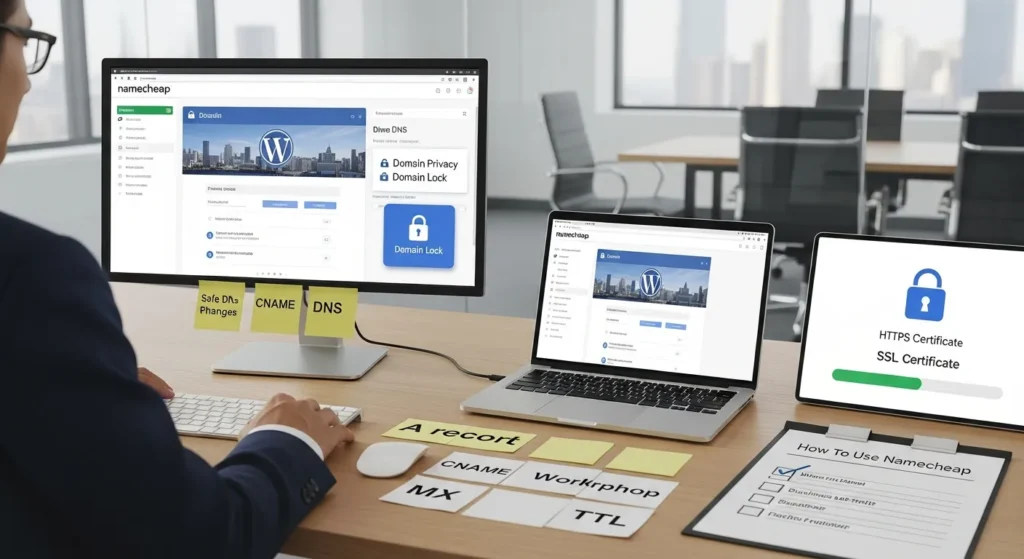
How to use Namecheap gets a lot easier once you stop treating “domain,” “DNS,” and “hosting” like one big mystery box. We have watched smart teams lose a whole afternoon because one tiny DNS record pointed to the wrong place.
Quick answer: buy the right Namecheap product (usually domain + hosting + email), turn on privacy and locking, change DNS with a plan, then connect WordPress and add SSL so everything runs on HTTPS.
Key Takeaways
- How to use Namecheap starts with buying the right mix of products—domain, hosting, and business email—so you don’t pay twice or redesign your setup later.
- Protect your domain immediately by enabling Auto-Renew, completing ICANN email verification, and turning on Namecheap Domain Privacy and Domain Lock to reduce spam and prevent unauthorized transfers.
- Plan DNS changes before you touch anything: screenshot the current zone, copy MX/SPF/DKIM/DMARC, lower TTL, and change one record at a time to avoid breaking your website or email.
- Connect Namecheap to WordPress either by switching nameservers to your host (simpler when the host manages DNS) or by editing A/CNAME records in Namecheap while keeping MX records intact for email.
- Add SSL and validate the full HTTPS experience—load the site with no warnings, confirm www/non-www redirects, update WordPress URLs to https, and test checkouts and forms end to end.
- Keep Namecheap reliable long-term with billing hygiene, limited account access, stored “known good” DNS records, and a rollback plan for propagation delays or wrong/conflicting records.
Choose The Right Namecheap Product For Your Goal
If you buy the wrong thing first, you pay twice. Namecheap sells three “buckets” that sound similar but do different jobs.
Domains Vs Hosting Vs Email: What You Actually Need
A domain affects your brand because it controls what people type into the browser. The domain (like yourbrand.com) points traffic to your site.
Hosting affects site speed and uptime because it stores your WordPress files and database. No hosting means no website to load.
Email hosting affects trust because it lets you send from [email protected] instead of a free Gmail address (nothing wrong with Gmail, but buyers judge).
Most real businesses need all three. A common setup looks like this:
- Domain at Namecheap
- WordPress hosting (Namecheap EasyWP, Namecheap shared hosting, or another WordPress host)
- Business email (Namecheap Email Hosting or Google Workspace / Microsoft 365)
What To Buy If You Are Building A WordPress Site
If your goal is a WordPress site, we usually recommend this order:
- Buy the domain first.
- Pick hosting:
- EasyWP if you want Namecheap-managed WordPress with a simpler setup.
- Shared hosting if you want a classic cPanel-style setup and you manage more pieces.
- Another WordPress host if you want managed performance tooling (still fine to keep the domain at Namecheap).
- Decide on email:
- If you need professional email fast, add Namecheap Email Hosting.
- If your team already lives in Google Workspace or Microsoft 365, keep email there and just set DNS records correctly.
That choice affects your DNS plan later, so it is worth deciding up front.
Find, Buy, And Protect Your Domain
Buying a domain feels like a five-minute task. The fallout from a rushed decision can last years.
Search And Register A Domain Without Regret
In Namecheap, use the Domain Name Search tool and check your top picks. Then run this quick gut-check before you click buy:
- You can say it out loud once, and people spell it right.
- You can type it on a phone without autocorrect fighting you.
- You can live with it on invoices, ads, and podcast reads.
Register for 1–10 years. Then enable Auto-Renew. A domain expiration affects revenue because your checkout pages disappear when the domain drops.
After checkout, verify your email. ICANN requires registrant email verification for many domain registrations, and Namecheap will prompt you for it.
Turn On Privacy And Locking (And What They Do)
Namecheap includes free Domain Privacy for many TLDs. Domain Privacy affects spam volume because it hides your personal contact info in public WHOIS records.
Turn on two protections in your Namecheap dashboard:
- Domain Privacy: hides WHOIS data.
- Domain Lock: blocks unauthorized transfers.
If your site is business-critical, consider PremiumDNS too. Better DNS uptime affects customer access because fewer DNS failures means fewer “site is down” moments.
Sources: Namecheap Domain Privacy, Namecheap PremiumDNS, ICANN WHOIS
Set Up DNS The Safe, Correct Way
DNS is where good intentions go to die. One record change can fix your site and break your email in the same click.
Understand The Essentials: A Records, CNAME, MX, And TTL
Here is the DNS cheat sheet we use with clients:
- A record -> points a domain to an IPv4 address (your server IP).
- CNAME -> points a name to another name (like
wwwto@or to a host-provided target). - MX records -> route email to the right mail servers.
- TTL -> controls how long resolvers cache the record.
TTL affects speed of change because a lower TTL usually makes updates propagate faster. Many teams use 30 minutes to 1 hour during changes, then raise it later.
Point A Domain To Hosting Without Breaking Email
Two safe paths exist:
- Change nameservers to your host.
- Nameservers affect control because your host becomes the “source of truth” for DNS.
- Keep Namecheap DNS and edit records.
- This method affects stability because you can change site records while keeping MX records intact.
If you already run email (Namecheap Email Hosting, Google Workspace, Microsoft 365), protect these items before you change anything:
- Screenshot your current DNS zone
- Copy existing MX, SPF, DKIM, and DMARC records
- Lower TTL ahead of the change
Propagation takes time. DNS changes often show up within minutes, but full propagation can take up to 48 hours depending on caching and resolvers.
Source: ICANN DNS Basics
Connect Namecheap To WordPress Hosting
This step decides whether your domain shows your WordPress site or a sad parking page.
Connect By Nameservers (Simplest When Your Host Manages DNS)
Use this route when your WordPress host wants to manage DNS.
Steps (high level):
- In Namecheap, open Domain List.
- Click Manage next to your domain.
- Set Nameservers to Custom DNS.
- Paste the nameservers your host gives you.
- Save.
Nameservers affect record authority because your host now publishes the A record, CNAME, and validation records for SSL.
Connect By DNS Records (Best When You Keep DNS At Namecheap)
Use this route when you want Namecheap as the DNS home base.
Steps:
- Go to Advanced DNS for the domain.
- Add or update:
@A record to your hosting IP (your host provides it), or- a host-provided CNAME target, if the host uses that method.
- Set
wwwas a CNAME pointing to@(common) or to the host target. - Keep existing MX records if you use separate email.
DNS records affect both web and mail routing, so we change one thing at a time. If you change A records and MX records together, you will not know what broke.
Add SSL And Verify The Site Works End To End
SSL affects trust because browsers warn people when pages load without HTTPS.
Your host may include free SSL (often via Let’s Encrypt). If you buy an SSL certificate from Namecheap, you still install it in your hosting panel.
Run this checklist after SSL:
https://yourdomain.comloads with no browser warninghttps://www.yourdomain.comredirects to your preferred version- WordPress Address and Site Address use
https - Checkout and forms work
Source: Let’s Encrypt Documentation
Set Up Business Email With Namecheap
Email looks simple until messages land in spam. DNS decides most of that outcome.
Create Mailboxes And Add The Right MX Records
If you buy Namecheap Email Hosting:
- Create mailboxes in your Namecheap dashboard.
- Go to your domain’s DNS settings.
- Add the MX records that Namecheap provides for your email plan.
MX records affect mail delivery because they tell the internet where to drop your messages.
If you already use another provider, keep that provider’s MX records. Do not “clean up” records unless you know what they do. We have seen well-meaning cleanups break invoice emails for days.
Secure Deliverability With SPF, DKIM, And DMARC
These three records affect inbox placement because they prove your domain authorizes the sender.
- SPF: lists which servers can send mail for your domain.
- DKIM: adds a cryptographic signature to outgoing mail.
- DMARC: tells receivers what to do when SPF or DKIM fails.
Set DMARC with a cautious policy first (many teams start with p=none to monitor). Then tighten once you confirm legitimate senders pass.
Source: DMARC Overview
Ongoing Management, Renewals, And Guardrails
Namecheap works best when you treat it like infrastructure, not a one-time purchase.
Renewal Settings, Billing Hygiene, And Access Control
Renewal failures happen for boring reasons. A card expires. An admin leaves. Auto-renew turns off during a billing change.
We suggest these guardrails:
- Turn on Auto-Renew for domains.
- Use a billing method your business controls (not a personal card).
- Limit account access. Give fewer people the keys.
- Store DNS “known good” records in a shared doc.
Account access affects risk because one wrong click can redirect your domain to a scam page.
Troubleshooting: Propagation, Wrong Records, And Rollback Steps
When your site “does not work,” check these in order:
- Propagation: wait a bit, then test from another network.
- Wrong record type: confirm you used A vs CNAME correctly.
- Conflicting records: remove duplicates (like two A records for
@that point to different IPs). - Email broke: confirm MX and SPF still match your mail provider.
If you need to roll back, return DNS to the last working state:
- Restore the old A/CNAME/MX values from your screenshots or notes.
- Raise TTL after the dust settles.
A rollback affects downtime because it puts traffic back on a known working path.
If your team runs on WordPress and WooCommerce, we also keep a simple change log. DNS changes affect sales because even a 30-minute outage can drop paid traffic conversions.
Internal reading from us at Zuleika LLC:
Conclusion
If you want to know how to use Namecheap without stress, treat it like a checklist job: buy the right pieces, protect the domain, change DNS with a plan, then verify WordPress, SSL, and email end to end.
We build a lot of WordPress setups where Namecheap holds the domain and DNS, and the site lives on a WordPress host that fits the business. That split keeps control clean. It also makes migrations less scary.
If you want a second set of eyes before you touch DNS, we can map your Trigger → Input → Job → Output steps and set guardrails, so you ship changes without breaking email or sales.
Frequently Asked Questions (FAQs) About How To Use Namecheap
How to use Namecheap for a WordPress website setup (domain, hosting, and email)?
How to use Namecheap for WordPress is easiest when you separate the “buckets”: buy the domain first, then choose hosting (EasyWP for managed simplicity or shared hosting for cPanel control), then decide on business email. Making the email choice early helps you avoid DNS changes that accidentally break mail delivery.
What’s the difference between a domain, hosting, and email in Namecheap?
A domain controls the web address people type (like yourbrand.com). Hosting stores your website files and database, which affects speed and uptime. Email hosting powers addresses like [email protected] and impacts trust. Most businesses need all three, even if email lives in Google Workspace or Microsoft 365.
How do I change DNS in Namecheap without breaking my email?
Before editing DNS, screenshot your current zone and copy MX, SPF, DKIM, and DMARC records. Lower TTL (often 30–60 minutes) ahead of changes, then update only one thing at a time—like the A record or CNAME for the website—while keeping MX records intact for your email provider.
Should I use Namecheap nameservers or keep DNS at Namecheap when connecting hosting?
Use your host’s nameservers if the host wants to manage DNS and publish everything (A, CNAME, SSL verification records). Keep DNS at Namecheap if you want one stable “source of truth” while pointing the site to hosting via A/CNAME records and preserving existing email records like MX and SPF.
How long do Namecheap DNS changes take to propagate?
DNS updates can appear within minutes, but full propagation can take up to 48 hours due to caching across resolvers. Lowering TTL in advance usually speeds up visible changes. To sanity-check results, test from another network or device, and avoid making multiple DNS edits simultaneously.
Do I need SSL when learning how to use Namecheap, and how do I enable HTTPS?
Yes—SSL prevents browser warnings and keeps forms and checkouts secure on HTTPS. Many hosts include free SSL (often via Let’s Encrypt). If you buy an SSL from Namecheap, you still install it in your hosting panel. Afterward, confirm https loads, redirects work, and WordPress URLs use https.
Some of the links shared in this post are affiliate links. If you click on the link & make any purchase, we will receive an affiliate commission at no extra cost of you.
We improve our products and advertising by using Microsoft Clarity to see how you use our website. By using our site, you agree that we and Microsoft can collect and use this data. Our privacy policy has more details.
