
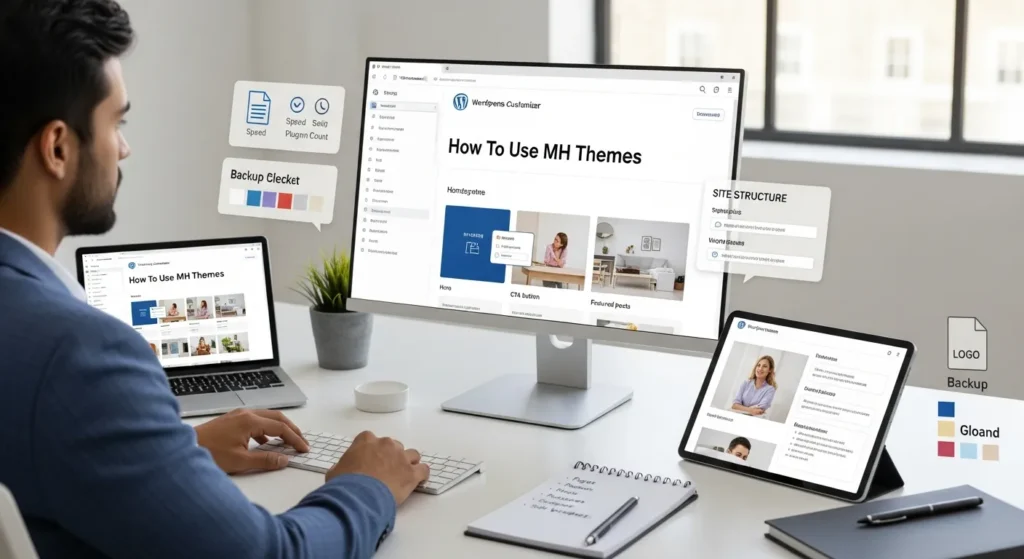
How to use MH Themes is a question we hear right after a client picks a clean demo and then hits “Activate” and… the homepage looks nothing like the screenshot. We have been there too, staring at a blank sidebar at 11:47 p.m., wondering if we broke WordPress.
Quick answer: pick the MH Theme that matches your site’s job, plan your pages and widget areas first, install on staging with a backup, then build the homepage with widgets and blocks while keeping plugins lean so the site stays fast.
If you run a business site, a magazine-style blog, or a WooCommerce store, MH Themes can feel refreshingly practical. You just need a sensible setup path and a few guardrails.
Key Takeaways
- To learn how to use MH Themes effectively, start by choosing a theme that matches your site’s goal (blog, magazine, local service, or WooCommerce) so the layout supports the action you want visitors to take.
- Map your site structure before installation—core pages, a small set of purposeful categories, menu locations, and sidebar/widget needs—so you don’t rebuild the homepage later.
- Install and activate MH Themes safely by using a staging site, taking a full backup, and documenting current menus, widgets, and custom CSS before switching on a live site.
- Lock in global branding early in the Customizer (logo, colors, typography, and content width) to improve readability and avoid painful redesign work after content scales.
- Build a conversion-focused homepage by setting a static front page and using MH widgets plus WordPress blocks to place clear CTAs, trust signals, and curated content sections without clutter.
- Keep your plugin stack lean for speed and security by sticking to essentials (SEO, forms, analytics, plus WooCommerce requirements) and managing performance basics like caching, image compression, and scheduled updates.
Choose The Right MH Theme And Plan Your Site Structure
Your theme choice decides what you will fight later. A magazine theme can look amazing, but it can also push you into extra categories, widgets, and layout choices you did not need.
Match The Theme To Your Business Goal (Blog, Magazine, Local Service, Ecommerce)
We treat the theme like a container for a business goal.
- Blog or content creator site: A clean MH Theme with strong typography helps posts carry the load. Your goal is reading and subscribing.
- Magazine or news layout: Themes like MH Magazine lean into sections, categories, and widgetized homepages. Your goal is discovery, clicks, and time on site.
- Local service business (law, medical, HVAC, consulting): You want fast pages, clear calls to action, and trust signals. A simpler layout often converts better than a “busy” homepage.
- eCommerce: MH Themes can work alongside WooCommerce, but you need to confirm the theme plays nicely with product pages, cart/checkout styling, and your store widgets.
Entity logic matters here: Theme layout -> affects -> how quickly visitors find the next action (call, book, buy, subscribe). Pick the theme that supports the action.
Inventory Pages, Categories, Menus, And Sidebar Needs Before Installing
Before we touch any tools, we map the structure on one page. It saves hours.
Here is a simple inventory list:
- Pages: Home, About, Services, Contact, Blog, Privacy Policy, Terms (plus Shop, Cart, Checkout for WooCommerce).
- Categories: Keep them few and useful. “News” is not a strategy. “Case Studies,” “Guides,” and “Announcements” usually work better.
- Menus: Header menu, footer menu, and sometimes a top bar menu.
- Sidebar and widget needs: Do you need an email signup, featured posts, product filters, recent posts, or a sticky CTA?
If you already have content, export a quick list of URLs or posts. Then decide what belongs on the homepage versus what belongs on category pages. That decision drives your MH widgets later.
If you want a nearby guide from us, see our breakdown on WordPress website design for small businesses (we cover structure choices that improve conversions).
Install And Activate An MH Theme Safely
Theme installs look easy, and they are. Risk shows up when you switch themes on a live site with active traffic.
Install From The WordPress Theme Directory Vs Upload A Premium ZIP
You have two common paths:
- Free theme from the directory
- Go to Appearance > Themes > Add New
- Search the theme name
- Click Install then Activate
- Premium theme via ZIP upload
- Download the theme ZIP from your MH Themes account
- Go to Appearance > Themes > Add New > Upload Theme
- Choose the ZIP, click Install Now, then Activate
If you are upgrading from a lite version to premium, MH Themes commonly allows you to upload and activate the premium version without losing your settings. Still, we treat that as “usually safe,” not “always safe.” Test it first.
Create A Backup And Use A Staging Site Before Major Changes
We use one rule: Never test on revenue.
Do this before you change themes:
- Create a full backup (files + database).
- Use staging if your host offers it.
- Write down current settings: menus, widgets, and any custom CSS.
Entity logic: Staging site -> reduces -> business risk.
If you manage client sites, you also want a rollback plan. One click to restore beats two hours of panic.
Sources:
- WordPress Support: Using Themes, WordPress.org, (accessed 2026), https://wordpress.org/documentation/article/using-themes/
- WordPress Support: Appearance Screens, WordPress.org, (accessed 2026), https://wordpress.org/documentation/article/appearance-screens/
If you want our usual checklist, our WordPress maintenance approach covers backups, updates, and staging habits we use for business sites.
Configure Theme Options, Layout, And Branding
MH Themes reward you when you commit to global settings early. A logo swap is easy. A typography change after 80 posts and 40 widgets feels… less fun.
Set Global Layout: Header, Logo, Typography, Colors, And Content Width
Start in Appearance > Customize. Set the “whole site” pieces first:
- Logo + site title: Use a clean SVG or a crisp PNG. Keep your header readable on mobile.
- Colors: Pick a primary and an accent color. Then stop. Too many colors make a business site look unsure of itself.
- Typography: Choose one font pairing and use it everywhere.
- Content width: Wider is not always better. If you publish long articles, a slightly narrower content column can improve reading.
Entity logic: Global typography -> affects -> readability -> affects -> time on page.
If you are in a regulated field (legal, healthcare, finance), keep the design calm and legible. You want clarity, not flash.
Configure Sidebars, Widget Areas, And Footer Columns
Most MH Themes use widget areas heavily. Go to:
- Appearance > Widgets (or the block-based Widgets screen)
- Place widgets in Sidebar, Header, Footer columns, and any theme-specific areas
We build widgets in this order:
- Primary sidebar (the one that appears most)
- Homepage widget areas
- Footer columns
Tip from the trenches: name your widgets with intent. “CTA: Book a Call” beats “Text Widget 3.”
If you need custom fields or repeatable sections later, keep it simple first. You can always add ACF or custom blocks after the pilot proves the layout works.
Build Pages And Home Layout With MH Widgets And WordPress Blocks
The demo homepage usually relies on two things: a static front page and a set of widgets that pull in categories, featured posts, or custom CTAs.
Create A Homepage That Converts: Sections, CTAs, And Trust Elements
Set a static homepage:
- Go to Settings > Reading
- Choose A static page
- Set Homepage and Posts page
Then build the homepage like a landing page, not a scrapbook.
A conversion-friendly homepage usually includes:
- Hero section: One clear value statement and one button.
- Primary CTA: “Book a consult,” “Get a quote,” “Shop new arrivals,” or “Subscribe.”
- Trust elements: Reviews, client logos, certifications, locations served.
- Proof content: A featured case study, a best-selling product set, or your top guides.
Entity logic: Clear CTA -> increases -> completed actions.
We often add a short “How we work” section, because visitors want process. If you want ours, we outline it on professional WordPress website development so prospects know what happens after they click.
Use Category Blocks And Post Lists For Magazine-Style Content (Without Clutter)
Magazine layouts can help, but only if they stay scannable.
Try this pattern:
- One featured category row (3 to 6 posts)
- One “Latest” list
- One secondary category row
- A newsletter signup
Use WordPress blocks for structure and MH widgets for curated lists. Keep the number of different widget types low. Too many formats make the page feel noisy.
Also, pick categories that match real reader intent. “Guides” and “Reviews” beat “Random.” Your analytics will thank you.
Source:
- WordPress Support: Settings > Reading Screen, WordPress.org, (accessed 2026), https://wordpress.org/documentation/article/settings-reading-screen/
Add Essential Plugins Without Slowing The Site Down
Every plugin adds weight. Some add risk. Your job is to keep the stack small and boring.
SEO, Forms, And Analytics: The Minimal Stack Most Businesses Need
For most business sites, we start with a short list:
- SEO plugin (Yoast SEO or similar)
- Forms (Contact Form 7 or a lightweight form tool)
- Analytics (Google Analytics via a simple integration)
If you run WooCommerce, you will add payment and shipping plugins too. Treat those as critical software. Update them carefully.
Entity logic: Extra plugins -> increase -> attack surface and page weight.
Performance And Security Basics: Caching, Image Compression, And Updates
Speed comes from a few boring habits:
- Caching: Use a caching plugin that fits your host setup.
- Image compression: Compress uploads and serve modern formats when you can.
- Updates: Update WordPress core, theme, and plugins on a schedule.
- Limit scripts: Avoid loading five pop-up tools and three chat widgets “just in case.”
Also, do not paste sensitive client data into random tools or theme panels. Keep regulated data in systems that support your compliance needs. Humans should review anything that touches legal, medical, or financial advice.
Source:
- WordPress Security, WordPress.org, (accessed 2026), https://wordpress.org/documentation/article/wordpress-security/
Troubleshoot Common MH Theme Issues And Avoid Rework
Most MH Theme problems fall into two buckets: the homepage is not set up the way the theme expects, or a widget/menu setting went sideways.
Fix Layout Breaks: Widget Conflicts, Missing Sidebars, And Menu Styling
If the layout looks wrong, run this quick triage:
- Homepage looks empty: Confirm Settings > Reading uses a static front page.
- Sidebar missing: Check the page template and the widget area assignment.
- Widgets look “stacked wrong”: Remove one widget at a time to find the culprit.
- Menu styling looks off: Reassign the menu in Appearance > Menus and confirm the correct menu location.
We like “one change, then reload.” It keeps you sane.
Entity logic: Widget order -> affects -> layout flow.
Handle Custom CSS And Child Themes The Safe Way
If you plan to change more than a few styles, use a child theme or keep CSS in the Customizer.
Safe path:
- Put small tweaks in Appearance > Customize > Additional CSS
- Use a child theme for bigger overrides
- Keep notes on what you changed and why
Avoid editing the theme files directly. Theme updates will overwrite them. That is the kind of surprise nobody enjoys.
If you need deeper changes, we often build a small custom plugin or use WordPress hooks so updates stay safe. WordPress hooks like save_post also help when you later connect content workflows to CRMs or email tools.
Source:
- WordPress Developer Resources: Child Themes, WordPress.org, (accessed 2026), https://developer.wordpress.org/themes/advanced-topics/child-themes/
Conclusion
MH Themes work best when you treat setup like a workflow: plan the structure, install safely, set global styles once, and build the homepage with a clear job in mind.
If you want the safest next step, run your MH Theme setup in staging for a day and time yourself. Where did you lose 45 minutes? That spot usually needs a checklist, a template, or one fewer plugin.
When you are ready to move from “nice theme” to “site that brings leads or sales,” we can help you map the build, keep it fast, and keep humans in the loop where risk lives. Our work at Zuleika LLC stays focused on business outcomes, not theme tinkering for its own sake.
MH Themes FAQs
How to use MH Themes so the homepage matches the demo layout?
To use MH Themes like the demo, first set a static homepage in Settings > Reading, then rebuild the front page with the theme’s widget areas and WordPress blocks. Most demos rely on specific widgets (featured categories, post lists, CTAs) and assigned menus, not just theme activation.
How do I choose the right MH Theme for a blog, magazine, local service site, or WooCommerce store?
Pick an MH Theme based on your site’s main job: blogs need clean typography for reading, magazine layouts need sections and widgetized discovery, service sites need fast pages with clear calls to action, and WooCommerce sites must style product, cart, and checkout pages reliably.
What should I plan before installing an MH Theme to avoid rework later?
Before installing, inventory your structure: key pages (Home, About, Services, Contact, Blog, policies), a small set of useful categories, header/footer menus, and sidebar/widget needs (email signup, featured posts, filters, sticky CTA). Deciding what belongs on the homepage vs category pages prevents widget chaos.
Is it safe to switch to an MH Theme on a live WordPress site?
It’s safer to switch MH Themes on staging, not live traffic. Create a full backup (files and database), document current menus/widgets/custom CSS, then test the theme change and layout. If anything breaks, a one-click restore is faster and less risky than troubleshooting under pressure.
Why do MH Themes layouts break or sidebars go missing, and how do I fix it?
Most issues come from homepage settings, widget conflicts, or menu assignments. Confirm a static front page, verify the correct page template and widget area placement, remove widgets one at a time to find conflicts, and reassign menus in Appearance > Menus to the right theme locations.
What’s the best way to customize MH Themes without losing changes after updates?
For small tweaks, add CSS in Appearance > Customize > Additional CSS. For larger overrides, use a child theme so updates don’t overwrite your work. Avoid editing theme files directly; if you need deeper changes, consider hooks or a small custom plugin to keep updates safe and maintainable.
Some of the links shared in this post are affiliate links. If you click on the link & make any purchase, we will receive an affiliate commission at no extra cost of you.
We improve our products and advertising by using Microsoft Clarity to see how you use our website. By using our site, you agree that we and Microsoft can collect and use this data. Our privacy policy has more details.
