
LiteSpeed Cache can make a WordPress site feel “instant” or make it feel broken. We have seen both in the same afternoon, usually right after someone flips on every setting at once.
Quick answer: LiteSpeed Cache works best when you treat it like a workflow. Confirm the server, measure a baseline, protect checkout and forms, then turn on features in a clean order so you can spot what helped and what hurt.
Key Takeaways
- Use LiteSpeed Cache as a step-by-step workflow—confirm LiteSpeed/OpenLiteSpeed compatibility, record a speed baseline, then enable features one at a time so you can measure impact and roll back safely.
- LiteSpeed Cache boosts performance through page cache, object cache, and browser cache, which together cut PHP work, reduce database queries, and speed up repeat visits.
- Protect revenue and privacy by excluding dynamic and personalized areas (cart, checkout, my account, dashboards, and form flows) before you turn on aggressive caching.
- Get quick real-world wins by enabling image optimization (including WebP where appropriate) and lazy load to reduce page weight and improve Core Web Vitals like LCP.
- Treat CSS/JS/HTML minify as optional and test-heavy—turn it on in a clean order (HTML, then CSS, then JS) and verify key interactions like menus, filters, and add-to-cart.
- For WooCommerce, use LiteSpeed Cache features like vary cookies and ESI to keep pages fast while keeping checkout dynamic, stable, and safe during traffic spikes.
LiteSpeed Cache In Plain English: What It Does And When You Need It
LiteSpeed Cache (LSCWP) is a free WordPress plugin that saves “ready-to-serve” versions of your pages so your server does less work on each visit. Less work -> faster responses. Faster responses -> better user experience.
If your site runs on a LiteSpeed or OpenLiteSpeed server, LiteSpeed Cache can use server-level caching. That is the sweet spot. If you are not on LiteSpeed, you can still use parts of the plugin (and QUIC.cloud services), but you will not get the same server-level punch.
What LiteSpeed Cache Actually Caches (Page, Object, Browser)
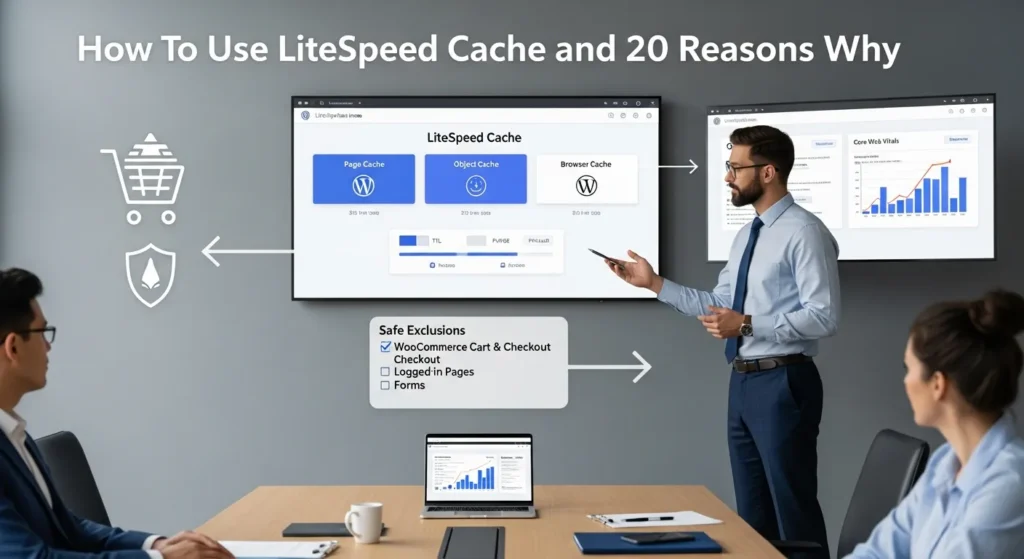
LiteSpeed Cache focuses on three types of caching, and each one hits a different bottleneck:
- Page cache stores the full HTML output of a page. WordPress -> generates HTML. Page cache -> reuses that HTML. This reduces PHP work and database calls.
- Object cache stores the results of repeated database queries. Database load -> slows checkout, searches, and admin pages. Object cache -> reduces repeated queries.
- Browser cache tells the visitor’s browser to keep assets like images, CSS, and JS for a set time. Repeat visit -> fewer downloads -> faster render.
A simple way to picture it: page cache acts like a “pre-cooked meal,” object cache acts like “pre-chopped ingredients,” and browser cache acts like “leftovers in your fridge.”
Who Benefits Most: Blogs, Lead-Gen, And WooCommerce Sites
We see the biggest wins when a site serves lots of repeatable pages:
- Blogs and content sites: posts and category pages rarely change minute-to-minute. Cache -> reduces server work -> handles traffic spikes.
- Lead-gen sites: landing pages need speed for conversions. Faster load -> fewer bounces.
- WooCommerce: product pages can cache well, but cart and checkout must stay dynamic. Correct rules -> speed without breaking purchases.
If you publish frequently or run promotions, cache also helps during “everyone clicks at once” moments. Traffic spike -> server strain. Cache -> steadier performance.
Sources: LiteSpeed Technologies documentation and plugin materials describe page, object, and browser caching behavior and the plugin’s focus on LiteSpeed servers and QUIC.cloud support.[1][2][5][6]
Before You Touch Any Settings: A Safe Setup Checklist
Most LiteSpeed Cache problems come from one habit: people turn on everything, then they try to reverse-engineer what broke.
Here is what we do instead. This is the safest way to start.
Confirm Server Compatibility (LiteSpeed/OpenLiteSpeed)
First check your hosting stack.
- If you run LiteSpeed Enterprise or OpenLiteSpeed, you can use the full server-level cache.
- If you run Apache or Nginx, LiteSpeed Cache can still help with on-page optimization and QUIC.cloud options, but do not assume you get identical results.
Server type -> affects feature set. Feature set -> affects expected speed gains.
Baseline Your Site Speed And Stability (So You Can Roll Back)
Before changes, capture proof.
- Run a speed test (GTmetrix works well for repeatable comparisons).
- Note Core Web Vitals and fully loaded time.
- Take screenshots of key templates: home, product page, cart, checkout, blog post.
Baseline -> makes cause clear. Cause clarity -> faster fixes.
If you have staging, do this there first. If you do not have staging, you can still work safely by enabling one feature at a time and keeping a rollback plan.
Protect Sensitive Flows: Checkout, Cart, Member Areas, And Forms
Caching the wrong thing can create weird and expensive bugs:
- Customer A adds items. Cache leaks cart state. Customer B sees Customer A’s cart. That is a privacy issue.
- A form confirmation page caches. Leads see old confirmations. Your team loses trust in the site.
So we set exclusions early:
- Exclude cart, checkout, my account, and other logged-in pages.
- Exclude pages with personalized content.
- Treat membership portals and client dashboards as “no cache unless proven safe.”
Logged-in state -> changes content. Changing content -> needs rules.
Sources: LiteSpeed Cache guidance highlights excluding dynamic pages and logged-in experiences, and recommends baselining and careful rollout.[2][4][5]
How To Use LiteSpeed Cache: A Step-By-Step Configuration That Works For Most Sites
We set LiteSpeed Cache up like a small system: Trigger -> setting change. Input -> one feature. Output -> measured result. Guardrail -> easy rollback.
General: Enable Cache, Set TTL, And Keep The Defaults Where Possible
Start simple:
- Install and activate LiteSpeed Cache.
- Turn on Cache in the general settings.
- Set a reasonable TTL (time to live). Many sites do fine around 3600 seconds for public pages.
- Keep defaults at first.
Defaults -> reduce surprises. Fewer surprises -> faster launch.
Cache Rules: Excludes For Logged-In Users And Dynamic Pages
Next, lock down “do not cache” areas.
- Exclude logged-in users unless you know you need logged-in caching.
- Exclude URL patterns like
/cart/,/checkout/, and account pages. - If you run lead capture forms, test form pages after cache.
Rule clarity -> prevents edge-case bugs. Fewer bugs -> fewer midnight Slack messages.
Optimization: CSS/JS/HTML Minify Without Breaking Layouts
Minify can help, but it can also break front-end behavior.
Our approach:
- Enable one minify setting first (HTML, then CSS, then JS).
- Check the site on mobile and desktop.
- Test interactive elements: menu, filters, add-to-cart, popups, sliders.
Minify -> changes file order and formatting. File order change -> can break scripts.
If you want a safer path for images first, we often pair LiteSpeed Cache with a dedicated image workflow. Our guide on automated image compression in WordPress explains how teams reduce image weight without playing “guess the broken CSS”.
Media: Image Optimization And Lazy Load For Real-World Wins
Media settings often deliver visible wins quickly.
- Turn on lazy load for images so below-the-fold images load later.
- Use image optimization to compress and generate WebP where it fits your stack.
Image weight -> affects LCP (Largest Contentful Paint). LCP -> affects perceived speed.
If your site relies on art direction (fashion, design, photography), test hero images carefully. Aggressive compression -> harms brand feel. Brand feel -> affects trust.
CDN And QUIC.cloud: When It Helps And When To Skip It
A CDN helps when visitors sit far from your server.
- Global audience -> CDN reduces distance -> faster delivery.
- Local audience -> CDN can add extra moving parts.
QUIC.cloud also helps when you do not run LiteSpeed server software and still want broader caching benefits.
We decide with one question: where do buyers sit? Location -> affects latency. Latency -> affects conversion.
WooCommerce Notes: Vary Cookies, ESI, And Checkout Safety
WooCommerce needs extra care.
- Use vary cookies so user-specific sessions do not leak.
- Use ESI (Edge Side Includes) to keep parts of a page dynamic while caching the rest.
- Keep cart and checkout rules tight.
Cached product pages -> speed browsing. Uncached checkout -> protects orders.
If you sell high-ticket services (legal, medical, finance), keep humans in the loop on content changes and never paste client data into any external tools during performance work. Privacy boundaries -> reduce risk.
If you want more detail on performance work that does not hurt visual quality, our write-up on image compression strategy for Core Web Vitals pairs well with LiteSpeed Cache setups.
Sources: LiteSpeed Cache documentation covers enabling caching, TTL concepts, minify settings, media optimization, QUIC.cloud, and WooCommerce features like ESI and cookie variance.[1][2][5][6]
20 Reasons To Use LiteSpeed Cache (Grouped By Outcomes)
You do not need 20 reasons to start. You need 2 or 3 that match your goals. Still, teams like a full menu, so here you go.
Speed Wins (1–7)
- Server-level page caching on LiteSpeed reduces PHP and database work.
- Faster TTFB (time to first byte) because the server serves cached HTML.
- Lower CPU usage because the server repeats less processing.
- Object caching cuts repeated database queries.
- Browser caching reduces repeat-downloads for returning visitors.
- Minify options shrink CSS/JS/HTML payload size when configured safely.
- Image optimization and lazy load reduce render-blocking weight and improve perceived load.
SEO And UX Benefits (8–12)
- Better Core Web Vitals potential when caching and media settings reduce load time.
- Higher PageSpeed scores often follow lower render times.
- Lower bounce rates because visitors do not wait as long.
- More pages per session because navigation feels instant.
- Better mobile experience because mobile networks punish heavy sites.
Reliability And Cost Control (13–16)
- Traffic spikes feel less scary because cached pages handle bursts.
- Lower database strain reduces lockups during peak demand.
- Fewer hosting resources needed for the same traffic level.
- More predictable performance because the cache smooths request load.
Workflow, Governance, And Team Benefits (17–20)
- Preset-friendly setup lets teams start with sane defaults.
- Purge controls let you clear cache when you publish or change templates.
- Preload options help warm the cache after changes.
- Debug and logging tools help you trace what happened instead of guessing.
Speed -> affects user patience. User patience -> affects sales.
Sources: LiteSpeed Technologies materials and related documentation support the plugin’s caching types, performance benefits, QUIC.cloud support, and operational features like purge, preload, and debugging.[1][2][4][5][6]
Troubleshooting And Guardrails: Fix Issues Without Guessing
When LiteSpeed Cache breaks something, it usually breaks it in a boring way. A script loads out of order. A cached page shows the wrong state. A minify setting strips something your theme needed.
Common Breakages: White Screens, Layout Shifts, And Missing Scripts
Watch for these patterns:
- White screen or blank sections after enabling minify or combine settings.
- Layout shifts where fonts, sliders, or grids load late.
- Buttons that stop working (add-to-cart, filters, login, popup triggers).
Setting change -> affects asset delivery. Asset delivery -> affects front-end behavior.
Safe Debug Flow: Disable One Feature At A Time And Use Logs
We debug in a strict order:
- Purge all cache.
- Disable the newest change only.
- Test the same page again in an incognito window.
- Repeat until the issue stops.
One variable -> clear cause. Clear cause -> fast fix.
If a site breaks after minify, turn off JS minify first. JS changes tend to cause the loudest failures.
Maintenance: Purge Strategy, Preload, And Update Discipline
Caching needs upkeep, but it should not become a hobby.
- Purge cache when you change theme templates, headers, footers, or global CSS.
- Use preload if you have enough server capacity, so visitors do not “warm” the cache for you.
- Keep the plugin updated, but update during low-traffic windows.
Update timing -> reduces risk. Reduced risk -> fewer sales interruptions.
Sources: LiteSpeed Cache support guidance and common troubleshooting patterns focus on isolating changes, purging, and testing sequentially.[4][5]
Conclusion
LiteSpeed Cache rewards calm, staged work. If you confirm your server, protect sensitive pages, and turn on features one at a time, you usually get faster pages without surprises.
If you want help setting it up in a safe way for WooCommerce, lead-gen, or regulated sites, we do this kind of performance work every week at Zuleika LLC. We map the flow, add guardrails, and keep humans in the loop where it matters.
Frequently Asked Questions (LiteSpeed Cache)
How to use LiteSpeed Cache in WordPress without breaking your site?
Use LiteSpeed Cache as a workflow: confirm you’re on LiteSpeed/OpenLiteSpeed, run baseline speed tests, and exclude dynamic URLs like /cart/ and /checkout/. Then enable features one at a time (cache, TTL, minify, media) and measure results after each change so issues are easy to reverse.
What does LiteSpeed Cache cache (page cache vs object cache vs browser cache)?
LiteSpeed Cache typically covers three layers: page cache stores ready-to-serve HTML to reduce PHP/database work, object cache stores repeated query results to cut database load, and browser cache tells visitors’ browsers to keep assets (CSS/JS/images) longer. Each layer targets a different speed bottleneck.
Why does LiteSpeed Cache break WooCommerce cart or checkout pages?
WooCommerce cart, checkout, and account pages are dynamic and user-specific. If they’re cached, customers can see the wrong session state, outdated totals, or even another user’s cart—creating privacy and revenue risks. Keep strict exclusions, and use tools like vary cookies and ESI to cache safely where appropriate.
What is a good LiteSpeed Cache TTL setting for most WordPress sites?
A common starting point is a TTL around 3600 seconds (1 hour) for public pages, then adjust based on how often content changes. Shorter TTLs suit frequently updated or promo-heavy sites, while longer TTLs can help stable blogs. Always baseline performance and verify content freshness after changes.
Do you need a LiteSpeed server for LiteSpeed Cache to work well?
You’ll get the best results on LiteSpeed Enterprise or OpenLiteSpeed because the plugin can use server-level caching. On Apache or Nginx, LiteSpeed Cache can still help with optimization features and QUIC.cloud services, but you shouldn’t expect the same “server-level punch” as native LiteSpeed caching.
Is QUIC.cloud CDN worth using with LiteSpeed Cache?
QUIC.cloud can help when your audience is geographically spread out or when you’re not on LiteSpeed server software and want broader caching/CDN benefits. If most buyers are close to your server, a CDN can add complexity without big wins. Decide based on visitor location, latency, and operational overhead.
Some of the links shared in this post are affiliate links. If you click on the link & make any purchase, we will receive an affiliate commission at no extra cost of you.
We improve our products and advertising by using Microsoft Clarity to see how you use our website. By using our site, you agree that we and Microsoft can collect and use this data. Our privacy policy has more details.
