
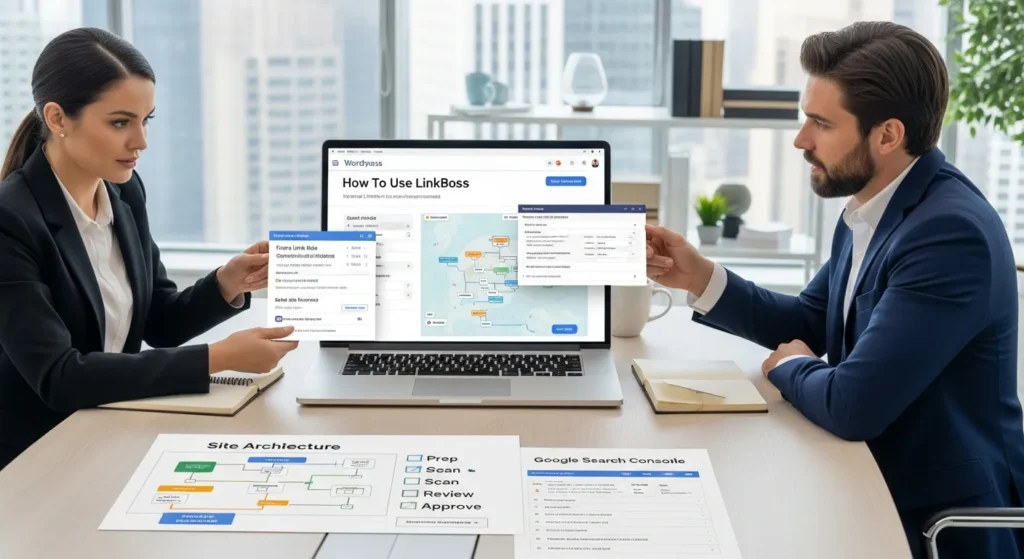
How to use LinkBoss starts the same way most good SEO work starts for us: with a slightly sweaty moment staring at a site that “should” rank, but does not.
We have seen it over and over. The content is decent. The products are solid. Then you click around and hit dead ends, orphan pages, and anchors that all say the same thing. Quick answer: LinkBoss helps you fix internal linking at scale inside WordPress, but it works best when you prep your site, run it in review mode first, and use clear rules so the AI does not spray links where you do not want them.
Key Takeaways
- LinkBoss is a WordPress plugin that improves internal linking at scale by suggesting contextual links and strengthening topical silos for better crawling and indexing.
- Prep your site before you use LinkBoss by verifying indexing, permalinks, and canonicals, then standardizing categories, tags, and URL slugs to keep AI suggestions clean.
- Install and configure LinkBoss with guardrails first—connect the API key, run an initial scan during low-traffic hours, and set clear rules for anchor text, nofollow, and content scope.
- Start in review (shadow) mode and approve links in calm batches (20–50) while maintaining a “do not link” list for sensitive or regulated pages.
- Use intent-based link paths to avoid keyword cannibalization by choosing one primary page per core query and directing the strongest anchors to that URL.
- Measure impact over time by tracking internal link coverage, crawl depth, and Google Search Console clicks/rankings, then rescan and fix new orphan pages monthly.
What LinkBoss Does (And When It Is Worth Using)
LinkBoss is a WordPress plugin that uses NLP and machine learning to suggest contextual internal links, group pages into topical silos, and clean up common internal linking gaps. LinkBoss -> increases -> internal link coverage. Better coverage -> improves -> crawl paths. Clear crawl paths -> speed up -> discovery and indexing.
When is it worth using?
- Your site has lots of URLs (blogs, service hubs, product catalogs).
- You publish weekly and old posts never get revisited.
- You manage more than one site and need a repeatable workflow.
- You are tired of internal link audits that turn into “someday we will fix that.”
If you run a small brochure site with 10 pages, LinkBoss may feel like a power tool for a tiny screw. If you run WooCommerce, a content-heavy brand, or an agency stack, it earns its keep fast.
Internal Linking Problems It Solves
Here is what LinkBoss typically cleans up:
- Orphan pages: Pages with no internal links pointing in.
- Dead ends: Posts that do not link out, so users and crawlers stop.
- Weak silos: Related content that never connects, so topical authority stays scattered.
- Duplicate or messy anchors: One keyword -> points to -> five different URLs. Or five keywords -> point to -> one wrong URL.
- Slow indexing: New pages -> wait for -> discovery because nothing links to them.
LinkBoss can also bulk-create links (up to a couple thousand per run, depending on your settings and plan), which matters when you have 200 posts, not 20.
Where LinkBoss Fits In A WordPress SEO Stack
Think of your WordPress SEO stack as a team:
- Rank Math or Yoast -> improves -> on-page metadata and schema.
- A caching layer (server cache, Cloudflare, or a WordPress cache plugin) -> improves -> performance.
- LinkBoss -> improves -> internal navigation and topical paths.
It also plays nicely with common WordPress builders and ecommerce setups like Elementor, Divi, and WooCommerce. It runs with a cloud component for analysis, which helps reduce the “big scan makes my admin slow” problem on larger sites.
If you are choosing between tools, we break it down in our comparison of internal linking plugins for WordPress so you can match features to your risk level and site size.
Before You Start: Prep Your WordPress Site For Clean Suggestions
LinkBoss -> learns from -> your existing site structure. If your structure is messy, your suggestions will be messy too. This prep step feels boring. It also saves you from approving 300 links you later regret.
Confirm Indexing, Permalink Structure, And Canonicals
Start with the basics:
- Indexing: Google Search Console -> reports -> what Google can see. If pages are not indexed, internal linking will not rescue them alone.
- Permalinks: Use clean permalinks like
/post-name/for most sites. WordPress -> controls -> permalink settings. - Canonicals: Canonical tags -> tell -> Google which URL version counts.
We use Google’s own docs as the source of truth here: the Search Console documentation explains coverage reporting and indexing signals, and Google’s canonicalization guidance clarifies how canonical URLs work.
Standardize Categories, Tags, And URL Slugs
Taxonomy consistency -> improves -> AI suggestion quality.
A quick cleanup checklist:
- Keep categories “few and clear.”
- Treat tags like an index, not a junk drawer.
- Use one style for slugs (lowercase, hyphens, no dates unless you truly need them).
If you sell products, keep product category names aligned with how customers search. “Shoes” beats “Footwear Items” nine times out of ten.
Back Up, Stage If Possible, And Set Editorial Ownership
Before you add bulk links, set guardrails:
- Backup: A backup plugin like UpdraftPlus -> protects -> rollback options.
- Staging: A staging site -> reduces -> production risk.
- Ownership: One editor -> approves -> link batches. Without that, people will approve links based on vibes, and the anchor strategy drifts.
WordPress itself recommends regular backups and safe update practices. See the WordPress.org security guidance for a clear baseline on keeping sites recoverable and secure.
Install And Configure LinkBoss The Safe Way
We treat setup like a workflow map, not a plugin install. Trigger -> runs -> scan. Scan -> produces -> suggestions. Human review -> approves -> publishing. Rules -> block -> bad outcomes.
Connect The Plugin, Permissions, And Initial Scan
Do this in a calm, boring way:
- Install LinkBoss from your WordPress admin.
- Create your LinkBoss account and grab the API key from the LinkBoss dashboard.
- Connect the plugin and allow the minimum permissions needed.
- Run the initial sync/scan.
During the first scan, LinkBoss builds a model of your content. Content relationships -> drive -> link suggestions.
Tip from the trenches: run the first scan during low-traffic hours if your host has tight CPU limits, even if LinkBoss offloads work to the cloud.
Set Link Rules: Anchor Text, Nofollow, And External Link Handling
Rules decide whether LinkBoss behaves like a helpful assistant or a caffeinated intern.
Set these early:
- Anchor style: Allow natural variation, but block anchors that create legal risk or brand confusion.
- Nofollow rules: Most internal links stay followed. Reserve nofollow for edge cases you have a reason to treat differently.
- External links: Decide if LinkBoss should ignore them, suggest them, or flag them.
Anchor text -> signals -> page intent. If you point “best running shoes” at three different pages over time, Google and users both get mixed signals.
Define Content Scope: Posts, Pages, Products, And Taxonomies
Scope -> limits -> blast radius.
Choose what LinkBoss can touch:
- Blog posts
- Core pages (services, about, contact)
- WooCommerce products
- Product categories
- Custom post types (case studies, locations, docs)
We usually start with blog posts and a few key hub pages. Then we expand once the pattern looks right. Small pilots -> reduce -> regret.
Build A Repeatable Internal Linking Workflow
Internal linking work fails when it becomes “a project.” A workflow -> creates -> steady gains.
Here is the pattern we use with clients.
Start In Shadow Mode: Review Suggestions Before Publishing
Run LinkBoss in review mode first. Suggestions -> require -> human approval.
Why we do this:
- It catches weird anchors.
- It catches links that break tone in sensitive pages.
- It shows you what the model thinks your site is “about.” That is useful intel.
If the suggestions look off, you usually have a taxonomy issue, an intent mismatch, or two pages competing for the same query.
Approve Links In Batches Without Breaking Context
Batch approvals -> speed up -> linking without chaos.
Our batch rules:
- Approve links in groups of 20 to 50.
- Spot-check the before and after in the actual page view, not just a table.
- Keep one “do not link” list for fragile pages (legal, medical, high-stakes sales pages).
If you want a deeper tool comparison before you commit to a workflow, our guide to choosing LinkBoss vs other internal linking tools can help you pick based on site size and review needs.
Update Older Content First, Then Add Links During New Publishing
Old content -> holds -> authority. New content -> needs -> discovery.
So we flip the usual order:
- Add links from older posts into newer priority pages.
- Add links from new posts back into evergreen hubs.
- Add a linking step to your publishing checklist.
That last part matters. A checklist -> prevents -> “we forgot to link this” drift.
If you publish with a team, assign roles:
- Writer -> flags -> suggested targets.
- Editor -> approves -> anchors.
- SEO owner -> audits -> monthly patterns.
Use LinkBoss For Ecommerce And Service Sites
Ecommerce and service sites have the same problem dressed in different outfits. Money pages -> need -> support pages. Support pages -> need -> clear paths to money pages.
WooCommerce: Linking Products, Categories, And Guides
For WooCommerce, we like a three-layer structure:
- Category page -> links to -> best-selling products
- Product page -> links to -> FAQs, sizing guides, and related categories
- Guides -> link to -> categories and a small set of products
This setup helps in two ways:
- Shoppers -> find -> what they need faster.
- Google -> understands -> category relationships better.
One caution: do not auto-link inside product descriptions if your copy uses lots of short, repeated phrases. That can create awkward anchors and clutter.
Lead Gen: Linking Services, Location Pages, And Case Studies
Service businesses win when proof sits close to the pitch.
A clean pattern:
- Service page -> links to -> case studies
- Case study -> links to -> the exact service page
- Location page -> links to -> top services in that area
This creates a simple intent path. Intent -> guides -> internal links. Internal links -> move -> visitors toward contact forms.
If you run regulated services, keep the conversion pages clean. Put educational links in the body. Keep claims tight.
Avoiding Cannibalization With Intent-Based Link Paths
Cannibalization happens when multiple URLs chase the same query.
LinkBoss can flag anchor overlap, but you still need a human decision:
- Pick one primary page for each core intent.
- Point the strongest anchors at that page.
- Use secondary anchors for supporting pages.
Primary intent -> strengthens -> one URL. That URL -> earns -> clearer signals.
If two pages both deserve to exist, change the intent of one. A “pricing” page and a “how it works” page can rank together if they answer different questions.
Quality Control, Governance, And Risk Guardrails
Automation -> increases -> speed. Speed -> increases -> risk unless you set rules.
We treat LinkBoss like any system that can change lots of pages quickly. You want guardrails, review, and a rollback path.
What Not To Auto-Link: Regulated, Sensitive, Or Legal Claims
Skip auto-linking on pages that carry legal or medical weight:
- Medical advice pages
- Legal claims pages
- Financial product claims
- Anything that mentions outcomes, guarantees, or compliance promises
Those pages need human review because a single anchor can change the meaning of a sentence.
FTC guidance on endorsements and advertising claims is a solid reminder that wording and context matter. See the FTC Endorsement Guides for the general standard on truthful, non-misleading claims.
Anchor Text Hygiene And Accessibility Checks
Anchor text -> helps -> users scan and decide.
Our quick checks:
- Avoid “click here.” Use descriptive anchors.
- Keep anchors short enough to read.
- Make sure the link color contrast stays readable.
Accessibility -> improves -> trust. It also reduces support tickets because people can actually find things.
Logging Changes And Rolling Back If Needed
Bulk updates -> require -> a paper trail.
Make sure you can answer:
- What links did we add?
- When did we add them?
- Who approved them?
- Can we reverse them?
LinkBoss reporting plus WordPress revision history can cover most cases. For higher-risk sites, we also keep a simple change log in a shared doc. It sounds old-school. Old-school works when something goes sideways at 4:55 PM on a Friday.
Measure Results And Keep It Maintained
Internal links -> change -> how Google crawls your site. So you measure crawl and rankings, not just “number of links added.”
Track Internal Link Counts, Crawl Depth, And Rankings Over Time
Track three buckets:
- Coverage: How many pages now have at least one internal link in and out?
- Crawl depth: Key pages -> move closer to -> the homepage through smart paths.
- Rankings and clicks: Google Search Console -> shows -> queries, pages, and performance trends.
If you run ecommerce, watch category pages and top product templates. If you run lead gen, watch service pages and location pages.
A practical note: do not expect instant ranking jumps. Internal linking often shows up first as better indexing, more pages getting impressions, and less “random” traffic distribution.
Monthly Maintenance Checklist For Ongoing Content
Keep it simple. Run this once a month:
- Rescan content in LinkBoss.
- Fix new orphan pages.
- Review top anchors for overlap.
- Check GSC for new indexing issues.
- Spot-check your top 10 revenue pages for link quality.
Then add one habit: every new post gets at least 3 internal links out and at least 3 links in within two weeks. Habit -> creates -> consistency.
Conclusion
LinkBoss works when you treat it like a system, not a button. You prep the site, you set rules, you review in shadow mode, and you approve links in calm batches.
If you want the safest starting point, pick one content cluster, run one scan, and approve one small batch. You will see very quickly if the suggestions match your intent. Then you can scale up without losing sleep, which is sort of the whole point.
Frequently Asked Questions About How To Use LinkBoss
How to use LinkBoss in WordPress without messing up existing content?
To use LinkBoss safely, prep your site first (indexing, permalinks, canonicals, and clean categories/tags). Install the plugin, connect your API key, run the initial scan, and start in review (“shadow”) mode. Approve links in small batches so context and intent stay intact.
What internal linking problems does LinkBoss fix at scale?
LinkBoss targets common internal linking gaps like orphan pages, dead-end posts, weak topical silos, duplicate or messy anchor text, and slow discovery of new URLs. By increasing internal link coverage, it improves crawl paths, helps indexing, and makes it easier for users and Google to navigate related content.
What rules should I set first when learning how to use LinkBoss?
Start with rules for anchor text style, nofollow behavior, and how to handle external links. Also define scope—posts, pages, WooCommerce products, and taxonomies—to limit the “blast radius.” Clear rules prevent the AI from placing awkward anchors or linking sensitive pages where tone and compliance matter.
How do I build a repeatable LinkBoss workflow for ongoing SEO gains?
Run scans regularly, review suggestions before publishing, and approve links in batches of roughly 20–50 with spot-checks in the live page view. Prioritize updating older authoritative content to link into newer priority pages, then add a linking step to every publishing checklist with clear writer/editor ownership.
Can LinkBoss help WooCommerce internal linking for categories, products, and guides?
Yes. A practical WooCommerce structure is: category pages linking to best-selling products, product pages linking to FAQs/sizing guides and relevant categories, and guides linking back to categories plus a small set of products. Avoid heavy auto-linking inside repetitive product descriptions to prevent cluttered, unnatural anchors.
How long does it take for internal linking changes to improve rankings after you use LinkBoss?
Internal linking improvements often show up first as better crawling and indexing—more pages getting impressions and steadier traffic distribution—before clear ranking lifts. Timeline varies by site size and crawl frequency, but expect weeks, not days. Track Search Console clicks, crawl depth, and key page performance over time.
Some of the links shared in this post are affiliate links. If you click on the link & make any purchase, we will receive an affiliate commission at no extra cost of you.
We improve our products and advertising by using Microsoft Clarity to see how you use our website. By using our site, you agree that we and Microsoft can collect and use this data. Our privacy policy has more details.
