
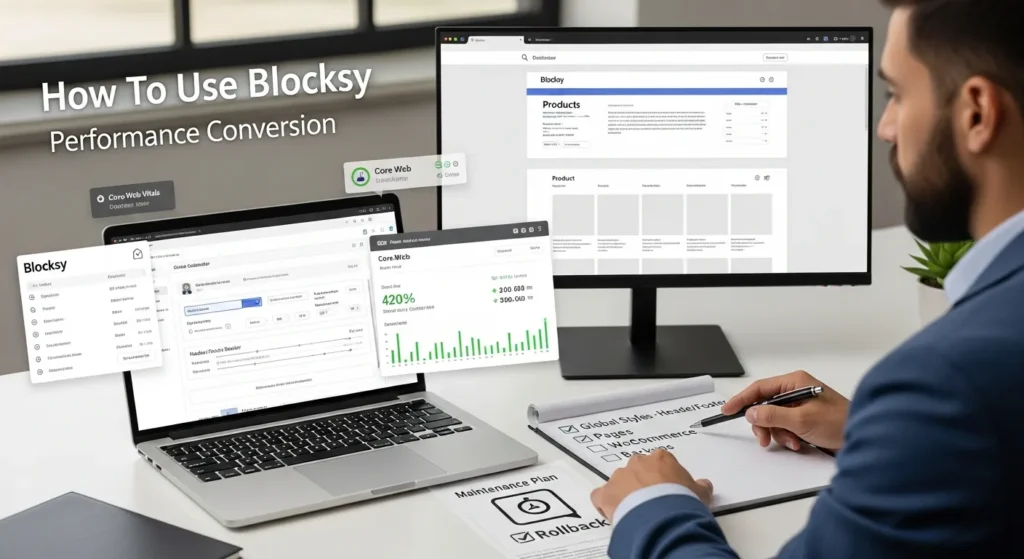
How to use Blocksy starts with one honest question: do you want a WordPress site that feels snappy on a phone, or one that feels like it is dragging a couch uphill? We have watched store owners lose sales because a header loaded late, a cart page looked “off,“ or a theme update broke a tiny layout detail that mattered.
Quick answer: Blocksy works best when you treat it like a system. Set global styles first, build a conversion-ready header and footer second, then fine-tune pages and WooCommerce last, with backups and a rollback plan from day one.
Key Takeaways
- How to use Blocksy effectively starts by setting global colors, typography, spacing, and containers first to avoid messy page-by-page overrides later.
- Install Blocksy plus the Blocksy Companion plugin, then choose a starter site that matches your real layout goals to prevent “demo debt” and bloated plugin stacks.
- Build a conversion-focused header and footer in Blocksy (clear CTA, clean mobile layout, and trust links) because navigation and confidence cues directly impact sales and leads.
- Use Blocksy’s per-page options (full-width layouts, transparent headers, title areas, breadcrumbs) only for exceptions after the global system is stable.
- For WooCommerce, use Blocksy’s catalog, product, cart, and checkout controls to reduce distractions, improve mobile usability, and increase add-to-cart and checkout completion rates.
- Protect your site while learning how to use Blocksy by working on staging, taking backups, changing one thing at a time, and keeping a rollback plan for theme/plugin updates.
What Blocksy Is (And When It Is The Right Choice)
Blocksy is a lightweight WordPress theme from CreativeThemes that plays very well with the block editor (Gutenberg). It gives you fast load times, flexible headers and footers, and strong WooCommerce controls without forcing you into a heavy builder stack.
Blocksy is the right choice when:
- You want better Core Web Vitals without fighting your theme.
- You want a flexible header and footer builder, but you do not want to build every template from scratch.
- You want WooCommerce layout controls that do not require a page builder on every page.
Blocksy is not the right choice when:
- You need a full design system built around a single visual builder with dozens of custom widgets.
- Your team already runs everything inside Elementor templates and will not change habits.
Blocksy Theme Vs. Page Builders Vs. Full Site Editing
Here is the simple trade:
- Blocksy + Gutenberg -> gives you speed and clean structure, with strong theme controls.
- Page builders (Elementor, etc.) -> give you quick visual freedom, but they often add extra code and extra risk.
- Full Site Editing (FSE) block themes -> give you full template control, but you may spend more time building basics that Blocksy already ships.
We often pick Blocksy when the site needs flexible layout controls, but the business still wants fast pages and fewer moving parts. Less bloat usually means fewer late-night “why is the checkout broken“ surprises.
Performance, Accessibility, And Compatibility Basics
Blocksy stays fast because it keeps code lean and uses semantic HTML patterns that work well across devices. That helps both people and search engines.
Here is what that means in practice:
- Performance -> Blocksy keeps the theme layer light, so caching and image compression actually pay off.
- Accessibility -> clean markup and responsive controls reduce layout breakage on mobile.
- Compatibility -> Blocksy works with Gutenberg, common caching plugins, and WooCommerce.
If you work in regulated fields (legal, medical, finance), speed is nice, but stability matters more. A simpler stack reduces the chance you ship a broken page after an update.
Install Blocksy And Start With The Right Foundation
If you want to learn how to use Blocksy without redoing work later, start with a clean base: install the theme, install the Companion plugin, then pick a starter that matches your real site goals.
Install And Activate Blocksy In WordPress
Do this first:
- Go to WordPress Admin -> Appearance -> Themes -> Add New.
- Search for Blocksy.
- Click Install, then Activate.
- Install Blocksy Companion (you will see a prompt, or add it in Plugins -> Add New).
Blocksy Companion is where you get starter sites and extra theme features. You can keep it lean by only enabling what you use.
If you want help setting up WordPress the “agency way,“ our team at Zuleika LLC usually starts with a staging site and a baseline performance check before we touch design.
Choose A Starter Site Without Painting Yourself Into A Corner
Starter sites can save days. They can also create “demo debt” if you import a design that fights your brand and page structure.
Our rule:
- Pick a starter that matches your layout needs (home, services, shop).
- Avoid starters that rely on stacks of extra plugins you do not recognize.
- Prefer simple typography and spacing. You can add personality later.
A safe workflow:
- Import the starter.
- Set global colors and fonts.
- Replace demo content with your real pages.
- Only then add extra features.
This keeps your Blocksy setup clean and keeps future changes easier.
Configure The Blocksy Customizer: Site-Wide Design Settings
Most theme problems come from skipping global settings and styling page-by-page. Blocksy gives you strong site-wide controls, so use them.
Go to Appearance -> Customize. Then work top-down.
Set Global Colors, Typography, And Spacing For Consistency
Start here because global settings affect every page.
- Colors: set your primary, accent, and background colors. Keep contrast readable on mobile.
- Typography: set body font, heading font, and base sizes. Keep line height comfortable.
- Spacing and containers: set content width and default padding once.
Entity logic that matters: Global styles -> reduce page-by-page overrides -> reduce layout bugs.
If you want a simple checklist for consistent styling, you can pair Blocksy with a basic brand spec. We often publish these workflows in our WordPress guides so teams do not guess.
Build Header And Footer Layouts That Convert
Your header is not decoration. Your header affects clicks, checkout starts, and leads.
In Blocksy, you can drag elements into top, main, and bottom rows. We suggest this layout for business sites:
- Left: logo
- Center: primary menu
- Right: one clear call-to-action (Book, Call, Shop, Get a Quote)
For ecommerce:
- Add search.
- Add account.
- Add cart.
Keep it clean on mobile. A crowded mobile header -> causes mis-taps -> causes exits.
Footer tip: repeat trust items that reduce fear.
- Refund policy link
- Shipping info link
- Contact info
- Security and payment icons (real ones only)
Layout And Sidebar Rules For Posts, Pages, And Archives
Blocksy lets you set global layout rules for:
- Blog posts
- Pages
- Category archives
- Search results
Start with a default that matches your main goal:
- Business sites often work best with no sidebar on pages.
- Blogs can use a sidebar on archives, but keep single posts clean.
- Shops usually need a clean product grid and fast filters.
Layout rules -> create consistency -> build trust. People notice when every page feels like a different website.
Use Blocksy Page And Post Options For Precise Control
Once your global settings feel right, use per-page options to handle edge cases. This is where learning how to use Blocksy starts to feel powerful, not messy.
Open any page or post in the editor. Look for the Blocksy panel.
Per-Page Containers, Content Width, And Transparent Headers
Use per-page settings when a page needs a different structure.
Common use cases:
- Landing page -> full width container, no sidebar, focused header.
- Home page -> transparent header over a hero image.
- Legal pages -> narrow width for readability.
A warning we repeat to clients: do not solve global problems with per-page overrides. Fix the system first. Then customize the exceptions.
Featured Images, Breadcrumbs, And Title Area Settings
Blocksy lets you control:
- Featured image display
- Page title area (show, hide, layout)
- Breadcrumbs
Breadcrumbs help users and also support internal linking structure. They can also reduce pogo-sticking because visitors can jump back to a category or service hub.
For content creators, featured images matter for social previews. Keep the aspect ratio consistent and compress images.
If you want a deeper internal structure plan, our SEO services focus on architecture first, then content, then links. Theme settings support that plan, not the other way around.
WooCommerce And Business Pages: Product, Checkout, And Trust Signals
Blocksy shines on WooCommerce because it gives you layout controls that usually require extra plugins.
Product Catalog And Product Page Layout Controls
In Customizer -> WooCommerce, you can control:
- Products per row
- Spacing and card layout
- Quick view and badges (if enabled)
- Single product layout and gallery behavior
Keep catalog pages simple:
- Clear product titles
- Visible pricing
- Obvious add-to-cart
Catalog clarity -> reduces decision friction -> increases add-to-cart.
On product pages, focus on:
- readable product description
- shipping and returns link near the buy button
- trust signals that feel real (reviews, warranty, support hours)
Cart And Checkout Optimizations (Speed, Clarity, And Fewer Distractions)
Checkout pages fail when you treat them like marketing pages.
What we do:
- Remove distractions: no rotating sliders, no giant popups.
- Keep headers minimal on checkout.
- Make error messages visible and readable.
- Test on mobile with real thumbs, not just a desktop preview.
Speed matters here because cart steps have high intent. Slow checkout -> increases abandonment.
If you sell services, apply the same thinking to your booking or quote pages. One page, one job.
Extend Blocksy Safely With Plugins, Child Themes, And Custom Code
Themes stay stable when you keep the add-ons under control. Every plugin adds code. Extra code adds risk.
Blocksy Companion, Custom Fonts, And Integrations You Actually Need
Start with Blocksy Companion and only enable what supports your goals.
Good reasons to add extensions:
- Starter sites and patterns
- Custom fonts (host them locally when possible)
- Basic enhancements that avoid adding a whole separate builder
Bad reasons:
- “It looks cool in the demo.”
- “Someone on YouTube said you need 30 plugins.”
Plugin count does not ruin a site by itself. Plugin behavior ruins a site. Keep the stack small and predictable.
When To Use A Child Theme, Code Snippets, Or A Lightweight Plugin
Use this decision rule:
- Use Customizer settings first.
- Use custom CSS next for small visual fixes.
- Use a code snippets plugin for small PHP changes you can track.
- Use a child theme when you must override templates or add larger code pieces.
Code changes -> affect updates -> require a rollback plan. That is not drama. That is basic risk control.
Governing Changes: Staging, Backups, And Rollback Plans
Here is the safest way to start:
- Clone the site to staging.
- Run a backup before theme or plugin updates.
- Change one thing at a time.
- Log what you changed.
- Keep a rollback path.
Tools we often see clients use:
- UpdraftPlus for backups
- A host staging tool (many managed WordPress hosts include one)
If you handle sensitive client data, keep humans in the loop and keep data minimal. Do not paste private details into any tool that does not have a signed agreement and clear controls.
Troubleshooting And Ongoing Maintenance
Blocksy usually behaves well, but WordPress sites break at the edges: caching layers, minification, and plugin overlap.
Common Conflicts: Caching, Minification, And Page Builder Settings
If a layout looks fine for you but broken for visitors, caching often causes it.
Check this order:
- Clear plugin cache.
- Clear server cache.
- Clear CDN cache (if you use one).
- Turn off JS minification and “combine files” features to test.
Minification tools can break menu dropdowns and sticky headers. Test each setting one by one.
If you use a page builder on a few pages, watch for global CSS conflicts. Builder CSS -> can override theme spacing -> can cause weird gaps.
Update Cadence, Performance Checks, And Security Hygiene
Set a simple cadence:
- Weekly: update plugins and themes on staging first.
- Monthly: run a speed check and fix large images.
- Quarterly: review plugins and remove what you do not use.
Security basics:
- Use strong admin passwords and MFA.
- Limit admin accounts.
- Keep WordPress core, theme, and plugins current.
Updates -> reduce known vulnerabilities -> reduce incident risk. That is the quiet win most teams ignore until something goes wrong.
Conclusion
If you want to know how to use Blocksy well, treat it like a workflow: global styles first, header and footer next, page exceptions after, WooCommerce tuning last. Then you protect the whole system with staging, backups, and a simple change log.
When you do that, Blocksy becomes what most businesses actually need: a fast, flexible theme that stays calm under growth.
If you want a second set of eyes on your Blocksy setup, we do this every week for small teams that do not have time to babysit WordPress. You can explore our WordPress website development approach and decide if it fits your stack.
Sources
- Blocksy Theme, WordPress.org, n.d., https://wordpress.org/themes/blocksy/
- Blocksy Documentation, CreativeThemes, n.d., https://creativethemes.com/blocksy/docs/
- Blocksy Companion Plugin, WordPress.org, n.d., https://wordpress.org/plugins/blocksy-companion/
- WooCommerce Documentation, Automattic, n.d., https://woocommerce.com/documentation/
- Google Search Central: Core Web Vitals, Google, n.d., https://developers.google.com/search/docs/appearance/core-web-vitals
Frequently Asked Questions About How To Use Blocksy
How to use Blocksy the right way when setting up a new WordPress site?
How to use Blocksy effectively is a workflow: set global colors, typography, spacing, and container widths first. Next, build a conversion-focused header and footer. Then handle per-page exceptions (like landing pages). Tune WooCommerce last, and protect changes with staging, backups, and a rollback plan.
What is Blocksy, and when is it the right theme choice?
Blocksy is a lightweight WordPress theme built to work smoothly with the block editor (Gutenberg). It’s a strong choice when you want better Core Web Vitals, flexible header/footer building, and solid WooCommerce controls without relying on heavy page builders or building every template from scratch.
How do I install Blocksy and Blocksy Companion in WordPress?
In WordPress Admin, go to Appearance → Themes → Add New, search “Blocksy,” then click Install and Activate. Next, install Blocksy Companion from the prompt or via Plugins → Add New. Companion unlocks starter sites and extra features—keep it lean by enabling only what you’ll actually use.
How to use Blocksy Customizer for global colors, typography, and spacing?
Go to Appearance → Customize and work top-down: set your global color palette (primary, accent, background) with readable contrast, choose body and heading fonts with comfortable line height, then set content width and default padding once. Global styles reduce page-by-page overrides, which lowers layout bugs and inconsistency.
How can I optimize WooCommerce product pages and checkout with Blocksy?
Use Customizer → WooCommerce to control products-per-row, spacing, badges, quick view, and single product layouts. Keep catalogs simple with clear titles, price, and add-to-cart. For checkout, remove distractions, minimize the header, ensure errors are visible, and test on mobile—speed and clarity reduce abandonment.
Do I need a child theme to customize Blocksy, and what’s the safest approach?
You usually don’t need a child theme for typical styling. Use Customizer settings first, then custom CSS for small visual tweaks, and a code snippets plugin for small tracked PHP changes. Choose a child theme only when you must override templates or add larger code—then use staging, backups, and a rollback plan.
Some of the links shared in this post are affiliate links. If you click on the link & make any purchase, we will receive an affiliate commission at no extra cost of you.
We improve our products and advertising by using Microsoft Clarity to see how you use our website. By using our site, you agree that we and Microsoft can collect and use this data. Our privacy policy has more details.
