
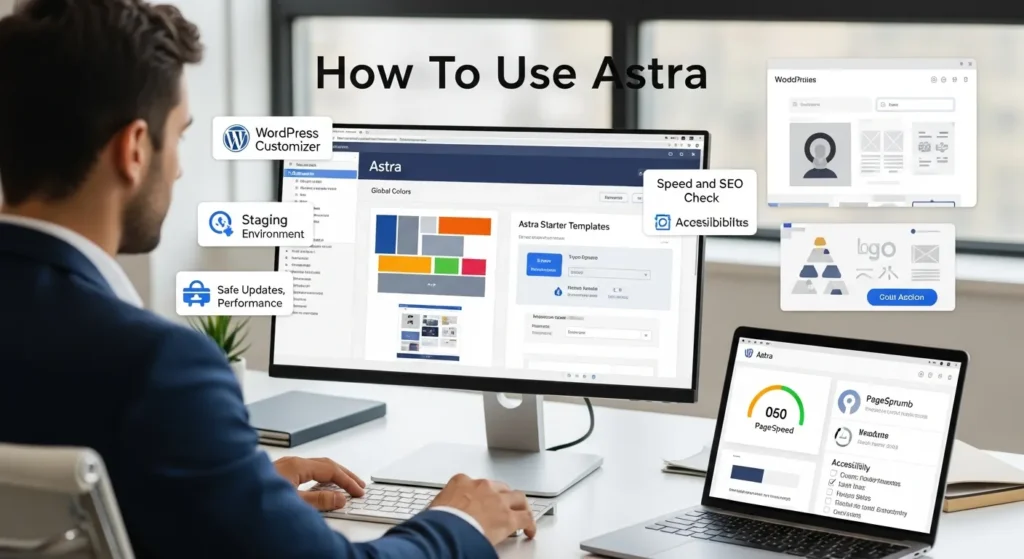
How to use Astra is one of those questions we hear right after someone says, “My site feels slow, but I do not want to rebuild everything.” We get it. The first time we imported an Astra Starter Template for a client, we watched the homepage load and thought, “Okay, this is what ‘lightweight’ is supposed to look like.”
Quick answer: install the free Astra theme, import a Starter Template that matches your goal, set your global styles once, then lock in speed, SEO, accessibility, and safe update habits so your site stays stable while it grows.
Key Takeaways
- How to use Astra starts with choosing the right base: use the Astra theme for a lightweight foundation and add Astra Starter Templates when you need a ready-made site fast.
- Install Astra in WordPress, then import a Starter Template with the Starter Templates plugin and only keep the required plugins to protect speed and reduce update risk.
- Pick one page builder you will actually maintain (Block Editor, Elementor, or Beaver Builder) and re-import or clear cache first if the template looks “off.”
- Set global colors, typography, and container widths once in Astra so every page stays consistent without fixing styles one-by-one.
- Optimize Astra for speed, SEO, and accessibility by keeping plugins lean, compressing images, adding caching carefully, configuring titles/schema/breadcrumbs in one SEO plugin, and checking contrast, focus states, and heading order.
- Keep your Astra site stable over time with staging, backups, and (if you add custom code) a child theme, plus a simple change log and review cadence for updates and performance checks.
Choose Astra The Right Way (Theme vs. Starter Templates)
Astra gives you two different “starting points,” and mixing them up causes most beginner frustration.
- Astra theme = the foundation. It controls layout, spacing, typography defaults, and how headers, footers, and sidebars behave.
- Astra Starter Templates = pre-built site designs you import with a plugin. These set up pages, menus, and styling so you are not staring at a blank page.
Here is how we choose:
- If you already have a design system (brand fonts, colors, components) and you want full control, start with Astra theme only.
- If you need a professional site this week (and you do not want to “design” your way into a dead end), start with Astra + Starter Templates.
Astra -> affects -> page load speed because it ships with fewer heavy features than many multi-purpose themes. That matters for ecommerce, local services, and content sites where every extra second costs attention.
A quick caution we give clients in regulated or sensitive niches (legal, medical, finance): do not copy real client data into demo content. Use placeholder text until your privacy and review process is set.
Install Astra And Apply A Starter Template
You can install Astra in a few clicks:
- In WordPress, go to Appearance → Themes → Add New.
- Search “Astra”.
- Click Install, then Activate.
To import a full design, add the Starter Templates plugin:
- Go to Plugins → Add New.
- Search “Starter Templates”.
- Install and activate it.
- Open the Starter Templates setup and pick your builder, then import a site.
Pick A Page Builder And Import Cleanly
Pick the builder you will actually use day-to-day.
- Elementor works well for drag-and-drop pages.
- Beaver Builder stays steady and simple for teams that want fewer moving parts.
- The Block Editor (Gutenberg) keeps your stack lighter if you can live without a full page builder.
When you import, keep it lean:
- Import the template pages and required plugins.
- Skip optional extras you will not use.
Extra plugins -> affect -> site speed and update risk. We would rather add one plugin later than clean up six you never needed.
What To Do If The Import Looks “Off”
If your imported site looks weird, it is usually one of these:
- Caching shows an old version. Clear your cache (plugin cache and host cache).
- A plugin conflict overrides styles. Temporarily deactivate non-essential plugins and refresh.
- Wrong builder got selected. Re-import using the correct page builder.
If you are working on a live business site, do this in a staging copy first. A staging site -> reduces -> “oops” moments.
Configure Astra Theme Settings For Brand And Layout
Once Astra is active, treat your theme settings like a mini style guide. Set it once, then build pages.
Go to Appearance → Customize (or Astra settings, depending on your setup).
Set Global Colors, Typography, And Container Widths
Start with the “global” knobs:
- Colors: set your primary, secondary, and background colors. Use strong contrast for buttons and links.
- Typography: pick 1–2 fonts. Keep headings consistent. Astra works well with system fonts too, which can speed things up.
- Container width: set a default width (many business sites land around 1100–1300px, then adjust by feel).
Global styles -> affect -> every page. That is the whole point. You do not want to fix fonts on 30 pages one-by-one.
Build Headers, Footers, And Menus With Astra Builder
Astra’s Header/Footer builder lets you assemble your layout without custom code.
We usually structure headers like this:
- Left: logo
- Center: main navigation
- Right: call-to-action button (Book, Get a Quote, Contact)
Then the footer:
- Column 1: short value statement
- Column 2: services or product categories
- Column 3: contact info and hours
- Bottom bar: copyright, privacy policy, terms
Navigation -> affects -> conversion because people cannot buy or contact you if they cannot find the next step.
Create Page Templates And Sidebar Rules
Astra supports different page layouts (full width, boxed, sidebar). Even if you never touch “templates,” set rules:
- Blog posts often work with a sidebar.
- Landing pages usually convert better with no sidebar.
- Product pages need room for images, price, and add-to-cart.
If you use Astra Pro, you can create custom layouts and apply them with display rules. If you stay on free Astra, you can still set per-page layout options and keep things consistent.
Optimize Astra For Speed, SEO, And Accessibility
Astra starts fast, but your choices decide if it stays fast.
Enable Performance Options Without Breaking Design
Speed work should feel boring. That is a compliment.
Our safe order:
- Keep your plugin list short.
- Compress and resize images.
- Add caching from your host or a reputable caching plugin.
- Test after each change.
Caching -> affects -> load time, but caching can also hide layout problems during edits. Clear cache when you make design changes, then test on mobile.
For speed testing, we often use:
- PageSpeed Insights (Google)
- Lighthouse (Chrome)
Set Up Basic SEO Structure (Titles, Schema, Breadcrumbs)
Astra handles layout. Your SEO plugin handles the search basics.
Set up:
- Page titles and meta descriptions for your main pages.
- Schema markup (most SEO plugins add it).
- Breadcrumbs if your site has many pages or products.
We usually install one of these:
- Yoast SEO
- Rank Math
Structured data -> affects -> rich results eligibility. It does not guarantee you get rich results, but it gives Google clearer signals.
If you want a steady, business-first approach, our own guides can help:
(Those links go to our site, where we publish ongoing WordPress help.)
Check Core Accessibility Basics (Contrast, Focus, Headings)
Accessibility is not just a “nice to have.” It protects users and reduces legal risk.
Start with three checks:
- Contrast: your button text must stand out against the button color.
- Focus states: keyboard users must see where they are on the page.
- Headings: use H1 once per page, then H2/H3 in order.
Headings -> affect -> screen reader navigation. They also affect how search engines understand your page structure.
For standards, reference the Web Content Accessibility Guidelines (WCAG) Overview from W3C.
Use Astra With WooCommerce And Common Business Pages
Astra works well with WooCommerce because it keeps templates clean and lets you control layout without heavy theme bloat.
Configure Product Archives, Product Pages, And Checkout Layouts
If you run a store, check these screens early:
- Shop / category pages (product archives): set columns, image sizes, and clear “Add to cart” buttons.
- Product pages: make the price, shipping info, and add-to-cart easy to spot.
- Checkout: remove distractions. Fewer fields often means fewer abandoned carts.
Checkout friction -> affects -> revenue. That is why we treat checkout layout as a business decision, not a design preference.
Astra Pro includes more WooCommerce controls, but you can still build a clean store with the free theme if you keep your add-ons under control.
Build High-Intent Pages (Home, Services, About, Contact)
These pages do the heavy lifting for most professional sites:
- Home: say who you help, what you do, and what to do next.
- Services: list outcomes, not just features. Add pricing ranges if you can.
- About: show credibility, not a life story.
- Contact: add one clear form, one email, and one phone number. Put hours and location if relevant.
A simple rule we use: every page -> affects -> one next action. Make that action obvious.
If your site lives on WordPress, we can wire contact forms into CRMs, help desks, and email tools so leads do not vanish into inbox clutter. WordPress forms -> affect -> follow-up speed when you connect them to the right system.
Security, Updates, And Safe Changes Over Time
Most Astra sites do not “break” because of Astra. They break because people change five things at once on a Friday afternoon.
Use A Child Theme, Staging, And Backups For Risk Control
If you plan to add custom code, use a child theme.
- A child theme protects your edits when the parent theme updates.
- A staging site lets you test changes without risking sales or leads.
- Backups give you a rollback button when something goes sideways.
Backups -> affect -> recovery time. Without backups, a small mistake can turn into a long weekend.
For plugin backups, many site owners use UpdraftPlus. For hosting-level backups, check your host’s control panel and retention policy.
For basic WordPress security guidance, see the WordPress Security page from WordPress.org.
Keep A Change Log And Review Cadence For Teams
If more than one person touches the site, write things down.
We recommend a simple change log that tracks:
- Date
- What changed (plugin update, new template, new form)
- Who did it
- Result (pass/fail, notes)
Then set a review cadence:
- Weekly: check forms, checkout, and site uptime
- Monthly: update plugins and themes on staging, then push live
- Quarterly: review top pages, broken links, and performance scores
A review cadence -> affects -> stability because you catch small issues before customers do.
Conclusion
Astra works best when you treat it like a system: theme foundation, template jump-start, global styles, then controlled growth. If you keep your plugin stack lean, set your headers and typography once, and test changes in staging, you will get a fast site that feels calm to run.
If you want us to sanity-check your Astra setup, we can review your theme settings, speed, SEO structure, and update plan, then hand you a short punch list your team can follow. That is usually the difference between “a nice theme” and a site you can trust during your busy season.
Sources
- Astra Theme, WordPress.org, n.d., https://wordpress.org/themes/astra/
- Starter Templates, WordPress.org, n.d., https://wordpress.org/plugins/astra-sites/
- Lighthouse Overview, Google (Chrome Developers), n.d., https://developer.chrome.com/docs/lighthouse/overview/
- PageSpeed Insights, Google, n.d., https://pagespeed.web.dev/
- WCAG Overview, W3C, n.d., https://www.w3.org/WAI/standards-guidelines/wcag/
- WordPress Security, WordPress.org, n.d., https://wordpress.org/documentation/article/wordpress-security/
Frequently Asked Questions About How To Use Astra
How to use Astra on WordPress without rebuilding my whole site?
To learn how to use Astra without rebuilding, install the free Astra theme, then (optionally) import a Starter Template for a fast starting design. Next, set global colors, typography, and container width once in the Customizer. Keep plugins lean and test changes on mobile after clearing cache.
What’s the difference between the Astra theme and Astra Starter Templates?
Astra theme is your site’s foundation—layout, spacing, typography defaults, and how headers/footers/sidebars behave. Astra Starter Templates are pre-built designs you import via the Starter Templates plugin, which creates pages, menus, and styling. Mixing them up is a common reason beginners struggle with how to use Astra.
Which page builder works best with Astra (Elementor, Beaver Builder, or Gutenberg)?
It depends on your workflow. Elementor is great for drag-and-drop design, Beaver Builder is steady and team-friendly with fewer moving parts, and Gutenberg keeps your stack lighter for speed. When importing a Starter Template, choose the builder you’ll actually maintain to avoid rework and styling conflicts.
Why does my Astra Starter Template import look “off,” and how do I fix it?
Most “off” imports come from caching, plugin conflicts, or selecting the wrong builder. Clear plugin and host cache, then refresh. Temporarily deactivate non-essential plugins to check for overrides. If you imported with the wrong builder, re-import the template with the correct one—ideally on staging first.
How to use Astra to improve speed, SEO, and accessibility at the same time?
Start with performance basics: fewer plugins, properly sized/compressed images, and reliable caching—testing after each change in PageSpeed Insights or Lighthouse. For SEO, use an SEO plugin for titles, meta descriptions, schema, and breadcrumbs. For accessibility, verify contrast, visible focus states, and correct heading order (one H1 per page).
Do I need Astra Pro, a child theme, or staging to use Astra safely?
You can use Astra safely with the free theme, but consider upgrades and safeguards as your site grows. Astra Pro adds advanced layout and WooCommerce controls. Use a child theme if you’ll add custom code so updates don’t overwrite changes. Staging plus backups reduces risk when updating plugins and themes.
Some of the links shared in this post are affiliate links. If you click on the link & make any purchase, we will receive an affiliate commission at no extra cost of you.
We improve our products and advertising by using Microsoft Clarity to see how you use our website. By using our site, you agree that we and Microsoft can collect and use this data. Our privacy policy has more details.
