
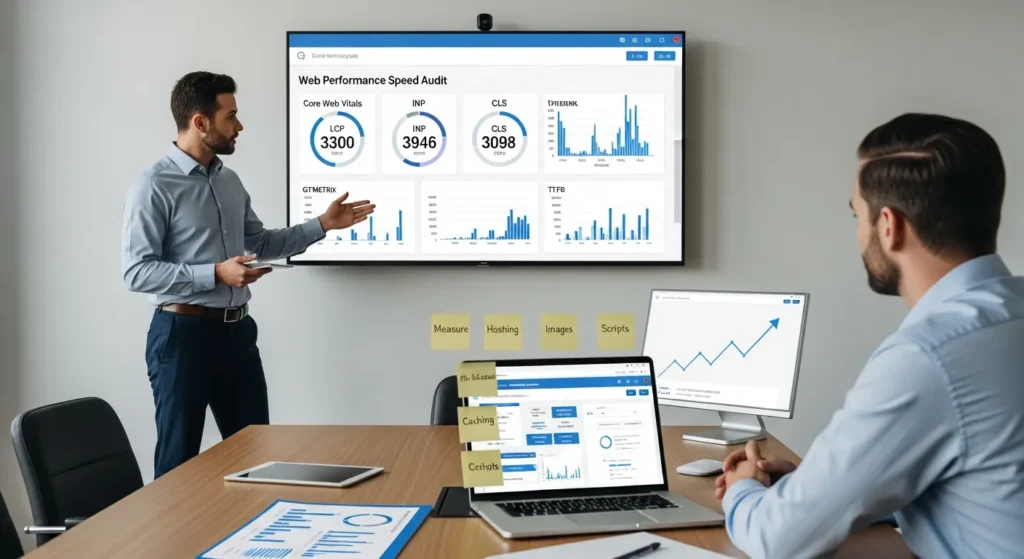
Optimize website speed WordPress work usually starts with a small shock: you click your own homepage on LTE and it just hangs. We have seen it happen right before a promo email, right before a podcast drop, and yes, right after a “quick” plugin install.
Quick answer: measure real Core Web Vitals first, fix hosting and caching next, then trim media and scripts, and only then touch database and advanced tweaks. That order cuts risk, which means you avoid breaking checkout, forms, or tracking.
Key takeaways:
- Chase LCP, INP, and CLS, which means you improve what Google and users feel.
- Fix TTFB at the server, which means every page gets faster, not just one.
- Use one caching path, which means you avoid plugin conflicts.
- Treat speed like a release, which means you can roll back fast if something breaks.
Key Takeaways
- To optimize website speed WordPress sites safely, measure real Core Web Vitals (LCP, INP, CLS) first and ignore vanity scores that don’t reflect user experience.
- Create a baseline with PageSpeed Insights and GTmetrix, save the reports, and track TTFB, the LCP element, and total JavaScript size so you can prove each improvement.
- Fix server bottlenecks before theme tweaks by upgrading PHP, enabling OPcache, and improving TTFB with full-page caching, object caching, and a CDN for static assets.
- Use one clear caching strategy (not stacked plugins) and apply minify/defer settings cautiously while testing key flows like add-to-cart, forms, checkout, and analytics.
- Cut page weight fast by converting images to WebP/AVIF, serving responsive sizes, and lazy-loading offscreen media without lazy-loading the LCP image.
- Treat WordPress website speed optimization like a release by using staging, making one change at a time, keeping rollback options, and monitoring Core Web Vitals in Search Console to prevent regressions.
Diagnose Before You Change Anything
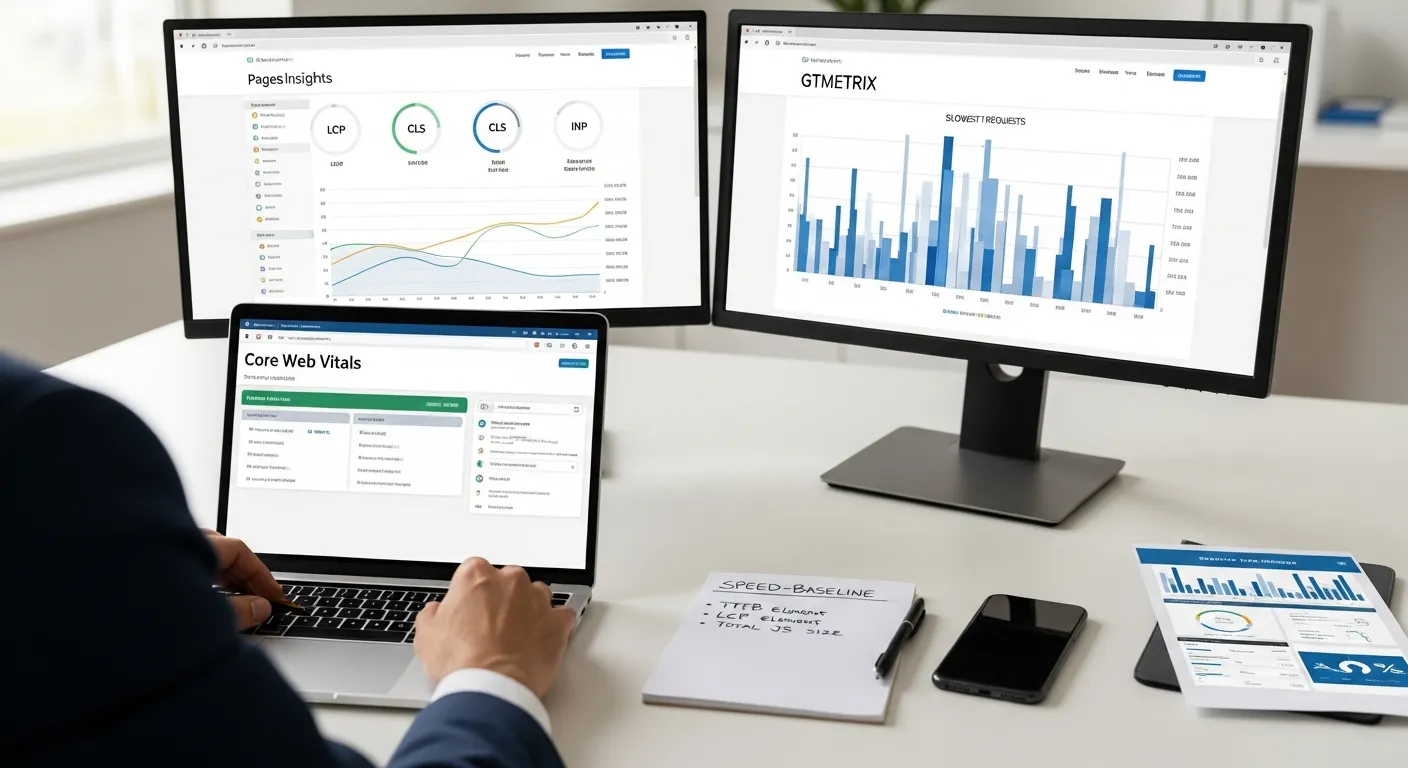
A speed project often fails because someone “optimizes” first and measures later. We have done that mistake. We once minified files for a WooCommerce shop and caused a broken add-to-cart button for 19 hours, which means the site looked fast but sales stopped.
Do diagnosis first. You need numbers you can compare.
Pick The Right Speed Metrics (And Ignore Vanity Scores)
Core Web Vitals matter more than a 100/100 score, which means you focus on user experience instead of a badge.
Use these targets as your north star:
- LCP ≤ 2.5s (Largest Contentful Paint), which means the main content appears fast.
- CLS ≤ 0.1 (Cumulative Layout Shift), which means the page stops jumping.
- INP ≤ 200ms (Interaction to Next Paint), which means taps and clicks feel instant.
Google defines these metrics in its Core Web Vitals documentation, which means you can align your work with what Google uses for ranking signals: Core Web Vitals overview.
Action today (10 minutes): Open your last 3 landing pages and write down LCP, CLS, and INP from PageSpeed Insights.
Run A Baseline Test And Save The Evidence
A baseline test gives you a “before” snapshot, which means you can prove that a change helped.
We run two tests because each tool sees different things:
- Google PageSpeed Insights (field + lab data), which means you get Chrome UX signals when available.
- GTmetrix (waterfall + file detail), which means you can spot the slow file fast.
If you want a clear breakdown of when each tool is more trustworthy, use our comparison of PageSpeed Insights vs GTmetrix, which means you do not chase conflicting advice.
Save proof:
- Export the report PDF or screenshot the metrics, which means you can show a client or a boss.
- Record TTFB, LCP element, total JS size, which means you can tie changes to outcomes.
Action today (15 minutes): Run one mobile test and one desktop test, then store screenshots in a folder named “speed-baseline.”
Map The Usual Bottlenecks: Server, Theme, Plugins, Media, Scripts
Most WordPress slowness comes from five buckets, which means you can debug with a checklist instead of guesses.
Here is the map we use:
- Server / hosting (TTFB), which means your first byte arrives late.
- Theme weight, which means you ship extra CSS and JS.
- Plugins, which means you add queries, scripts, and hooks.
- Media, which means images dominate page weight.
- Third-party scripts, which means chat and pixels block rendering.
In practice, we often see this pattern in WooCommerce:
- TTFB sits at 900ms to 1.6s, which means caching or hosting is the first lever.
- The homepage hero image is 1.8MB PNG, which means LCP cannot hit 2.5s on mobile.
- A chat widget adds 450KB JS, which means INP suffers.
Action today (20 minutes): Open your GTmetrix waterfall and list the top 5 heaviest files and the slowest 5 requests.
Fix The Biggest Lever First: Hosting, PHP, And Server-Level Caching
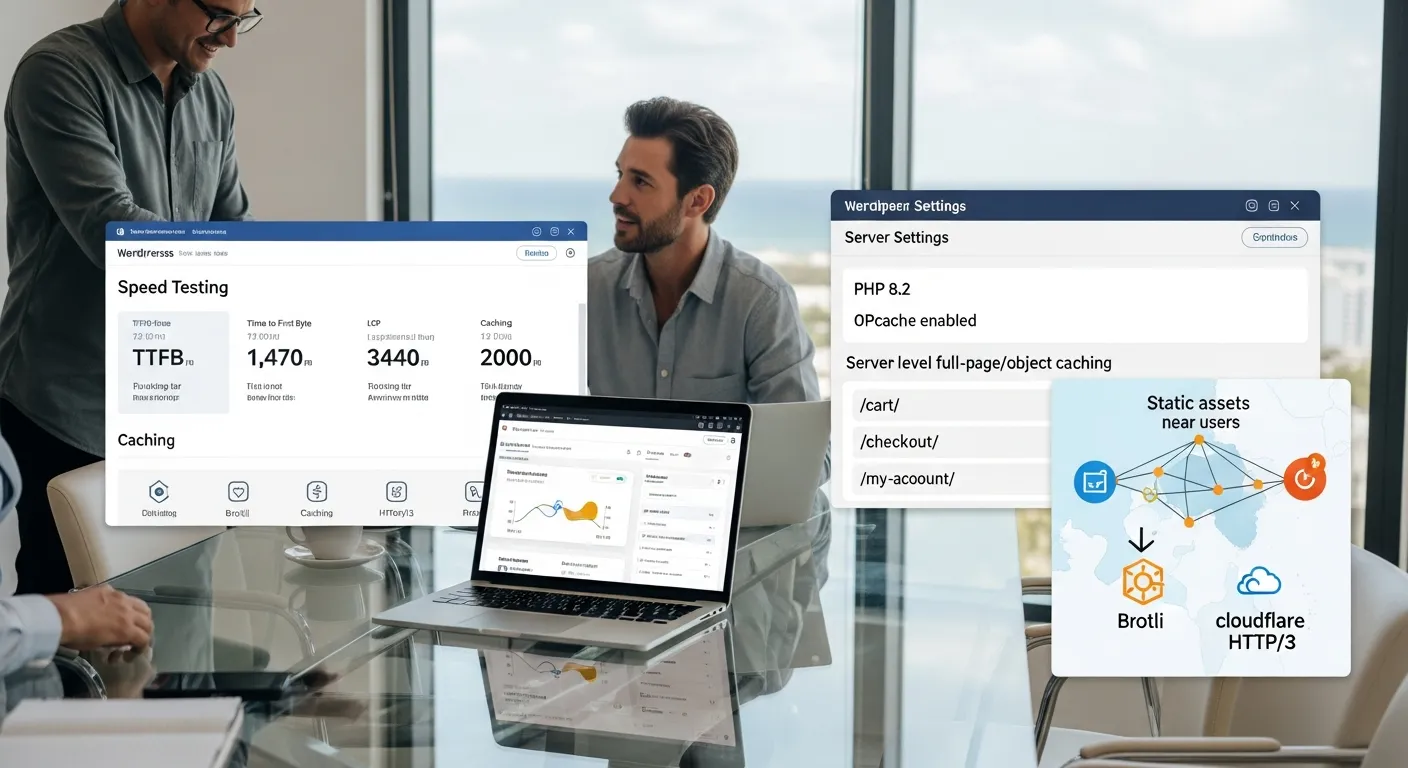
When we optimize website speed WordPress sites, the fastest wins usually come from the server. That surprises people. They expect a plugin fix, but TTFB often sets the ceiling, which means no theme tweak can outrun a slow origin.
If you run a store in Miami, a slow server in another region can add latency you feel on every click, which means local users near Brickell and Wynwood still wait.
Update PHP And Enable The Right Server Modules Safely
Modern PHP boosts WordPress execution speed, which means you reduce backend time before caching even helps.
What we aim for:
- PHP 8.1+ or 8.2 when plugin compatibility allows it, which means faster processing and better security support.
- OPcache enabled, which means PHP does not recompile scripts on every request.
Do this safely:
- Test on staging first, which means you catch a plugin that breaks on PHP 8.
- Check fatal errors in
wp-content/debug.log, which means you fix issues before users see them.
Action today (15 minutes): Ask your host what PHP version you run and whether OPcache is on.
Configure Full-Page Caching And Object Caching (Without Breaking Cart/Checkout)
Full-page caching cuts load time for repeat views, which means WordPress does not rebuild the same HTML for every visitor.
For WooCommerce, you must exclude dynamic pages, which means carts and checkout stay personal:
/cart/,/checkout/,/my-account/, which means logged-in sessions stay accurate.- Any page with personalization cookies, which means you do not cache the wrong state.
Object caching helps database-heavy sites, which means frequent queries reuse stored results. Redis or Memcached often helps when you have 300+ products and layered navigation.
If you use WP Rocket, we keep settings conservative first. Our guide on WP Rocket settings that stay stable explains what to enable without breaking purchase flows, which means you move faster with fewer rollbacks.
Action today (25 minutes): Turn on page caching, then test add-to-cart, coupon apply, and checkout on mobile.
Add A CDN For Static Assets And Set Smart Cache Rules
A CDN caches images, CSS, and JS near users, which means distance stops hurting your load time.
Cloudflare is a common choice:
- Brotli compression support, which means smaller transfers.
- HTTP/3 support, which means faster connection setup on mobile networks.
- Cache rules for
/wp-content/uploads/, which means media loads from the edge.
Be careful with HTML caching on ecommerce, which means you avoid serving the wrong cart state.
Action today (30 minutes): Enable a CDN for static assets only, then retest LCP on your top landing page.
Optimize WordPress Caching And Asset Delivery
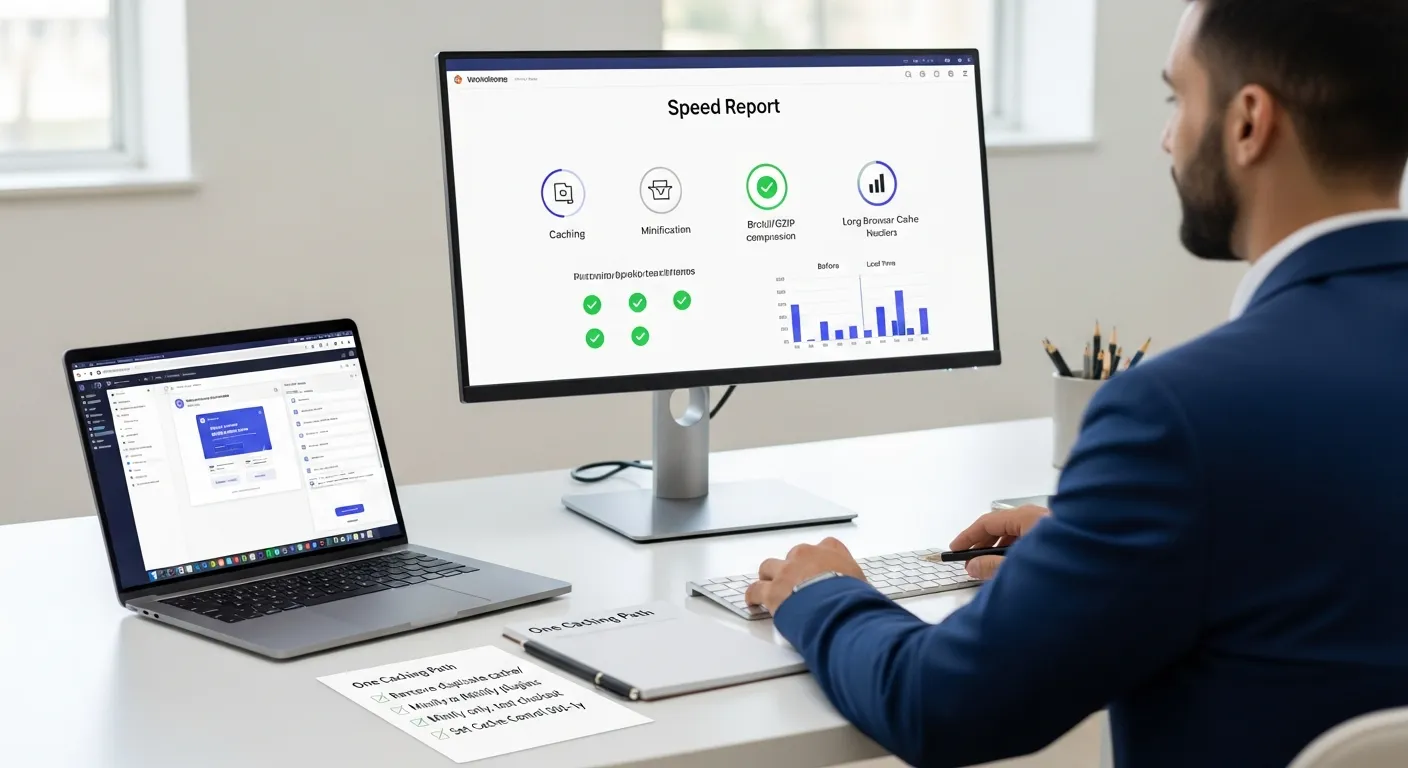
Caching can feel like a magic trick until it breaks something. We once stacked two caching plugins “just to be safe.” The result was a loop of stale CSS, which means the header looked fine for us but broken for new visitors.
This section is about one clear caching path, which means fewer conflicts.
Choose One Caching Plugin Strategy And Avoid Overlaps
Use one primary caching plugin, which means one system controls page cache, preload, and file optimization.
Common patterns we see work:
- WP Rocket + a host cache, which means WP Rocket handles front-end optimization while the server handles fast delivery.
- LiteSpeed Cache on LiteSpeed hosting, which means the plugin talks directly to the server cache.
Avoid overlap:
- Do not run WP Super Cache and WP Rocket together, which means you prevent double caching.
- Do not run two image optimizers with lazy-load, which means you avoid duplicate scripts.
For non-technical owners, we keep an 80/20 checklist in this step-by-step speed guide, which means you get wins without learning server jargon.
Action today (15 minutes): List your performance plugins and remove one that duplicates caching or minification.
Minify And Combine CSS/JS Carefully (And Know When Not To)
Minification removes whitespace, which means smaller files. Combining merges files, which means fewer requests. But HTTP/2 and HTTP/3 reduce the need to combine, which means combining can sometimes slow things down.
Safe defaults we use:
- Minify CSS and JS first, which means you reduce transfer size.
- Defer non-critical JS, which means the page renders before scripts run.
- Generate critical CSS when your tool supports it, which means LCP often drops.
High-risk areas:
- Combined JS can break checkout or sliders, which means you must test interactions.
- Deferred scripts can break analytics events, which means you verify tracking.
Action today (20 minutes): Enable minify only, then test your top 3 conversions (form submit, add-to-cart, checkout).
Enable GZIP/Brotli And Set Long Browser Cache Headers
Compression shrinks text assets, which means CSS and JS download faster.
Browser caching stores static files on the device, which means repeat visits feel instant.
Targets we aim for:
- Brotli for text assets when available, which means better compression than GZIP.
- Cache-Control headers for images, CSS, JS at 30 days to 1 year, which means fewer repeat downloads.
Most managed hosts and Cloudflare can set these at the edge, which means you do not rely on WordPress to handle it.
Action today (10 minutes): Check your PageSpeed “Serve static assets with an efficient cache policy” audit and confirm it drops after you set headers.
Make Images And Media Fast (Without Killing Quality)
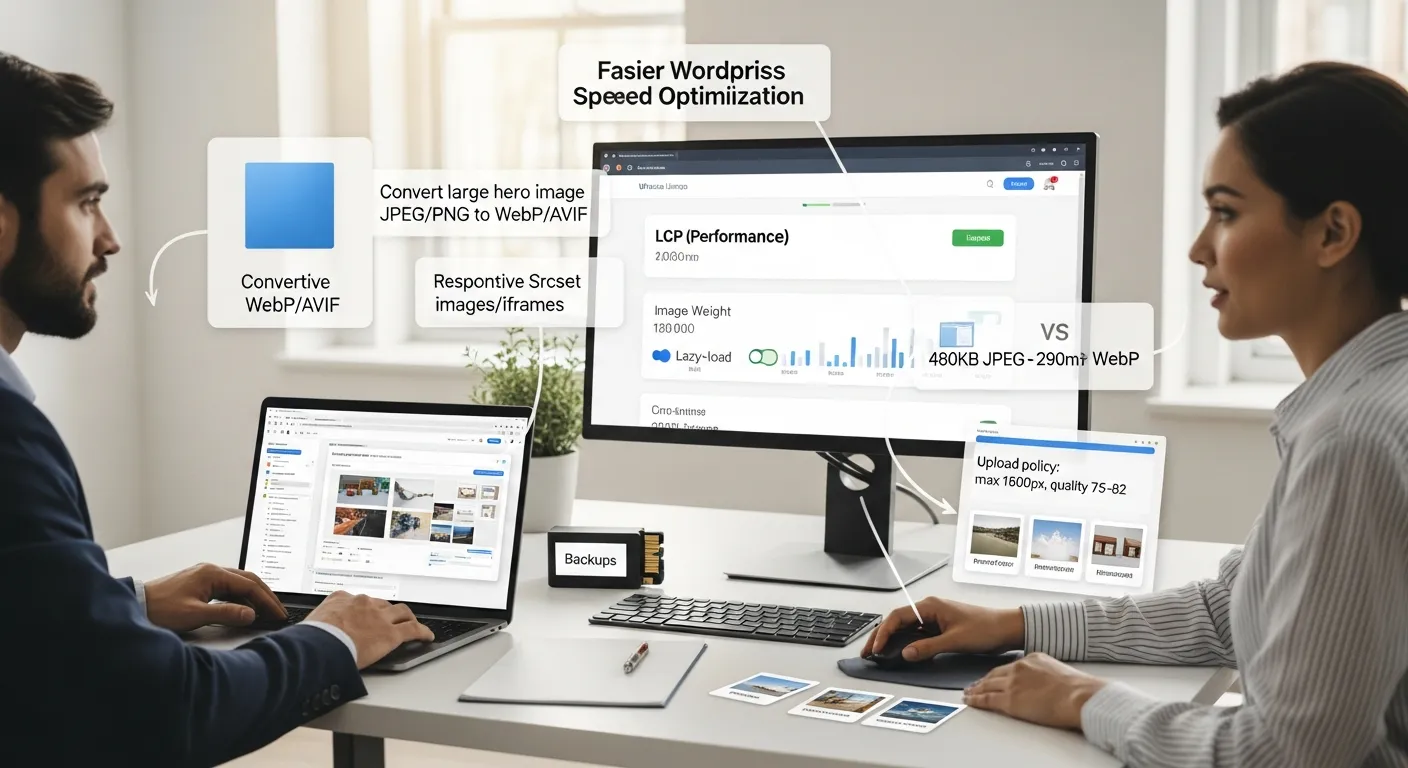
We see the same painful detail in audits: a beautiful homepage image that weighs more than the rest of the page combined. One client uploaded a 4032×3024 photo straight from an iPhone. The page looked sharp, which means nobody noticed the problem, but LCP hit 5.1s on mobile.
Media fixes are usually the safest speed wins, which means you can optimize without changing layout.
Convert To WebP/AVIF And Use Responsive Image Sizes
Modern formats compress better, which means you cut bytes without obvious quality loss.
What we carry out:
- Convert JPEG/PNG to WebP (and AVIF where supported), which means smaller files.
- Serve responsive
srcsetsizes, which means phones do not download desktop images.
A concrete example from our testing:
- A 480KB JPEG hero often becomes a 290KB WebP, which means about 190KB less transfer on first paint.
Action today (25 minutes): Pick your homepage hero image and convert it to WebP, then verify the browser serves the WebP file.
Lazy-Load Images, Iframes, And Video Embeds The Safe Way
Lazy-loading delays offscreen media, which means the browser focuses on what the user sees first.
Rules we follow:
- Do not lazy-load the LCP image, which means your hero still loads fast.
- Lazy-load iframes like YouTube, which means you avoid heavy embeds on first view.
- Use a poster image for video, which means the page stays light until play.
If you use WooCommerce product pages, lazy-load gallery thumbnails but not the main product image, which means shoppers see the product fast.
Action today (15 minutes): Turn on lazy-load and then confirm your hero image still loads as the LCP element in PageSpeed.
Clean Up The Media Library And Prevent Future Bloat
Old uploads pile up, which means backups grow and searches slow down.
We do two things:
- Remove unused images from drafts and old landing pages, which means you cut storage and clutter.
- Set upload rules (max width, compression), which means the problem does not return.
A simple policy that works:
- Cap blog images at 1600px width, which means you stop 4000px uploads.
- Set JPEG quality to 75–82, which means you keep quality while cutting size.
Action today (30 minutes): Audit your last 20 uploads and delete anything unused, then set an image size policy for your team.
Reduce Theme, Plugin, And Third-Party Script Weight
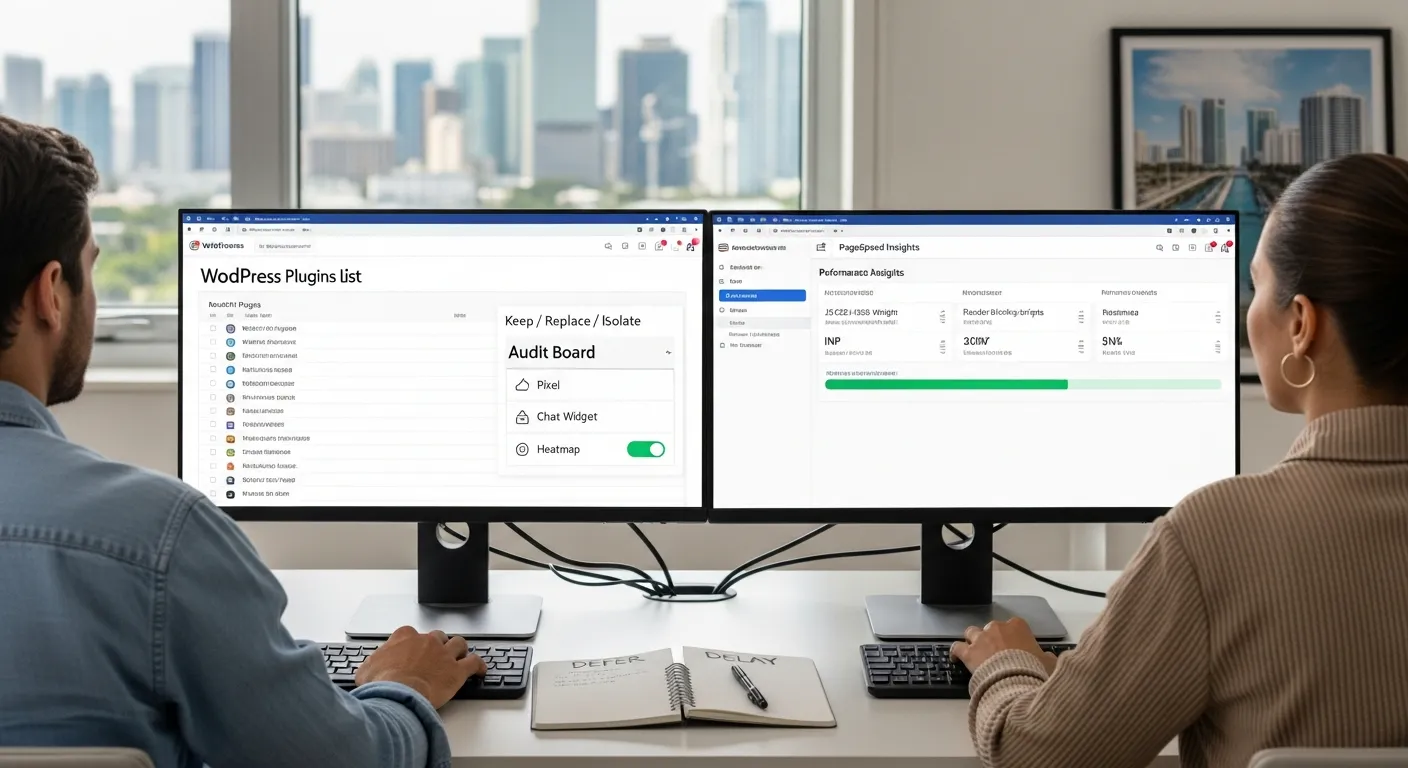
This is where optimize website speed WordPress work gets emotional. People love plugins. We do too. But each plugin can add queries, scripts, and CSS, which means your site carries hidden weight.
In Miami, we have watched restaurant sites add five marketing tags for a weekend event near Bayside Marketplace. The tags stayed for 11 months, which means every visitor paid the cost long after the event ended.
Audit Plugins By Impact: Replace, Remove, Or Isolate
You should audit plugins by measured impact, which means you remove what hurts most.
We sort plugins into three bins:
- Keep: core commerce, security, backups, which means you protect revenue.
- Replace: heavy sliders, page builders on simple sites, which means you cut bloat.
- Isolate: plugins needed on one page only, which means you avoid site-wide loads.
A practical metric:
- If a plugin adds 150KB+ of site-wide JS and you use it on one page, which means it is a good isolation candidate.
If you need a fuller plan for root causes and safe fixes, our guide on slow loading causes and a safe plan helps you prioritize, which means you do not break critical flows.
Action today (20 minutes): Disable one non-critical plugin on staging and re-run a speed test.
Stop Render-Blocking: Defer/Delay Non-Critical JavaScript
Render-blocking scripts delay first paint, which means users stare at a blank screen.
Two safer tactics:
- Defer scripts that do not affect above-the-fold layout, which means content appears sooner.
- Delay scripts until user interaction, which means idle visitors do not pay the cost.
We often delay:
- Popups, which means no popup code runs until needed.
- Social embeds, which means heavy widgets wait.
- Some analytics add-ons, which means tracking loads after paint.
Action today (25 minutes): Delay one script group (like chat) and then test your main CTA click.
Tame Marketing Pixels, Chat Widgets, And Embedded Trackers
Third-party scripts can dominate INP, which means the page feels laggy even when it loads fast.
We use a simple rule: keep only what you can name and justify.
Common offenders:
- Meta Pixel plus two tag managers, which means duplicate tracking.
- Live chat that loads on every page, which means constant JS weight.
- Heatmaps on checkout, which means slower payment steps.
A data point worth knowing: Google reports that 53% of mobile visits are abandoned if a site takes longer than 3 seconds to load, which means speed protects revenue (source: Google/SOASTA research).
Action today (15 minutes): Remove one tracker you no longer use and retest INP in PageSpeed.
Tune WordPress And The Database For Sustained Performance
Database tuning feels invisible until it fails. We once inherited a site with autoloaded options over 12MB. The admin area crawled, which means simple edits took 40 seconds.
These fixes keep performance stable over months, which means your speed work does not fade.
Reduce Autoloaded Options And Clean Transients
WordPress loads autoloaded options on many requests, which means bloated autoload slows every page.
What we do:
- Remove expired transients, which means you clear junk cache rows.
- Audit autoload size and clean unused plugin leftovers, which means you shrink per-request load.
A practical threshold:
- If autoloaded options exceed 1–2MB, which means you should investigate.
For an ongoing routine that combines caching, images, and cleanup, our maintenance playbook for speed keeps it repeatable, which means you can assign it monthly.
Action today (20 minutes): Run a database cleanup tool on staging and note autoload size before and after.
Optimize Revisions, Heartbeat, And WP-Cron With Care
Revisions add rows, which means the database grows fast on active blogs.
Heartbeat can increase admin AJAX calls, which means the editor feels slow.
WP-Cron runs on page visits, which means low-traffic sites can miss scheduled tasks.
Safe starting points:
- Limit revisions to 10–20, which means you keep history without bloat.
- Reduce Heartbeat frequency in admin, which means fewer background calls.
- Move cron to a real server cron job on busy sites, which means schedules run reliably.
Action today (30 minutes): Set a revision limit and confirm scheduled posts still publish.
Offload Heavy Jobs: Backups, Search, Email, And Video Processing
Some jobs do not belong on your web server, which means you keep page loads fast under load.
Common offloads:
- Backups to external storage, which means backups do not spike CPU.
- SMTP email services like Google Workspace or Mailgun, which means emails deliver without blocking PHP.
- Video hosting on YouTube, Vimeo, or Cloudflare Stream, which means your server avoids large file delivery.
Action today (20 minutes): Move contact form email to SMTP and verify delivery logs for one test message.
Deploy Like A Pro: Staging, Rollback, And Monitoring
Speed changes can break revenue paths. We treat wordpress website speed optimization like a release, which means we plan rollback before we touch settings.
Run Changes In Shadow Mode With A Staging Site
A staging site lets you test without risk, which means customers do not become your QA team.
Our flow:
- Clone production to staging, which means you match real plugins and data.
- Apply one change at a time, which means you can attribute results.
- Retest the same pages, which means you compare apples to apples.
Action today (20 minutes): Ask your host to enable staging, then clone your site and label it with today’s date.
Set Guardrails For Regulated And High-Risk Sites
Regulated sites need stricter rules, which means you protect privacy and compliance.
Guardrails we set:
- Do not paste patient, legal, or financial data into third-party tools, which means you reduce exposure.
- Exclude checkout and account pages from aggressive optimization, which means transactions stay stable.
- Keep human review on copy and claims, which means you avoid policy violations.
Action today (15 minutes): Write a “no sensitive data” rule in your team SOP and add it to onboarding.
Monitor Core Web Vitals Over Time And Catch Regressions
Speed regresses when teams publish fast. A new slider lands. A new pixel lands. LCP jumps by 1 second, which means rankings and conversions can slip.
Monitoring solves this:
- Use Google Search Console CWV reports, which means you see field data trends.
- Track key pages weekly, which means you catch changes early.
- Log changes (plugin installs, theme edits), which means you can trace regressions.
Action today (15 minutes): Create a simple changelog doc and require an entry for every plugin install or script add.
Conclusion
Speed work feels best when it stays boring. That sounds odd, but it is true. A boring process produces stable results, which means you stop firefighting.
If you want to optimize website speed WordPress sites with low risk, follow the order in this checklist: measure, fix server, fix caching, trim media and scripts, then tune the database. Start small. Prove each win. Keep humans in the loop.
Do this today (30 minutes): Pick one money page, run a baseline test, and commit to one change you can roll back fast.
Frequently Asked Questions About Optimizing Website Speed in WordPress
How do I optimize website speed in WordPress without breaking my site?
Start by measuring Core Web Vitals (LCP, INP, CLS) and TTFB, then fix hosting/server caching, choose one caching path, and only then optimize images and scripts. Treat each change like a release: use staging, change one thing at a time, and keep before/after evidence.
What metrics should I track to optimize website speed WordPress sites for SEO?
Prioritize Core Web Vitals over “perfect scores”: LCP ≤ 2.5s, INP ≤ 200ms, and CLS ≤ 0.1. Also track TTFB because slow server response caps everything else. Capture baselines in PageSpeed Insights and GTmetrix so you can tie each improvement to a real metric change.
Which is better for WordPress speed testing: PageSpeed Insights or GTmetrix?
Use both because they answer different questions. PageSpeed Insights highlights Core Web Vitals and field data when available, while GTmetrix makes bottlenecks obvious with a waterfall and file-by-file detail. For a clearer decision framework, see this breakdown of which tool to trust.
What’s the best caching setup to optimize website speed WordPress (especially WooCommerce)?
Use one primary caching strategy to avoid conflicts: either a host cache plus WP Rocket, or LiteSpeed Cache on LiteSpeed hosting. For WooCommerce, exclude dynamic pages like /cart/, /checkout/, and /my-account/ so personalization stays correct. Safe defaults are outlined in these WP Rocket settings.
How can I make WordPress images load faster without hurting quality?
Convert large JPEG/PNG images to WebP (and AVIF where supported), serve responsive sizes (srcset), and lazy-load offscreen media—without lazy-loading your LCP “hero” image. Set team upload rules (like 1600px max width and reasonable compression) to prevent future bloat. For quick wins, follow this step-by-step speed guide.
Why is my WordPress site still slow after installing a speed plugin?
Plugins can’t outrun a slow server or heavy third-party scripts. High TTFB, an oversized theme, too many site-wide plugins, and chat/pixels that block rendering often keep INP and LCP high. Use a measured checklist to isolate root causes in this safe speed-optimization plan and maintain gains with this maintenance playbook.
Some of the links shared in this post are affiliate links. If you click on the link & make any purchase, we will receive an affiliate commission at no extra cost of you.
We improve our products and advertising by using Microsoft Clarity to see how you use our website. By using our site, you agree that we and Microsoft can collect and use this data. Our privacy policy has more details.
