
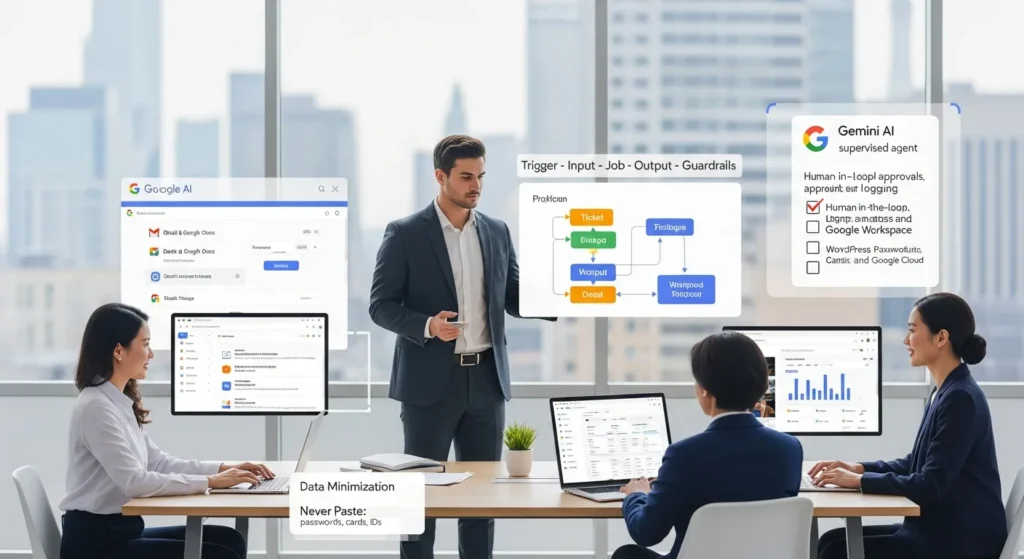
Google AI shows up in more places than most teams realize, and in 2026 it often acts less like a chatbot and more like a supervised agent. We have watched a simple “summarize this thread” request turn into a draft reply, a task list, and a calendar follow-up in one pass.
Quick answer: Google AI is most useful when you treat it like a “brain” that sits between your triggers and your actions, with clear guardrails, human approval, and logging. If you run your business on WordPress, WooCommerce, and a few SaaS tools, you can pilot it in 30 days without turning your website into a research lab.
Key Takeaways
- In 2026, Google AI is most effective as a supervised agent that plans multi-step work with human approval, not an unsupervised chatbot with broad access.
- Combine Gemini (reasoning), Google Workspace (where teams work), and Google Cloud AI (workflow glue) to turn summaries, drafts, and classifications into repeatable business workflows.
- Use Google AI for high-leverage, low-risk tasks like marketing briefs, content repurposing, support ticket triage, and ops intake—then require human verification for claims, policies, and customer-facing outputs.
- Protect privacy and compliance by minimizing inputs, enforcing a “never paste” list (cards, IDs, medical details, passwords/API keys), and using safe tokens instead of raw customer data.
- Build every workflow with a safety-first map (Trigger → Input → Job → Output → Guardrails) and add checkpoints, logging, versioning, and rollback before anything can publish or send.
- Run a 30-day pilot by choosing one painful workflow, testing in shadow mode with prompts as SOP templates, and launching draft-only with clear metrics like minutes saved and draft acceptance rate.
What “Google AI” Means In 2026 (And What It Does Not)
In 2026, “Google AI” usually means Gemini models embedded across Google products, plus agent-style systems that can plan and execute multi-step work under supervision. That shift matters because planning -> affects -> outcomes more than clever writing does.
Google AI does not mean you should let an unsupervised bot roam through your customer database. Security controls, identity, and review still decide what is safe.
Gemini, Google Workspace, And Cloud AI In Plain English
Gemini -> powers -> Google Workspace features like Gmail summaries, Docs drafting, and “search my inbox with a sentence.” Google Cloud AI -> supports -> workflow automation where tasks move across apps through APIs and policies.
Here is the simple mental model we use with clients:
- Gemini = the reasoning engine (summarize, draft, classify, extract).
- Workspace = the place where staff already work (email, docs, sheets).
- Cloud = the glue for workflows (routing, permissions, and audit trails).
When you combine them, you get agentic behavior: the system can take a goal, plan steps, and produce outputs that look like “work got done.” Still, you keep humans in the loop.
Where Google AI Shows Up Day To Day (Search, Ads, Android, And Docs)
You feel Google AI even if you never open an AI tool.
- Search: AI Overviews -> shape -> how people discover products and answers, especially on detailed queries. That can help discovery, but it can also reduce clicks to individual sites.
- Ads: AI-assisted targeting and creative suggestions -> change -> campaign workflows, which pushes teams to tighten brand safety checks.
- Android: on-device features -> speed up -> daily tasks like note-taking, voice input, and content drafts.
- Docs: summarizing long notes -> reduces -> “where did we decide that?” meetings.
If you rely on organic search, this is the moment to strengthen how your content appears in AI-influenced results. We go deeper on that in our guide to improving AI optimization for working professionals (we focus on goals, prompts, and measurable workflows).
The Best-Fit Use Cases For Small Teams And Regulated Pros
The best use cases share one trait: the AI handles the boring parts, and a human owns the final call. Drafting -> speeds -> throughput. Review -> prevents -> expensive mistakes.
If you are in legal, healthcare, finance, or insurance, keep the scope narrow at first. Use Google AI for summaries, classification, and first drafts, not final advice.
Marketing And Content Ops: Briefs, Outlines, Repurposing, And QA
Marketing teams feel instant relief when Google AI takes the “blank page” step.
Use it for:
- Briefs: a prompt -> produces -> a structured brief with audience, offer, and angle.
- Outlines: a topic list -> becomes -> a publish-ready outline for a blog or landing page.
- Repurposing: one webinar transcript -> creates -> snippets for email, social, and product FAQs.
- QA support: a checklist prompt -> flags -> missing claims support, odd tone shifts, or unclear CTAs.
We like a rule: if a claim can trigger a refund, a chargeback, or a complaint, a human must verify it.
Customer Support: Triage, Summaries, And Draft Replies (With Human Review)
Support inboxes punish small teams. A surge -> causes -> slow replies, and slow replies -> cause -> bad reviews.
Google AI helps when you treat it like a triage assistant:
- It summarizes long threads so agents do not reread everything.
- It classifies tickets (billing, shipping, technical, legal).
- It drafts replies that your staff edits and approves.
This is also where you should enforce “no sensitive paste” rules. Do not put payment details, medical history, or private identifiers into prompts.
Operations: Intake Forms, Classification, And Internal Knowledge Bases
Ops work usually looks like: form submissions, messy notes, and repeat questions.
Google AI -> turns -> unstructured text into structured fields:
- New lead forms -> become -> tagged CRM entries.
- Vendor emails -> become -> categorized requests.
- Internal questions -> get -> draft answers from your approved knowledge base.
When you wire this into WordPress, you reduce manual copy-paste, and copy-paste -> causes -> errors.
A Safety-First Workflow Map: Trigger → Input → Job → Output → Guardrails
We build every Google AI workflow the same way: Trigger → Input → Job → Output → Guardrails. Clear structure -> reduces -> risk.
This is what that means in practice:
- Trigger: what starts the run (new ticket, new order, new form submission).
- Input: what the model sees (only what it needs).
- Job: what the model does (summarize, classify, draft).
- Output: where results go (draft post, CRM note, help desk draft).
- Guardrails: what blocks mistakes (filters, approvals, logging).
Data Minimization And Access Rules (What Never To Paste In)
Data minimization -> reduces -> breach impact. It also reduces accidental policy violations.
We set a “never paste” list early:
- Payment card data
- Government IDs
- Full medical details
- Private legal strategy notes
- Passwords, API keys, and admin login details
If you need personalization, pass safe tokens instead of raw data. Example: “Customer tier: Gold” beats “Here is their full purchase history.”
Human-In-The-Loop Checkpoints And Approval Paths
Human review -> prevents -> confident nonsense from going live.
Add checkpoints where risk spikes:
- Before publishing anything to your WordPress site
- Before sending a customer-facing reply
- Before changing prices, policies, or terms
In regulated work, we prefer a two-step approval: staff review first, supervisor review second.
Logging, Versioning, And Rollback For AI-Assisted Changes
Logging -> supports -> accountability. Versioning -> enables -> fast rollback.
At minimum, keep:
- The prompt version used
- The input source (without sensitive payloads)
- The output text
- The approver name and timestamp
On WordPress, store drafts and revisions so you can revert quickly if something slips through.
How To Connect Google AI To WordPress Without Making It A Science Project
Most teams do not need a custom platform to use Google AI with WordPress. You need a clean workflow, a few connection points, and rules that stop bad outputs.
We usually start with the lowest-risk path, then move closer to native WordPress once the pilot proves value.
Low-Code Automations With Zapier, Make, Or n8n
Low-code tools -> connect -> triggers and actions across your stack.
Common patterns:
- New Typeform or WPForms entry -> creates -> a summary in Google Docs
- New help desk ticket -> generates -> a draft reply in a shared queue
- New WooCommerce review -> flags -> sentiment and urgency
The benefit is speed. You can test in days. The tradeoff is governance. You still need logs, approvals, and tight input controls.
WordPress-Native Hooks And Patterns (save_post, Webhooks, ACF Fields)
When you want tighter control, WordPress hooks -> give -> predictable workflow points.
A few patterns we use:
- save_post -> triggers -> a content QA run (tone check, internal link suggestions, missing FAQs)
- Webhooks -> send -> a draft to a review system and receive approved edits back
- ACF fields -> store -> structured AI outputs like “primary intent,” “FAQs,” or “product highlights”
This is where a small custom plugin often beats a pile of one-off snippets. Clear code paths -> reduce -> surprise behavior.
If you are planning site work anyway, our WordPress SEO services approach pairs well with AI-assisted QA because it keeps content quality tied to measurable outcomes.
WooCommerce And CRM Touchpoints (Product Copy, Tickets, And Segments)
WooCommerce data -> informs -> better product content, but you still need guardrails.
Good uses:
- Product specs -> become -> benefit bullets and sizing guidance
- Order notes -> become -> support context summaries
- Customer tags -> drive -> segmented email drafts
Bad uses:
- Auto-publishing product descriptions without review
- Writing policy pages without legal review
When revenue and refunds sit on the line, draft-first beats auto-post.
Quality, SEO, And Compliance Checks Before Anything Goes Live
Google AI can save time, but it can also ship mistakes faster. Quality checks -> protect -> your brand. Compliance checks -> protect -> your business.
Editorial Standards: Originality, Voice, And “No Hallucinations” Claims Policy
We set a simple editorial policy that teams can follow under pressure:
- AI drafts -> require -> human edits that add real experience and proof
- Claims -> need -> a source or removal
- Quotes, stats, and legal statements -> need -> verification
We also forbid “no hallucinations” promises in marketing. Models can produce wrong details. Your process must catch them.
Search And Ads Considerations: Helpful Content, Disclosures, And Brand Safety
AI Overviews -> change -> click patterns, so your content must earn trust fast.
Practical moves:
- Put the answer near the top of key pages.
- Add clear author and review signals on sensitive topics.
- Disclose AI assistance when it matters for trust, especially in health, finance, or legal topics.
- Keep ads copy within approved language lists.
If you run paid campaigns, brand safety rules -> prevent -> accidental violations from a “creative suggestion” that goes too far.
Privacy And Policy Basics: Consent, Retention, And Vendor Review
Privacy rules -> set -> what data you can process and store.
Even for small teams, we recommend:
- A written rule for what staff can paste into prompts
- Consent checks for user-submitted content reuse
- Retention limits for logs and drafts
- A quick vendor review: where data goes, who can access it, and how you delete it
When your site collects forms, appointment details, or payment data, you need this discipline before you automate anything.
A 30-Day Pilot Plan You Can Actually Run
A 30-day pilot works when it stays narrow. One workflow -> creates -> proof. Proof -> earns -> budget and buy-in.
Week 1: Pick One Workflow And Define Success Metrics
Pick one process that hurts weekly, not yearly.
Good candidates:
- Support triage for a shared inbox
- Drafting product FAQs from real tickets
- Summarizing sales calls into CRM notes
Define success in plain numbers:
- Minutes saved per ticket
- Draft acceptance rate after human edits
- Fewer missed follow-ups
Weeks 2–3: Shadow Mode Tests And Prompt-as-SOP Templates
Run shadow mode. The AI produces outputs, but humans do the real work as usual.
During this phase:
- Prompts -> become -> SOP templates with clear inputs and forbidden data
- Review notes -> improve -> prompt rules
- Edge cases -> shape -> guardrails
You want repeatable prompts, not clever one-offs.
Week 4: Launch With Guardrails And Measure Time Saved
Launch the workflow with approvals and logging.
Keep the first launch boring:
- Draft-only outputs
- One approval role
- One rollback path
Then measure time saved per interaction. If you save 10 minutes per ticket and you handle 200 tickets a month, you just found real capacity without hiring.
After week 4, you can expand to a second workflow, but only after you lock in the governance that kept the first one safe.
Conclusion
Google AI works best when you treat it like a supervised agent that drafts, sorts, and summarizes, not a substitute for judgment. We get the fastest wins when we map the workflow first, limit inputs, add approvals, and keep logs that let you roll back.
If you want a practical next step, pick one low-risk workflow this week and run it in shadow mode. You will learn more from seven days of real tickets and real drafts than from a month of debating tools.
Frequently Asked Questions (FAQ) About Google AI
What is Google AI in 2026, and how is it different from a chatbot?
In 2026, Google AI usually means Gemini models embedded across Google products plus supervised, agent-style workflows. Instead of only chatting, it can plan multi-step tasks—like summarizing a thread, drafting a reply, creating a task list, and scheduling a follow-up—while you keep guardrails, approval, and logging.
How can small teams use Google AI safely as a supervised agent?
Treat Google AI like a “brain” between triggers and actions: define the Trigger → Input → Job → Output → Guardrails flow. Keep inputs minimal, require human approval before anything customer-facing or published, and log prompt versions and outputs. This approach captures speed benefits without letting an unsupervised bot roam.
Where does Google AI show up day to day in Search, Ads, Android, and Docs?
Google AI influences Search via AI Overviews, which can change discovery and click patterns. In Ads, it suggests targeting and creative, increasing the need for brand-safety checks. On Android, on-device AI speeds note-taking and drafts. In Docs and Gmail, it summarizes, drafts, and enables natural-language search.
How do you connect Google AI to WordPress or WooCommerce without overcomplicating it?
Start with low-code tools like Zapier, Make, or n8n to connect triggers (forms, tickets, reviews) to draft outputs in Docs or your help desk. When you need more control, use WordPress hooks (like save_post), webhooks, and ACF fields to store structured AI results—always draft-first with approvals and rollback.
What should you never paste into Google AI prompts, and why?
Follow data minimization: never paste payment card data, government IDs, full medical details, private legal strategy notes, passwords, API keys, or admin logins. Limiting sensitive inputs reduces breach impact and accidental policy violations. When personalization is needed, pass safe tokens (e.g., “Customer tier: Gold”) instead of raw records.
How can I measure ROI from Google AI during a 30-day pilot?
Pick one painful weekly workflow (support triage, drafting product FAQs, call summaries) and define metrics like minutes saved per ticket, draft acceptance rate after human edits, and fewer missed follow-ups. Run “shadow mode” first, then launch draft-only with approvals and logging. Quantify savings against monthly volume to estimate capacity gained.
Some of the links shared in this post are affiliate links. If you click on the link & make any purchase, we will receive an affiliate commission at no extra cost of you.
We improve our products and advertising by using Microsoft Clarity to see how you use our website. By using our site, you agree that we and Microsoft can collect and use this data. Our privacy policy has more details.
