
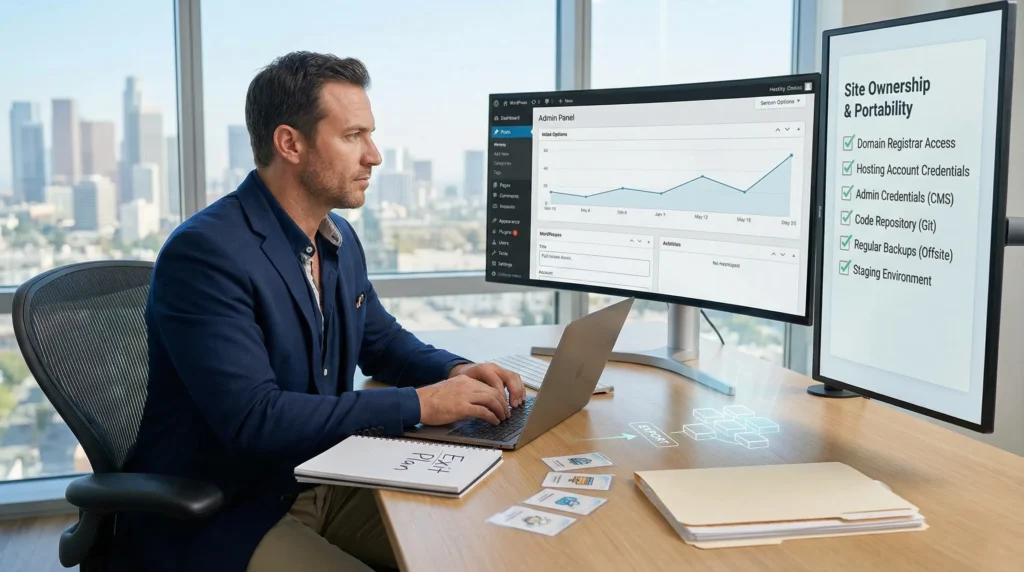
Concerns about being locked into WordPress platform usually hit at the worst time: you need a new feature, your dev goes quiet, and your site feels like it is held together by plugin duct tape. We have watched founders stare at an admin screen like it is a cockpit, wondering, “If we ever need to leave… can we?”
Quick answer: WordPress itself is open-source, so “platform lock-in” is often lower than people fear, but bad build choices and vendor control can still trap you. The good news is you can reduce that risk with a few boring, practical decisions.
Key Takeaways
- Concerns about being locked into WordPress platform are usually driven by switching costs from themes, builders, plugins, and ownership gaps—not WordPress “owning” your site.
- Separate platform lock-in (WordPress-specific architecture) from vendor lock-in (someone else controls your domain/hosting/code) and skill lock-in (only one person understands the setup) so you can fix the right risk.
- WordPress is often less “lock-in” than closed platforms because it’s open-source and supports exports via built-in tools and the REST API, but builder layouts, ACF/CPT schemas, SEO settings, and WooCommerce logic can still take real work to migrate.
- Reduce WordPress lock-in by choosing a “boring stack” (block editor, a well-supported theme, minimal widely used plugins) and avoiding shortcode-heavy page builders that create costly rebuilds later.
- Protect your exit options by owning registrar/hosting/admin access, keeping custom code in a repo you control, and insisting on documentation plus basic admin training for reversible handoffs.
- Create a weekend-ready exit plan with a content inventory, routine exports and restore-tested offsite backups, clean separation of content/design/functionality, and a small shadow migration to reveal landmines early.
What “WordPress Lock-In” Actually Means (And What It Does Not)
WordPress lock-in is not some mystical curse. It is a set of switching costs that stack up over time.
Here is what lock-in usually means in real life:
- Your content exports, but your layouts break.
- Your store data exists, but your checkout logic lives inside a plugin maze.
- Your agency holds the keys to your domain, hosting, or code.
What it does not mean: “WordPress owns your site.” WordPress is open-source software. You can copy the codebase, move hosts, and hire a different team. Lock-in shows up when your setup creates dependencies.
Platform Lock-In Vs Vendor Lock-In Vs Skill Lock-In
These three get mixed together, so let’s separate them.
- Vendor lock-in happens when a provider controls assets you should control. Vendor access -> blocks -> fast handoff. If your domain is registered under someone else’s account, they can slow-walk a move.
- Platform lock-in happens when your site architecture depends on WordPress-specific patterns. A shortcode-heavy builder -> turns -> content into tool-specific markup.
- Skill lock-in happens when only one person knows how things work. Hidden custom code -> causes -> “do not touch it” fear.
We care most about vendor lock-in, because it is avoidable with paperwork and access rules.
Where People Feel Stuck: Themes, Builders, Plugins, And Hosting
We see four common “stuck points.”
- Themes and page builders: A builder stores layout as proprietary shortcodes or blocks. You can export text, but you lose structure.
- Plugins: A plugin stores data in its own tables or formats. Plugin data -> limits -> clean exports.
- Hosting layers: Some hosts bundle custom caching, control panels, or “magic” performance stacks. Host tooling -> increases -> switching friction.
- Ownership gaps: No one can find license keys, admin logins, or where forms store submissions.
If your fear is “WordPress will trap me,” pause. Most lock-in comes from choices you can control before launch, and choices you can unwind later with a plan.
Why WordPress Is Often Less “Lock-In” Than Closed Platforms
Closed platforms often feel easy until they do not. Proprietary CMS vendors can restrict source code access, hosting options, and export paths. Vendor policy -> controls -> your exit.
WordPress works differently because its code is public and widely supported.
Open-Source Portability And Data Ownership Basics
WordPress runs under the GNU General Public License, which keeps the software open and redistributable. Open licensing -> enables -> portability across hosts and teams.
Your actual ownership still depends on operations:
- You should own your domain registrar login.
- You should own your hosting account.
- You should have admin access in WordPress.
- You should store custom code in a repo you control.
If you want a calm, boring setup that you can move later, we often point clients to checklists for building from day one. This guide on how to build a WordPress site gives a good “start clean” path without painting you into a corner.
What You Can Export Easily (And What Takes Work)
WordPress gives you decent export paths for core content. The built-in export tool and REST API can move posts, pages, comments, and media references.
What takes work:
- Builder layouts: builder markup -> breaks -> outside the builder.
- Custom fields (ACF) and Custom Post Types: custom schemas -> require -> mapping scripts.
- SEO plugin settings: SEO metadata -> lives -> in plugin structures.
- WooCommerce data: products and orders export, but your exact checkout rules and extension settings may not.
Migration is rarely “click one button.” Still, WordPress gives you more escape hatches than closed systems, which often gate exports behind vendor plans or limited tooling.
The Real Lock-In Risks Inside WordPress (And How They Happen)
If you want the plain truth, WordPress lock-in usually comes from convenience decisions that felt fine on a Tuesday afternoon.
Page Builders And Shortcode Debt
Page builders can speed up launches. They can also leave you with shortcode debt.
Shortcodes -> render -> layouts. Remove the builder -> reveals -> brackets and broken pages.
Elementor, Divi, and similar tools vary in how portable their output is. If your whole site is “builder everywhere,” the cost to switch themes or editors goes up fast.
Custom Post Types, ACF Fields, And Content Modeling Traps
Custom Post Types and Advanced Custom Fields can be clean engineering or a trap. The difference is documentation and restraint.
A messy content model -> forces -> manual rebuilds later.
Common problems we inherit:
- Fields named like “field_92a1” with no meaning.
- No map of where templates live.
- Business rules buried inside a theme file.
Custom structure is not bad. Undocumented structure is what hurts.
Plugin Dependencies, SEO Tooling, And Ecommerce Complexity
Plugins keep WordPress flexible. They also create hidden dependency chains.
Plugin sprawl -> increases -> break risk.
A typical ecommerce setup might include WooCommerce, a payment gateway plugin, shipping rules, tax logic, subscriptions, a form tool, and an SEO plugin. Each adds data and settings.
When you plan for reversibility, you treat plugins like contracts:
- What data does it store?
- How do we export it?
- Who owns the license?
- What happens if it shuts down?
This is also where operational capacity matters. If your team already feels stretched, you will feel “locked in” faster. We wrote about that pressure in our post on lacking technical expertise to maintain WordPress sites, because skill lock-in often hides behind the phrase “we do not want to break anything.”
How To Reduce Lock-In Before You Build Or Redesign
We think about lock-in the way we think about fire drills. You do not plan one because you expect a fire. You plan one because exits should stay clear.
Choose A “Boring Stack”: Block Editor, Standards, And Minimal Plugins
A boring stack keeps your options open.
- Use the WordPress block editor for most pages.
- Keep design in a well-supported theme, and keep business logic in plugins.
- Pick fewer plugins, and pick widely used ones with active support.
Standards-based content -> improves -> portability.
If you need staging or migrations, do not wing it on production. A clear tool choice reduces panic later. Our comparison of migration and staging tools helps teams choose a safer workflow.
Insist On Documentation, Admin Training, And Reversible Decisions
When we onboard a build, we document the system like it is going to change hands. Because it might.
Documentation -> speeds -> vendor swap.
Ask for:
- A plugin list with “why it exists.”
- Where custom code lives.
- How forms store submissions.
- How to rotate credentials.
And yes, insist on a short admin training. Two hours of training -> reduces -> future dependency.
Data, Backups, And Staging As Non-Negotiables
Backups are not a feature. They are your exit hatch.
Backups -> protect -> your ability to move.
You want:
- Automated offsite backups (not only inside a host dashboard).
- A restore test every quarter.
- A staging site for updates and experiments.
If you do not have staging yet, set it up before the next redesign. This walkthrough on creating a staging environment in WordPress covers a safe setup path without guesswork.
An Exit Plan You Can Put In Place In A Weekend
You do not need a 40-page document. You need a short exit plan with receipts.
Create A Content Inventory And Export Routine
Inventory -> reveals -> hidden dependencies.
Make a simple sheet:
- Content types (pages, posts, products, landing pages)
- Where each lives (core, ACF, builder templates)
- Plugins that store critical data (forms, SEO, ecommerce)
- Export path for each
Then set a routine:
- Monthly database backup download
- Quarterly XML export
- Quarterly restore test
If you want a repeatable cadence, our WordPress maintenance checklist is a solid starting point.
Separate Concerns: Design, Content, And Functionality
Separation reduces lock-in because you can swap one layer at a time.
- Put custom features in a plugin, not in a theme.
- Keep content in the editor, not hardcoded in templates.
- Store configuration in documented settings.
Clean separation -> lowers -> rebuild cost.
This approach also makes it easier to hand work to a new agency without a full rewrite.
Test A Migration Path In Shadow Mode
A shadow test is the calm way to learn what will break.
Shadow migration -> exposes -> friction early.
Pick 10 pages and 10 products. Clone the site to a new host or a fresh WordPress install. Then test:
- Checkout flow
- Form delivery
- SEO metadata
- Redirects
- Media and page layouts
You do not need to finish a full move. You only need to learn where the landmines sit.
If maintenance is the thing that keeps slipping, a service partner can hold the routine without holding you hostage. We reviewed WordPress maintenance services so you can see what “good support” looks like on paper.
Conclusion
Being worried about lock-in is not paranoia. It is a sign you take your business seriously.
WordPress gives you a fair exit compared to closed platforms, but only if you keep ownership clean, keep your stack boring, and keep your data portable. If you want, we can help you map your current setup into a simple diagram: trigger, input, job, output, guardrails. Once you can see the system, you can change the system, without the cold-sweat “what if we are stuck?” feeling.
Frequently Asked Questions About WordPress Lock-In
What does being “locked into WordPress” actually mean?
WordPress lock-in usually means rising switching costs: you can export content, but layouts break; store data exists, but checkout logic lives in plugin settings; or an agency controls your domain, hosting, or code. WordPress is open-source—dependencies (not ownership) create the trap.
Is WordPress lock-in lower than closed website platforms?
Often, yes. WordPress is open-source under the GPL, so you can move hosts, copy the codebase, and hire a different team. Closed platforms may restrict source code, hosting choices, or exports. With WordPress, the real risk is how you build—builders, plugins, and access control.
What’s the difference between platform lock-in, vendor lock-in, and skill lock-in in WordPress?
Platform lock-in comes from WordPress-specific architecture, like shortcode-heavy builders that don’t travel well. Vendor lock-in happens when a provider controls assets you should own (domain, hosting, admin access). Skill lock-in is when only one person understands the custom code and nobody dares touch it.
What can I export from WordPress easily, and what’s hard to migrate?
WordPress can export core content like posts, pages, comments, and media references via the built-in export tool or REST API. Harder items include page builder layouts, Custom Post Types and ACF field schemas, SEO plugin metadata structures, and WooCommerce checkout rules and extension settings.
How do I reduce WordPress platform lock-in before a redesign or rebuild?
Use a “boring stack”: the block editor for most pages, a well-supported theme for design, and minimal, widely used plugins for functionality. Insist on documentation and admin training, keep custom code in a repo you control, and make backups plus staging non-negotiables for safe changes.
Can I leave WordPress later without losing SEO rankings?
Yes, if you plan the migration. Preserve URLs where possible, set up 301 redirects for changed paths, and migrate key metadata (titles, descriptions, canonicals, structured data) from your SEO plugin. Before switching, run a “shadow migration” on sample pages to catch layout and redirect issues early.
Some of the links shared in this post are affiliate links. If you click on the link & make any purchase, we will receive an affiliate commission at no extra cost of you.
We improve our products and advertising by using Microsoft Clarity to see how you use our website. By using our site, you agree that we and Microsoft can collect and use this data. Our privacy policy has more details.
