
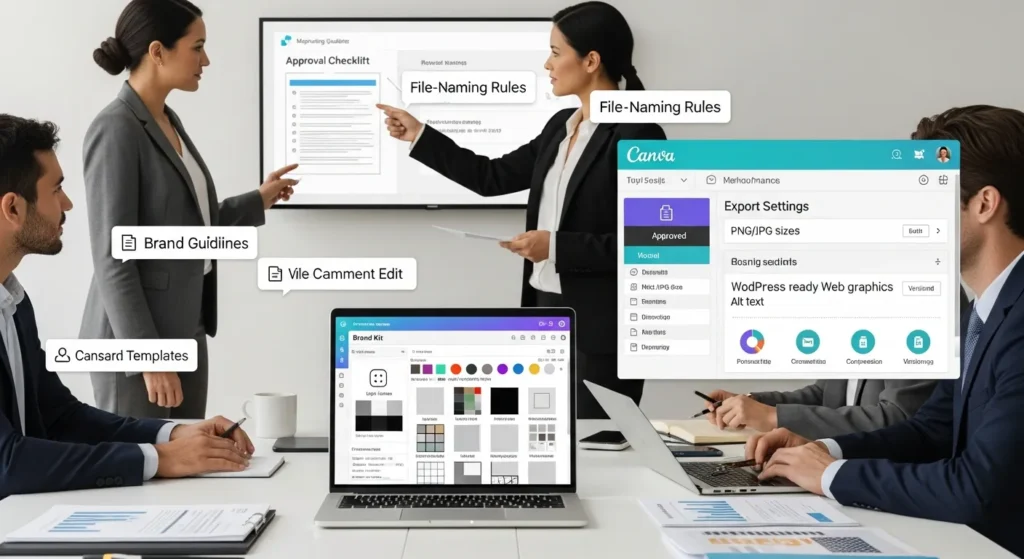
Canva for business usually shows up when a team needs “one more graphic” and the designer is already booked. We have watched smart teams burn hours on tiny revisions, wrong exports, and mystery versions named final_FINAL2.png. Quick answer: Canva works best when you treat it like a system, not an art project. Set brand rules, lock templates, control access, and ship WordPress-ready assets that load fast and stay on-brand.
Key Takeaways
- Canva for business works best when you treat it like a governed production system—set Brand Kit rules, lock templates, control access, and reduce rework from “final_FINAL2.png” chaos.
- Use Canva for high-volume, repeatable assets (social posts, ad variants, promos) and use pro design tools when precision and unique craftsmanship matter.
- Build one master template with consistent spacing, typography, and layout rules, then duplicate it into channel and campaign variations to scale output fast without breaking the brand.
- Set roles and approvals (especially for clients, contractors, and regulated industries) so only owners can edit masters and a named human reviews high-risk claims.
- Publish WordPress- and WooCommerce-ready assets by exporting correct sizes and formats, compressing files, using clear filenames, and adding descriptive alt text for SEO and performance.
- Use Canva AI for low-risk speed-ups like resizing, background removal, and variants, but avoid pasting sensitive data into prompts and keep compliance review human-led.
What Canva Is (And Where It Fits In A Modern Content Workflow)
Canva is a visual collaboration platform that helps non-designers create graphics, short videos, docs, and presentations with a shared set of brand assets. Teams use it because speed affects output. Output affects consistency. Consistency affects trust.
We see Canva for business work best as the “middle layer” between marketing ideas and publishing. A writer drafts a promo. A marketer picks a template. A teammate drops in product shots. A manager approves. The site gets clean, consistent visuals without a ticket queue.
Canva Vs. Pro Design Tools: When Each One Wins
Canva wins when your team needs volume and speed. Social posts, ad variants, simple product promos, event flyers, and thumbnail sets fit that lane.
Pro tools like Adobe Photoshop and Illustrator win when precision matters. Complex photo composites, detailed retouching, advanced typography, print prepress checks, and custom illustration often need pro-level control.
A practical rule we use:
- Use Canva when the work repeats and needs fast turnaround.
- Use pro tools when the work is unique and the details must be perfect.
You can mix both. A designer can build the “gold master” in Adobe, then your team can run production in Canva with guarded templates.
How Teams Typically Use Canva Across Web, Social, And Print
Most teams do not use Canva as a single tool. They use it as a shared workspace.
Common Canva for business patterns we see:
- Whiteboards for campaign planning: a quick brainstorm that turns into a content calendar.
- Multi-channel campaigns: one concept becomes a blog header, an email hero, a social set, and a print flyer.
- Asset storage and reuse: Canva offers team storage and shared folders, so teams stop hunting through old email threads.
- On-brand production: templates and Brand Kits reduce the “close enough” guessing that breaks brand consistency.
If your company runs on WordPress, Canva fits neatly into your publishing loop. It produces the visuals that feed posts, landing pages, WooCommerce promos, and email signups.
Set Up Canva Like A System: Brand Kit, Templates, And Access
If Canva for business feels chaotic, the issue usually is not the tool. The issue is missing structure.
Here is what works in practice: you set defaults once, then you stop debating fonts and spacing on every new post.
Brand Kit Basics: Fonts, Colors, Logos, And Voice Guardrails
A Brand Kit stores your logo files, brand colors, and fonts. That sounds basic. It is also the difference between “clean” and “close enough.”
We like to add voice guardrails in the same place your team works. Templates can do that. A template can include placeholder copy that shows tone, allowed claim language, and required disclaimers.
A simple setup checklist:
- Add primary logo, reverse logo, and icon mark.
- Add color palette with names like “Primary Blue” or “Accent Coral.”
- Set brand fonts and define heading vs body use.
- Create a “Do not use” page in your internal docs with banned fonts, effects, and shadow styles.
Brand Kit -> reduces variance -> protects trust.
Template Architecture: One Master, Many Variations
Template architecture means you build one master, then you duplicate it for variants. The master carries spacing, font sizes, and layout rules.
One master template can produce:
- Seasonal swaps (holiday colors, limited-time badges)
- Product bundle versions (2-pack, 4-pack, subscription)
- Channel versions (Instagram square, Story, LinkedIn landscape)
We aim for a structure your team can follow at 4:45 pm on a Friday.
Permissions And Roles: Keeping Clients And Contractors Safe
Access control matters. A client edit can break a template. A contractor edit can leak a draft. Canva provides roles like view, comment, and edit, and that gives you a simple safety net.
Our rule: most outside collaborators get comment access first. Your internal owner keeps edit rights on masters.
Permissions -> limit accidental changes -> cut rework.
If you serve regulated industries like healthcare, legal, or finance, you also want approvals tied to named people. That keeps review real, not vague.
Design Outputs That Actually Work On WordPress And WooCommerce
Design only helps if it publishes cleanly. WordPress punishes oversized files with slower pages. Slow pages hurt conversion.
So we treat Canva for business as part of site performance work, not separate “creative.”
Blog, Landing Page, And Banner Graphics: Right Sizes And Formats
Use sizes that match how your theme displays images.
Common, practical exports:
- Blog social preview / share image: 1200 x 630 px
- Banner-style graphics: 1200 x 628 px (close cousin that fits many ad and promo slots)
Format guidance:
- Use PNG for crisp text and UI-like graphics.
- Use SVG for simple logos and icons when your stack supports it.
- Use JPG for photos when you need smaller size.
If you print, you need print-ready settings. If you post on the web, you need fast loads and sharp text.
Product And Promo Assets: Collections, Bundles, And Seasonal Swaps
WooCommerce promos change fast. Prices change. Bundles rotate. A “sale” badge appears, then disappears.
Collections help because collections group assets by campaign or product line. That keeps the team from using last month’s banner in this week’s promo.
A structure that works:
- Collection: Spring Promo
- Product images
- Badge set
- Email hero
- Homepage banner
- Social set
Collections -> reduce search time -> speed publishing.
Compress, Name, And Alt-Text: SEO And Performance Hygiene
File hygiene sounds boring. It also saves you from slow pages and messy media libraries.
We ask teams to do three things every time:
- Compress images before upload.
- Name files clearly, like
product-promo-v1.png. - Add alt text that describes the image in plain language.
Alt text helps accessibility. Clear filenames help humans. Compression helps everyone.
If you want more site-side structure, our WordPress SEO work often starts with media rules like these. You can also pair this with a consistent upload flow in your WordPress editor. If you run WooCommerce, the same rules apply to category banners and product gallery images.
Internal reading we keep handy on our site:
Canva + AI Features: Where To Use Them And Where To Slow Down
Canva includes AI-assisted features that speed up routine work. Canva for business gets real value when you keep the risk low and the review clear.
Low-Risk Wins: Resize, Background Removal, Summaries, And Variants
Low-risk wins mean the output stays in a safe zone. It edits layout. It removes a background. It creates size variants.
Good uses:
- Resize one design into multiple placements
- Background removal for product shots
- Style matching to keep a set consistent
- Variants for ad testing
AI tools -> increase speed -> increase output.
Just keep your Brand Kit and templates in place first. Without them, faster work just means faster inconsistency.
Human Review Rules: Regulated Claims, Medical, Legal, And Finance
We draw a hard line here.
If the graphic makes a medical claim, legal claim, or financial promise, a qualified human reviews it before it goes live. A template cannot replace that.
A safe review rule:
- If a claim can trigger a complaint, a refund demand, or a regulator question, a human approves it.
Data Handling: What Not To Paste Into Prompts Or Upload
Treat Canva AI inputs like any other external system.
Do not paste:
- Patient data
- Client case details
- Payment data
- Contracts under NDA
- Internal security notes
Data minimization -> reduces exposure -> reduces risk.
If your team works in healthcare, legal, finance, or insurance, set a written rule. Make it visible. Put it in your onboarding doc. People follow rules they can see.
A Repeatable Publishing Workflow: From Brief To Live In Under An Hour
Most teams do not need more tools. They need a repeatable flow.
We build Canva for business workflows like we build automations in WordPress: clear steps, clear owners, and a log of what changed.
Trigger / Input / Job / Output / Guardrails (A Simple SOP Template)
Here is the SOP template we use:
- Trigger: A brief arrives (promo, blog post, event, launch)
- Input: Brand Kit + correct template + approved product info
- Job: Create draft, then run a checklist
- Output: Export files + upload to WordPress + schedule
- Guardrails: Roles, approvals, naming rules, and a final review step
This setup works because each step has a handoff.
Workflow clarity -> reduces back-and-forth -> saves time.
Approval And Versioning: One Source Of Truth For Final Files
Teams lose time when “final” files live in five places.
Pick one source of truth:
- One folder for approved finals
- One naming pattern
- One owner who can mark “Approved”
Versioning -> prevents wrong uploads -> prevents awkward retractions.
Light Automation Ideas: Uploads, Naming Conventions, And Asset Handoffs
Keep automation light. Start with what breaks most.
Easy wins:
- Auto-create project folders per campaign
- Use a shared naming template in the brief
- Set a simple handoff rule: “Upload only from the Approved folder”
If you want to go further, connect Canva exports to a task tool, then assign a WordPress upload task with the correct alt text and link destination. That gives you speed without losing control.
Common Canva Mistakes (And How To Prevent Rework)
We see the same issues across industries. Canva for business fails when teams skip setup, rush exports, or treat templates like optional suggestions.
Blurry Exports, Wrong Color Modes, And Font Substitutions
Blurry graphics usually come from wrong size exports or heavy compression.
Prevention rules:
- Export at the display size you need.
- Use PNG when text must stay sharp.
- Lock brand fonts in Brand Kit to stop substitutions.
If you print, you need print-ready settings and checks from your print partner. Web graphics live in RGB, so keep web assets in that lane.
Inconsistent Spacing And Hierarchy: Quick Layout Checks
Bad spacing looks small, but it makes your brand feel “off.” People notice even if they cannot explain why.
A quick check that works:
- Headlines align to a grid
- Margins match across slides or posts
- One primary message per graphic
- Buttons and badges keep consistent size
Layout hierarchy -> improves clarity -> improves clicks.
Licensing And Stock Usage: What To Verify Before Publishing
Stock issues create real risk.
Before you publish:
- Confirm the asset allows commercial use.
- Confirm any required attribution rules.
- Keep a record of the source for your campaign folder.
If a client asks, “Do we have rights to this photo?”, you want an answer in 20 seconds, not a long search.
Conclusion
Canva for business works when you treat it like a governed production line. Brand Kit sets the rules. Templates carry the rules. Permissions protect the rules. Then WordPress and WooCommerce get clean, fast assets that match the page, match the campaign, and load quickly.
If you want help turning Canva outputs into a reliable publishing system on WordPress, we can map your workflow first. We start small, run a pilot, and keep humans in the loop where risk lives. That is the calm way to ship more marketing without waking up to another final_FINAL2.png.
Frequently Asked Questions About Canva for Business
What is Canva for business, and where does it fit in a modern content workflow?
Canva for business is a visual collaboration platform that helps teams create on-brand graphics, short videos, docs, and presentations quickly. It works best as a “middle layer” between marketing ideas and publishing: templates + Brand Kit + approvals turn drafts into consistent assets without a designer ticket queue.
When should my team use Canva vs Adobe Photoshop or Illustrator?
Use Canva when work repeats and you need speed—social posts, ad variants, simple promos, flyers, and thumbnails. Use Photoshop/Illustrator when precision is critical—advanced retouching, complex composites, custom illustration, or print prepress checks. Many teams combine both: designers build a “gold master,” then production happens in Canva.
How do I set up Canva for business to stay consistent and avoid rework?
Treat Canva for business like a system: create a Brand Kit (logos, named colors, locked fonts), build one master template with clear spacing rules, and duplicate it into variants. Add “voice guardrails” and required disclaimers inside templates, then lock masters and use approvals to prevent off-brand edits.
How do I export Canva designs that work well on WordPress and WooCommerce?
Match export sizes to how your WordPress theme displays images to avoid blurry or oversized files. Common web exports include 1200×630 for share images and 1200×628 for banners. Use PNG for crisp text/UI-style graphics, JPG for photos to reduce size, and SVG for simple icons when your stack supports it.
What are the best Canva for business practices for image SEO (filenames, compression, and alt text)?
For Canva for business assets, keep “media hygiene” consistent: compress images before upload to improve page speed, use clear filenames like product-promo-v1.png to prevent messy libraries, and write plain-language alt text that describes what’s shown. This improves accessibility and helps WordPress pages load faster—both supporting SEO.
Is Canva AI safe for regulated industries, and what should I never paste into prompts?
Canva AI can be safe for low-risk tasks like resizing, background removal, and creating variants—but regulated claims (medical, legal, financial) should always get qualified human review. Never paste sensitive data into prompts or uploads, including patient details, payment info, NDA contracts, internal security notes, or client case specifics. Use data minimization rules.
Some of the links shared in this post are affiliate links. If you click on the link & make any purchase, we will receive an affiliate commission at no extra cost of you.
We improve our products and advertising by using Microsoft Clarity to see how you use our website. By using our site, you agree that we and Microsoft can collect and use this data. Our privacy policy has more details.
