
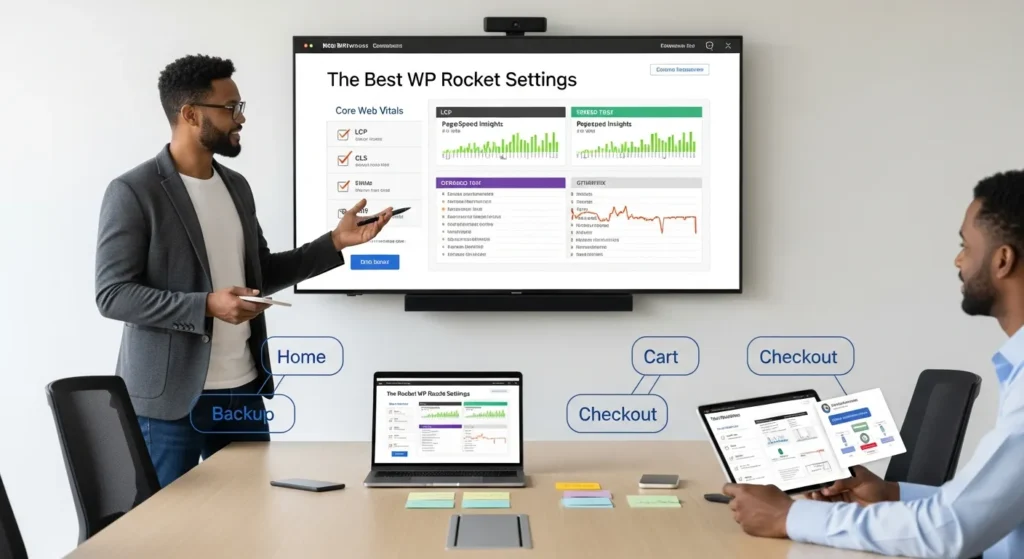
The best WP Rocket settings usually are not the “fastest” settings. They are the settings that keep your site stable while you shave real seconds off load time. We have watched a homepage fly in testing, then quietly break a cart badge, a sticky header, or a booking form two days later. Let’s set WP Rocket up like a grown-up: measure first, change one thing at a time, and keep humans in the loop.
Key Takeaways
- The best WP Rocket settings prioritize stability and measurable gains, so start with a baseline (LCP, CLS, total load time) before changing anything.
- Create full backups and test on staging or off-peak so you can safely tune WP Rocket settings without risking broken layouts, carts, or checkout.
- Use cache “safe defaults” first—enable Mobile Cache for most responsive sites, enable User Cache only for logged-in experiences, and set cache lifespan based on how often content changes.
- For file optimization, minify CSS first, then cautiously try Remove Unused CSS or async CSS, and use Defer + Delay JavaScript Execution while avoiding heavy JS combining that can break critical functionality.
- Improve Core Web Vitals with media and preload tweaks: lazy-load images/iframes (exclude hero media if needed), add missing image dimensions to reduce CLS, and preload cache plus only the above-the-fold fonts you truly use.
- Keep ecommerce and memberships reliable by never caching cart/checkout/account pages and aligning CDN/Cloudflare purge and cache rules so updates don’t serve stale CSS or break purchase flows.
Before You Touch Any Settings: Baseline, Backups, And A Safe Testing Plan
Speed work goes sideways when people skip two boring steps: a baseline and a rollback plan. That is where broken layouts and “why did checkout stop working?” stories come from.
Run Speed Tests And Capture A Baseline
Start with proof. A baseline tells you if your changes help, hurt, or do nothing.
Do this:
- Run Google PageSpeed Insights and GTmetrix on your key templates: home, a blog post, a product page, cart, checkout, and one high-traffic landing page.
- Use an incognito window and test twice. Your first run can be a warm-up.
- Write down three numbers: LCP, CLS, and total load time.
Here is why: WP Rocket settings change how CSS, JavaScript, and fonts load. Those changes can improve LCP, but they also can increase CLS if you forget image dimensions. You want receipts.
Create A Backup And Use Staging Or Off-Peak Changes
Take a full backup before you touch anything. Then test on staging if you can.
A safe plan looks like this:
- Create a backup (files + database).
- If you have staging, copy production to staging and test there first.
- If you do not have staging, make changes off-peak and keep a second browser open with your cart/checkout flow ready to test.
If you are deciding which backup or staging tool fits your workflow, we wrote a comparison that helps you pick based on risk and site type: choose a safe staging and migration tool.
Next steps: once you can measure and roll back, you can move fast without breaking trust.
Cache Settings: The “Safe Defaults” That Help Most Sites
WP Rocket does a lot on activation. That matters because many sites need “less drama,” not more toggles. Your goal: cache what stays the same and leave dynamic pages alone.
Mobile Cache And User Cache: When To Enable Them
Most modern WordPress sites use responsive design. In that case:
- Turn on Mobile Cache.
Mobile cache helps because the cache layer can serve prebuilt HTML faster. Faster HTML delivery improves perceived speed and reduces server work.
User cache is different. Enable User Cache only if:
- You have logged-in dashboards (membership, courses, client portals).
- Logged-in users see different content than guests.
Then test carefully. User cache can clash with plugins that personalize pages with uncached fragments.
Rule we follow: if a page changes per user, you test that page like it is a payment page.
Cache Lifespan: Picking A Value That Fits Publishing Frequency
Cache lifespan controls how long WP Rocket keeps cached files before it refreshes them.
Practical picks:
- 10 hours: news sites, daily publishing, frequent product changes.
- 24 hours or more: brochure sites, portfolios, local services with infrequent updates.
Entity A affects Entity B here in a simple way: Cache lifespan affects content freshness. Short lifespans refresh sooner but can increase server work. Long lifespans reduce server work but can keep old content longer.
If you run WooCommerce, keep the lifespan reasonable and rely on cache purge when products update. You want speed, but you also want correct prices and stock.
File Optimization: Minify, Combine, And Defer Without Breaking Layouts
This section creates the most speed gains and the most weird bugs. Treat it like a checklist, not a buffet.
CSS Optimization: Minify First, Then Test Remove Unused CSS
Start simple:
- Enable Minify CSS.
Minify CSS reduces file size. Smaller files download faster. Faster downloads reduce render delay.
Then test one stronger setting:
- Prefer Remove Unused CSS if your theme and builder behave.
- If that breaks layout, use Load CSS Asynchronously.
What to watch during testing:
- Header spacing changes
- Missing icons (often font files)
- Buttons losing styles on product and checkout pages
If you see layout shifts after CSS changes, fix image dimensions and font preloading before you blame WP Rocket.
JavaScript Optimization: Defer, Delay, And Avoid Over-Combining
JavaScript is where “speed” meets “my menu stopped opening.”
Safe sequence:
- Enable Load JavaScript Deferred.
- Enable Delay JavaScript Execution.
Delay often creates the biggest improvement because the browser stops running non-critical scripts on first paint. Less work early means faster interaction.
Avoid heavy combining unless you have a reason.
- Do not combine JS just because the toggle exists.
- Combine can break script order. Script order affects checkout, sliders, and tracking.
If something breaks:
- Use WP Rocket exclusions for the specific script.
- Re-test cart, checkout, login, and search.
If you are debating whether WP Rocket is the right tool or you need stronger image-focused help, our comparison may save you time: see how WP Rocket compares to WP Compress.
Let’s break it down: defer and delay can speed up the first view, but you keep revenue safe by testing the money pages every time.
Media Optimization: Lazy Loading, Iframes, And Image Delivery Choices
Images usually weigh more than your theme, your plugins, and your feelings combined. Media fixes can turn a slow site into a calm site.
Lazy Load Images And Iframes (Plus YouTube Preview)
Enable:
- LazyLoad for images
- LazyLoad for iframes and videos
Lazy load works because the browser loads below-the-fold media later. Less initial download means faster first paint.
If you embed YouTube:
- Turn on the YouTube preview image option.
That swap reduces third-party work early. Third-party scripts often slow pages because they add requests and extra JavaScript.
Watch for one tradeoff: lazy load can cause a “pop-in” effect. If you see it above the fold, exclude the hero image from lazy load.
Add Missing Image Dimensions To Reduce Layout Shift
Turn on:
- Add missing image dimensions
This helps CLS because the browser reserves space for images before they load. When the browser knows image width and height, it stops pushing text around.
If your site uses a page builder or custom blocks, you still want to check a few pages by eye. Automated fixes help, but your customers judge what they see.
And if you want more aggressive image compression and resizing across your library, pair WP Rocket with an image tool. We explain the setup and the why here: set up automated image compression with WP Compress.
Next steps: once media behaves, your Core Web Vitals scores stop swinging like a mood ring.
Preload, Prefetch, And DNS Hints: Faster Perceived Loads The Right Way
Preloading is about timing. You tell the browser what to fetch early so the page feels instant.
Preload Cache And Critical Fonts
Enable Preload Cache so WP Rocket warms the cache instead of waiting for a visitor to do it.
Then handle fonts with intent:
- Preload only the fonts you actually use above the fold.
Font preload helps because the browser gets the font earlier. Earlier fonts reduce FOIT and layout jumps.
Do not preload everything. Too many preloads waste bandwidth and can slow real users on mobile.
Prefetch DNS And Preconnect For Third-Party Scripts
If your pages call outside services, add hints:
- DNS Prefetch for domains you rely on
- Preconnect for critical third-party origins
Common examples:
- Google Fonts
- Google Tag Manager
- Stripe
- Intercom
Entity A affects Entity B in a way you can feel: DNS prefetch affects connection setup time. Faster connection setup makes third-party requests start sooner.
Keep the list short. Each hint adds work. You want the few that matter most to revenue and user experience.
Database And Heartbeat: Keep WordPress Lean Without Risky Cleanup
Database cleanup and Heartbeat control do not make a slow theme fast. They do reduce background drag. That helps stability, especially on shared hosting.
Schedule Database Cleanup And Limit Revisions Thoughtfully
WP Rocket can clean:
- Post revisions
- Auto drafts
- Trashed posts
- Expired transients
Set it to run weekly for most business sites.
Then cap revisions at the WordPress level (or via your host tools). We often set 3 to 5 revisions.
Why this works: fewer revisions reduce database bloat. Less bloat can reduce query time during backups, searches, and admin work.
Avoid “delete everything” habits. If you write long content or work with legal or medical reviews, revisions act like a paper trail.
Control Heartbeat By Area (Admin, Front End, Post Editor)
WordPress Heartbeat sends periodic requests for:
- Post locking
- Auto saves
- Session management
Reduce Heartbeat where it helps:
- Lower frequency in wp-admin if editors report slowness
- Keep the post editor safe enough to avoid losing work
Do not disable Heartbeat everywhere. Editors hate losing drafts more than they love a 3 percent speed gain.
Next steps: once you quiet the background noise, your dashboard feels calmer and your server gets breathing room.
CDN, Cloudflare, And Ecommerce Compatibility: The Settings That Prevent Checkout Issues
CDNs speed up static files. Cache rules can also break logins and carts. You want speed that does not change what people buy.
CDN And Cloudflare: Align Cache Rules And Purge Behavior
If you use a CDN, set it up inside WP Rocket:
- Add your CDN CNAMEs
- Serve static files from the CDN
If you use Cloudflare:
- Use WP Rocket’s Cloudflare add-on and enable the recommended settings.
This matters because purge behavior affects freshness. If Cloudflare keeps old CSS, you can see a broken layout after an update. If purge runs correctly, the visitor gets the new files.
Also check your Cloudflare settings:
- Do not cache HTML for logged-in users
- Respect cache-control headers where needed
WooCommerce And Membership Sites: Pages That Should Never Be Cached
Never cache pages that change per visitor or session:
- Cart
- Checkout
- My Account
- Wishlists (often)
- Membership dashboards
WP Rocket usually excludes WooCommerce pages by default, but we still verify.
Test this flow after every change:
- Add a product to cart
- Change quantity
- Apply coupon
- Complete checkout
- Confirm order email
Speed settings affect revenue settings. That is the real rule.
If you run subscriptions, bookings, or logged-in pricing, keep humans in the loop and test like you mean it.
Conclusion
The best WP Rocket settings are the ones you can defend: you measured the baseline, you changed one lever at a time, and you tested the pages that pay the bills. If you want, we can review your current WP Rocket setup, map your trigger pages (home, product, cart, checkout), and build a safe “pilot then expand” plan that improves speed without gambling with conversions.
Frequently Asked Questions About the Best WP Rocket Settings
What are the best WP Rocket settings for most WordPress sites?
The best WP Rocket settings usually start with safe defaults: enable caching, turn on Mobile Cache for responsive sites, and set a sensible cache lifespan based on update frequency. Then add cautious optimizations like CSS minification and deferred JavaScript. Measure before/after and test key templates to avoid breaking layouts.
How do I baseline speed before changing WP Rocket settings?
Run Google PageSpeed Insights and GTmetrix on core templates (home, post, product, cart, checkout, landing page). Test in incognito twice, then record LCP, CLS, and total load time. This baseline proves whether WP Rocket settings helped, did nothing, or introduced issues like layout shift or broken interactions.
Should I enable “Remove Unused CSS” in WP Rocket, or use “Load CSS Asynchronously”?
Minify CSS first, then test Remove Unused CSS if your theme and builder behave well. If you see missing styles, icon issues, or header spacing changes, switch to Load CSS Asynchronously. These WP Rocket settings can improve rendering, but they can also cause subtle layout bugs on product and checkout pages.
Why can delaying or combining JavaScript break menus and checkout?
Delay JavaScript Execution and Load JavaScript Deferred often improve perceived speed by reducing early main-thread work. But combining JavaScript can change script order, which can break interactive elements like menus, sliders, tracking, and checkout flows. Use exclusions for specific scripts and always re-test cart, checkout, search, and login.
What WP Rocket settings help Core Web Vitals like CLS and LCP the most?
For CLS, enable “Add missing image dimensions” so the browser reserves space and prevents content jumps. For LCP, keep caching enabled, optimize CSS delivery (minify, then carefully test stronger options), and preload only critical above-the-fold fonts. Also exclude above-the-fold hero images from lazy load if they “pop in.”
Do I need to exclude WooCommerce pages when using the best WP Rocket settings?
Yes—avoid caching pages that change per session or user, like Cart, Checkout, My Account, and many wishlists or membership dashboards. WP Rocket often excludes WooCommerce pages by default, but you should verify. After every change, test add-to-cart, quantity updates, coupons, checkout completion, and order emails to protect revenue.
Some of the links shared in this post are affiliate links. If you click on the link & make any purchase, we will receive an affiliate commission at no extra cost of you.
We improve our products and advertising by using Microsoft Clarity to see how you use our website. By using our site, you agree that we and Microsoft can collect and use this data. Our privacy policy has more details.
