
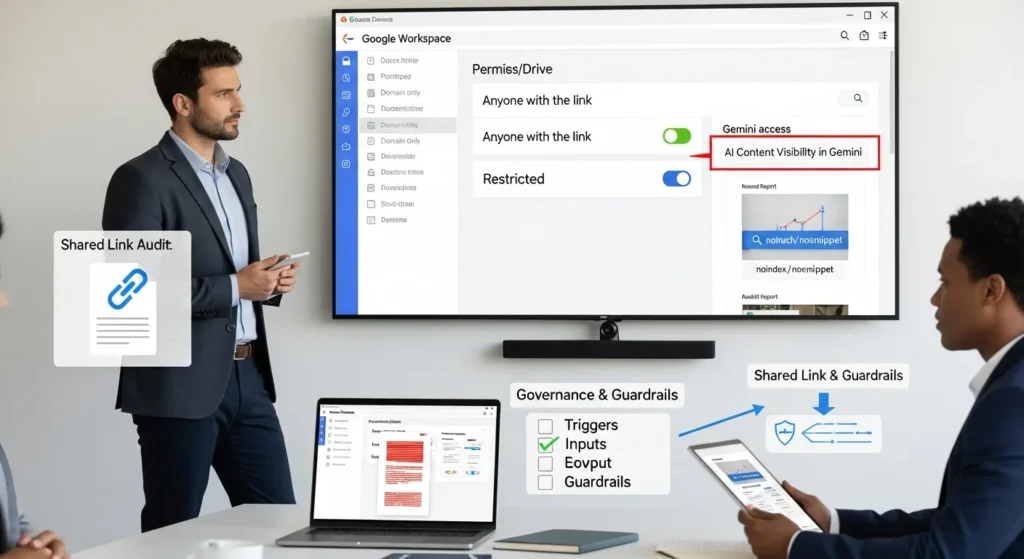
AI content visibility in Gemini sounds abstract until you watch a private draft show up in a place it never should have been. We have seen teams share “one quick link” to a Google Doc, then forget the permission stayed public for months.
Quick answer: Gemini can only use what it can access, and access usually happens through your prompts, connected Google apps, and public web content. Your job is to control the paths, not panic about the model.
Key Takeaways
- AI content visibility in Gemini comes down to what Gemini can access via your prompts, connected Google apps, and public web content—not “magic” access to private files.
- Treat share settings like a publish button: a public Drive link, public Google Site, or indexable WordPress URL can make content reachable through Search and then surface in Gemini.
- Reduce risk by separating prompt content, connected apps, and Workspace data, then enforcing least-privilege permissions so Gemini only reaches approved folders and sources.
- Lock in governance with clear “never in prompts” rules (PII/PCI/secrets), redaction practices, and a human review workflow before any AI-assisted content ships.
- Harden automation (Zapier/Make, plugins, extensions, webhooks) with staging tests, input sanitization, approvals, and separate business tokens to limit blast radius.
- Audit AI content visibility in Gemini with shadow-mode pilots that compare outputs to source permissions, and keep an incident playbook ready to revoke access, rotate secrets, and review logs fast.
What “Content Visibility” Means In Gemini
Content visibility in Gemini means one simple thing: what Gemini can read when it generates an answer. Gemini does not “magically know” your private files. Access happens because you pasted content into a prompt, you connected a Google app, or you exposed content publicly on the web.
We treat this like workflow design:
- Triggers: a user asks Gemini a question, or an app calls Gemini.
- Inputs: prompt text, connected files, search results.
- Job: Gemini generates an output.
- Outputs: a response, a summary, a draft.
- Guardrails: permissions, settings, redaction, review.
When you map it that way, content visibility stops being spooky. It becomes a set of doors you can lock.
Where Gemini Gets Content From (And What It Does Not Automatically See)
Gemini can pull from:
- Your prompt text (what you type or paste).
- Connected Google services (when you grant access, like Gmail or Google Drive).
- Public web sources through Google Search and Google’s knowledge systems.
Gemini does not automatically see:
- A private Drive file you did not share.
- A client contract sitting in a local folder on your laptop.
- A private WordPress draft behind a login.
Access rules still matter. Permissions control visibility. That is the main lever.
The Difference Between Prompt Content, Connected Apps, And Workspace Data
These three get mixed up, and that is where risk creeps in.
- Prompt content: you paste text, Gemini reads it, and it can influence the response. If you paste a patient note, Gemini can “see” a patient note.
- Connected apps: you grant Gemini permission to retrieve content from Gmail, Drive, Docs, and more. Connection -> expands what Gemini can fetch.
- Workspace data: your organization’s files and Sites live inside Google Workspace, and sharing permissions decide what is visible to whom.
Entity -> affects -> outcome shows up fast here. A public Drive link affects Gemini’s reachable sources, because the content becomes available to anyone with the link, and search systems may also pick it up over time depending on settings.
Common Ways Content Becomes Visible (On Purpose Or By Accident)
Most “Gemini leaks” are not AI problems. They are permission problems.
We see two patterns: someone shares content on purpose for convenience, or someone shares content by accident through sloppy defaults.
Sharing, Links, And Access Controls (Drive, Docs, Sites, And Public URLs)
Here is the short version: sharing settings act like a publish button.
Common visibility paths:
- “Anyone with the link can view” in Google Drive. One teammate posts it in Slack, then it gets forwarded, then it lives forever.
- Google Sites page set to public when it should be domain-only.
- A public URL on your WordPress site that you assumed “nobody will find.” Search bots find it.
If you run WordPress, these controls also matter:
noindexaffects whether search engines index a page.nosnippetcan limit what appears in snippets.
Search -> affects -> AI answers. If Google Search can access a page, AI Mode and Gemini experiences that rely on Search can surface it.
If you want practical SEO-side controls on WordPress, we often point clients to their SEO plugin settings first (Yoast, Rank Math, or similar), then confirm with Search Console.
Browser Extensions, Plugins, And Third-Party Connectors
A surprising number of exposures come from tools that “help.”
- A browser extension reads page content -> sends it to a service -> ends up in a prompt or API call.
- A WordPress plugin logs form entries -> pushes them to a connected sheet -> someone connects that sheet to Gemini.
- A Zapier or Make scenario posts raw ticket text into a summarizer step.
Connector -> affects -> data scope. When a connector moves text across systems, it changes who can see it and where it can end up.
Our rule: treat extensions and connectors like vendors. If they can read content, they can leak content if you misconfigure them.
Gemini Settings That Matter For Visibility
Settings decide retention and reuse. They also decide who can turn features on.
If you work with legal, healthcare, finance, or even “just” client-sensitive marketing data, you want these settings written into policy, not left to personal preference.
Activity, History, And Model Improvement Toggles (Consumer Vs. Workspace)
On consumer accounts, users can often control:
- Activity/history: whether interactions get saved to the account.
- Model improvement (wording varies by product): whether data may be used to improve services.
On Workspace accounts, admins can often enforce settings across the domain. Admin policy -> affects -> user behavior. That is good.
Our guidance stays consistent:
- Keep history off for high-risk roles unless you have a clear business need.
- Block model improvement where regulated or contract terms require it.
- Publish a “safe prompt” rule: no PII, no PCI, no secrets.
Admin Controls, Permissions, And Least-Privilege Setup
Least privilege means you give the minimum access needed to do the job.
Practical examples:
- Approve Gemini access for a pilot group first, not the full domain.
- Restrict access to only the Drive folders that contain approved material.
- Separate marketing drafts from client deliverables using shared drives and tight groups.
Permission design -> affects -> exposure surface. If everyone has access to everything, Gemini access becomes a wide-open funnel.
If you need help translating this into WordPress reality, we usually pair it with site roles too. WordPress role -> affects -> who can see drafts, who can install plugins, and who can connect third-party tools.
A Practical Governance Checklist For Businesses And Regulated Teams
Most teams do not need a 40-page policy. They need a one-page checklist people will actually follow on a Tuesday.
Here is ours.
Data Classification And Redaction Rules (What Never Goes In)
Start with clear “never in prompts” rules.
Never paste:
- Patient info (HIPAA contexts)
- Card data (PCI)
- Bank account numbers
- Passwords, API keys, private repo links
- Unreleased financials
- Private client contracts or settlement details
Class label -> affects -> handling. When you label data as “restricted,” you force a safer workflow.
Redaction rules that work in real life:
- Replace names with roles: “Client A,” “Patient 1,” “Vendor X.”
- Remove identifiers: emails, phone numbers, invoice numbers.
- Summarize sensitive docs yourself first, then ask Gemini to rewrite the summary.
Human Review, Logging, And Approval Steps For AI-Assisted Publishing
AI output should not go straight to production.
We like a simple flow:
- Writer drafts with Gemini using sanitized inputs.
- Editor reviews facts, tone, and claims.
- Legal or compliance reviews if the topic triggers policy.
- Publisher posts to WordPress.
- Team logs what tools were used and what source material went in.
Human review -> affects -> brand risk. Logging -> affects -> incident response. If something goes wrong, logs tell you what happened and when.
If you want a lightweight setup, create a shared checklist in Google Docs and require it for any post that used AI. Keep it boring. Boring saves you.
WordPress And Marketing Workflows: Keeping Gemini Helpful Without Leaking Content
Most of our clients do not fear AI. They fear rework, client blowback, and accidental disclosure. That is a healthy fear.
The goal is simple: use Gemini for drafts and grunt work while your WordPress workflow keeps sensitive content out of reach.
Safe Patterns For Drafting, Summarizing, And Repurposing Content
These patterns work across eCommerce, services, and regulated teams:
- Use public inputs: product pages, published blogs, public policies. Public source -> affects -> low disclosure risk.
- Summarize anonymized notes: “Here are three bullet points from a sales call, remove all names and write a blog outline.”
- Repurpose your own published posts into FAQs, email drafts, or ad variants.
- Ask for structure, not secrets: prompts like “Give us a headline matrix for a WooCommerce sale” keep you out of trouble.
If you are building content on WordPress, you can also segment work:
- Draft in a private doc.
- Copy only the final, reviewed text into WordPress.
- Keep client artifacts in a restricted drive.
If you need supporting reads, our site covers adjacent workflows like WordPress website development, WordPress SEO services, and website maintenance services in plain language.
Automation Guardrails With Zapier/Make, Webhooks, And Staging Environments
Automation saves time. Automation also spreads data fast.
Guardrails we use:
- Staging environments: test AI-driven posting in staging first. Staging -> affects -> blast radius.
- Input sanitization: strip emails, phone numbers, order numbers before sending text to any AI step.
- Rate limits and approvals: one human approval step before a post publishes.
- Separate tokens: do not reuse personal API keys. Business account -> affects -> auditability.
If you connect WooCommerce, help desks, or CRMs, keep the payload small. Send “order status: delayed” instead of the full order record.
Next steps: write your automation like a recipe. Trigger. Input. Job. Output. Guardrails. If you cannot describe it, you cannot secure it.
How To Test And Audit Your Visibility (Before You Scale)
Testing beats guessing. We like low-drama audits that show you what Gemini can reach.
Run “Shadow Mode” Pilots And Compare Outputs To Source Permissions
Shadow mode means: you log and review, but you do not let outputs publish or route to customers.
A simple pilot:
- Create a set of mock docs with fake data.
- Set different permissions (private, domain-only, link-only, public).
- Ask Gemini to summarize or find details.
- Compare what it returns to what permissions allow.
Permission -> affects -> retrieval. When Gemini returns content, you can trace it back to a share setting or a connector.
Also audit:
- Drive link sharing reports
- Shared drive membership
- WordPress user roles and plugin install rights
Incident Playbook: What To Do If Sensitive Content Was Shared
Do not freeze. Do the boring steps fast.
- Revoke access: remove public links, restrict permissions.
- Rotate secrets: change API keys, passwords, tokens.
- Audit logs: check Drive access, connector runs, and admin logs.
- Document the scope: what was shared, when, who had access.
- Notify stakeholders: legal, compliance, affected clients if required.
- Patch the workflow: fix the share default, connector step, or role.
Containment -> affects -> harm. Speed matters more than perfect wording.
If your team works in regulated spaces, keep this playbook in your incident response binder, not in someone’s memory.
Conclusion
AI content visibility in Gemini is not a mystery box. It is permissions, prompts, and connections. When you control those paths, Gemini becomes a calm assistant instead of a risk.
If you want the safest starting point, pick one low-risk workflow. Run it in shadow mode. Log every step. Then expand.
When you are ready, we can help you map the triggers and guardrails inside WordPress, WooCommerce, and your Google Workspace setup so you get speed without surprise.
Sources
- Gemini Apps Privacy Hub, Google, n.d., Gemini Apps Privacy Hub
- Google Workspace Admin Help, Google, n.d., Google Workspace Admin Help
- Robots meta tag, data-nosnippet, and data-noindex, Google Search Central, n.d., Google Search Central documentation
Frequently Asked Questions (FAQ)
What does AI content visibility in Gemini mean?
AI content visibility in Gemini is simply what Gemini can read when generating an answer. It doesn’t “magically” know private files. Visibility typically comes from three paths: what you paste into prompts, what you allow via connected Google apps, and what’s accessible on the public web through Search.
Can Gemini access my private Google Drive files automatically?
No. Gemini can’t automatically see a private Drive file you haven’t shared. AI content visibility in Gemini is governed by permissions and connection choices: prompt text you provide, files/services you explicitly connect (like Drive or Gmail), and any content you’ve made public (including “anyone with the link”).
How do public links and Google Search affect AI content visibility in Gemini?
Sharing settings can function like a publish button. If a Drive/Docs link is set to “anyone with the link,” it can be forwarded indefinitely. If a WordPress page or Google Site is public, search bots may index it—then Search-based Gemini experiences can surface it in responses.
Which Gemini settings matter most for privacy (history and model improvement)?
The biggest levers are activity/history retention and any model-improvement toggles. For sensitive roles, many teams keep history off unless there’s a clear business need and block model improvement where contracts or regulations require it. In Workspace, admins can often enforce these controls domain-wide.
What’s the best way to prevent accidental AI leaks when using connectors like Zapier or browser extensions?
Treat connectors and extensions like vendors: if they can read content, they can expose it if misconfigured. Use least-privilege access, sanitize inputs (remove emails, IDs, order numbers), add a human approval step before publishing, and test in staging. Keep payloads minimal—send summaries, not raw records.
How can I audit AI content visibility in Gemini before rolling it out company-wide?
Run a “shadow mode” pilot: create mock documents with different permission levels (private, domain-only, link-only, public), ask Gemini to summarize or retrieve details, then verify outputs match what permissions allow. Also review Drive link-sharing reports, shared-drive membership, and WordPress roles/plugin install rights.
Some of the links shared in this post are affiliate links. If you click on the link & make any purchase, we will receive an affiliate commission at no extra cost of you.
We improve our products and advertising by using Microsoft Clarity to see how you use our website. By using our site, you agree that we and Microsoft can collect and use this data. Our privacy policy has more details.
