
AI automation sounds like magic right up until you watch a “smart” workflow email a customer the wrong thing at 2:07 a.m. We have had that moment where we stare at the screen, coffee cooling, thinking: “Okay, who approved this bot to speak for us?”
Quick answer: AI automation works best when you treat it like a process you can map, test, and supervise, not a black box you “turn on.” If you keep humans in the loop, log what matters, and limit data, you can turn hours of copy-paste work into minutes without gambling with trust.
Key Takeaways
- AI automation works best when you map the workflow, supervise it with humans-in-the-loop, and avoid treating it like a black box you just “turn on.”
- Separate roles clearly—AI interprets messy inputs, automation executes repeatable actions, and AI automation links the two so failures don’t scale silently.
- Start with high-ROI WordPress use cases like content/SEO drafts, lead routing and CRM hygiene, and support ticket summarization where humans still approve what goes out.
- Use the Trigger → Input → Job → Output → Guardrails framework to define ownership, prevent bad sends, and keep AI automation safe and predictable.
- Log accuracy, time saved, cost, and exceptions from day one so you can tune prompts, control spending, and prove the pilot’s impact.
- Protect privacy and compliance by minimizing data, redacting PII, setting disclosure/review policies, and rolling out in staging or shadow mode with rollback-ready changes.
What AI Automation Actually Means (And Where It Fits)
AI automation combines two ideas that people often mix up:
- AI reads, predicts, summarizes, classifies, and extracts meaning from messy inputs like emails, PDFs, chats, images, and call transcripts.
- Automation runs repeatable steps like “copy this value,” “create a record,” or “send this message.”
Put them together and you get a workflow that can handle both unstructured data and structured actions. AI -> improves -> decision quality. Automation -> improves -> follow-through. The combo -> reduces -> manual work.
Automation vs. AI vs. AI Automation
Here is the clean separation we use when we scope projects:
- Automation (often RPA-style) follows rules you can write down. If a form field equals X, then send email Y.
- AI learns patterns from data or applies language and vision models. It can read a long email and pick out intent.
- AI automation chains them: AI reads and decides, then automation executes.
This matters because each layer has different risk.
Rule automation fails in obvious ways. AI fails in quieter ways. AI automation can fail fast at scale if you let it run unattended.
The “Brain Between Triggers And Actions” Mental Model
We explain AI automation as the brain between triggers and actions:
- A trigger happens (new WooCommerce order, new lead form, new help desk ticket).
- AI acts as the brain (it interprets the text, labels it, extracts fields, checks for issues).
- Automation acts as the hands and feet (it updates the CRM, creates tasks, drafts replies, routes tickets).
This mental model keeps teams honest. You stop asking “Can AI do everything?” and start asking “What decision do we trust AI to make, and what action happens next?” That question -> improves -> safety.
High-ROI Use Cases For WordPress-Centric Businesses
Most teams do not need a sci-fi build. They need fewer tabs, fewer copy-pastes, and fewer “Did anyone follow up?” moments.
For WordPress-centric operations, we usually see quick wins in three places.
Content And SEO Workflows (Briefs, Refreshes, Metadata)
AI automation shines when content work repeats but still needs judgment.
Typical workflow:
- AI -> drafts -> a content brief from a keyword and a competitor list.
- AI -> suggests -> updated titles and meta descriptions for older posts.
- Automation -> pushes -> drafts into WordPress as pending posts.
The guardrail is simple: publish stays human.
If you want a deeper walkthrough of safe prompt patterns and rollout steps, our guide on using OpenAI in workflows without breaking operations maps the “start small, measure, expand” approach.
Lead Intake And CRM Hygiene (Routing, Enrichment, Follow-Up)
Leads rot in inboxes for one boring reason: triage takes time.
AI automation can:
- AI -> classifies -> lead intent (pricing request, partnership, support, spam).
- AI -> extracts -> company name, role, and urgency from free-text form fields.
- Automation -> routes -> the lead to the right pipeline stage.
- Automation -> triggers -> a follow-up sequence with the right tone.
This flow -> reduces -> response time. Response time -> affects -> conversion rates.
Support And Operations (Summaries, Tagging, Next-Step Drafts)
Support teams drown in “long thread syndrome.” Nobody wants to read 18 replies to find the real issue.
A safe pattern:
- AI -> summarizes -> the ticket thread.
- AI -> tags -> the issue type.
- AI -> drafts -> a suggested next response.
- Human -> approves -> what goes out.
In regulated fields like healthcare, legal, and finance, we keep the model on a short leash: draft and triage only. Advice stays human-led.
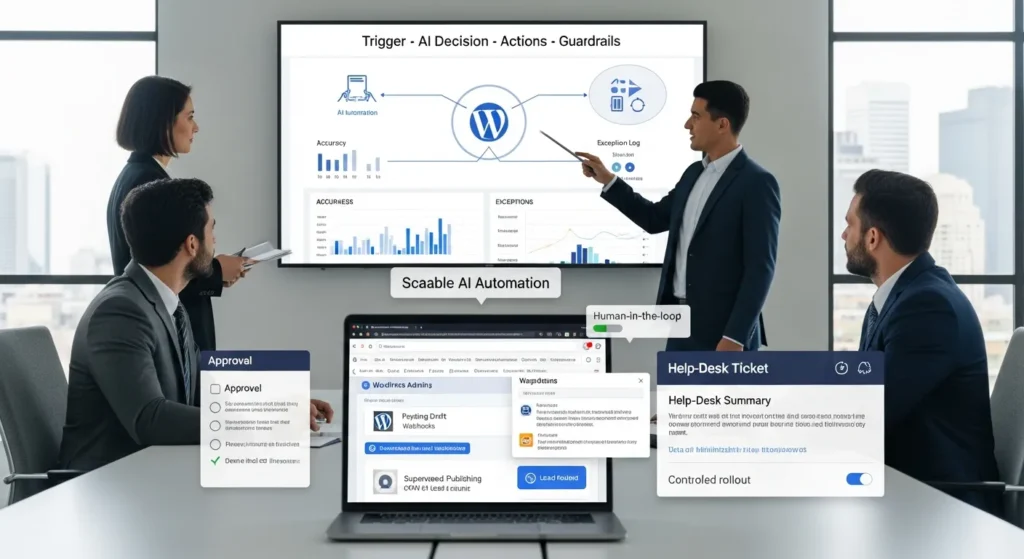
A Simple Build Framework: Trigger → Input → Job → Output → Guardrails
Before you touch any tools, map the workflow with five boxes:
- Trigger: what starts it.
- Input: what data the workflow reads.
- Job: what AI decides or produces.
- Output: what the system changes or sends.
- Guardrails: what prevents bad outcomes.
Example:
- Trigger -> starts -> on a new WordPress form submission.
- Input -> includes -> name, email, and the message field.
- Job -> extracts -> intent and urgency.
- Output -> creates -> a CRM deal and a task.
- Guardrails -> block -> sending emails without human review.
This framework -> reduces -> surprises because every step has an owner.
What To Log And Measure In A Pilot
If you do not measure, you will argue from vibes.
Log these items from day one:
- Accuracy: Did the AI label the lead correctly? Did it extract the right fields?
- Time saved: Minutes per item before vs after.
- Cost: Model calls per day and cost per call.
- Exceptions: How often did the workflow hit a “needs review” path?
Also log samples. A sample set -> improves -> prompt tuning because you see real failures.
When To Keep A Human In The Loop
We keep humans in the loop when one of these is true:
- A message -> affects -> customer trust (refunds, cancellations, legal claims).
- A decision -> affects -> health, money, or rights.
- The input -> contains -> personal data or sensitive documents.
- The AI -> shows -> uncertainty or conflicting signals.
A clean rule: AI automation can draft, sort, and flag. Humans approve, decide, and sign.
Data, Privacy, And Compliance Guardrails (Especially For Regulated Teams)
AI automation changes your data flow. Data flow -> affects -> risk.
So we start with boundaries, not tools.
Data Minimization And Redaction Rules
Data minimization means you only send what the job needs.
Practical rules we use:
- Send snippets, not whole inbox threads.
- Replace identifiers when you can (Order #1234 instead of a full address).
- Redact common PII fields before model calls.
If you support HIPAA, GLBA, or legal privilege workflows, do not “wing it.” Your counsel and compliance team should approve the data handling plan.
Helpful references:
- EDPB Guidelines 4/2019 on Article 25 Data Protection by Design and by Default (European Data Protection Board, 2019)
Disclosure And Review Policies For AI-Assisted Content
AI-assisted content can still be your responsibility.
Two policies keep teams sane:
- Disclosure policy: Decide when you label content as AI-assisted (support emails, blog drafts, product descriptions).
- Review policy: Decide who approves what, and what “done” means.
For advertising and endorsements, the FTC focuses on truthful claims and clear disclosures.
- Disclosures 101 for Social Media Influencers (Federal Trade Commission, last updated 2019)
Policy -> reduces -> panic when something goes wrong. And something will go wrong at some point. That is normal.
How To Implement Without Breaking Your Site
We build AI automation like we build WordPress features: staged, logged, reversible.
No-Code Options (Zapier, Make, n8n) And When They Are Enough
For many WordPress businesses, no-code covers most needs:
- Zapier -> connects -> forms, email, CRMs, spreadsheets.
- Make -> handles -> multi-step branching and data shaping.
- n8n -> gives -> more control and self-host options.
No-code works when:
- You can trigger events with webhooks.
- You can tolerate seconds of delay.
- You do not need deep custom logic.
When you hit complex permissions, custom post types, or heavy WooCommerce logic, a small plugin often beats a maze of zaps.
WordPress Touchpoints (Forms, Webhooks, Hooks, WooCommerce Events)
WordPress gives you several clean “attach points” for AI automation:
- Forms: Contact Form 7, Gravity Forms, WPForms -> send -> webhook payloads.
- Webhooks: Your site -> posts -> JSON to your automation tool.
- Hooks: Events like
save_post-> trigger -> a background job. - WooCommerce: Order created -> triggers -> tagging, fraud checks, or fulfillment tasks.
If you want to future-proof for search and AI discovery, treat your content structure as part of the workflow. Our notes on improving AIO for modern professionals connect prompts, page structure, and measurement.
Staging, Rollback, And “Shadow Mode” Testing
Here is the safest way to start:
- Staging: Run the workflow on a staging site or test queue.
- Shadow mode: Let AI generate outputs, but do not send or write anything automatically. Save drafts only.
- Rollback: Keep every change reversible. Store originals. Version prompts.
Shadow mode -> reveals -> weird edge cases without harming customers. It also builds trust inside your team, which matters more than the tool choice.
Common Failure Modes And How To Prevent Them
AI automation fails in predictable ways. Predictable failures -> allow -> simple guardrails.
Prompt Drift, Hallucinations, And Out-Of-Scope Requests
Prompts drift when people “just tweak a sentence” and the workflow changes behavior.
Prevention steps:
- Put prompts in version control or at least a change log.
- Add a refusal rule: “If the input lacks X, ask for human review.”
- Validate outputs with simple checks (required fields present, allowed tone, no banned claims).
Hallucinations happen most when the AI must guess.
So remove guessing.
- Give the model the source text.
- Ask it to quote the source lines it used.
- Block it from inventing numbers.
Rate Limits, Timeouts, And Cost Surprises
This one feels boring until your bill spikes.
What causes it:
- Large inputs -> increase -> token usage.
- Retries -> increase -> calls.
- Parallel automations -> spike -> rate limits.
How we prevent it:
- Set budgets and hard limits per day.
- Cache common outputs (FAQ snippets, product attribute mapping).
- Use smaller models for classification and routing.
- Add timeouts and “fail closed” behavior for risky actions.
Limits -> protect -> cash flow. They also protect your support team from a surprise flood of half-finished automations.
Conclusion
AI automation pays off when it lives inside a clear workflow with guardrails, logs, and a human who owns the outcome. If you treat it like a supervised coworker, it will handle the boring parts and leave your team with more focus for the work that needs taste, judgment, and empathy.
If you want us to map one pilot with you, we usually start with a single WordPress-triggered flow, run it in shadow mode, and measure accuracy and time saved for two weeks. Small, calm steps beat big promises every time.
AI Automation FAQs
What is AI automation, and how is it different from automation or AI alone?
AI automation combines AI (which interprets messy inputs like emails, PDFs, or chats) with automation (which runs repeatable actions like creating records or sending messages). AI improves decision quality, automation ensures follow-through. Together, they reduce manual work—but can fail fast at scale without supervision.
How does AI automation work in a WordPress business workflow?
Think of AI automation as the “brain between triggers and actions.” A trigger (like a new form submission or WooCommerce order) fires, AI labels intent or extracts fields, then automation updates WordPress/CRM, creates tasks, or drafts replies. Guardrails—especially human approval—prevent risky actions going out automatically.
What are high-ROI AI automation use cases for WordPress teams?
Common quick wins include content/SEO workflows (briefs, metadata refreshes, drafting posts as pending), lead intake and CRM hygiene (classify intent, route, trigger follow-ups), and support operations (summarize threads, tag issues, draft next-step replies). Publishing or sending customer-facing messages should remain human-approved.
What should I log and measure in an AI automation pilot to prove ROI?
Track accuracy (correct labels/extractions), time saved (minutes before vs. after), cost (model calls and cost per call), and exceptions (how often it hits “needs review”). Save representative samples too—real failure cases make prompt tuning and guardrail design much faster than debating based on intuition.
When should you keep a human in the loop with AI automation?
Keep humans in the loop when outputs affect customer trust (refunds, cancellations, legal claims), health/money/rights, or involve personal/sensitive data. Also escalate to review when the AI shows uncertainty or conflicting signals. A practical rule: AI drafts, sorts, and flags; humans approve and decide.
What’s the best way to start AI automation safely without breaking production systems?
Start small and staged: run on a staging site or test queue, then use “shadow mode” where AI generates outputs but doesn’t send or write automatically—save drafts only. Make rollback easy by storing originals and versioning prompts. This approach reveals edge cases before customers see them.
Some of the links shared in this post are affiliate links. If you click on the link & make any purchase, we will receive an affiliate commission at no extra cost of you.
We improve our products and advertising by using Microsoft Clarity to see how you use our website. By using our site, you agree that we and Microsoft can collect and use this data. Our privacy policy has more details.
